
1. Introduction
Thank you for choosing the Cuifati Clip MP3 Player. This compact and portable device is designed for music playback, recording, and radio functions, supporting various file systems and upgrade methods. This manual will guide you through the features, setup, operation, and maintenance of your new MP3 player to ensure optimal performance and longevity.
2. Product Overview
2.1 Package Contents
- Cuifati Clip MP3 Player (Red)
- Earphones
- USB Charging Cable
- User Manual
2.2 Device Layout and Controls
Familiarize yourself with the buttons and ports on your MP3 player.
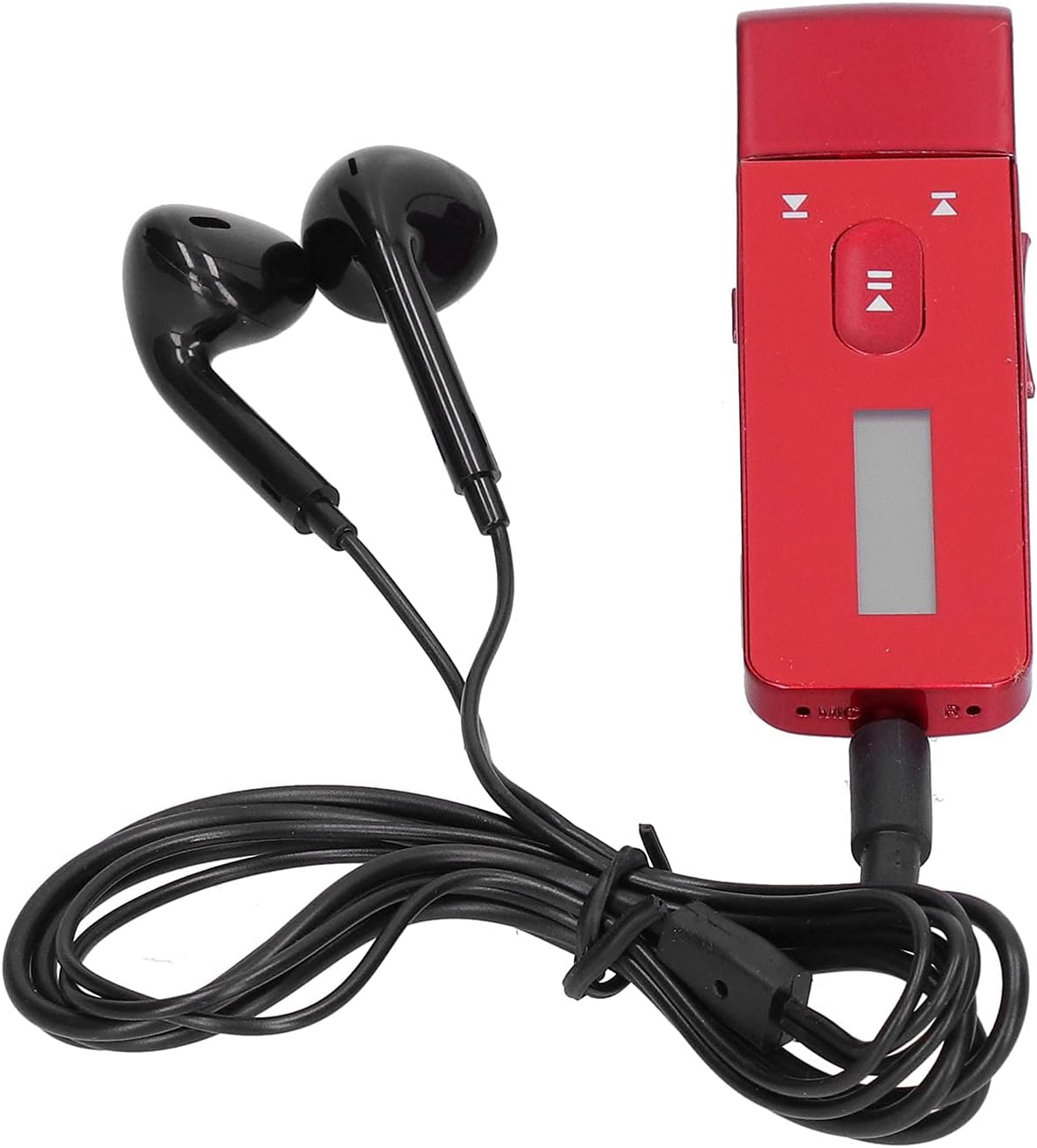
Image: The Cuifati Clip MP3 Player in red, shown with the black wired earphones connected. The player features a small display screen and control buttons on its front face.

Image: A detailed view of the MP3 player, highlighting its control buttons (play/pause, skip forward/backward) and the small display. Text overlays indicate support for multi-task operation, automatic upgrade, USB host function, and FM/recording functions.
- Middle Play Button: Press and hold to power on/off. Short press for play/pause.
- Volume Buttons: Typically located on the side or dedicated buttons for volume adjustment.
- Skip/Navigation Buttons: Used to navigate menus or skip tracks.
- USB Port: For charging and data transfer.
- Earphone Jack: For connecting the included earphones.
- Clip: Located on the back for attaching to clothing or straps.
3. Setup
3.1 Initial Charging
Before first use, fully charge the MP3 player. Connect the included USB cable to the player's USB port and the other end to a USB power adapter (not included) or a computer's USB port. The charging indicator will typically show progress and turn off when fully charged.
3.2 Connecting Earphones
Insert the 3.5mm jack of the earphones firmly into the earphone port on the MP3 player.
3.3 Transferring Music Files
Connect the MP3 player to your computer using the USB cable. The player will appear as a removable disk drive. You can then drag and drop your music files (WMA, MP3, APE, FLAC) directly into the player's storage. The device supports FAT16, FAT32, and EXFAT/FAT64 file systems.
4. Operating Instructions
4.1 Power On/Off
- To Power On: Press and hold the middle play button until the screen illuminates and the device starts.
- To Power Off: Press and hold the middle play button again until the screen turns off.
4.2 Music Playback
- Once powered on, navigate to the music playback mode.
- Use the skip buttons to browse through your music library.
- Press the middle play button to play or pause the current track.
- Adjust volume using the dedicated volume buttons.
4.3 Recording Function
The player supports recording in MP3 and WAV formats. Navigate to the recording function in the menu and follow the on-screen prompts to start, pause, and save recordings.
4.4 FM Radio
If supported, navigate to the FM radio function. The earphones act as an antenna. Use the navigation buttons to scan for stations or manually tune to a frequency.
4.5 Advanced Features
- USB Host Function: Allows the player to connect to other USB devices (e.g., flash drives) for data transfer.
- Multi-Task Operation: The device supports running multiple functions concurrently.
- Automatic Upgrade: The player can perform automatic firmware upgrades.
- ADFU Recovery & USB Upgrade Methods: Supports advanced recovery and upgrade procedures for system maintenance and DRM file upgrades.
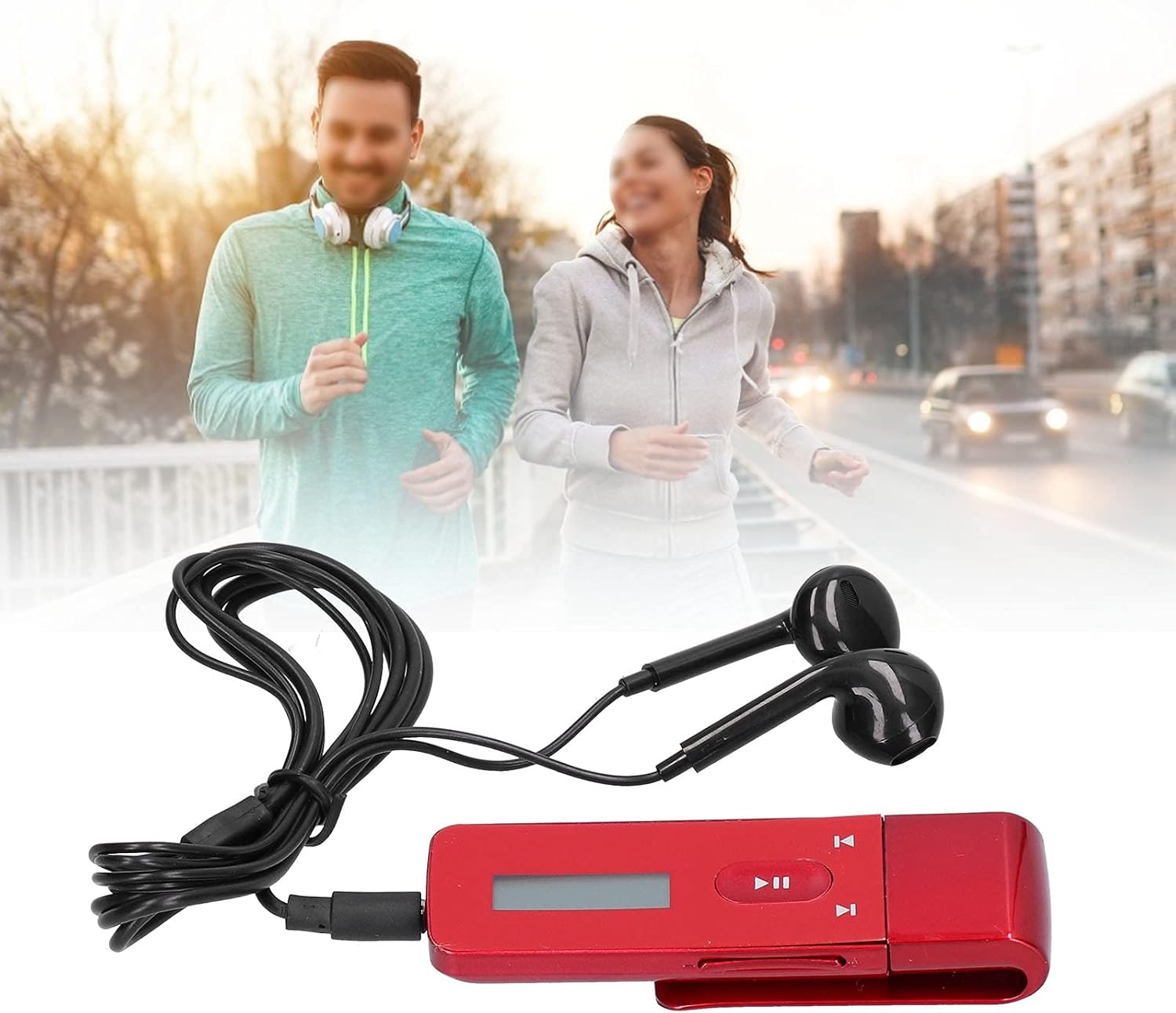
Image: A person running outdoors, demonstrating the portability and convenience of the Cuifati Clip MP3 Player, which is clipped to their clothing.
5. Maintenance
- Cleaning: Use a soft, dry cloth to clean the device. Avoid liquid cleaners or abrasive materials.
- Storage: Store the MP3 player in a cool, dry place away from direct sunlight and extreme temperatures.
- Battery Care: To prolong battery life, avoid fully discharging the battery frequently. Charge the device regularly, even if not in use for extended periods.
- Water Resistance: This device is not waterproof. Avoid exposure to water or high humidity.
6. Troubleshooting
6.1 Device Will Not Turn On
- Ensure the battery is charged. Connect the player to a power source and allow it to charge for at least 30 minutes before attempting to power on again.
- Press and hold the middle play button firmly for several seconds.
6.2 No Sound from Earphones
- Check if the earphones are fully plugged into the earphone jack.
- Ensure the volume is not set to minimum or muted.
- Test with another pair of earphones to rule out faulty earphones.
- Verify that the audio files are not corrupted or in an unsupported format.
6.3 Cannot Transfer Files
- Ensure the USB cable is securely connected to both the player and the computer.
- Try a different USB port on your computer.
- Verify that the player is recognized as a removable disk drive by your computer.
- Check if the player's storage is full.
7. Specifications
| Product Name | Clip MP3 Player |
| Model | CUIFATIydwevo68hz3574-12 |
| Material | ABS |
| Music Formats | WMA, MP3, APE, FLAC |
| Recording Formats | MP3, WAV |
| Radio Support | Yes |
| Battery Type | Built-in 240mAh Lithium Battery |
| Memory Storage | 8 GB |
| Connectivity | USB |
| Compatible File Systems | FAT16, FAT32, EXFAT/FAT64 |
| Color | Red |
8. Warranty and Support
This product comes with a standard manufacturer's warranty. For specific warranty terms and conditions, please refer to the documentation provided with your purchase or contact Cuifati customer support. If you encounter any issues not covered in this manual, please reach out to the seller or manufacturer for assistance.