
1. Introduction
This manual provides detailed instructions for the setup, operation, and maintenance of your Marvo M729W Wireless Gaming Mouse. Please read this guide thoroughly before using the product to ensure optimal performance and longevity. This device is designed for gaming and general computer use, offering wireless convenience and customizable features.
2. Package Contents
- Marvo M729W Wireless Gaming Mouse
- USB Wireless Receiver
- USB-C Charging Cable
- User Manual
3. Product Overview
Mouse Layout

The Marvo M729W Wireless Gaming Mouse features a sleek black design with integrated RGB lighting zones. It includes standard left and right click buttons, a scroll wheel, and a DPI adjustment button located centrally.

The side view of the Marvo M729W mouse highlights its ergonomic shape and the location of the USB wireless receiver, which is stored in a dedicated compartment on the underside for portability.
4. Setup
4.1 Connecting the Mouse
- Locate the USB wireless receiver. It is typically stored in a compartment on the underside of the mouse.
- Remove the USB receiver from its compartment.
- Plug the USB receiver into an available USB port on your computer.
- Turn on the mouse using the power switch located on the underside.
- Your computer should automatically detect and install the necessary drivers. The mouse is ready for use once detected.
4.2 Charging the Mouse
Before initial use, it is recommended to fully charge the mouse. The Marvo M729W features a 700 mAh rechargeable battery.

The side profile of the Marvo M729W mouse illustrates the USB-C charging port located at the front. Connect the provided USB-C cable here to charge the internal battery.
- Connect the small end of the USB-C charging cable to the charging port on the front of the mouse.
- Connect the larger USB-A end of the cable to a USB port on your computer or a USB wall adapter (not included).
- The mouse's RGB lighting may indicate charging status. Refer to the mouse's behavior for specific charging indicators.
- Once fully charged, disconnect the charging cable. The mouse can be used while charging.
5. Operating Instructions
5.1 Basic Functions
- Left Click Button: Primary action, selection.
- Right Click Button: Secondary action, context menus.
- Scroll Wheel: Scroll up/down, middle click.
- Forward/Backward Buttons: Navigate web pages or folders (located on the side).
- DPI Button: Adjusts mouse sensitivity.
5.2 DPI Adjustment
The Marvo M729W mouse features an adjustable DPI (Dots Per Inch) sensor, allowing you to change the cursor sensitivity to suit your preferences or game requirements. There are 6 adjustable levels up to 4800 DPI.

This image shows the top of the Marvo M729W mouse, clearly indicating the DPI button located below the scroll wheel. Pressing this button cycles through the available DPI settings.
To adjust the DPI, press the DPI button located below the scroll wheel. Each press will cycle through the preset DPI levels. The mouse's RGB lighting may change color or pattern to indicate the current DPI setting.
5.3 RGB Lighting Modes
The Marvo M729W mouse features dynamic RGB lighting with 7 different modes. These modes enhance the aesthetic appeal of the mouse. The lighting typically cycles automatically or can be changed by a specific button combination (if available, refer to product packaging for details not specified here). The lighting will turn off after 3 minutes of idling to conserve battery.
6. Maintenance
Proper maintenance ensures the longevity and performance of your gaming mouse.
- Cleaning: Use a soft, dry cloth to wipe the surface of the mouse. For stubborn dirt, a slightly damp cloth can be used, but ensure no moisture enters the mouse. Do not use harsh chemicals or abrasive cleaners.
- Sensor Care: Keep the optical sensor on the underside clean and free from dust or debris to ensure accurate tracking.
- Storage: When not in use for extended periods, store the mouse in a dry, cool place.
- Battery Care: Avoid fully discharging the battery frequently. Charge the mouse when the battery indicator suggests it.
7. Troubleshooting
If you encounter issues with your Marvo M729W mouse, refer to the following common solutions:
- Mouse not responding:
- Ensure the mouse is turned on.
- Check if the USB receiver is securely plugged into a working USB port. Try a different USB port.
- Ensure the mouse battery is charged. Connect the charging cable and try again.
- Move the mouse closer to the USB receiver to rule out interference.
- Erratic cursor movement:
- Clean the optical sensor on the underside of the mouse.
- Ensure you are using the mouse on a suitable surface (e.g., a mouse pad, not a reflective or transparent surface).
- Check for any wireless interference from other devices.
- RGB lighting not working:
- Ensure the mouse is powered on.
- The lighting turns off after 3 minutes of idling to save power. Move the mouse to reactivate.
- Check if the battery is low. Charge the mouse.
- Mouse not charging:
- Ensure the USB-C cable is properly connected to both the mouse and the power source.
- Try a different USB port or charging adapter.
- Verify the charging cable is not damaged.
8. Specifications
Below are the technical specifications for the Marvo M729W Wireless Gaming Mouse:
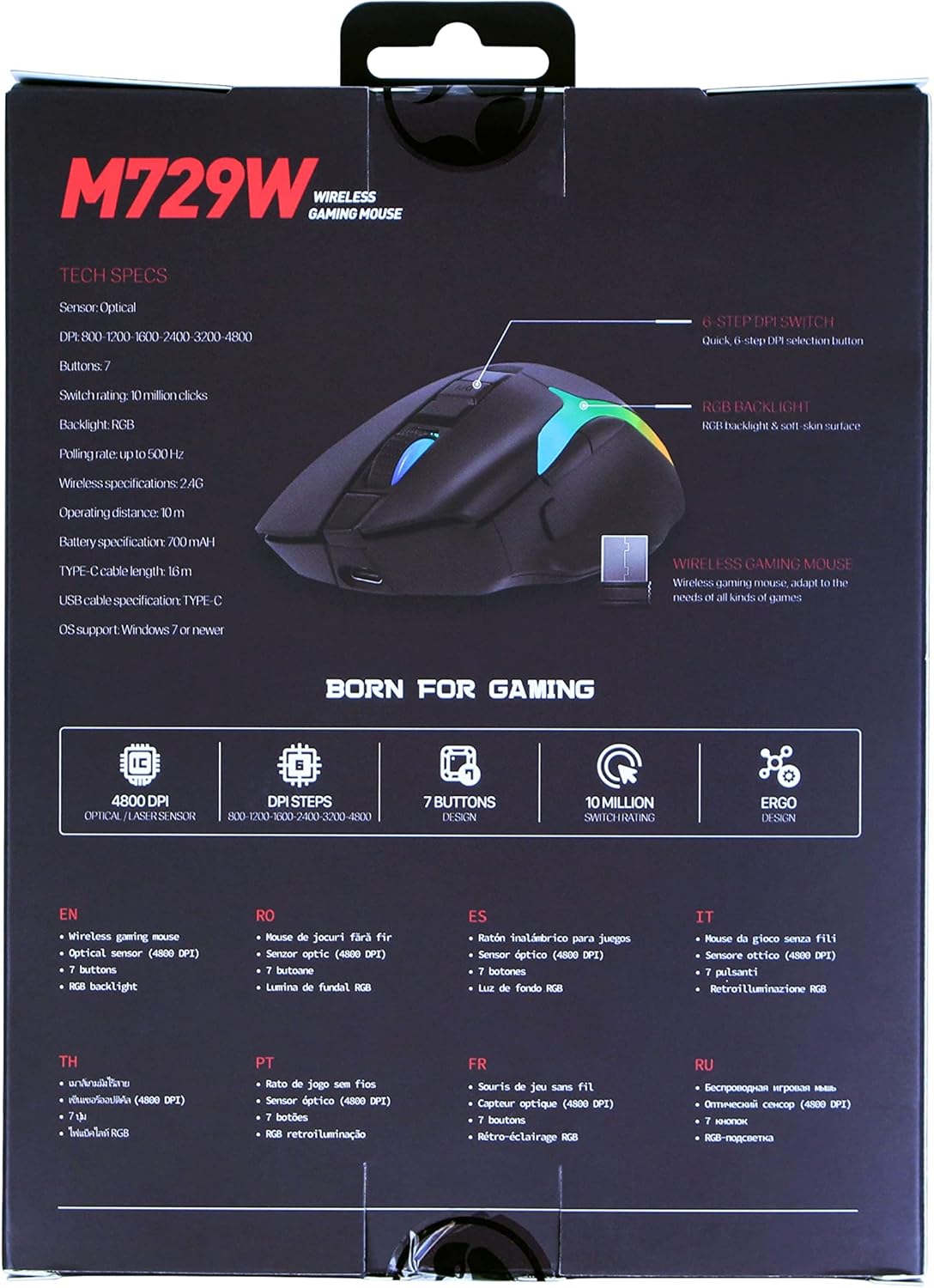
The back of the Marvo M729W product packaging displays key technical specifications and features in multiple languages, including DPI settings, button count, and battery information.
| Feature | Specification |
|---|---|
| Model | M729W |
| Brand | MARVO |
| Connectivity | Wireless (USB Receiver) |
| Sensor Type | Optical |
| DPI (Dots Per Inch) | Up to 4800 DPI (6 adjustable levels) |
| Number of Buttons | 7 |
| Switch Rating | 10 Million Clicks |
| Polling Rate | Up to 500Hz |
| Battery Type | Rechargeable Lithium-ion |
| Battery Capacity | 700 mAh |
| Charging Port | USB-C |
| Cable Length | 1.6m (USB-C to USB-A) |
| RGB Lighting | 7 Modes |
| Hand Orientation | Ambidextrous |
| OS Support | Windows 7 or newer |
9. Warranty Information
The Marvo M729W Wireless Gaming Mouse is covered by a standard return policy, typically offering a 31-day refund or replacement period from the date of purchase. This warranty covers manufacturing defects and malfunctions under normal use. It does not cover damage caused by misuse, accidents, unauthorized modifications, or normal wear and tear. Please retain your proof of purchase for any warranty claims.
10. Support
For technical support, warranty claims, or further assistance with your Marvo M729W Wireless Gaming Mouse, please contact Marvo customer service through their official website or the retailer from whom you purchased the product. Please have your product model number (M729W) and proof of purchase ready when contacting support.


