
Cudy LT18
Cudy LT18 4G LTE Cat 18 WiFi 6 Router
User Instruction Manual
1. Product Overview
The Cudy LT18 is a high-performance 4G LTE Cat 18 WiFi 6 Router designed to provide fast and reliable internet connectivity. It features a Qualcomm Chipset, 4x4 MIMO technology, AX1800 Wi-Fi, and supports various VPN protocols. With dual SIM card slots and detachable antennas, it offers flexibility for diverse networking needs.

Figure 1.1: Front view of the Cudy LT18 Router with antennas and indicator lights.

Figure 1.2: Angled view of the Cudy LT18 Router, showcasing its design and multiple antennas.
2. Package Contents
Verify the following items are included in your package:
- Cudy LT18 4G LTE Cat 18 WiFi 6 Router
- Power Adapter
- Ethernet Cable
- Quick Installation Guide
- Detachable Antennas (quantity may vary, typically 4-6)
3. Hardware Overview
Familiarize yourself with the ports, buttons, and indicators on your Cudy LT18 router.
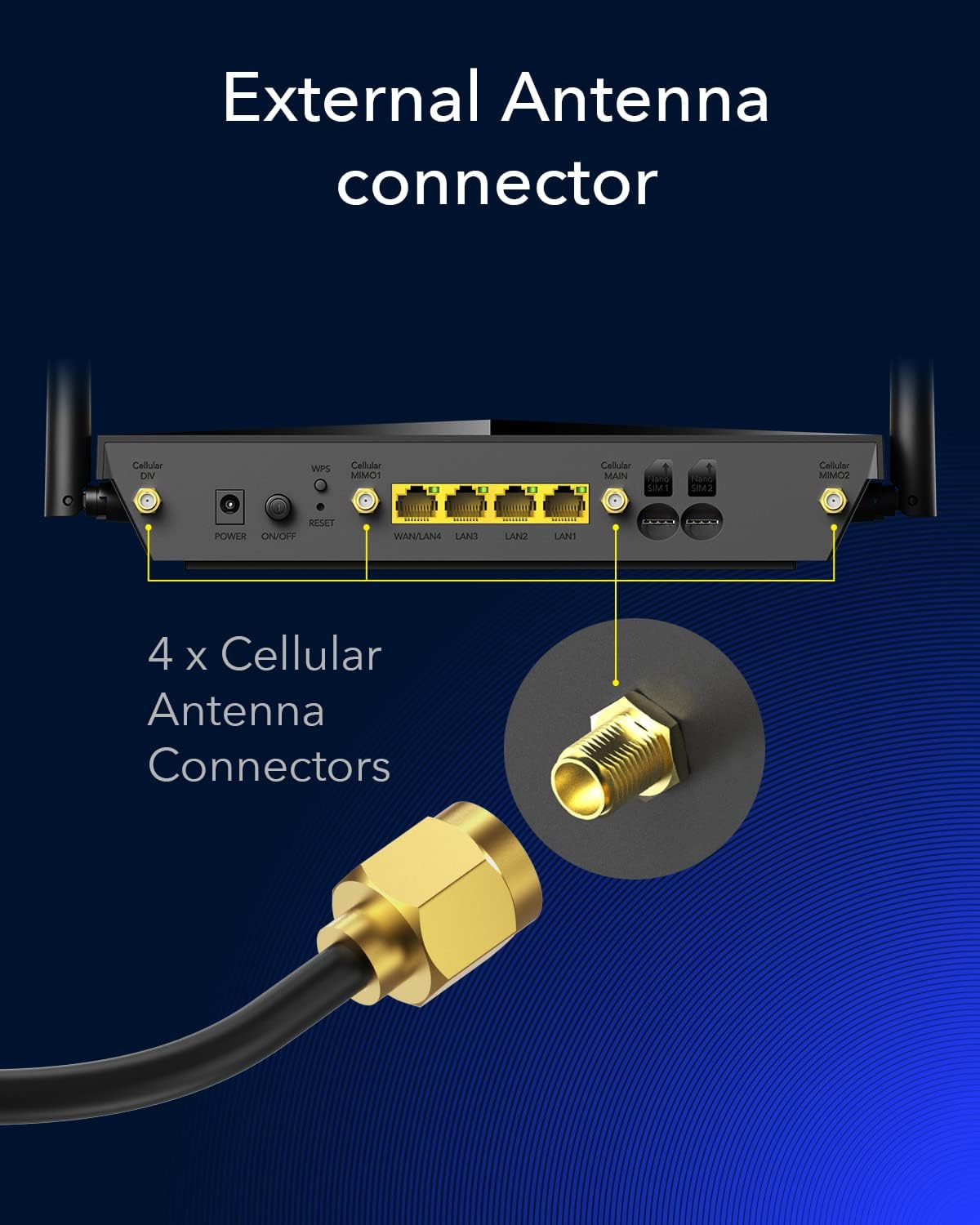
Figure 3.1: Rear panel of the Cudy LT18 Router showing power, on/off, reset, WAN/LAN ports, and cellular antenna connectors.
3.1. Ports and Buttons
- Power Port: Connects to the included power adapter.
- ON/OFF Button: Powers the device on or off.
- Reset Button: Press and hold for 5-10 seconds to restore factory default settings.
- WAN/LAN Ports: Four Gigabit Ethernet ports. One port can function as a WAN port for wired internet input or as a LAN port. The remaining three are dedicated LAN ports.
- Cellular Antenna Connectors: Four SMA ports for connecting the detachable 4G LTE antennas.
- SIM Card Slots: Two Nano SIM card slots for primary and secondary cellular connections.
3.2. LED Indicators
- Power LED: Indicates power status.
- Internet LED: Indicates internet connection status.
- Wi-Fi LED: Indicates Wi-Fi network status.
- Signal Strength LEDs: Indicate the strength of the cellular signal.
4. Setup Guide
Follow these steps to set up your Cudy LT18 router.
4.1. Hardware Installation
- Install SIM Card(s): Insert your Nano SIM card(s) into the designated SIM card slots on the router. Ensure the SIM card is inserted correctly according to the diagram near the slots. The router supports dual SIM for redundancy.
- Attach Antennas: Screw the four detachable cellular antennas onto the SMA connectors at the rear of the router. Adjust their orientation for optimal signal reception.
- Connect Power: Connect the power adapter to the router's power port and plug it into a power outlet. Press the ON/OFF button to power on the router.
- Wait for Initialization: Allow a few minutes for the router to power on and initialize. The LED indicators will light up as the router establishes connections.

Figure 4.1: Features including redundant SIM slots, WAN Internet Cellular Backup, 4G Band Lock, TTL Settings, and DNS over TLS.
4.2. Initial Configuration (Web Interface)
- Connect to the Router: Connect your computer to the router via an Ethernet cable (to any LAN port) or wirelessly using the default Wi-Fi SSID and password printed on the router's label.
- Access Web Interface: Open a web browser and enter the default IP address (e.g.,
192.168.10.1) into the address bar. - Login: Enter the default username and password (usually
adminfor both, check the router's label or quick installation guide). - Follow Setup Wizard: The first time you log in, a setup wizard may guide you through basic settings such as changing the login password, setting up Wi-Fi, and configuring internet connection type (if not automatically detected).
- Verify Internet Connection: Once configured, check the internet LED on the router and try accessing a website to confirm connectivity.
5. Operating Instructions
This section details various operational aspects and advanced features of the Cudy LT18 router.
5.1. Wi-Fi Connectivity
The LT18 supports Wi-Fi 6 (802.11ax) for improved performance and capacity.

Figure 5.1: Benefits of WiFi 6 technology, including increased capacity and data throughput.
- Connecting Devices: Connect your wireless devices (smartphones, tablets, laptops) to the router's Wi-Fi network using the SSID and password configured during setup.
- Dual-Band Support: The router operates on both 2.4 GHz and 5 GHz bands. For optimal performance, connect devices supporting 5 GHz to the 5 GHz network.
5.2. Dual SIM and WAN Backup
The LT18 offers flexible internet backup options.
- Dual SIM Failover: Configure the router to automatically switch between SIM cards if one loses connection or exceeds a data limit.
- WAN Internet Cellular Backup: Use an Ethernet connection as the primary internet source and the cellular connection as a backup, or vice-versa. This ensures continuous internet access.
5.3. Advanced Cellular Features
- 4G Band Lock: In areas with multiple cellular bands, you can manually select specific LTE bands to optimize signal strength and speed. This can be useful for avoiding congested bands.
- TTL Settings: Adjust the Time-To-Live (TTL) value to prevent cellular carriers from detecting router usage, which can be beneficial for certain data plans.
- DNS over TLS: Enhance privacy and security by encrypting DNS queries. The router supports Cloudflare, Google, and Quad9 DNS servers.
5.4. VPN Support
The Cudy LT18 supports multiple VPN protocols for secure and private network access.

Figure 5.2: Various VPN protocols supported by the Cudy LT18 router.
- Supported Protocols: OpenVPN, WireGuard, ZeroTier, L2TP, and PPTP.
- Configuration: Access the VPN settings in the web interface to configure VPN client or server connections.
5.5. Cudy App and Mesh System
- Cudy App: Manage your router settings and network from your smartphone using the Cudy App.
- Cudy Mesh: The LT18 can be integrated into a Cudy Mesh system to create a seamless whole-home Wi-Fi network. This extends coverage and eliminates Wi-Fi dead zones.
6. Maintenance
Regular maintenance ensures optimal performance and longevity of your router.
- Firmware Updates: Periodically check the Cudy official website for the latest firmware updates. Updating firmware can improve performance, add new features, and fix bugs.
- Router Placement: Place the router in a central location, away from obstructions and sources of interference (e.g., microwaves, cordless phones) to maximize Wi-Fi coverage.
- Regular Restart: Restarting the router periodically (e.g., once a month) can help clear its memory and resolve minor network issues.
- Cleaning: Keep the router clean and free from dust buildup. Use a soft, dry cloth for cleaning.
7. Troubleshooting
This section addresses common issues you might encounter.
- No Internet Connection:
- Check if the SIM card is properly inserted and activated.
- Verify that the cellular signal strength LEDs are lit.
- Ensure the APN settings are correct in the router's web interface.
- If using WAN backup, check the primary internet source (e.g., Ethernet cable connection).
- Slow Internet Speed:
- Adjust antenna orientation for better signal reception.
- Try using the 4G Band Lock feature to select less congested bands.
- Ensure your devices are connected to the appropriate Wi-Fi band (5 GHz for faster speeds).
- Check for firmware updates.
- Wi-Fi Disconnections:
- Relocate the router to minimize interference.
- Ensure the router's firmware is up to date.
- Consider using the Cudy Mesh system for extended and stable coverage.
- Cannot Access Web Interface:
- Verify your computer is connected to the router (wired or wireless).
- Ensure you are using the correct IP address (default is
192.168.10.1). - Try clearing your browser's cache or using a different browser.
- If you forgot the password, perform a factory reset using the reset button.
8. Specifications
| Feature | Detail |
|---|---|
| Model Number | LT18 |
| Product Dimensions | 6.34 x 1.9 x 9.94 inches |
| Item Weight | 1.98 pounds (0.9 Kilograms) |
| Wireless Communication Standard | 802.11ax (Wi-Fi 6) |
| Frequency Band Class | Dual-Band (2.4 GHz & 5 GHz) |
| 4G LTE Category | Cat 18 (Up to 1.2Gbps Download) |
| MIMO Support | 4x4 MIMO |
| Ethernet Ports | 4 x Gigabit (1 WAN/LAN, 3 LAN) |
| SIM Card Slots | Dual Nano SIM |
| VPN Support | OpenVPN, WireGuard, ZeroTier, L2TP, PPTP |
| Operating System | RouterOS (Customized Cudy Firmware) |
| Security Protocol | WPS |
| Manufacturer | Shenzhen Cudy Technology Co., Ltd. |
9. Warranty and Support
9.1. Warranty Information
For detailed warranty information, please refer to the warranty card included with your product or visit the official Cudy website.
9.2. Technical Support
If you encounter issues not covered in this manual or require further assistance, please contact Cudy technical support through their official website or refer to the resources below:
- Official Cudy Store: Visit the Cudy Store on Amazon
- Installation Manual (PDF): Download PDF Manual
Related Documents - LT18
 |
Cudy 4G LTE Router Quick Installation Guide A concise guide to installing, setting up, and customizing your Cudy 4G LTE router. Includes package contents, quick installation steps, configuration, firmware updates, and troubleshooting. |
 |
Cudy 4G/5G Router Quick Installation Guide Comprehensive guide for setting up Cudy 4G/5G routers, covering antenna installation, SIM card insertion, power connection, LED status, network configuration via Wi-Fi or Ethernet, and SIM PIN entry. Includes EU Declaration of Conformity and support information. |
 |
Cudy LT400 4G LTE Router Quick Installation Guide A quick installation guide for the Cudy LT400 4G LTE Router, covering setup, customization, and troubleshooting. |
 |
Cudy 4G LTE Router Quick Installation Guide for LT18 and P5 Models Step-by-step instructions for installing and setting up your Cudy 4G LTE router, including SIM card insertion, network connection, customization, and firmware upgrades. Learn how to get your Cudy router online quickly and efficiently. |
 |
Cudy X6 AX1800 Wi-Fi 6 Router Quick Installation Guide Get your Cudy X6 AX1800 Wi-Fi 6 Router up and running quickly with this comprehensive installation guide. Learn how to connect your modem, set up your network, understand LED indicators, and find answers to common questions. |
 |
Cudy 4G LTE Router Quick Installation Guide Step-by-step guide to install and configure your Cudy 4G LTE router, including SIM card insertion, network setup, LED indicators, and troubleshooting. |