
1. Introduction
This manual provides instructions for the USARMT Gaming Media Remote Control, designed for use with Xbox systems, including Xbox Series X|S and Xbox One, as well as controlling Blu-ray players and streaming media applications. This remote offers a traditional TV remote layout for convenient navigation and media playback control.
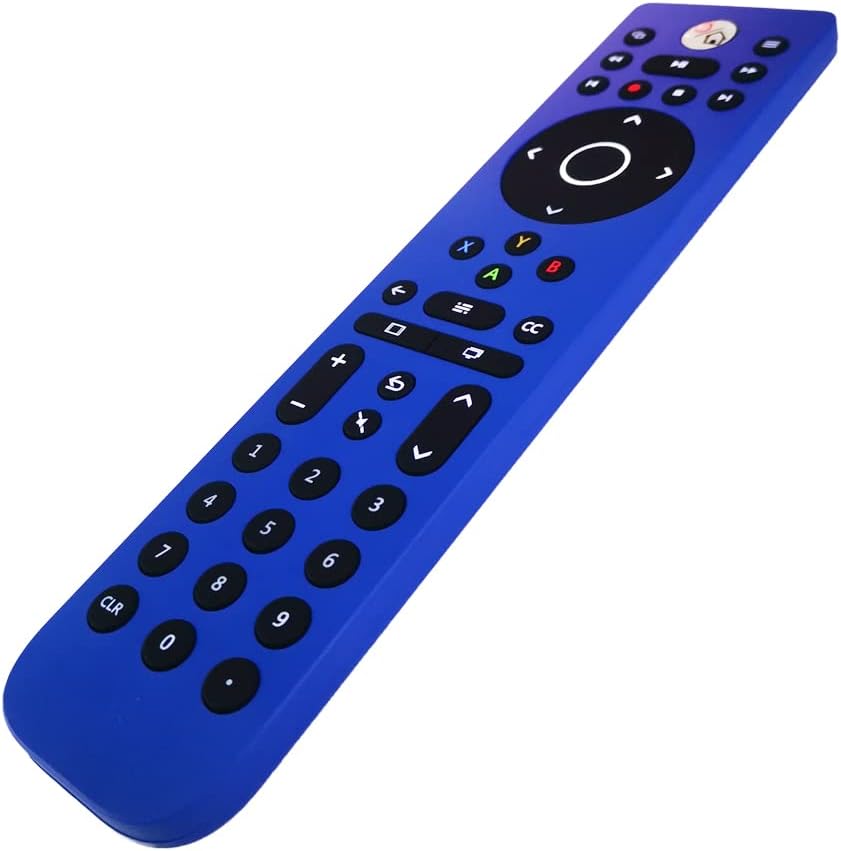
Figure 1: Angled view of the USARMT Gaming Media Remote Control.
2. Setup
The USARMT Gaming Media Remote Control is preprogrammed and does not require additional setup or programming for use with compatible Xbox systems. To begin using the remote, simply install the required batteries.
2.1 Battery Installation
- Locate the battery compartment cover on the back of the remote control.
- Slide the cover downwards or press the latch (if present) to open the compartment.
- Insert two AAA batteries (not included) into the compartment, ensuring the positive (+) and negative (-) terminals align correctly with the indicators inside.
- Replace the battery compartment cover by sliding it back into place until it clicks securely.
Note: Batteries are not included and must be purchased separately. Always use fresh batteries for optimal performance.
3. Operating Instructions
The remote control features a traditional layout for easy navigation and media control. Its motion-activated backlit buttons illuminate in low-light conditions for improved visibility.

Figure 2: Front view of the remote control, highlighting button layout.
3.1 Basic Functions
- Power Button: Located at the top, used to power on/off your Xbox system.
- D-pad (Directional Pad): Central circular pad for navigating menus and selections.
- A, B, X, Y Buttons: Standard Xbox control buttons for in-game actions and menu selections.
- Volume Controls (+/-): Adjusts the volume of your connected TV or audio system.
- Channel/Page Up/Down: For navigating channels or pages in certain applications.
- Media Playback Controls: Includes Play, Pause, Fast Forward, Rewind, Skip Forward, and Skip Back buttons for controlling video and music playback.
- Back Button: Returns to the previous screen or menu.
- Menu Button: Accesses context-sensitive menus.
- Number Pad (0-9, CLR, .): For direct input in certain applications or for channel selection.
3.2 Motion-Activated Backlight
The remote features motion-activated backlit buttons. When the remote is moved or picked up in a dimly lit environment, the buttons will illuminate automatically, making it easier to operate in the dark. The backlight will turn off after a period of inactivity to conserve battery life.
4. Maintenance
Proper care and maintenance will ensure the longevity and optimal performance of your remote control.
4.1 Cleaning
- Wipe the remote control with a soft, dry cloth.
- Do not use abrasive cleaners, solvents, or harsh chemicals, as these can damage the remote's surface or internal components.
4.2 Battery Replacement
Replace the batteries when the remote's responsiveness decreases or the backlight functionality becomes inconsistent. Refer to Section 2.1 for battery installation instructions. Always dispose of used batteries responsibly according to local regulations.
4.3 Storage
When not in use for extended periods, store the remote in a cool, dry place away from direct sunlight and extreme temperatures. If storing for several months, it is advisable to remove the batteries to prevent leakage.
5. Troubleshooting
If you encounter issues with your USARMT Gaming Media Remote Control, refer to the following troubleshooting steps:
- Remote not responding:
- Ensure fresh batteries are correctly installed.
- Check for any obstructions between the remote and your Xbox system or TV. The remote requires a clear line of sight.
- Verify that the remote is pointed directly at the device you intend to control.
- Backlight not activating:
- Check battery levels. Low batteries may affect backlight functionality.
- Ensure the environment is sufficiently dark for the motion sensor to activate the backlight.
- Remote not controlling Xbox or other devices:
- Confirm that the remote is compatible with your specific Xbox model (Xbox Series X|S, Xbox One).
- As the remote is preprogrammed, no pairing process is typically required. If issues persist, try replacing the batteries.
- Ensure your Xbox system's IR receiver is not blocked.
If these steps do not resolve the issue, please contact customer support for further assistance.
6. Specifications
| Feature | Detail |
|---|---|
| Product Dimensions | 7 x 2 x 0.5 inches |
| Item Weight | 3 ounces |
| Compatible Devices | Xbox Series X|S, Xbox One, Blu-Ray, Streaming Media, Television |
| Special Feature | Ergonomic, Motion-activated Backlit Buttons |
| Power Source | 2 x AAA Batteries (not included) |
7. Warranty and Support
For warranty information or technical support, please contact USARMT customer service through the retailer where the product was purchased or refer to the official USARMT website for contact details. Please have your product model number (B09NCF1N1K) available when contacting support.