Introduction
The BTXETUEL O2L RGB is a compact, 2-key programmable mechanical keypad designed for macros and rhythm games, such as OSU!. It features hot-swappable Cherry Red Switches and full RGB backlighting, offering a customizable and responsive experience. This keypad functions as a standard Human Interface Device (HID) and is plug-and-play compatible with most systems. Its internal memory allows it to retain programmed settings even when connected to different computers.
This manual provides comprehensive instructions for setting up, operating, and maintaining your O2L RGB keypad, along with troubleshooting tips and product specifications.
Package Contents
Please verify that all items listed below are included in your package:
- 1 x BTXETUEL O2L RGB Mini 2-Key Black Keypad
- 1 x 5-inch long USB Data Cable
- 1 x Keycap Puller
- 1 x Instruction Manual (this document)

Image: Front view of the BTXETUEL O2L RGB Mini 2-Key Keypad, showcasing its compact design and vibrant RGB lighting along the base.
Setup Guide
- Connect the Keypad: Insert the smaller end of the provided USB data cable into the micro-USB port on the keypad. Connect the standard USB-A end of the cable to an available USB port on your computer.
- Automatic Recognition: The keypad is a standard HID device and should be recognized automatically by your operating system (Windows, macOS, Linux) without requiring additional drivers for basic functionality.
- Software Installation for Programming: To program the keypad with custom macros or functions, dedicated software is required.
- For Windows Users: The programming software is primarily designed for Windows. You can download the latest version from: https://dl.sayobot.cn/setting.zip.
Note: Your Windows Firewall might issue a warning when launching the software. This is normal; the software is safe.
- For macOS/Linux Users: The keypad must be programmed on a Windows system first. Once programmed, the settings are saved directly onto the device, allowing it to function with the custom settings on macOS or Linux systems without needing the software installed on those platforms.
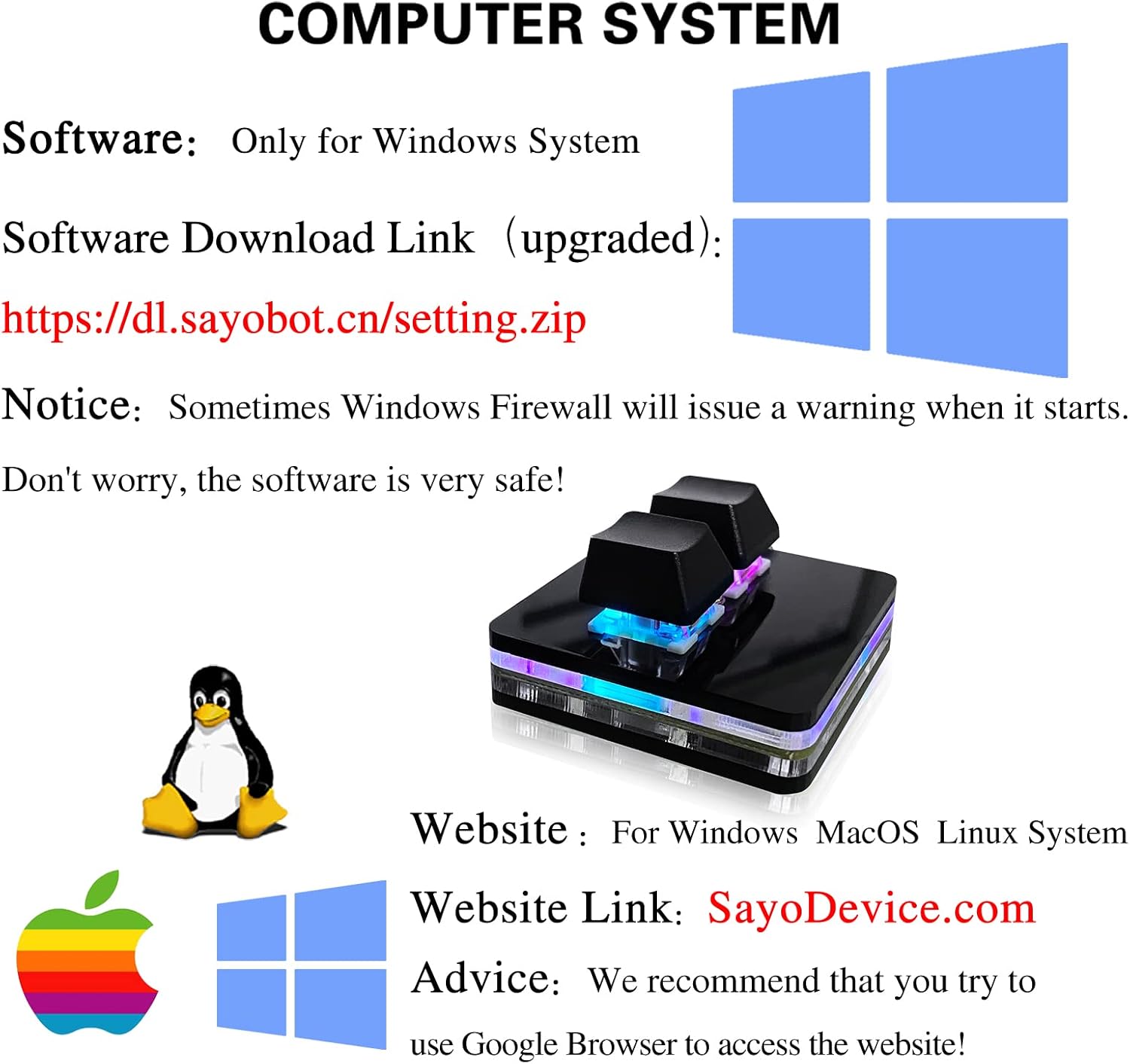
Image: Diagram illustrating software compatibility, showing the Windows-only programming software download link and the general website for Windows, macOS, and Linux users.

Image: The 2-key keypad connected via its USB cable to a laptop, demonstrating its compact size and ease of connection.
Operating Instructions
Programming the Keypad
The programming application for the O2L RGB keypad is designed to be user-friendly with an understandable English translation. It allows you to assign various functions to each of the two keys independently.
- Standard Macros: Assign complex key combinations or sequences to a single press.
- Mouse Simulation: Configure keys to simulate mouse clicks or movements.
- Multimedia Controls: Set keys for volume control, play/pause, etc.
- Single Key Assignment: Map any standard keyboard key.
After programming, the settings are stored directly on the keypad's internal memory. This means you do not need to re-program the device when connecting it to a different computer, or if you switch operating systems (e.g., from Windows to macOS or Linux) after initial programming on Windows.
Using the Keypad
Once programmed, the keypad functions as a dedicated input device for your assigned tasks. It is particularly effective for:
- Rhythm Games: Enhance your gameplay in titles like OSU! by assigning specific actions to the two keys for quick and precise input.
- Productivity Macros: Streamline workflows in applications by triggering frequently used commands or text snippets with a single key press.
- Custom Shortcuts: Create personalized shortcuts for any software or operating system function.

Image: The 2-key keypad positioned next to a gaming setup, actively being used to play a rhythm game (OSU!) on a monitor.
Maintenance
To ensure the longevity and optimal performance of your BTXETUEL O2L RGB keypad, follow these simple maintenance guidelines:
- Cleaning: Use a soft, dry cloth to wipe down the keypad's surface. For stubborn dirt, slightly dampen the cloth with water or a mild, non-abrasive cleaner. Avoid excessive moisture.
- Keycap Removal: Use the provided keycap puller to safely remove keycaps for cleaning or switch replacement. Gently pull straight up to avoid damaging the switch stem.
- Switch Care: The keypad features hot-swappable switches. If a switch needs replacement, carefully pull it out using a switch puller (not included, but often comes with switch sets) and insert a new compatible switch, ensuring the pins align correctly.
- Storage: When not in use, store the keypad in a clean, dry environment away from direct sunlight and extreme temperatures.
- Avoid Liquids: Do not expose the keypad to liquids. Spills can cause internal damage.
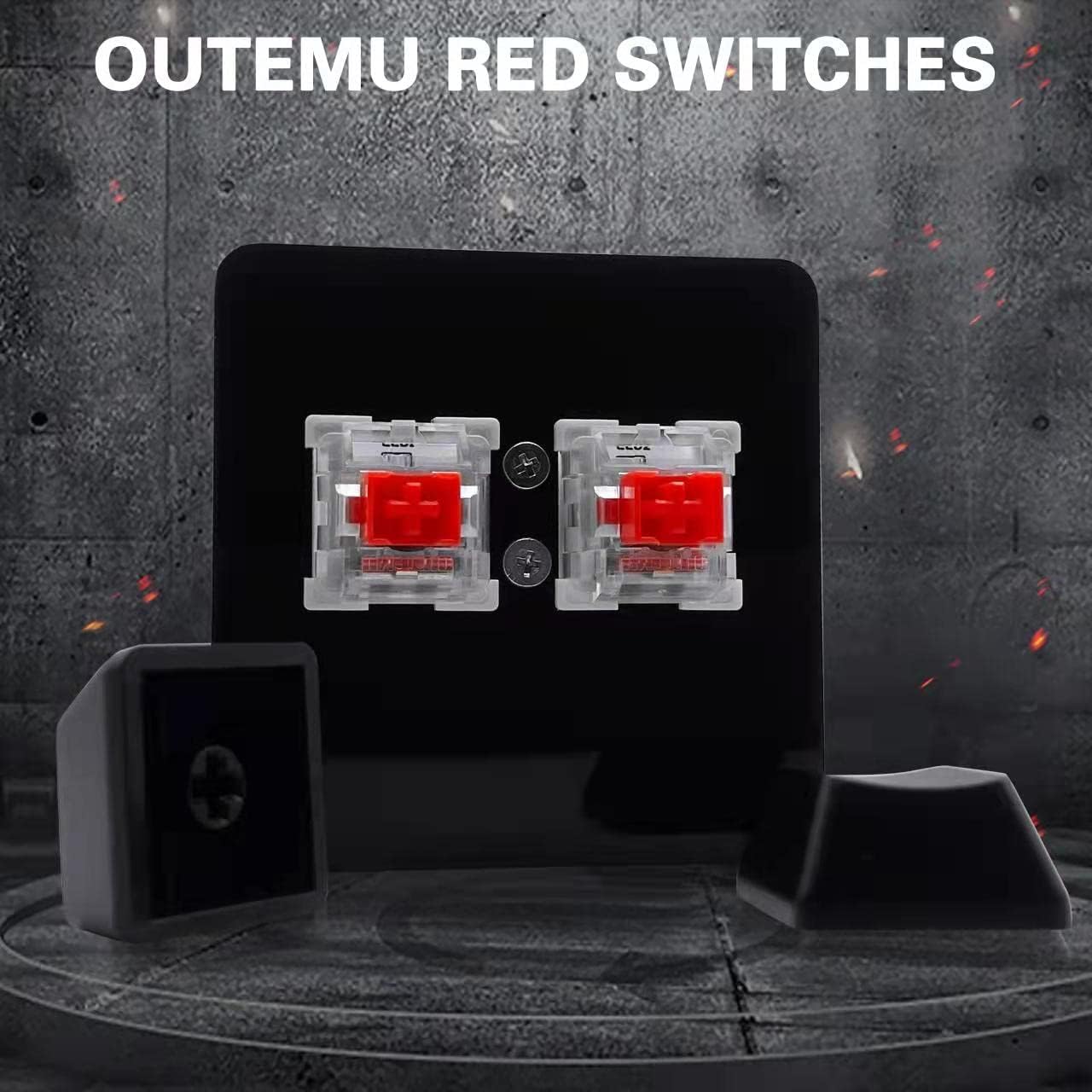
Image: A close-up view of the Outemu Red mechanical switches on the keypad, with keycaps removed, highlighting their design and hot-swappable nature.
Troubleshooting
If you encounter any issues with your O2L RGB keypad, please refer to the following common problems and solutions:
- Keypad Not Responding:
- Ensure the USB cable is securely connected to both the keypad and your computer.
- Try connecting the keypad to a different USB port on your computer.
- Test the keypad on another computer to rule out system-specific issues.
- Programming Software Warning (Windows):
- As noted in the Setup Guide, Windows Firewall may issue a warning. This is normal. You can safely proceed with running the software.
- Ensure your antivirus software is not blocking the application. Temporarily disable it if necessary, then re-enable after installation/programming.
- Keypad Not Working on macOS/Linux After Programming:
- Confirm that the keypad was successfully programmed on a Windows system. The settings are stored on the device itself.
- Ensure the keypad is properly connected via USB.
- Incorrect Key Output:
- Re-open the programming software and verify that the desired functions are correctly assigned to each key.
- Save the settings to the device after making changes.
If these steps do not resolve your issue, please contact customer support for further assistance.
Specifications
Detailed specifications for the BTXETUEL O2L RGB 2-Key Keypad:
| Feature | Detail |
|---|---|
| Model Number | O2L RGB |
| Keys | 2 Programmable Keys |
| Switch Type | Hot-swappable Outemu Red Mechanical Switches |
| Backlighting | Full RGB |
| Connectivity | USB (Wired) |
| Interface | HID Standard Keyboard |
| Compatibility | PC (Windows for programming; Windows, macOS, Linux for use) |
| Product Dimensions | 2 x 2 x 1.2 inches (5.08 x 5.08 x 3.05 cm) |
| Item Weight | 2 ounces (56.7 grams) |
| Response Rate | 1ms@1000Hz |

Image: Detailed diagram showing the dimensions of the mini 2-key keyboard, along with key specifications such as weight, switch type (Outemu Red), backlight (RGB), and response rate (1ms@1000Hz).
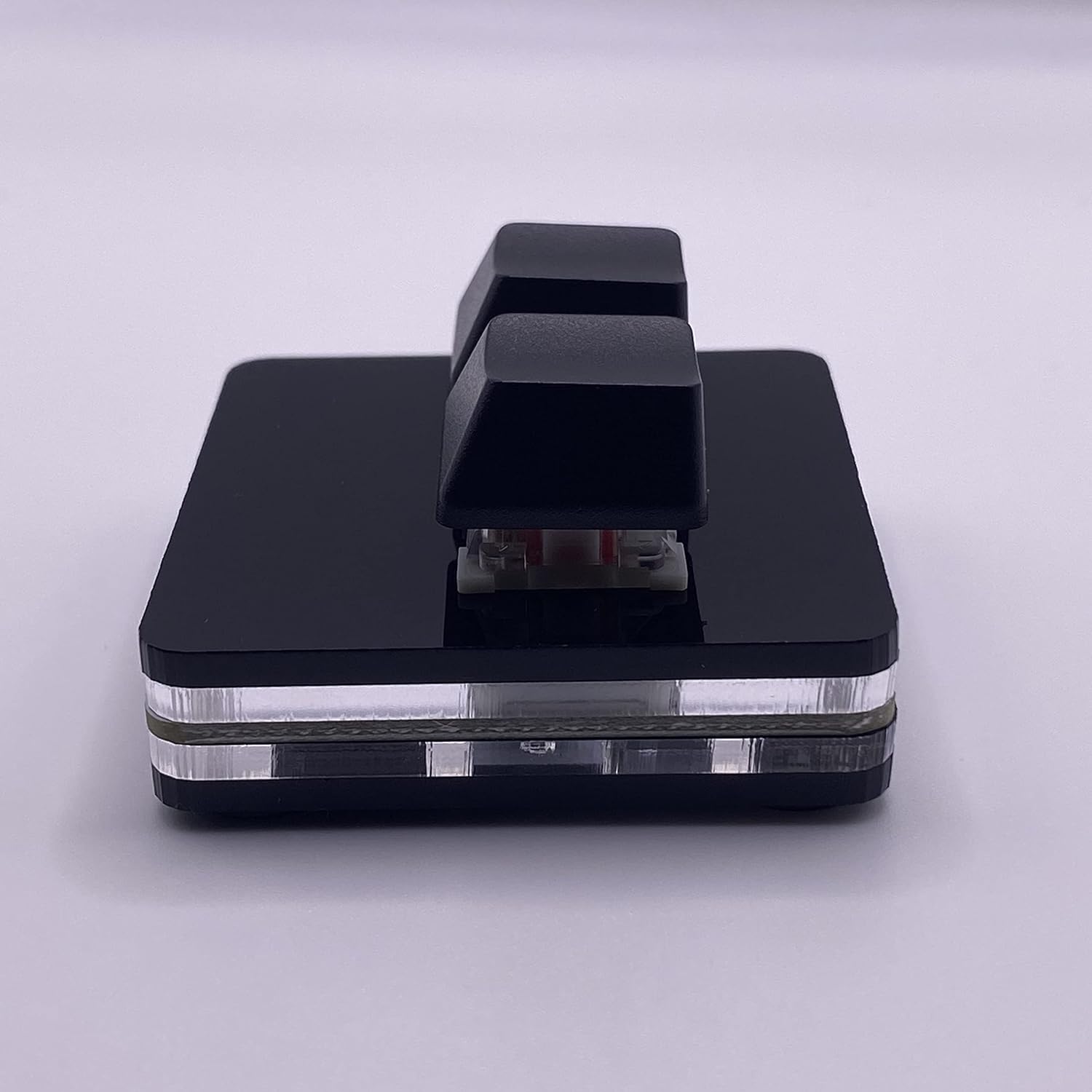
Image: Side profile view of the 2-key keypad, highlighting its layered construction and compact form factor.
Customer Support
For any questions, technical assistance, or issues not covered in this manual, please do not hesitate to contact BTXETUEL customer support. We are committed to helping you resolve any problems as quickly as possible.
Please refer to the contact information provided on the product packaging or the official BTXETUEL website for the most current support channels.


