
1. Introduction
This manual provides detailed instructions for the RedThunder K84 Mini Gaming Keyboard. Please read this guide thoroughly to ensure proper setup, operation, and maintenance of your keyboard. The K84 is an 84-key, 75% layout wired keyboard designed for gaming and general use, featuring RGB LED lighting and a comfortable ergonomic design.

Image: The RedThunder K84 Mini Gaming Keyboard showcasing its 75% layout, RGB LED backlight, 26-key anti-ghosting, and Type-C detachable cable.
2. Package Contents
- RedThunder K84 Mini Gaming Keyboard
- USB Type-C Cable
- User Manual
3. Setup Instructions
3.1 Connecting the Keyboard
- Locate the USB Type-C port on the back of the keyboard.
- Connect one end of the provided USB Type-C cable to the keyboard's port.
- Connect the other end of the USB cable to an available USB port on your computer (PC, Mac), gaming console (PS4, PS5, XBOX), or other compatible device.
- The keyboard is plug-and-play and does not require additional driver installation. It should be recognized automatically by your operating system.

Image: A close-up view of the USB Type-C port on the keyboard, indicating where to connect the cable.
3.2 Adjusting Keyboard Angle
The keyboard features an adjustable stand on the underside to customize the typing angle for improved comfort. Flip out the stands to raise the back of the keyboard.

Image: Side view of the keyboard with its adjustable stand extended, providing ergonomic comfort support.
4. Operating Instructions
4.1 Basic Keyboard Functions
The K84 keyboard operates like a standard 84-key layout keyboard. Simply type as you normally would. The 75% layout retains essential keys like arrow keys and dedicated media keys for convenience.

Image: The 84-key layout of the RedThunder K84 keyboard, demonstrating its compact size while retaining 99% of standard keyboard functions.
4.2 RGB Lighting Control
The K84 keyboard features dynamic RGB backlighting with multiple modes and customization options. Use the following key combinations with the FN key to adjust the lighting:
- FN + \|: Switch between different RGB breathing modes.
- FN + ]}: Change the light color within a mode.
- FN + [{: Turn the backlight on or off.
- FN + ↑: Increase backlight brightness.
- FN + ↓: Decrease backlight brightness.
- FN + ←: Decrease light speed (for dynamic modes).
- FN + →: Increase light speed (for dynamic modes).

Image: The RedThunder K84 keyboard displaying different RGB lighting effects, with visual cues for switching breathing modes, light colors, and adjusting brightness.
4.3 Function Key Combinations
The K84 keyboard utilizes FN key combinations to access secondary functions printed on the keycaps. For example, FN + F1 through F12 may control media playback, volume, or other system functions depending on your operating system.
The keyboard features fast membrane keys designed to provide a tactile sensation similar to mechanical keyboards, while maintaining a quiet operation.
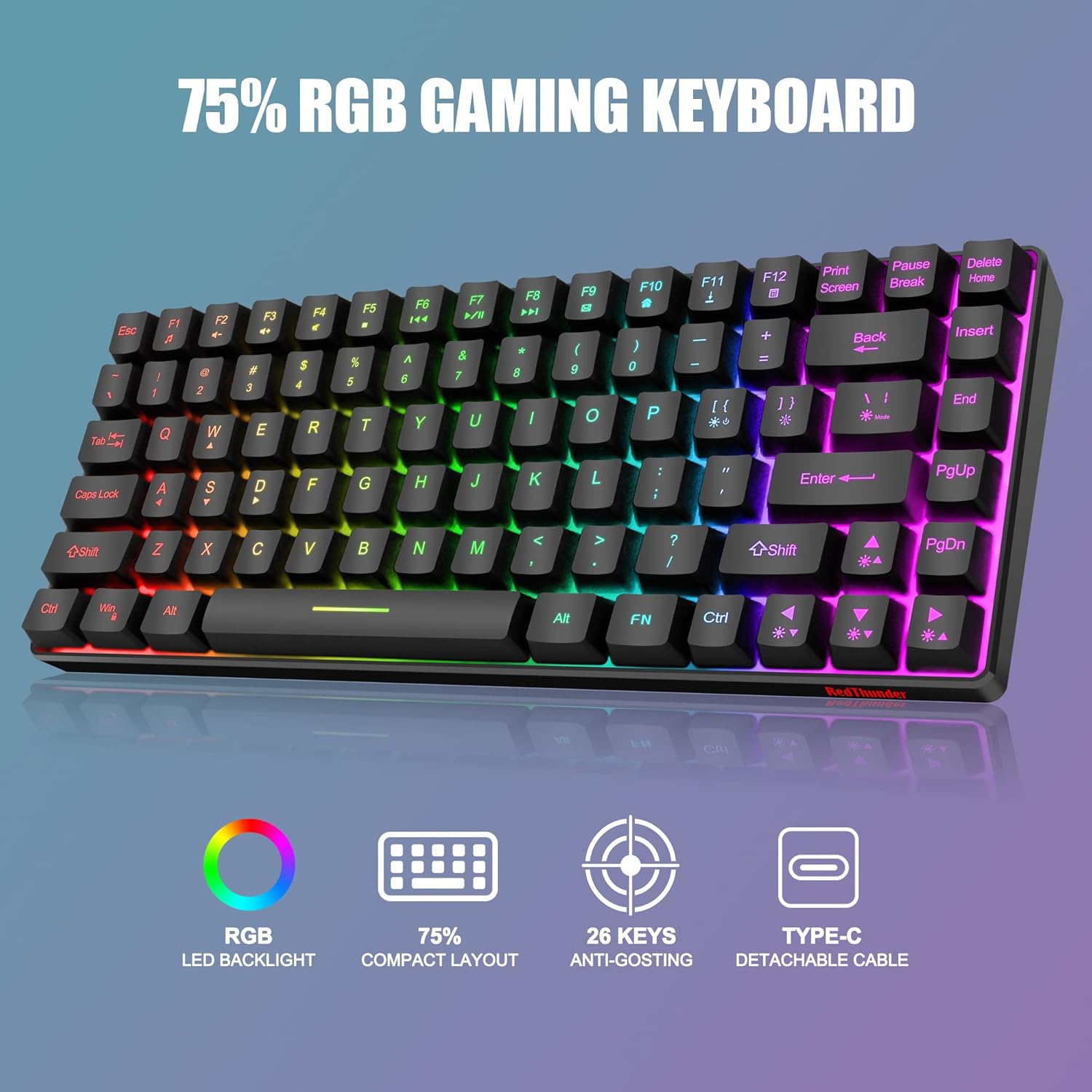
Image: A top-down view of the RedThunder K84 keyboard, showcasing its full RGB backlighting and compact design.
Video: An official product video demonstrating the features of the RedThunder K84 Wired Keyboard, including its RGB backlighting, function keys, fast membrane keys, adjustable bracket, detachable cable, and non-slip mat. This video highlights the keyboard's design and functionality.
5. Maintenance
5.1 Cleaning the Keyboard
- Disconnect the keyboard from your device before cleaning.
- Use a soft, lint-free cloth slightly dampened with water or a mild cleaning solution to wipe the keycaps and keyboard surface.
- Avoid using harsh chemicals, abrasive cleaners, or spraying liquids directly onto the keyboard.
- For dust and debris between keys, use compressed air.
5.2 General Care
- Avoid exposing the keyboard to extreme temperatures or direct sunlight.
- Do not spill liquids on the keyboard. While it has some water resistance, excessive liquid exposure can cause damage.
- Handle the detachable Type-C cable with care to prevent damage to the connector.
6. Troubleshooting
6.1 Keyboard Not Responding
- Ensure the USB Type-C cable is securely connected to both the keyboard and your device.
- Try connecting the keyboard to a different USB port on your device.
- Test the keyboard on another computer or device to determine if the issue is with the keyboard or the original device.
- Restart your computer or device.
6.2 RGB Lighting Not Working or Incorrect
- Ensure the backlight is not turned off (press FN + [{ to toggle).
- Adjust brightness using FN + ↑ or FN + ↓.
- Cycle through lighting modes and colors using FN + \| and FN + ]}.
- If the issue persists, disconnect and reconnect the keyboard.
6.3 Keys Not Registering or Double-Typing
- Clean the affected key(s) as described in the Maintenance section.
- Ensure the keyboard is connected directly to your device and not through a faulty USB hub.
- If the problem continues, contact customer support.
7. Specifications
| Feature | Detail |
|---|---|
| Model Number | K84 |
| Layout | 75% (84-key) |
| Connectivity | Wired, USB Type-C |
| Backlighting | RGB LED |
| Key Type | Membrane (Mechanical Feel) |
| Anti-Ghosting | 26 Keys |
| Material | Acrylonitrile Butadiene Styrene (ABS) |
| Product Dimensions | 13.39 x 5.91 x 1.97 inches |
| Item Weight | 1.17 pounds |
| Compatibility | Windows, PC, Mac, PS4, PS5, XBOX |
8. Warranty and Support
RedThunder products are designed for reliability and performance. For warranty information or technical support, please refer to the contact details provided with your purchase or visit the official RedThunder website. Keep your proof of purchase for warranty claims.

