
1. Introduction
This user manual provides comprehensive instructions for the MAIWO M.2 SSD Enclosure. This device is designed to convert M.2 NVMe and SATA SSDs into portable external storage solutions, offering high-speed data transfer and broad compatibility. Please read this manual thoroughly before use to ensure proper installation and operation.
2. Product Overview
The MAIWO M.2 SSD Enclosure is a versatile and durable device for expanding your storage capabilities. It supports both NVMe and SATA M.2 SSDs, providing flexibility for various drive types and sizes.

Figure 2.1: MAIWO M.2 SSD Enclosure and included cables.
2.1 Key Features
- Dual Protocol Support: Compatible with both M.2 NVMe and M.2 SATA SSDs (M key and B+M key).
- High-Speed Data Transfer: USB 3.2 Gen2 interface with UASP support for speeds up to 10Gbps.
- Tool-Free Design: Easy and quick installation without the need for tools.
- Durable Construction: Aluminum shell provides protection and aids in heat dissipation.
- Automatic Sleep Function: Extends SSD lifespan by entering sleep mode after 10 minutes of inactivity.
- Broad Compatibility: Supports M.2 SSD sizes 2230, 2240, 2260, and 2280.

Figure 2.2: Compatibility with M.2 NVMe and SATA SSDs, including supported sizes.
The enclosure supports various M.2 SSD lengths, including 2230, 2242, 2260, and 2280, ensuring broad compatibility with most M.2 drives. It is crucial to ensure your SSD is M-Key or B+M Key for proper fit and function.

Figure 2.3: High-speed data transmission capabilities of the enclosure.
Experience rapid data transfer with USB 3.2 Gen2, achieving speeds up to 10Gbps. This is ideal for large file transfers, backups, and running applications directly from the external drive.

Figure 2.4: The RTL9210B master controller ensures reliable and fast performance.
The enclosure integrates the RTL9210B advanced master controller, which supports UASP protocol and TRIM, enhancing data transfer efficiency and stability. It operates as plug-and-play, requiring no additional drivers.

Figure 2.5: Multi-layer heat dissipation design for stable operation.
The robust aluminum shell, combined with internal heat dissipation pads and cooling holes, ensures efficient heat management, preventing overheating during prolonged use and protecting your SSD.

Figure 2.6: Versatile application across multiple devices.
The 2-in-1 USB-C cable allows connection to both USB-C and USB-A ports, making it compatible with mobile phones, iPads, laptops, and gaming consoles like PS4, offering convenient data backup and processing.

Figure 2.7: Compact design, auto-sleep feature, and LED indicator for operational status.
The enclosure is compact and lightweight, making it highly portable. Its auto-sleep function activates after 10 minutes of inactivity to conserve power and prolong SSD life. An LED indicator provides real-time status of the hard disk.
3. What's in the Box
- M.2 Enclosure
- Cable (2-in-1 USB-C to USB-C/USB-A)
- Screws (for securing SSD, if needed, though tool-free design is primary)
- Instruction Manual
- Heat Sink (thermal pads/aluminum sheet)
4. Setup and Installation
The MAIWO M.2 SSD Enclosure features a tool-free design for easy installation. Follow these steps to install your M.2 SSD:
- Gently slide out the middle frame from the aluminum shell.
- If using, apply the provided thermal pads/heat sink to your M.2 SSD.
- Carefully insert your M.2 SSD into the slot on the middle frame, ensuring it is properly seated.
- Secure the SSD in place using the rubber fastener or screw provided, depending on the SSD length.
- Slide the middle frame with the installed SSD back into the aluminum shell until it clicks into place.
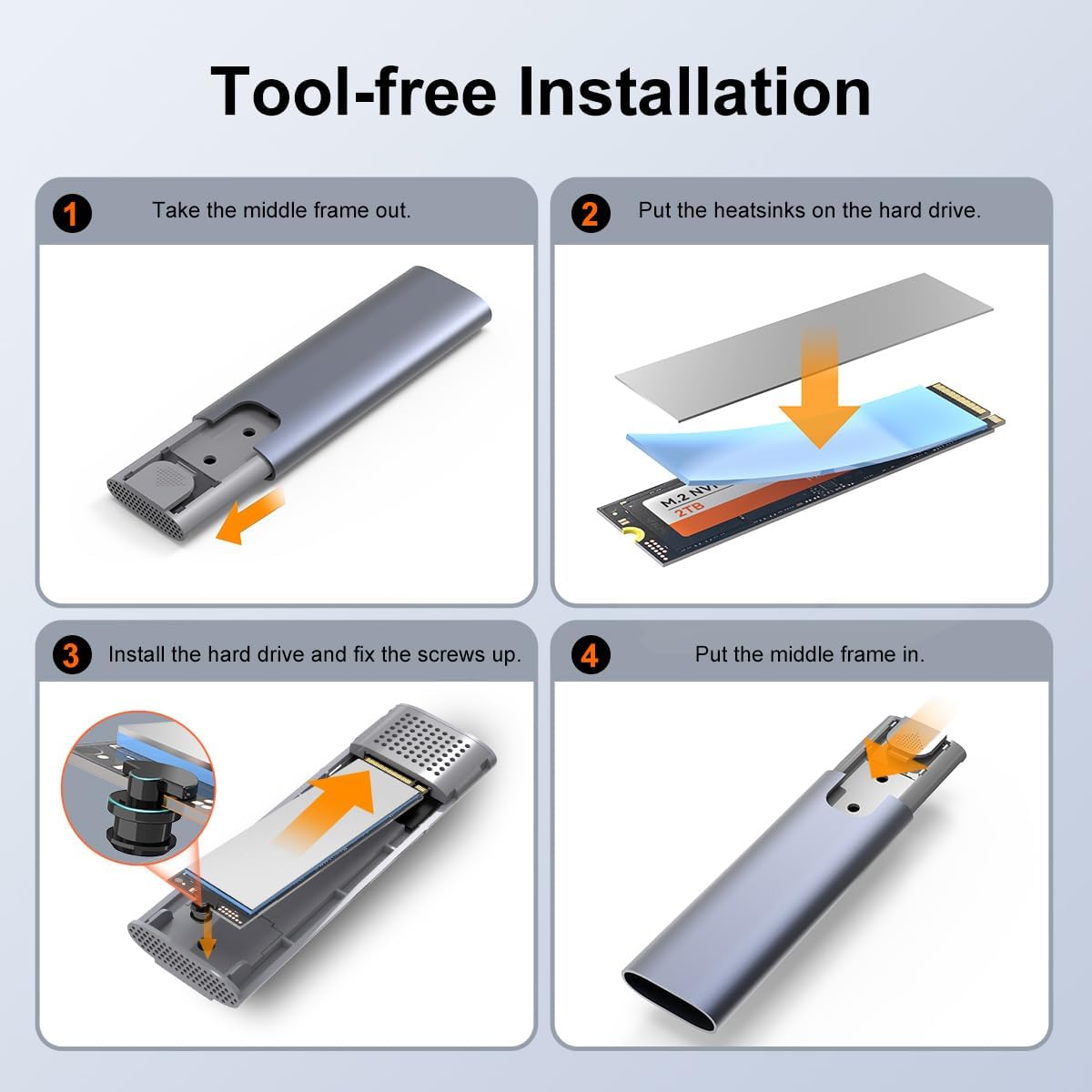
Figure 4.1: Visual guide for tool-free SSD installation.
5. Operating Instructions
Once your M.2 SSD is installed in the enclosure, connect it to your device (PC, laptop, mobile phone, etc.) using the provided 2-in-1 USB-C cable.
- Connect the USB-C end of the cable to the enclosure.
- Connect the other end (USB-C or USB-A) to your host device.
- The enclosure is plug-and-play and should be recognized automatically by most operating systems.
- The blue LED indicator will be solid during standby and flash during data reading/writing.
- For new SSDs, you may need to initialize and format the drive through your operating system's disk management utility before use.
6. Maintenance
- Keep the enclosure clean and free from dust. Use a soft, dry cloth for cleaning.
- Avoid exposing the enclosure to extreme temperatures or humidity.
- The automatic sleep mode (after 10 minutes of inactivity) helps preserve the lifespan of your SSD.
- Ensure proper heat dissipation by not obstructing the cooling holes during operation.
7. Troubleshooting
| Problem | Possible Cause | Solution |
|---|---|---|
| Enclosure not recognized by computer. | Loose cable connection, incompatible SSD, uninitialized/unformatted SSD. |
|
| Slow data transfer speeds. | USB port limitation, cable quality, host device performance. |
|
| Enclosure feels hot during use. | Normal operation, especially during heavy data transfer. |
|
8. Specifications
| Attribute | Value |
|---|---|
| Brand | MAIWO |
| Model Number | M.2 SATA/NVME |
| Material | Aluminum |
| Item Weight | 1.76 ounces (0.05 Kilograms) |
| Memory Storage Capacity (Max) | 4 TB |
| Compatible Devices | PC, Mobile Phones, Tablets, Gaming Consoles |
| Data Transfer Rate | 1000 Megabytes Per Second (10Gbps) |
| Product Dimensions | 4.33 x 1.48 x 0.49 inches |
| Hardware Interface | USB 3.2 Gen 2 |
| Color | Grey |
9. Warranty and Support
MAIWO is committed to providing high-quality products and professional customer support. With over 15 years of experience in data storage solutions, MAIWO stands behind its products.
For detailed warranty information, technical assistance, or further inquiries, please refer to the official MAIWO website or contact their customer service directly.
An official Instructions for Use (IFU) document is available in PDF format: Download User Guide (PDF)