1. Introduction
This manual provides detailed instructions for the installation, operation, and troubleshooting of your MAIWO NVMe PCIe 4.0 M.2 SSD Adapter Card. This adapter allows you to connect an M.2 NVMe Solid State Drive (SSD) to a PCI Express (PCIe) slot on your computer's motherboard, enhancing storage performance and expanding capacity.
2. Product Overview
The MAIWO NVMe PCIe 4.0 M.2 SSD Adapter Card is engineered for high-speed data transfer, supporting NVMe M.2 SSDs in PCIe x4, x8, or x16 slots. It is designed for compatibility with various M.2 SSD sizes and features an intelligent LED indicator for operational status.
Key Features:
- High-Speed Performance: Supports up to 32Gbps with PCI Express 3.0 x4, offering read speeds of 3200+MB/s and write speeds of 1500+MB/s.
- Broad Compatibility: Compatible with PCIe x4, x8, and x16 slots. Supports M-Key NVMe SSDs of sizes 2230, 2242, 2260, and 2280. Note: This adapter does NOT support SATA-based M.2 AHCI SSDs (Key B/B+M).
- Durable Construction: Features a thickened immersion gold PCB card and gold-plated components for enhanced durability and stable high-speed signal transmission.
- Intelligent LED Indicator: An integrated LED provides visual feedback on the adapter's power and data transfer status.

Image 2.1: The MAIWO M.2 NVMe to PCI-E Adapter Card, highlighting its design for high-speed data transmission.

Image 2.2: The adapter card installed in a system, demonstrating its capability for 32Gbps super-speed data transfer.

Image 2.3: Illustration of the adapter's excellent heat dissipation design, utilizing double-sided copper holes for optimal cooling.
3. Specifications
| Feature | Detail |
|---|---|
| Model Number | NVME to PCIex4 Adapter |
| Product Dimensions | 6.5 x 5 x 3.74 inches |
| Item Weight | 0.704 ounces |
| Compatible Devices | PC |
| Connector Type | PCIe |
| Supported PCIe Slots | PCIe x4, x8, x16 |
| Supported M.2 SSD Types | M-Key NVMe SSD (2230, 2242, 2260, 2280) |
| Operating Systems | Windows 7/8/10, Linux, macOS |
| Manufacturer | MAIWO |

Image 3.1: Front view of the MAIWO NVMe PCIe Adapter Card.

Image 3.2: Back view of the MAIWO NVMe PCIe Adapter Card.
4. Package Contents
The package includes:
- 1x MAIWO NVMe PCIe 4.0 M.2 SSD Adapter Card
Note: M.2 SSDs are not included and must be purchased separately.
5. Setup and Installation
Follow these steps to install your M.2 NVMe SSD onto the adapter card and then install the adapter into your computer.
5.1. Installing the M.2 SSD onto the Adapter Card
- Prepare the SSD: Ensure your M.2 SSD is an M-Key NVMe type and matches one of the supported sizes (2230, 2242, 2260, 2280).
- Insert the SSD: Gently insert your M.2 NVMe SSD into the M-Key slot on the adapter card at an angle.
- Secure the SSD: Once inserted, push the SSD down until it is parallel with the adapter card. Use the provided silicone plug to secure the SSD in place, matching the plug to the correct SSD size hole. This eliminates the need for screws.

Image 5.1: The adapter card with an M.2 SSD securely installed.

Image 5.2: Visual guide for M.2 SSD compatibility, illustrating supported lengths and key types.
5.2. Installing the Adapter Card into the Computer
- Power Off: Ensure your computer is completely powered off and unplugged from the power source.
- Open Case: Open your computer case to access the motherboard.
- Locate PCIe Slot: Identify an available PCIe x4, x8, or x16 slot on your motherboard.
- Insert Adapter: Carefully align the adapter card with the chosen PCIe slot and press down firmly until it is fully seated. Secure the adapter card with the case's retention mechanism or screw.
- Close Case: Close your computer case and reconnect the power.
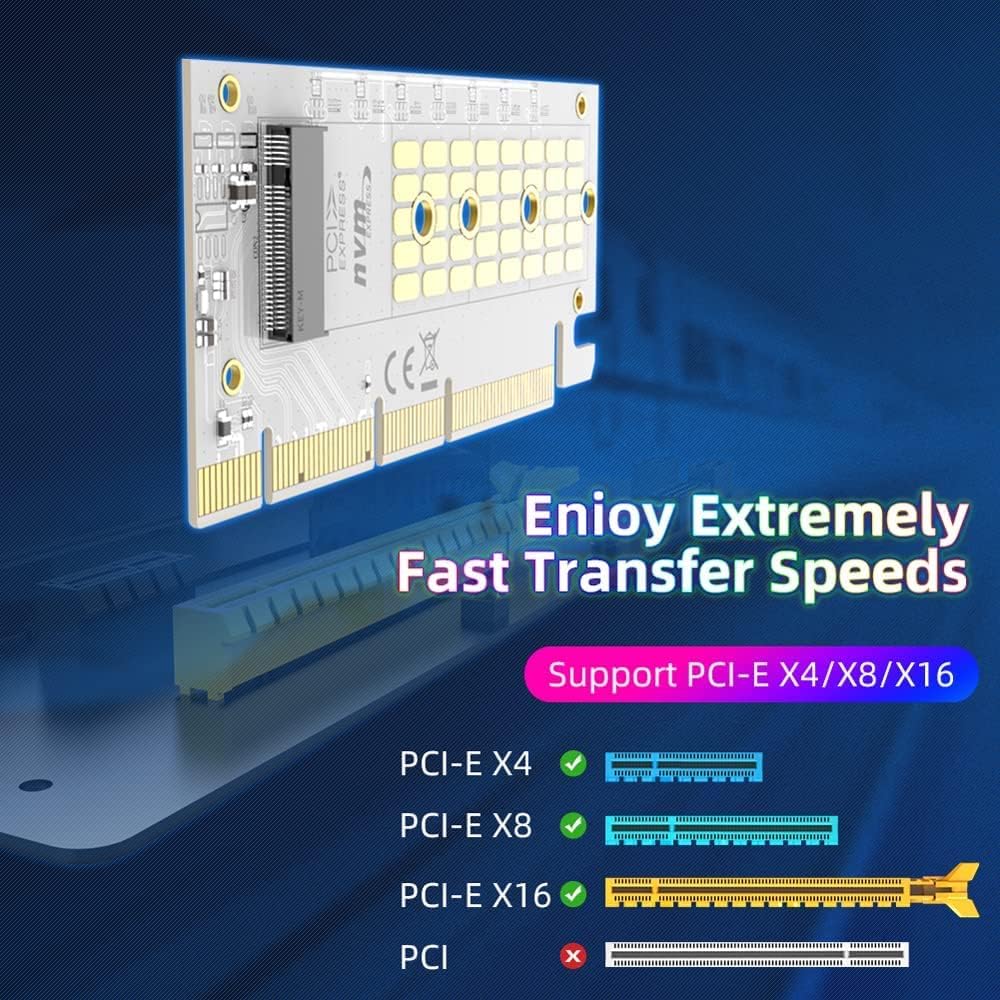
Image 5.3: Illustration of PCIe slot compatibility (x4, x8, x16).
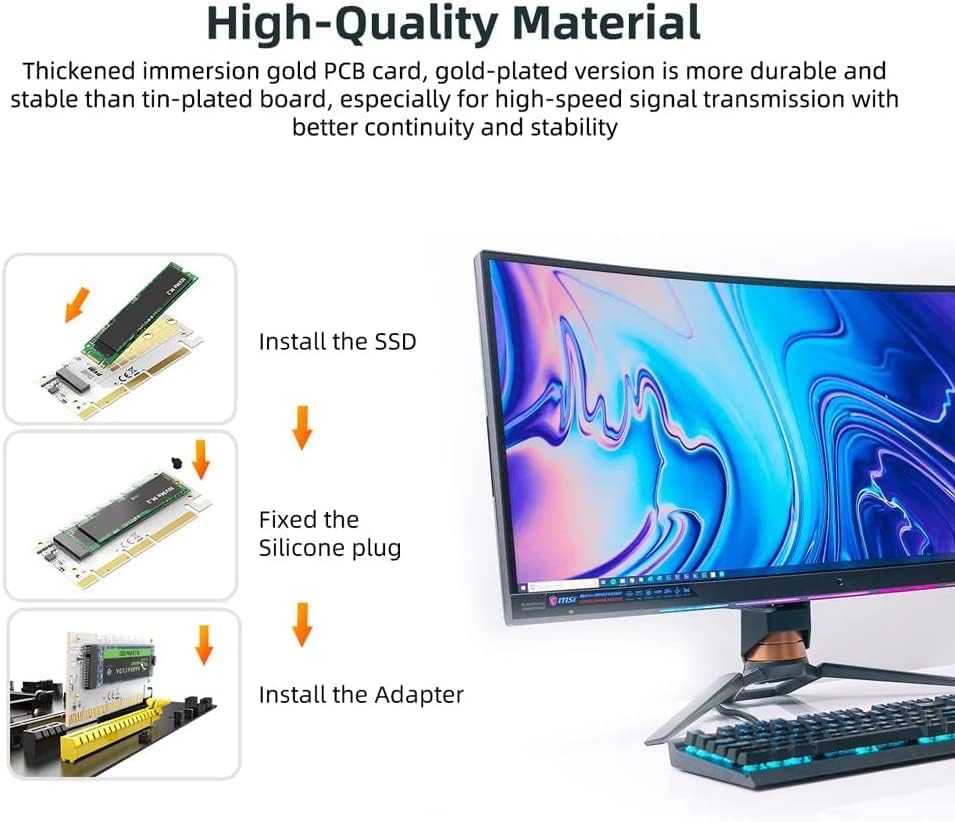
Image 5.4: Step-by-step visual guide for installing the SSD and then the adapter into a PCIe slot.
6. Operating Instructions
Once the adapter card with the M.2 SSD is installed, power on your computer. The operating system (Windows, Linux, macOS) should detect the new storage device.
LED Indicator:
The adapter card features an intelligent LED indicator to show its operational status:
- Always On: Indicates the adapter is powered on and the SSD is detected.
- Flashing: Indicates active data reading or writing to the SSD.

Image 6.1: The intelligent LED indicator on the adapter card, showing its location and function.
7. Troubleshooting
- SSD Not Detected: If the M.2 SSD does not appear in your operating system's Device Manager or Disk Management (Windows) or equivalent utilities (Linux/macOS), it may require a specific NVMe driver. Visit the SSD manufacturer's official website to download and install the appropriate NVMe driver for your SSD model and operating system.
- Slow Performance: Ensure the adapter card is fully seated in a compatible PCIe x4, x8, or x16 slot. Verify that your motherboard and operating system support PCIe 3.0 or higher for optimal speeds.
- Adapter Not Powering On: Check that the adapter card is correctly installed in the PCIe slot. Ensure your computer's power supply is adequate.
- Compatibility Check: Double-check that your M.2 SSD is an M-Key NVMe type. This adapter is not compatible with SATA-based M.2 AHCI SSDs (Key B/B+M).
8. Official Product Video
Video 8.1: Official MAIWO video demonstrating the M.2 expansion card (KT058) and its features, including installation and speed tests.
9. Maintenance
The MAIWO NVMe PCIe 4.0 M.2 SSD Adapter Card requires minimal maintenance.
- Cleaning: Periodically, ensure the adapter card and surrounding PCIe slot are free from dust accumulation. Use compressed air to gently clean the components if necessary.
- Firmware: There is typically no user-upgradable firmware for adapter cards of this type. Any necessary updates would be related to your motherboard's BIOS/UEFI or your M.2 SSD's firmware.
10. Warranty and Support
For any questions, technical assistance, or warranty inquiries regarding your MAIWO NVMe PCIe 4.0 M.2 SSD Adapter Card, please contact MAIWO customer support through their official channels. Refer to your purchase documentation for specific warranty terms and contact information.
You can also visit the MAIWO Store on Amazon for more product information and support resources.