
MERCUSYS ME10
MERCUSYS ME10 N300 Wi-Fi Range Extender User Manual
Model: ME10
1. Introduction
Thank you for choosing the MERCUSYS ME10 N300 Wi-Fi Range Extender. This device is designed to extend your existing Wi-Fi coverage, eliminate dead zones, and provide a stable, high-speed connection for your devices. It supports both Repeater Mode and Access Point Mode, offering versatile network expansion solutions.
Package Contents:
- MERCUSYS ME10 N300 Wi-Fi Range Extender
- User Manual
- Ethernet Cable (if applicable, based on product packaging)
2. Safety Information
Please read and follow all safety instructions carefully before using this device to prevent damage and ensure proper operation.
- Do not expose the device to water or moisture.
- Do not attempt to disassemble or repair the device yourself.
- Use only the power source specified for this device.
- Keep the device away from heat sources and direct sunlight.
- Ensure proper ventilation around the device.
3. Product Overview
Familiarize yourself with the components of your MERCUSYS ME10 Wi-Fi Range Extender.

Front view of the MERCUSYS ME10 N300 Wi-Fi Range Extender, showing the MERCUSYS logo and a single LED indicator.

Side view of the MERCUSYS ME10 N300 Wi-Fi Range Extender, highlighting the power plug.
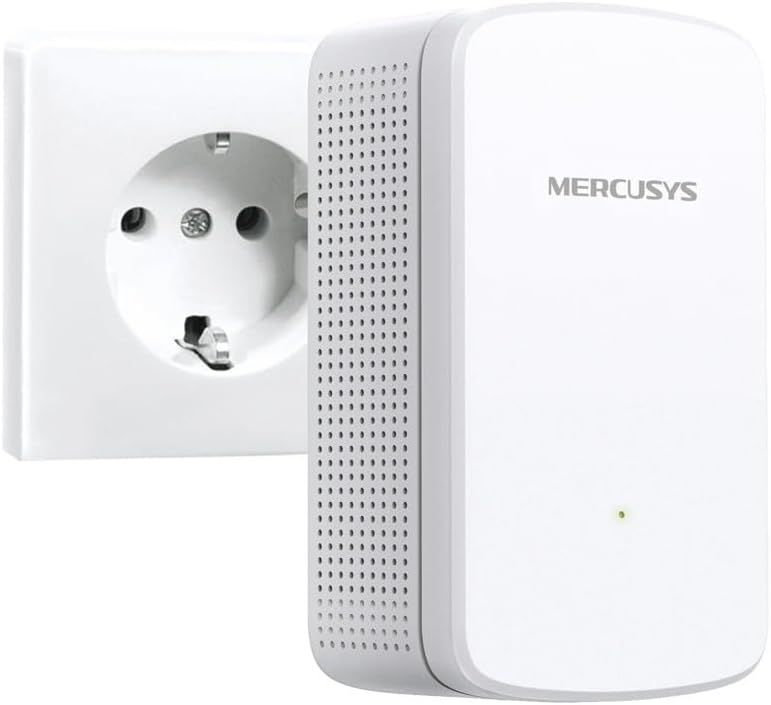
The MERCUSYS ME10 N300 Wi-Fi Range Extender shown plugged into a standard wall outlet.
LED Indicator:
- Solid Green: Excellent connection.
- Solid Yellow: Weak connection.
- Solid Red: No connection or too far from the host router.
- Blinking: WPS connection in progress.
Buttons and Ports:
- Reset/WPS Button: Press for 1 second to activate WPS. Press and hold for 5 seconds to factory reset.
- LAN Port: Used for Access Point Mode or connecting a wired device.
4. Setup
The ME10 can be set up using two methods: WPS (Wi-Fi Protected Setup) or via a web browser.
Method 1: Using WPS (Recommended for quick setup)
- Plug the extender into an electrical outlet near your host router.
- Wait for the LED to turn solid red or yellow.
- Press the WPS button on your host router.
- Within two minutes, press the Reset/WPS button on the ME10 extender for 1 second. The LED will start blinking.
- Wait for the LED to turn solid green or yellow, indicating a successful connection.
- Relocate the extender to an optimal location (see 'Optimal Placement' below).
Method 2: Using a Web Browser
- Plug the extender into an electrical outlet near your host router.
- Connect your computer or mobile device to the extender's Wi-Fi network (e.g., 'MERCUSYS_Extender'). There is no password initially.
- Open a web browser and type mwlogin.net or 192.168.1.253 in the address bar.
- Create a login password when prompted.
- Follow the on-screen instructions to select your host Wi-Fi network and enter its password.
- Confirm the settings and wait for the extender to restart.
- Relocate the extender to an optimal location.
Optimal Placement:
After setup, plug the extender into an outlet halfway between your router and the Wi-Fi dead zone. The intelligent signal indicator LED will help you find the best spot:
- Solid Green: Good signal strength.
- Solid Yellow: Acceptable signal strength, consider moving closer to the router.
- Solid Red: Too far from the router, move closer.
5. Operating Modes
Repeater Mode (Default):
In Repeater Mode, the ME10 extends the range of your existing Wi-Fi network. Devices connect to the extender, which then relays data to and from your main router.
Access Point Mode:
In Access Point Mode, the ME10 can transform your existing wired network into a wireless one. This is useful if you have an Ethernet port available but no Wi-Fi coverage.
- Plug the extender into an electrical outlet.
- Connect the extender's LAN port to your router's Ethernet port using an Ethernet cable.
- Follow the web browser setup method (Method 2) and select 'Access Point Mode' during the setup wizard.
6. Maintenance
Cleaning:
Wipe the device with a soft, dry cloth. Do not use liquid cleaners or aerosols.
Firmware Updates:
Periodically check the MERCUSYS official website for firmware updates to ensure optimal performance and security. Instructions for updating firmware will be provided on the website.
Factory Reset:
If the device is not functioning correctly or you wish to clear all settings, you can perform a factory reset. With the extender powered on, press and hold the Reset/WPS button for approximately 5 seconds until the LED blinks rapidly, then release. The extender will restart with default settings.
7. Troubleshooting
If you encounter issues with your MERCUSYS ME10, refer to the following common problems and solutions:
Q1: What should I do if the LED is solid red?
A1: A solid red LED indicates that the extender is too far from the host router or there is no connection. Try moving the extender closer to your router. Ensure the router is powered on and broadcasting a Wi-Fi signal.
Q2: How do I reset the extender?
A2: With the extender powered on, press and hold the Reset/WPS button for about 5 seconds until the LED blinks rapidly. The extender will then revert to factory default settings.
Q3: I cannot access the web management page (mwlogin.net).
A3:
- Ensure your device is connected to the extender's Wi-Fi network (e.g., 'MERCUSYS_Extender').
- Verify that mwlogin.net or 192.168.1.253 is correctly typed in the browser's address bar.
- Try a different web browser or clear your browser's cache and cookies.
- Disable any VPN or proxy software on your computer.
Q4: My extended network has a weak signal or drops frequently.
A4:
- Relocate the extender to an optimal position, using the LED indicator as a guide (solid green is best).
- Ensure there are no major obstructions (thick walls, metal objects) between the extender and the host router.
- Check for interference from other electronic devices.
8. Specifications
| Feature | Description |
|---|---|
| Model Number | ME10 |
| Product Dimensions | 2.36 x 2.09 x 3.98 inches |
| Item Weight | 3.17 ounces |
| Wireless Standard | 802.11n |
| Data Transfer Rate | 300 Megabits Per Second |
| Frequency Band Class | Quad-Band |
9. Warranty & Support
Warranty Information:
This MERCUSYS ME10 N300 Wi-Fi Range Extender comes with a three-year warranty against manufacturing defects from the date of purchase. Please retain your proof of purchase for warranty claims.
Technical Support:
For technical assistance, troubleshooting, or further inquiries, please visit the official MERCUSYS support website or contact their customer service. Support resources often include FAQs, driver downloads, and contact information.
Website: www.mercusys.com/support (Example URL, please refer to actual product documentation for precise support contact details.)
Related documentsME10


Ask a question about this manual
Ask about setup, troubleshooting, compatibility, parts, safety, or missing instructions. Manuals+ will review the question and use this page’s manual context to help answer it.