
1. Introduction
This manual provides detailed instructions for the safe and effective use of your Desview R7II 7-inch Camera Field Monitor. Please read this manual thoroughly before operating the device and retain it for future reference. The Desview R7II is designed to enhance your photography and videography experience with its high brightness, touch screen interface, and advanced monitoring tools.
2. Safety Information
- Do not expose the monitor to rain or moisture to avoid electric shock or fire.
- Avoid placing the monitor near heat sources such as radiators, heat registers, stoves, or other heat-producing appliances.
- Use only attachments/accessories specified by the manufacturer.
- Unplug the monitor during lightning storms or when unused for long periods.
- Refer all servicing to qualified service personnel. Servicing is required when the apparatus has been damaged in any way, such as power-supply cord or plug is damaged, liquid has been spilled or objects have fallen into the apparatus, the apparatus has been exposed to rain or moisture, does not operate normally, or has been dropped.
- Ensure proper ventilation and do not block any ventilation openings.
- Remove the battery after use if the monitor will not be used for an extended period to prevent battery drain.
3. Package Contents
Verify that all items listed below are included in your package. If any items are missing or damaged, please contact your retailer.

Image: Overview of the Desview R7II package contents, showing the monitor, various HDMI cables, a D-Tap cable, storage bag, user manual, flash disk, cleaning cloth, and monitor mount.
- Desview R7II 7-inch Camera Field Monitor
- Micro HDMI Cable
- Mini HDMI Cable
- D-Tap Cable
- Storage Bag
- User Manual
- Flash Disk (for LUT import)
- Cleaning Cloth
- Monitor Mount
4. Product Overview
4.1. Monitor Features
- 7-inch IPS Touch Screen with 1920x1200 resolution
- 2600 nits High Brightness for outdoor visibility
- 4K HDMI Input/Output (up to 4096x2160@24Hz)
- HDR and 3D-LUT support
- Advanced monitoring tools: Waveform, Histogram, Vectorscope, False Color, Zebra, Peaking, etc.
- Pinch to Zoom functionality
- Flexible power solution (NP-F series battery or DC 12V adapter)
4.2. Components and Controls

Image: Detailed view of the Desview R7II monitor's side and back panels, highlighting the HDMI input, HDMI output, DC power input, 1/4 inch screw threads, power/touch lock button, indicator light, and F1/F2/Exit function buttons.
- HDMI IN: Connects to your camera's HDMI output.
- HDMI OUT: Connects to another monitor or device for signal pass-through.
- DC IN: Power input for external DC 12V power supply.
- USB Port: For firmware updates and 3D-LUT import.
- 1/4" Screw Mounts: For attaching to camera rigs, arms, or stands.
- Power On/Touch Lock Button: Press and hold to power on/off. Short press to lock/unlock the touchscreen.
- F1/F2 Buttons: Customizable function buttons for quick access to features.
- Exit Button: Used to exit menus or return to the previous screen.
- Battery Plate: Compatible with NP-F series batteries (NP-F550, NP-F750, NP-F970, E6).
5. Setup
5.1. Mounting the Monitor
Attach the monitor to your camera rig or stand using the included monitor mount and the 1/4" screw threads located on the monitor's sides or bottom. Ensure the mount is securely tightened.
Video: This video demonstrates the physical setup of the Desview R7II camera monitor, including attaching it to a camera rig, installing a battery, and connecting HDMI cables. It also shows the monitor in various shooting scenarios, highlighting its features like 4K HDMI input/output, full HD resolution, 2600 nits brightness for sunlight visibility, HDR monitoring, and custom 3D-LUT function. The video also briefly showcases the advanced monitoring tools such as Histogram, Waveform, Vectorscope, False Color, and Zebra. Finally, it displays the package contents.
5.2. Powering the Monitor
The R7II monitor can be powered by either an NP-F series battery or an external DC 12V power adapter (not included).
- Battery Installation: Slide a compatible NP-F series battery onto the battery plate on the back of the monitor until it clicks into place.
- DC Power: Connect a DC 12V power adapter to the DC IN port.
Important: Remove the battery after use to prevent excessive battery drain, especially during long periods of inactivity.
5.3. Connecting to a Camera
Use the appropriate HDMI cable (Micro HDMI or Mini HDMI, included) to connect your camera's HDMI output to the HDMI IN port on the monitor. If needed, you can use the HDMI OUT port to loop the signal to another display.

Image: Diagram illustrating the connection of the Desview R7II monitor to a 4K camera via HDMI IN, and then to an additional 4K HDMI monitor via HDMI OUT, demonstrating signal pass-through.
6. Operation
6.1. Power On/Off
Press and hold the Power On/Touch Lock button for a few seconds to turn the monitor on or off.
6.2. Touch Screen and Menu Navigation
The Desview R7II features a full touch screen for intuitive navigation. Swipe from the edges or tap on icons to access menus and settings. A short press on the Power On/Touch Lock button will lock or unlock the touchscreen to prevent accidental changes.
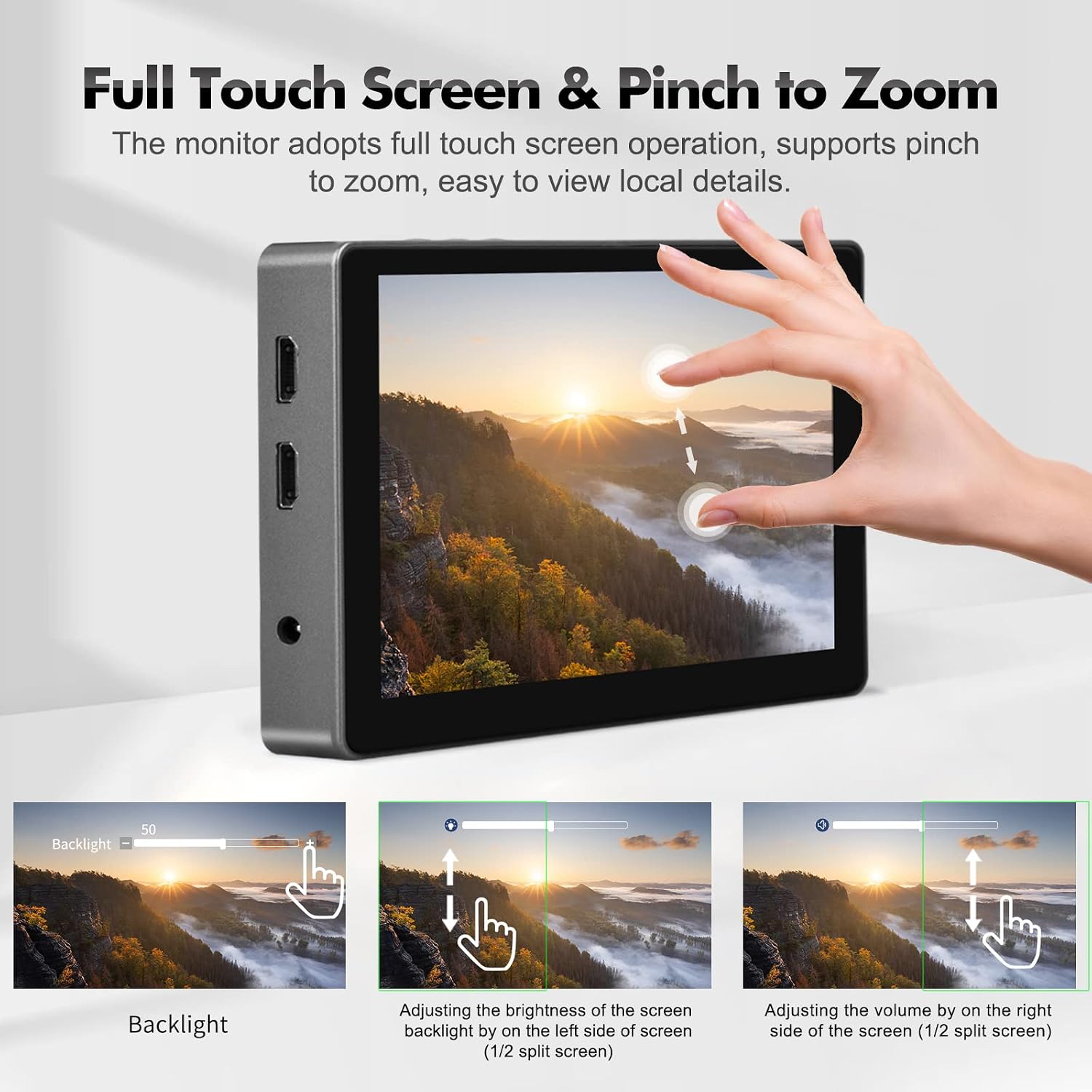
Image: The Desview R7II monitor displaying touch screen functionality, including pinch-to-zoom for detailed viewing, and gestures for adjusting backlight and volume.
6.3. Advanced Monitoring Tools
The monitor includes various professional tools to assist with exposure, focusing, and framing. These can typically be accessed via the menu or assigned to the F1/F2 function buttons.

Image: A collage showing the Desview R7II monitor's interface with different advanced monitoring tools activated, such as Waveform, RGB Histogram, Brightness Histogram, User Markers, Peaking Focus, and Vectorscope, along with a list of available functions.
- Waveform: Displays the luminance and chrominance levels of your video signal.
- Histogram: Shows the distribution of tones (brightness or color channels) in your image.
- Vectorscope: Visualizes the color information of your video signal.
- False Color: Helps in setting exposure by displaying different exposure levels as distinct colors.
- Zebra: Indicates overexposed areas with a striped pattern.
- Peaking Focus: Highlights in-focus edges to assist with manual focusing.
- HDR Monitoring: Provides a wider dynamic range for viewing HDR content.
6.4. 3D-LUT Function
The 3D-LUT (Look Up Table) function allows for professional color grading and calibration. You can import custom 3D-LUTs via the provided flash disk and USB port to preview your footage with desired color profiles.

Image: The Desview R7II monitor displaying its 3D-LUT function, with a menu for selecting different LUTs and examples of how various LUTs affect the color rendition of an image.
- Connect the provided flash disk with your .cube LUT files to the monitor's USB port.
- Navigate to the LUT menu on the monitor.
- Select "Import" or "Load LUT" and choose your desired LUT file from the flash disk.
- Apply the LUT to preview your footage with the selected color profile.
7. Maintenance
- Cleaning: Use the provided cleaning cloth to gently wipe the screen and body of the monitor. For stubborn smudges, use a soft, lint-free cloth lightly dampened with a screen-safe cleaning solution. Do not use abrasive cleaners or solvents.
- Storage: When not in use, store the monitor in its storage bag in a cool, dry place away from direct sunlight and extreme temperatures. Remove batteries if storing for extended periods.
- Firmware Updates: Periodically check the Desview official website for any available firmware updates to ensure optimal performance and access to new features. Follow the instructions provided with the firmware update carefully.
8. Troubleshooting
| Problem | Possible Cause | Solution |
|---|---|---|
| Monitor does not power on. | Low battery or no power connection. | Ensure battery is charged and correctly installed, or connect to a DC 12V power source. |
| No video signal. | Incorrect HDMI connection or camera output settings. | Check HDMI cable connections. Verify camera's HDMI output settings (resolution, frame rate) are compatible with the monitor. |
| Touchscreen unresponsive. | Touchscreen is locked. | Short press the Power On/Touch Lock button to unlock the touchscreen. |
| Image appears distorted or incorrect colors. | Incorrect color settings or LUT applied. | Check color temperature settings, reset display settings, or ensure the correct 3D-LUT is applied or disabled. |
9. Specifications
| Feature | Detail |
|---|---|
| Brand | Desview |
| Model Name | R7II |
| Screen Size | 7 inches |
| Display Type | IPS LCD |
| Native Resolution | 1920x1200 |
| Display Resolution Maximum | 4096 x 2160 (4K) |
| Brightness | 2600 nits |
| Contrast Ratio | 1000:1 |
| Viewing Angle | 178 Degrees |
| Aspect Ratio | 16:10 |
| Refresh Rate | 60 Hz |
| Connectivity Technology | HDMI |
| Hardware Connectivity | 3.5mm Audio, HDMI, USB |
| Additional Features | Touchscreen, HDR, 3D LUTs, Waveform, Histogram, Vectorscope, False Color, Zebra, Peaking Focus |
| Power Input | DC 12V, NP-F series battery |
| Item Weight | 12.8 ounces (approx. 363g) |
10. Warranty & Support
Desview products typically come with a standard manufacturer's warranty. Please refer to the warranty card included in your package or visit the official Desview website for detailed warranty terms and conditions specific to your region.
For technical support, troubleshooting assistance, or service inquiries, please contact Desview customer support through their official website or the contact information provided in your product documentation. When contacting support, please have your product model (R7II) and purchase information ready.
Official Desview Store: Desview Store on Amazon


