
1. Introduction
This manual provides essential instructions for the safe and efficient operation, maintenance, and troubleshooting of your Dreo Tower Fan Pilot Pro S. Please read this manual thoroughly before use and retain it for future reference.
2. Safety Instructions
To reduce the risk of fire, electric shock, or injury, observe the following safety guidelines:
- Always unplug the fan before cleaning, servicing, or relocating.
- Do not operate the fan with a damaged cord or plug. Contact qualified service personnel for repair.
- Keep children and pets away from the fan during operation.
- Do not insert fingers or foreign objects into any openings on the fan.
- Ensure the fan is placed on a stable, level surface to prevent tipping.
- Do not use the fan in wet or damp locations, such as bathrooms.
- Do not block air openings or operate near curtains or other materials that may block airflow.
3. Package Contents
- Pilot Pro S Tower Fan Body x 1
- Front Fan Base x 1
- Rear Fan Base x 1
- Remote Controller x 1 (Includes 1 × CR2025 Lithium Battery)
- Power Adapter
- User Manual
- Quick Start Guide
4. Product Diagram

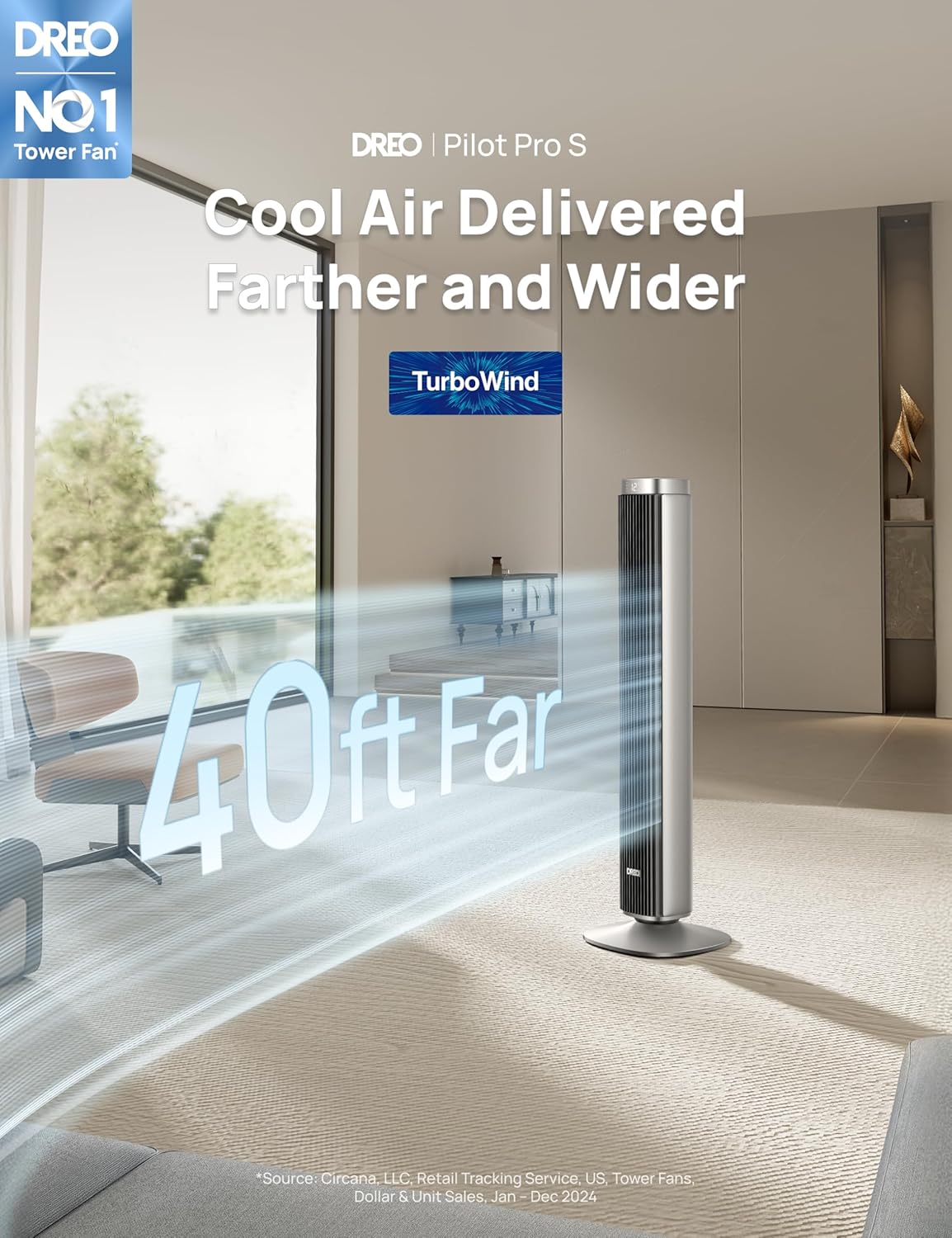
The Dreo Tower Fan Pilot Pro S features a sleek design with a digital display on top, a remote control for convenient operation, and smart control capabilities via the Dreo app. Its bladeless design ensures safety and a modern aesthetic.

The fan stands 42.05 inches tall with a base measuring 12.20 inches in both width and depth, making it suitable for various room sizes.
5. Setup and Assembly
The Dreo Tower Fan Pilot Pro S requires simple base assembly with no tools needed.
- Connect the Front Fan Base and Rear Fan Base pieces together.
- Align the assembled base with the bottom of the tower fan body.
- Twist the base clockwise until it securely locks into place.
- Plug the power adapter into a suitable electrical outlet.
6. Operating Instructions
6.1 Control Panel
The fan features an intuitive touch control panel located on the top of the unit. The display shows current settings such as fan speed and mode.
6.2 Remote Control
The included remote control allows for convenient operation from a distance. It features buttons for power, speed adjustment, mode selection, oscillation, and timer settings.
6.3 Smart Control (Dreo App & Voice Assistants)
Integrate your fan into your smart home ecosystem. Download the Dreo app to control the fan from your smartphone. The fan is also compatible with voice commands via Amazon Alexa and Google Assistant.

6.4 Modes and Speeds
The fan offers 4 operating modes and 12 precise speed settings:
- Normal Mode: Provides continuous airflow at your selected speed (1-12).
- Natural Mode: Simulates natural breeze by varying fan speeds.
- Sleep Mode: Operates at ultra-quiet levels (as low as 25dB) with dimmable display for undisturbed sleep.
- Auto Mode: Adjusts fan speed automatically based on ambient room temperature.

6.5 Oscillation
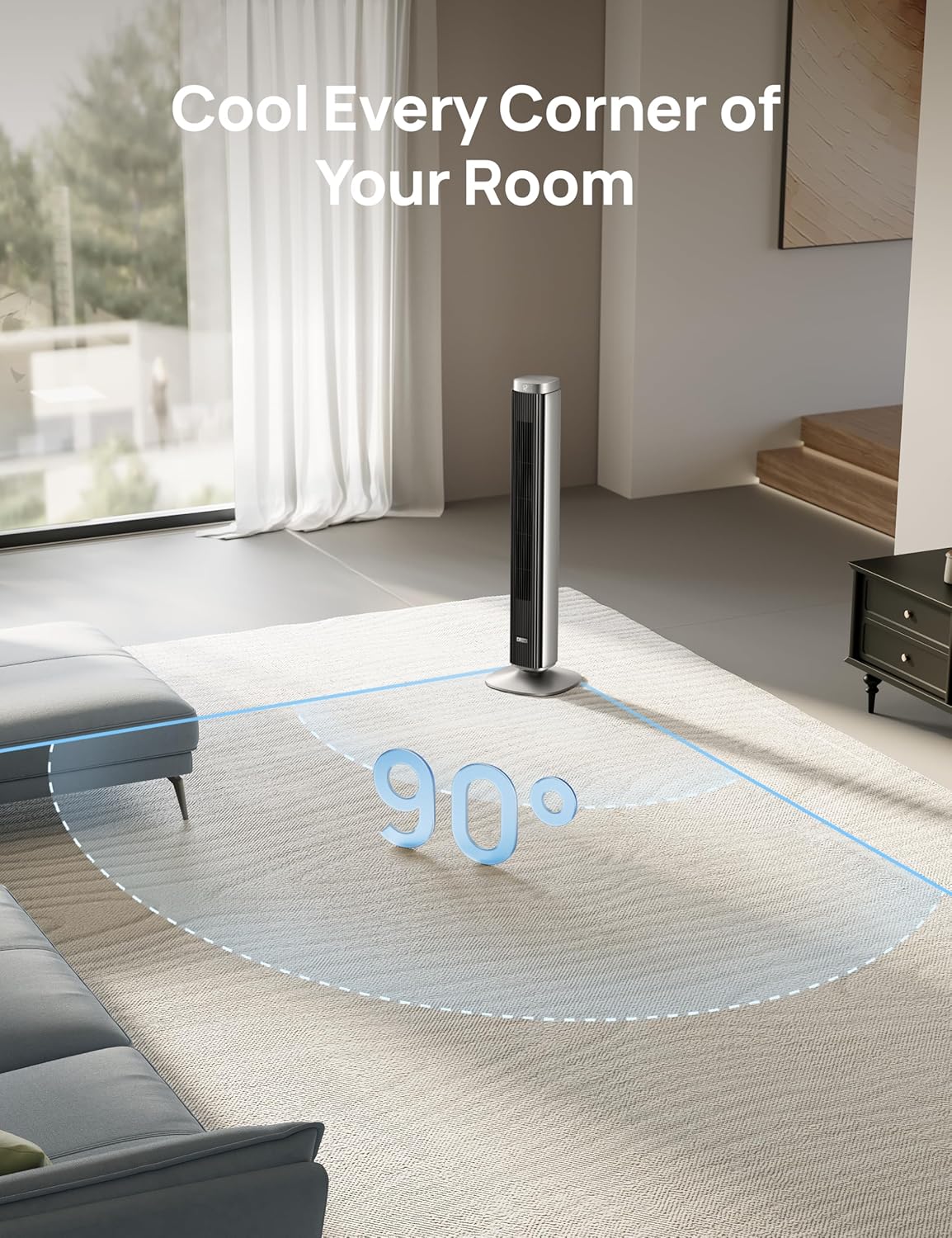
Activate the 90° oscillation feature to distribute airflow across a wider area, ensuring comprehensive room cooling.
6.6 Timer
Set the fan to automatically turn off after a specified period, ranging from 1 to 12 hours. This feature is useful for energy saving and convenience, especially during sleep.
7. Maintenance
Regular cleaning and maintenance ensure optimal performance and longevity of your fan.
- Cleaning: The fan features tool-free disassembly for easy cleaning. The removable grill and internal components can be washed or wiped down to remove dust and debris. Ensure all parts are completely dry before reassembly.
- Storage: When not in use, store the fan in a cool, dry place.

8. Troubleshooting
If you encounter issues with your fan, refer to the following common problems and solutions:
- Fan does not turn on: Check if the power cord is securely plugged into a working outlet. Ensure the power button on the fan or remote is pressed.
- Weak airflow: Clean the fan's air inlets and outlets to remove any dust or obstructions. Increase the fan speed setting.
- Unusual noise: Ensure the fan is on a stable, flat surface. Check for any loose parts or foreign objects inside the fan.
- Oscillation not working: Verify that the oscillation feature is activated via the control panel or remote.
- Remote control not working: Check and replace the CR2025 lithium battery in the remote. Ensure there are no obstructions between the remote and the fan.
9. Specifications
| Feature | Specification |
|---|---|
| Brand | Dreo |
| Model Name | Pilot Pro S |
| Item Model Number | DR-HTF005S |
| Color | Silver |
| Product Dimensions | 12.2"D x 12.2"W x 42.05"H |
| Item Weight | 12.03 pounds |
| Power Source | DC |
| Wattage | 24 watts |
| Voltage | 240 Volts |
| Noise Level | 25 Decibels |
| Air Flow Capacity | 1400 Cubic Feet Per Minute |
| Speed | 28 Feet Per Second (max) |
| Number of Power Levels | 12 |
| Oscillation | 90° |
| Timer | 1-12 Hour Timer |
| Control Method | App, Remote, Touch, Voice |
| Motor Type | DC |
| Safety Certification | ETL |
10. Warranty and Support
For warranty information or technical support, please refer to the warranty card included in your package or visit the official Dreo website. You may also contact Dreo customer service directly for assistance.


