
4DRC V8
4DRC V8 Mini Drone User Manual
Model: V8 | Brand: 4DRC
Introduction
This manual provides comprehensive instructions for operating and maintaining your 4DRC V8 Mini Drone. Designed for beginners, this drone features a 720P HD camera, multiple flight modes, and user-friendly controls. Please read this manual thoroughly before first use to ensure safe and optimal performance.

Image: The 4DRC V8 Mini Drone, its remote controller, two rechargeable batteries, and a compact carrying case. This image illustrates the complete product package.
Product Components
The 4DRC V8 Mini Drone package includes the following items:
- 4DRC V8 Mini Drone with integrated 720P HD Camera
- Remote Control
- 2 x Lithium Ion Rechargeable Batteries
- USB Charging Cable
- Spare Propellers
- Propeller Guards (integrated into design)
- User Manual (this document)
Setup Guide
1. Battery Installation and Charging
The drone comes with two rechargeable Lithium Ion batteries. Ensure both batteries are fully charged before first use.
- Connect the battery to the provided USB charging cable.
- Plug the USB cable into a 5V/1A USB power adapter (not included).
- The charging indicator light will show charging status (refer to battery/charger for specific light behavior).
- Once fully charged, disconnect the battery.
- Insert a charged battery into the drone's battery compartment, ensuring it clicks securely into place.
For the remote control, insert 3 AAA batteries (not included) into the battery compartment, observing correct polarity.
2. Drone and Remote Pairing
Follow these steps to pair the drone with its remote control:
- Place the drone on a flat, level surface.
- Turn on the drone by pressing the power button. The drone's indicator lights will flash.
- Turn on the remote control.
- Push the left joystick (throttle) all the way up, then pull it all the way down. The drone's lights will stop flashing and become solid, indicating successful pairing.
3. App Installation (Optional for FPV and Advanced Features)
To utilize the 720P HD camera and advanced flight modes like Trajectory Flight, download the official 4DRC app from your mobile device's app store (iOS/Android). Search for "4DRC" or scan the QR code provided in the quick start guide (if applicable).
- Download and install the 4DRC app.
- Turn on the drone and connect your mobile device to the drone's Wi-Fi network (usually named "4DRC-V8-XXXXXX").
- Open the 4DRC app to view the live camera feed and access additional controls.

Image: The drone's 720P HD camera capability, demonstrating its use for capturing photos and videos, with a mobile phone displaying the live FPV feed.
Operating Instructions
Basic Flight Controls
- One-Key Takeoff/Landing: Press the dedicated one-key takeoff/landing button on the remote control or in the app. The drone will automatically ascend to a stable altitude or descend and land gently.
- Altitude Hold: The drone maintains its current altitude automatically, allowing for stable hovering and easier control.
- Throttle (Left Joystick): Push up to ascend, pull down to descend.
- Directional Control (Right Joystick): Push forward/backward to move the drone forward/backward. Push left/right to move the drone left/right (sideways).
- Yaw (Left Joystick Left/Right): Push left/right to rotate the drone counter-clockwise/clockwise.

Image: Visual representation of key flight functions: One-Key Start for easy takeoff, Headless Mode for simplified orientation, and Emergency Stop for immediate shutdown.
Advanced Flight Modes and Features
- Headless Mode: Activates a mode where the drone's orientation is relative to the pilot, regardless of the drone's actual front. This simplifies control for beginners.
- Trajectory Flight (Tap Fly): In the app, draw a desired flight path on your screen, and the drone will automatically follow the specified route.
- Circular Flight: Press and hold the designated button on the remote control to activate circular flight, causing the drone to fly in a circle around a central point.
- 360° Flip: Press the 360° flip button and move the right joystick in any direction to perform an aerial flip.
- Gesture Control: Use specific hand gestures in front of the camera to trigger photo or video recording (e.g., V-sign for photo, open palm for video).
- Speed Modes: The drone offers 3 speed settings (Low, Medium, High) to accommodate different skill levels and flying environments. Adjust speed using the speed switch on the remote.
- Auto Obstacle Avoidance: The drone is equipped with sensors to detect and avoid obstacles in its path, enhancing safety during flight.

Image: Illustration of the drone's multifunctional capabilities, including automatic rotation, circular flight patterns, and intuitive gesture control for various commands.
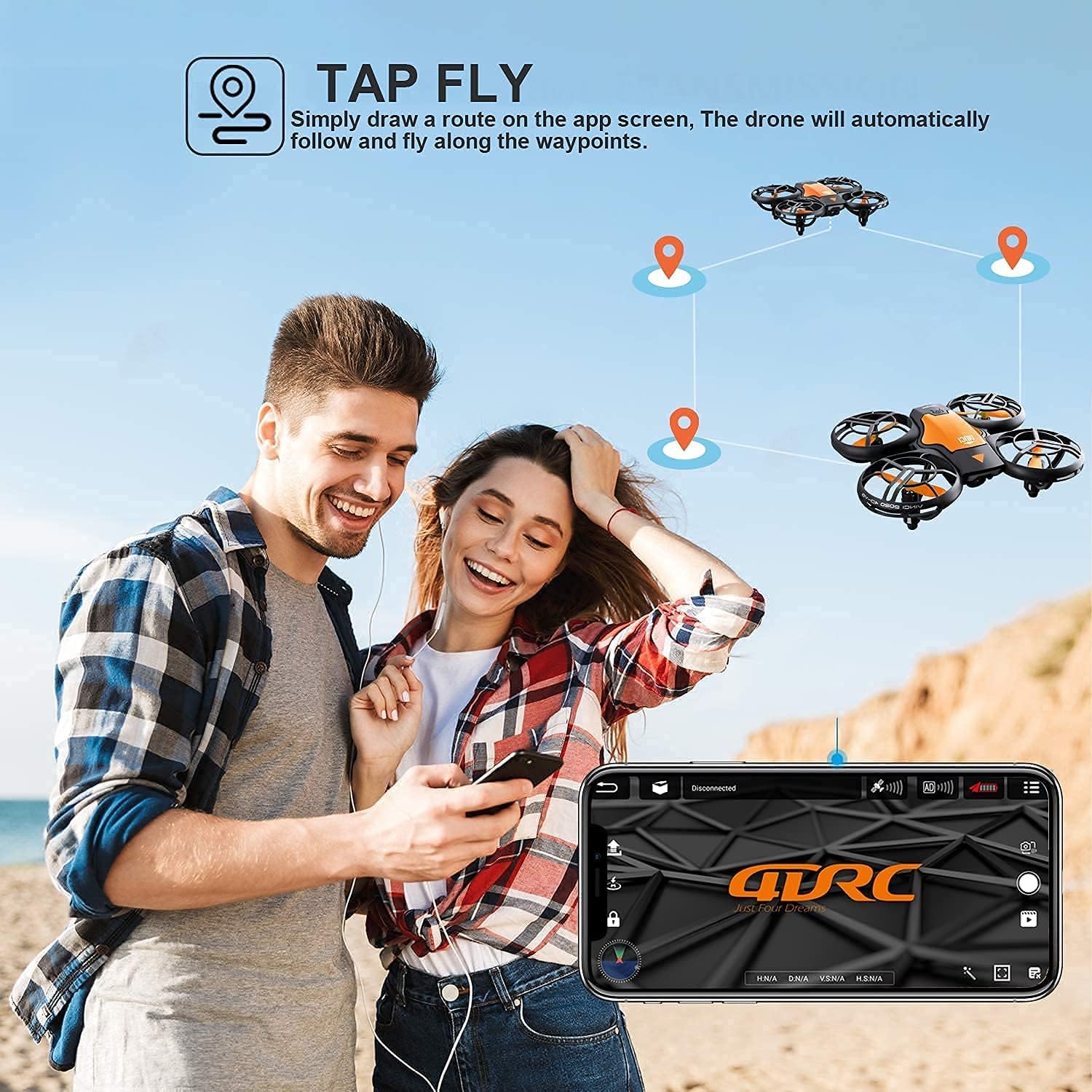
Image: The "Tap Fly" feature in action, where users can draw a flight trajectory on their smartphone screen for the drone to automatically follow.
Safety Guidelines
Adhere to the following safety guidelines to prevent accidents and ensure safe operation:
- Always operate the drone in open areas, away from people, animals, and obstacles.
- Do not fly near airports, restricted airspace, or sensitive areas.
- Maintain visual line of sight with the drone at all times.
- Avoid flying in strong winds or adverse weather conditions.
- Ensure propellers are free from obstructions before takeoff.
- Do not touch the propellers when they are spinning.
- Supervise children during drone operation.
- Regularly inspect the drone for any damage before and after each flight.
- Use only original or approved replacement parts.

Image: The drone's auto obstacle avoidance system, which senses and bypasses objects in its flight path for enhanced safety.
Maintenance
Proper maintenance ensures the longevity and performance of your 4DRC V8 Mini Drone:
- Battery Care:
- Store batteries in a cool, dry place.
- Do not overcharge or over-discharge batteries.
- If not used for extended periods, charge batteries to about 50% capacity.
- Propeller Replacement:
- If a propeller is damaged, carefully remove it and replace it with a new one. Ensure the correct propeller (A or B) is installed in the corresponding position.
- Cleaning:
- Use a soft, dry cloth to clean the drone body.
- Avoid using water or harsh chemicals.
Troubleshooting
| Problem | Possible Cause | Solution |
|---|---|---|
| Drone does not respond to remote. | Not paired; low battery on drone or remote. | Re-pair drone and remote; charge drone battery; replace remote batteries. |
| Drone drifts during flight. | Not calibrated; uneven surface at takeoff. | Perform gyroscope calibration (refer to remote control instructions); ensure drone is on a flat surface for takeoff. |
| Camera feed is not visible in app. | Not connected to drone's Wi-Fi; app not open. | Connect mobile device to drone's Wi-Fi network; open the 4DRC app. |
| Short flight time. | Battery not fully charged; old battery. | Ensure battery is fully charged; consider replacing old batteries. |
Specifications
| Brand | 4DRC |
| Model | V8 |
| Product Weight | 410 g |
| Product Dimensions | 13 x 11 x 4 cm |
| Batteries | 2 Lithium Ion (included) |
| Video Capture Resolution | 720p |
| Connectivity Technology | Wi-Fi |
| Special Features | Gesture Control, One-Key Takeoff/Landing, Headless Mode, Trajectory Flight, Circular Flight, 3 Speed Modes, 360° Flip, Altitude Hold, Auto Obstacle Avoidance |
| Skill Level | Beginner |
Warranty and Support
For warranty information and technical support, please refer to the contact details provided on the product packaging or the official 4DRC website. Keep your purchase receipt as proof of purchase for warranty claims.
If you encounter any issues not covered in this manual, please contact 4DRC customer service for assistance.
Related documentsV8


Ask a question about this manual
Ask about setup, troubleshooting, compatibility, parts, safety, or missing instructions. Manuals+ will review the question and use this page’s manual context to help answer it.