1. Setup Guide
This section provides instructions for the initial setup of your Brother DCP-J1050DW printer.
1.1 Unboxing and Placement
Carefully remove the printer from its packaging. Ensure all protective tapes and packing materials are removed from the exterior and interior of the device. Place the printer on a stable, flat surface. The printer dimensions are approximately 40.0W x 34.3D x 15.1H centimetres, and it weighs about 7 kilograms.
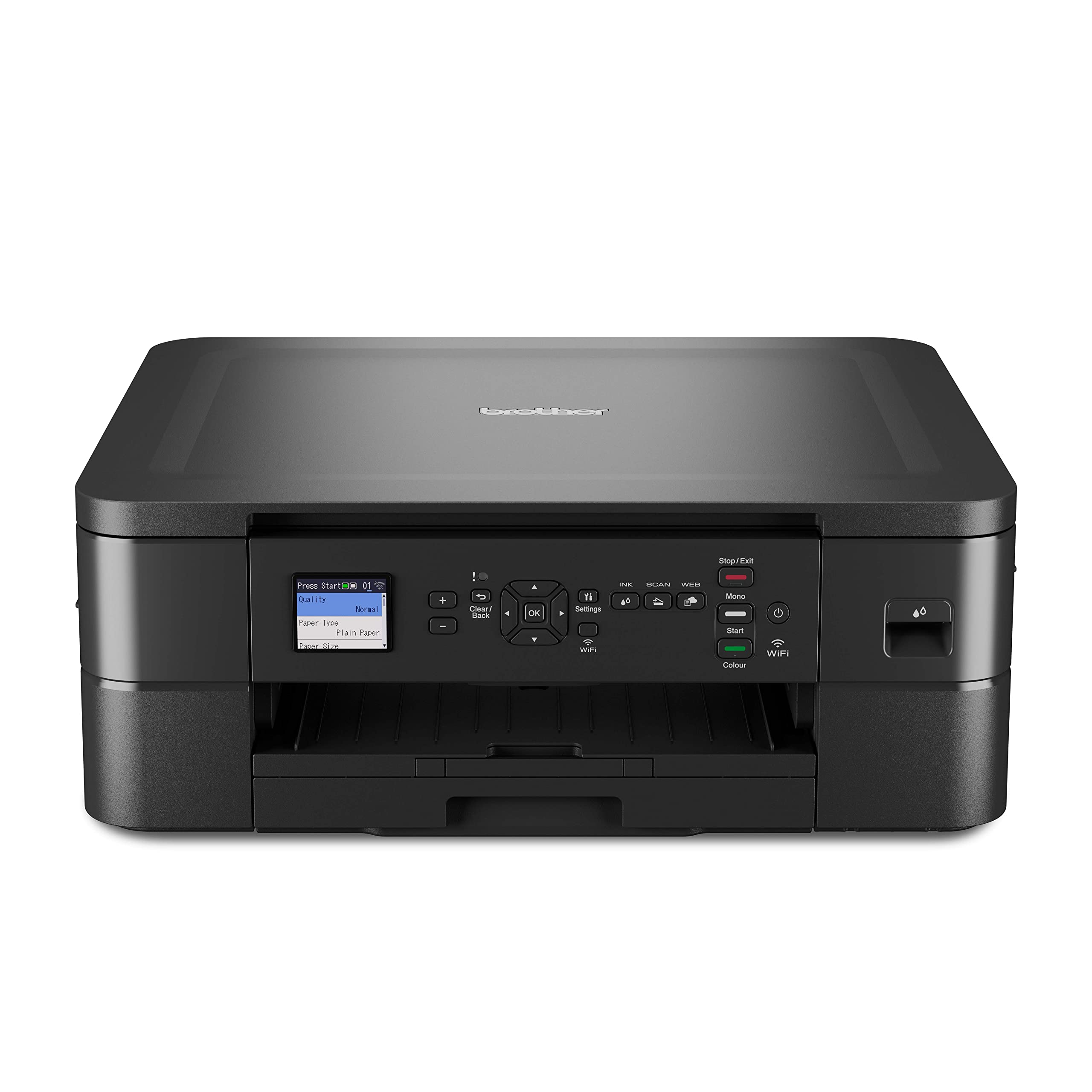
Image: The Brother DCP-J1050DW printer, illustrating its compact design suitable for various placements.
1.2 Power Connection
Connect the power cord to the printer and then to a wall outlet. Do not connect the printer to a surge protector or extension cord during initial setup to avoid potential power issues.
1.3 Ink Cartridge Installation
Open the ink cartridge cover. Install the LC451 (Black, Cyan, Magenta, Yellow) or LC451XL ink cartridges into their corresponding slots. Ensure each cartridge clicks into place. Close the cover. The printer will initiate an ink charging process.
1.4 Paper Loading
Open the paper tray and load up to 150 sheets of paper. Adjust the paper guides to fit the paper size. The printer supports various sheet sizes including A4, LTR, EXE, A5, A6, Photo-4"x6", 5"x7", Indexcard-5"x8", C5 Envelope, Com-10, DL Envelope, Monarch, B5 (JIS), B6 (JIS). Ensure the paper is loaded correctly to prevent jams.
1.5 Software and Driver Installation
Insert the installation CD (if provided) or download the latest drivers and software from the official Brother support website. Follow the on-screen instructions to complete the installation on your computer.
1.6 Network Connection (Wi-Fi)
On the printer's 1.8-inch color LCD display, navigate to the network settings. Select "Wi-Fi Setup Wizard" and follow the prompts to connect your printer to your wireless network. The printer supports Wi-Fi connectivity for convenient wireless printing.
1.7 Initial Calibration
After initial setup, the printer may perform a calibration process to optimize print quality. This process can take some time. Allow the printer to complete this automatically.
2. Operating Instructions
This section details the various functions of your Brother DCP-J1050DW printer.
2.1 Printing Documents
To print, select the print option from your computer's application. Choose the Brother DCP-J1050DW from the list of available printers. Adjust print settings such as paper size, print quality, and number of copies. The printer offers a maximum print resolution of 1200 x 6000 dpi for both black and white and color prints. Maximum print speed for black and white is 17 pages per minute (ppm), and for color is 9.5 ppm.
2.1.1 Automatic 2-sided (Duplex) Printing
The DCP-J1050DW supports automatic duplex printing. To use this feature, select the 2-sided printing option in your printer driver settings before sending the print job. This helps conserve paper.
2.2 Copying Documents
Place the document face down on the scanner glass or face up in the automatic document feeder (if available). On the printer's 1.8-inch color LCD display, select the "Copy" function. Adjust settings such as number of copies, paper type, and enlargement/reduction. Press "Start" to begin copying. The maximum copy speed for black and white is 17 ppm.
2.3 Scanning Documents
Place the document on the scanner glass. On the printer's 1.8-inch color LCD display, select the "Scan" function. You can choose to scan to a computer, email, or cloud service depending on your setup. Follow the on-screen prompts to select scan settings like resolution and file format. The scanner type is Sheetfed.
2.4 Mobile Printing
The printer is compatible with smartphones and supports Apple AirPrint™ and Wi-Fi Direct. For Apple AirPrint, ensure your iOS device is on the same Wi-Fi network as the printer. For Wi-Fi Direct, connect your mobile device directly to the printer's Wi-Fi Direct network. You can also use the Brother Mobile Connect app for additional mobile printing and scanning functionalities.
3. Maintenance
Regular maintenance ensures optimal performance and longevity of your printer.
3.1 Replacing Ink Cartridges
When an ink cartridge is low or empty, a message will appear on the printer's LCD display. Open the ink cartridge cover, press the release lever for the empty cartridge, and remove it. Unpack a new genuine Brother LC451 or LC451XL ink cartridge, insert it firmly into the correct slot until it clicks, and close the cover. The printer will perform a brief initialization.
3.2 Cleaning the Printer
Periodically wipe the exterior of the printer with a soft, lint-free cloth. For the scanner glass, use a soft cloth dampened with a non-abrasive glass cleaner. Avoid spraying cleaner directly onto the glass. Refer to the printer's internal cleaning options via the LCD display for print head cleaning or alignment if print quality deteriorates.
3.3 Paper Tray Maintenance
Ensure the paper tray is free of dust and debris. When loading paper, fan the sheets to prevent them from sticking together, which can cause paper jams.
4. Troubleshooting
This section addresses common issues you might encounter with your Brother DCP-J1050DW printer.
4.1 Ink Cartridge Detection Issues
If the printer displays a warning about undetected ink cartridges, ensure all cartridges are correctly installed and clicked into place. Remove and reinsert them firmly. Verify that you are using genuine Brother cartridges. If the issue persists, clean the electrical contacts on the cartridges and inside the printer with a lint-free cloth.
4.2 Paper Jams
If a paper jam occurs, the printer's display will indicate the location. Carefully open the relevant covers and gently pull out the jammed paper in the direction of the paper path. Avoid tearing the paper. Ensure the paper tray is loaded correctly and not overfilled.
4.3 Connectivity Problems
If the printer cannot connect to Wi-Fi, check your router and ensure it is powered on and functioning. Restart both the printer and the router. Re-run the Wi-Fi Setup Wizard from the printer's LCD display. Ensure the printer is within range of your wireless router. For USB connections, verify the cable is securely connected to both the printer and the computer.
4.4 Print Quality Issues
If prints are faded, streaky, or have incorrect colors, perform a print head cleaning and alignment from the printer's maintenance menu on the LCD display. Check ink levels and replace any low or empty cartridges. Ensure you are using appropriate paper for your print job.
5. Specifications
Detailed technical specifications for the Brother DCP-J1050DW printer.
| Feature | Specification |
|---|---|
| Product Dimensions | 40.0W x 34.3D x 15.1H centimetres |
| Item Weight | 7 Kilograms |
| Functions | Print, Copy, Scan |
| Print Technology | Inkjet |
| Max Print Speed (Black) | 17 ppm (pages per minute) |
| Max Print Speed (Color) | 9.5 ppm (pages per minute) |
| Duplex Printing | Yes (Automatic 2-sided) |
| Print Resolution | Up to 1200 x 6000 dpi |
| Paper Capacity | 150 sheets |
| Supported Sheet Sizes | A4, LTR, EXE, A5, A6, Photo-4"x6", 5"x7", Indexcard-5"x8", C5 Envelope, Com-10, DL Envelope, Monarch, B5 (JIS), B6 (JIS) |
| Print Media | Glossy photo paper, Plain paper |
| Connectivity | Wi-Fi, USB, Mobile Printing (Apple AirPrint, Wi-Fi Direct) |
| Display | 1.8-inch Color LCD |
| Ink Cartridge Type | LC451 (Black, Cyan, Magenta, Yellow), LC451XL (High Yield) |
| Scanner Type | Sheetfed |
| Max Copy Speed (Black) | 17 ppm |
| Compatible Devices | Smartphones, Computers |
| Special Features | Auto-Duplex, Network-Ready |

Image: A comparison table showing key features of Brother A4 Inkjet Printers, including the DCP-J1050DW model. This table provides a quick overview of print technology, functions, speed, duplex printing, resolution, paper capacity, connectivity, display, ink cartridges, dimensions, and weight.
6. Warranty & Support
For detailed warranty information, please refer to the documentation included with your product or visit the official Brother website. Warranty terms and conditions may vary by region.
For technical support, driver downloads, and frequently asked questions, please visit the Brother support website or contact Brother customer service directly. Contact information can typically be found on the Brother official website or in your product's packaging.
You can also visit the Brother Store on Amazon for additional product information and resources.


