
1. Introduction
Thank you for choosing the FOXWELL NT726 OBD2 Scanner. This device is a professional, OE-level diagnostic tool designed to assist automotive technicians and enthusiasts in diagnosing vehicle issues efficiently. Based on the Android 9.0 operating system, the NT726 offers comprehensive system diagnostics and a range of essential reset services. This manual provides detailed instructions for the proper setup, operation, and maintenance of your scanner to ensure optimal performance and longevity.
2. Product Overview
The FOXWELL NT726 is a top-tier Android-based scan tool featuring a 5.5-inch LCD touchscreen for intuitive navigation and clear display of diagnostic data. It is equipped with a robust Android 9.0 system and 32GB of memory, ensuring fast and compatible operation. The device supports one-click WiFi updates for lifetime free software enhancements.

Image 2.1: The FOXWELL NT726 diagnostic scanner highlighting its key features including a 5.5-inch touchscreen, Android 9.0 operating system, WiFi connectivity for updates, and 32GB internal memory.
3. Setup and Initial Use
3.1 Unpacking and Power On
- Carefully unpack the NT726 scanner and its accessories from the packaging.
- Connect the OBDII cable to the scanner.
- Plug the other end of the OBDII cable into your vehicle's OBDII port, typically located under the dashboard on the driver's side. The scanner will power on automatically.
3.2 WiFi Connection and Updates
- Upon first use, navigate to the 'Settings' menu on the scanner's touchscreen.
- Select 'Wi-Fi' and connect to an available wireless network.
- Once connected, go to the 'Update' icon on the main screen.
- Perform a one-click update to ensure your scanner has the latest software, vehicle coverage, and bug fixes. Regular updates are crucial for optimal performance.
4. Operating Instructions
4.1 Full System Diagnosis
The NT726 scanner provides comprehensive diagnostic capabilities across all available control modules in a vehicle. This includes, but is not limited to, Engine, Transmission, ABS (Anti-lock Braking System), SRS (Supplemental Restraint System), EPB (Electronic Parking Brake), Immobilizer, IC (Instrument Cluster), DSC (Dynamic Stability Control), HVAC (Heating, Ventilation, and Air Conditioning), TPMS (Tire Pressure Monitoring System), BMS (Battery Management System), SAS (Steering Angle Sensor), Headlamp, DPF (Diesel Particulate Filter), and EVAP (Evaporative Emission Control System).

Image 4.1: Illustration of the extensive ECU modules covered by the NT726 scanner, demonstrating its full system diagnostic capabilities.
Key diagnostic functions include:
- Read Codes: Retrieve Diagnostic Trouble Codes (DTCs) from the vehicle's control modules.
- Clear Codes: Erase DTCs after repairs have been made.
- Live Data: View real-time sensor data and parameters.
- ECU Information: Display control unit information such as part numbers and software versions.
4.2 8 Hot Reset Services
The NT726 is equipped with 8 commonly used maintenance and reset functions to address various vehicle service needs:
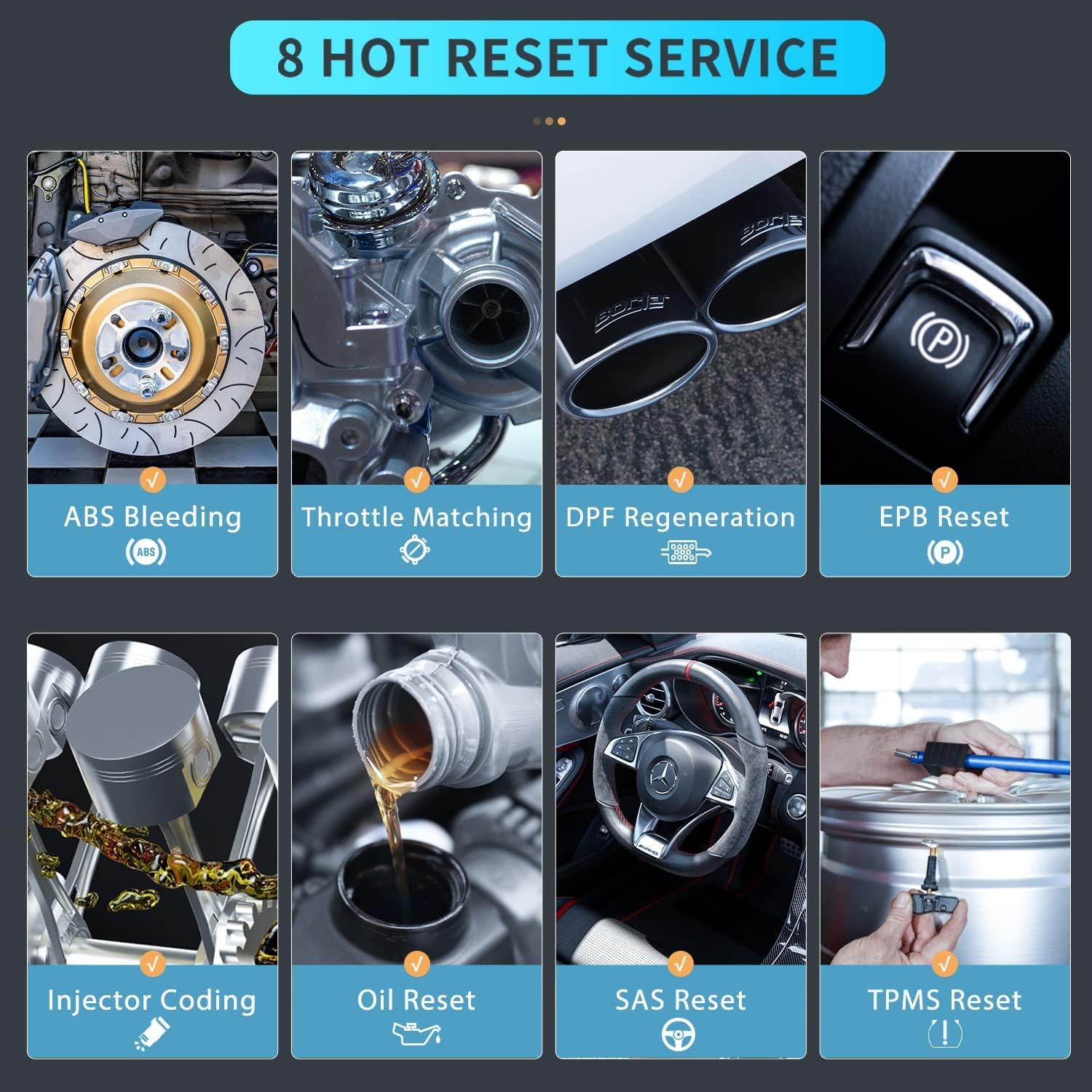
Image 4.2: Visual representation of the 8 hot reset services available on the FOXWELL NT726 scanner.
- ABS Bleeding: Bleeds air from the brake system after component replacement.
- Throttle Matching: Relearns the throttle body position after cleaning or replacement.
- DPF Regeneration: Initiates the regeneration process for the Diesel Particulate Filter.
- EPB Reset: Resets the Electronic Parking Brake after brake pad replacement.
- Injector Coding: Codes new injector numbers into the ECU.
- Oil Reset: Resets the oil service light and calculates optimal oil life change interval.
- SAS Reset: Calibrates the Steering Angle Sensor after steering system repairs.
- TPMS Reset: Resets the Tire Pressure Monitoring System after tire rotation or sensor replacement.
4.3 Live Data Stream and Analysis
The NT726 allows for a deep dive into auto diagnostics by providing live data streams. This feature enables users to view, graph, record, and playback real-time sensor data, which is crucial for identifying intermittent problems and verifying repairs.
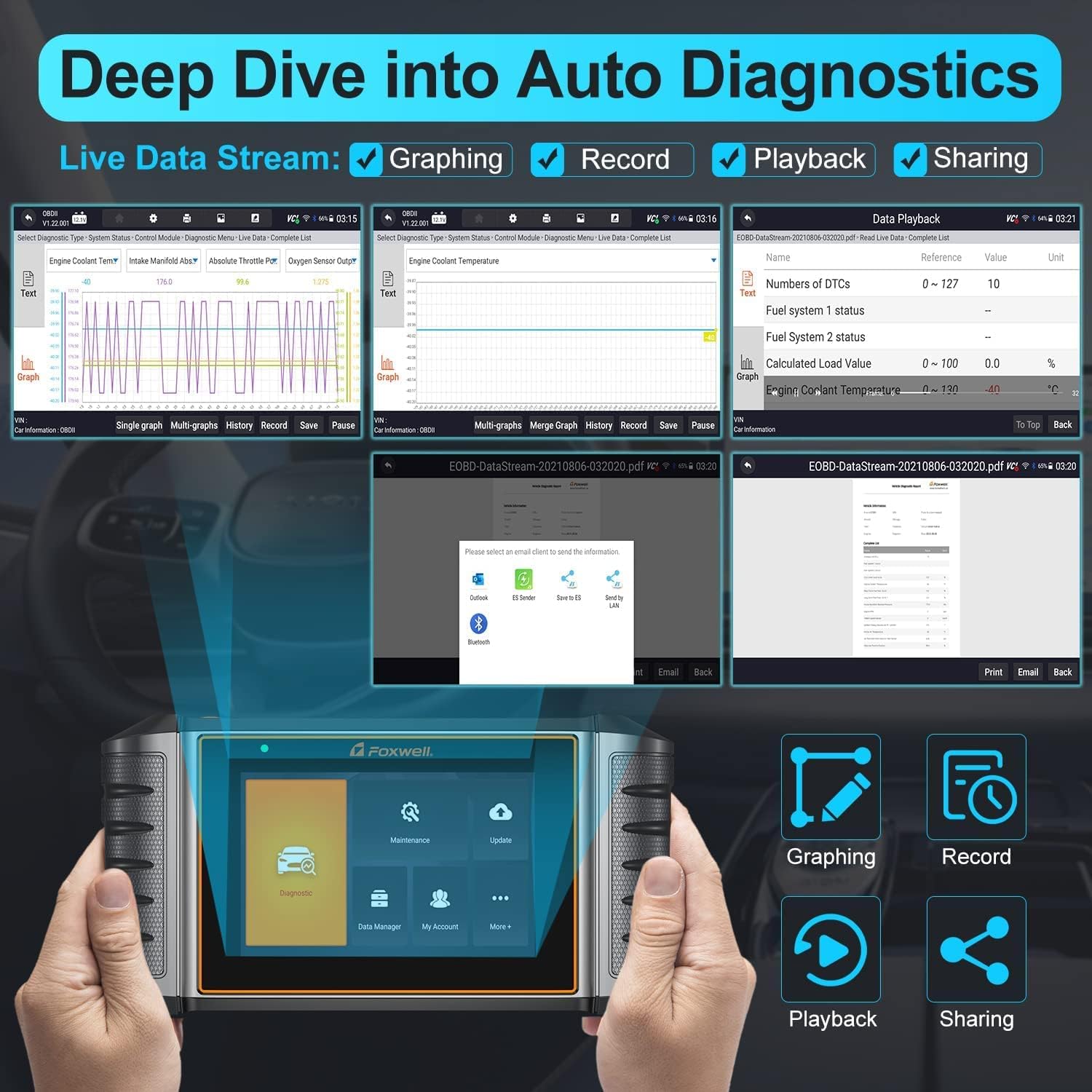
Image 4.3: The NT726 interface demonstrating live data stream capabilities, including graphing, recording, playback, and options for sharing diagnostic reports.
- Graphing: Visualize data parameters over time for easier analysis.
- Record: Save live data sessions for later review.
- Playback: Review recorded data to pinpoint issues.
- Sharing: Generate and share diagnostic reports via email or other methods.
4.4 Vehicle Compatibility
The FOXWELL NT726 offers extensive vehicle compatibility, supporting over 100 vehicle brands and 10,000+ car models manufactured after 1996 and up to 2021 (12V vehicles only). This broad coverage ensures its utility across a wide range of vehicles from various regions including USA, Europe, and Asia.
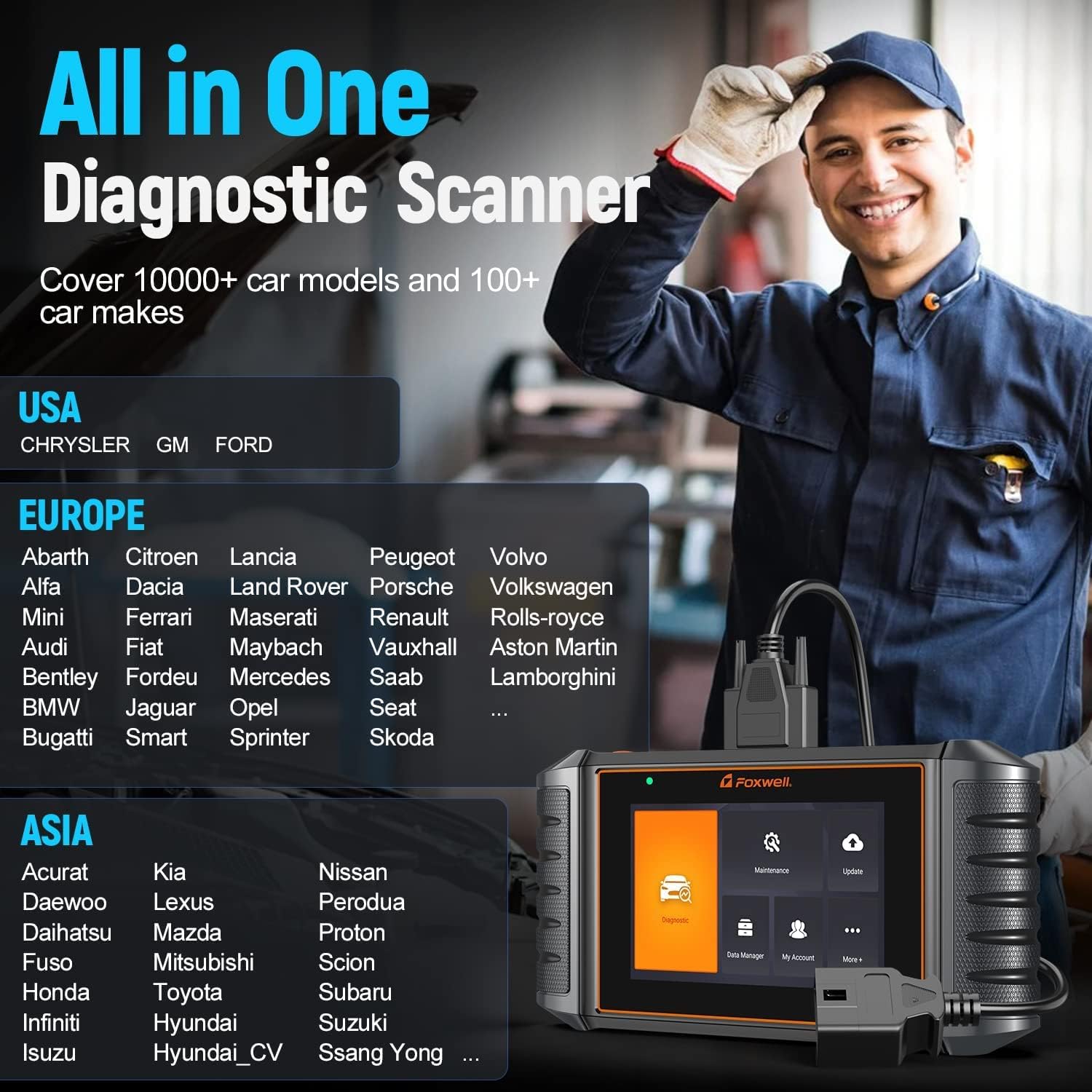
Image 4.4: A partial list of vehicle manufacturers supported by the NT726, demonstrating its wide compatibility across different regions.
5. Maintenance
- Cleaning: Use a soft, damp cloth to clean the scanner's screen and body. Avoid abrasive cleaners or solvents.
- Software Updates: Regularly connect the device to Wi-Fi and perform software updates to ensure access to the latest vehicle data, functions, and bug fixes. FOXWELL provides lifetime free WiFi updates for the NT726.
- Storage: Store the scanner in a dry, cool environment, away from direct sunlight and extreme temperatures. Use the provided protective case (if applicable) to prevent physical damage.
- Cable Care: Inspect the OBDII cable regularly for any signs of wear or damage. Replace if necessary to ensure reliable connection.
6. Troubleshooting
- Scanner does not power on: Ensure the OBDII cable is securely connected to both the scanner and the vehicle's OBDII port. Verify the vehicle's battery has sufficient charge.
- Communication error with vehicle: Check that the vehicle's ignition is on. Ensure the OBDII cable is properly connected. Verify the vehicle is OBDII compliant (most vehicles after 1996). Try a different vehicle to rule out scanner issues.
- Software update failure: Ensure a stable Wi-Fi connection. Check for sufficient storage space on the device. Restart the scanner and try the update again.
- Screen unresponsive: Perform a soft reset by holding the power button (if available) or by letting the battery drain and recharging. If the issue persists, contact FOXWELL support.
7. Specifications
| Feature | Specification |
|---|---|
| Brand | FOXWELL |
| Model | NT726 |
| Operating System | Android 9.0 |
| Display | 5.5-inch LCD Touchscreen |
| Memory | 32GB (Internal) |
| Connectivity | Wi-Fi |
| Power Source | Vehicle Battery (via OBDII) |
| Vehicle Voltage | 12V only |
8. Warranty and Support
The FOXWELL NT726 scanner comes with lifetime free WiFi updates, ensuring your device remains current with the latest vehicle data and diagnostic functions without additional subscription fees. For technical assistance, warranty claims, or any operational questions not covered in this manual, please contact FOXWELL customer support through their official website or authorized distributors. Always provide your product model and serial number when seeking support.


