
1. Product Overview
Microsoft Windows 11 Home is an operating system designed to provide a streamlined, personal, and focused user experience. It features a reimagined user interface, aiming to reduce cognitive load and enhance productivity for various workstyles.
Key aspects include a centered Start menu, effortless navigation, and integrated search capabilities across your device and the web. The system offers a clean layout with fresh icons, wallpapers, and sounds. Enhanced tools like Microsoft Edge are optimized for seamless integration with Microsoft 365 applications such as Teams, Outlook, and Office.
Windows 11 also introduces intelligent desktop features like Snap layouts for organizing open windows and the ability to create custom desktops for different workflows. Personalization options include natural interaction through voice, digital pen, and multi-finger touch, along with customizable Widgets for news and schedules.

Image 1.1: The official logo for Windows 11 Home, set against its characteristic blue wave-like wallpaper, signifying the product's identity.
2. System Requirements
Before installing Windows 11 Home, ensure your system meets the minimum requirements for optimal performance and compatibility. Your device must be running Windows 10, version 2004 or later, to upgrade. Free updates are available through Windows Update in Settings > Update and Security.

Image 2.1: A visual representation of the detailed system requirements necessary for installing Windows 11.
Minimum Specifications:
- Processor: 1 gigahertz (GHz) or faster with 2 or more cores on a compatible 64-bit processor or System on a Chip (SoC).
- RAM: 4 gigabyte (GB).
- Storage: 64 GB or larger storage device.
- System firmware: UEFI, Secure Boot capable.
- TPM: Trusted Platform Module (TPM) version 2.0.
- Graphics card: Compatible with DirectX 12 or later with WDDM 2.0 driver.
- Display: High definition (720p) display that is greater than 9" diagonally, 8 bits per colour channel.
- Internet connection and Microsoft account: For all Windows 11 editions, internet access is required to perform updates and to download and take advantage of some features. Windows 11 Home edition requires internet connectivity and a Microsoft account. Switching a device out of Windows 11 Home in S mode also requires internet connectivity.
3. Setup and Installation
This product is an OEM (Original Equipment Manufacturer) version of Windows 11 Home. It is intended for installation on a new PC with no prior version of Windows installed. The license cannot be transferred to another machine after initial activation.
The product typically ships in a plain envelope and includes a DVD. The activation key is located under a scratch-off area on the label. Handle the label carefully to avoid damaging the key.

Image 3.1: The physical DVD for Windows 11 Home, used for installation on new systems.
Installation Steps:
- Prepare your PC: Ensure your new PC meets all system requirements, especially regarding UEFI, Secure Boot, and TPM 2.0.
- Insert the DVD: Place the Windows 11 Home installation DVD into your computer's optical drive.
- Boot from DVD: Restart your computer and configure the BIOS/UEFI settings to boot from the DVD drive.
- Follow On-Screen Prompts: The Windows Setup wizard will guide you through the installation process. This includes selecting language, time, and keyboard input.
- Enter Product Key: When prompted, carefully scratch off the covering on the product label and enter the activation key.
- Accept License Terms: Read and accept the Microsoft Software License Terms.
- Choose Installation Type: Select "Custom: Install Windows only (advanced)" for a clean installation on a new PC.
- Select Drive: Choose the drive or partition where you want to install Windows 11. Ensure it has at least 64 GB of free space.
- Complete Installation: The system will copy files, install features, and perform updates. Your PC may restart multiple times during this process.
- Initial Setup: After installation, you will be guided through initial setup, including region selection, network connection, and signing in with or creating a Microsoft account.
4. Operating Windows 11 Home
Windows 11 Home offers a refreshed user interface and enhanced features designed for productivity and ease of use.
User Interface and Navigation:
The Start menu is now centered on the taskbar, providing quick access to pinned applications, recommended files, and a search bar for finding content across your device and the web.
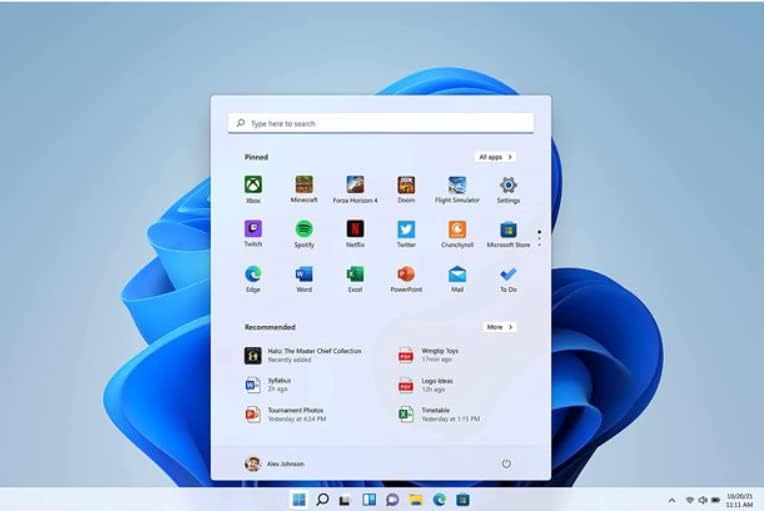
Image 4.1: The redesigned Windows 11 Start Menu, showing pinned apps and recommended documents.
Widgets:
Access personalized information at a glance with the Widgets panel, which can be customized to show news, weather, calendar events, and more.
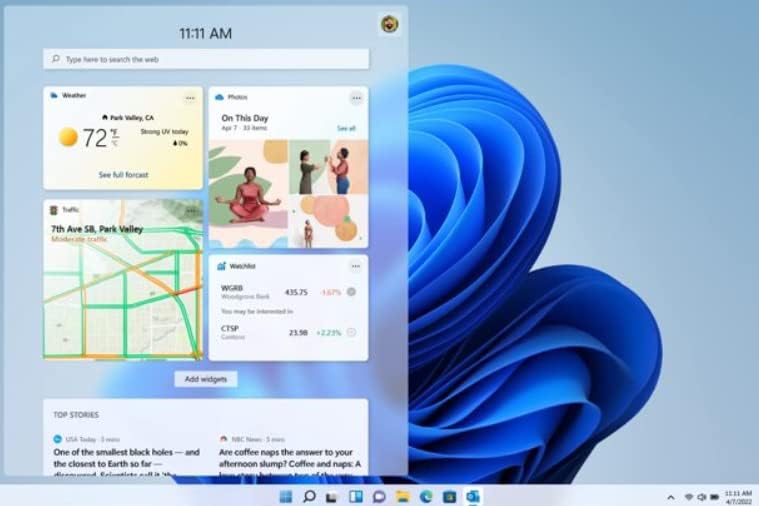
Image 4.2: The Windows 11 Widgets panel displaying various personalized information feeds like weather, photos, and news.
Multitasking with Snap Layouts:
Organize your open windows efficiently using Snap layouts. Hover over the maximize button of any window to see available layouts and arrange multiple applications on your screen. Windows 11 remembers your layouts, even when docking or undocking your monitor.
Communication and Collaboration:
Windows 11 integrates Microsoft Teams directly into the taskbar, making it easier to connect with friends, family, and colleagues through chat, voice, or video calls.
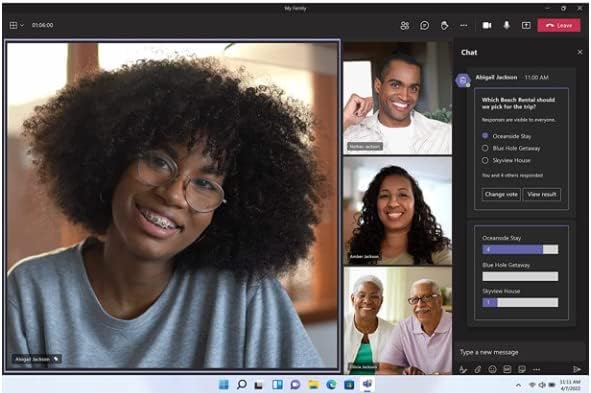
Image 4.3: A screenshot of Microsoft Teams running on Windows 11, showing a video call in progress with multiple participants.
5. Maintenance
Maintaining your Windows 11 Home system involves regular updates, security practices, and system optimization.
- Windows Updates: Ensure automatic updates are enabled to receive the latest security patches, feature enhancements, and bug fixes. Navigate to Settings > Windows Update.
- Security: Windows 11 includes built-in security features like Windows Defender Antivirus. Keep your antivirus definitions up to date and perform regular scans. Utilize features like hardware isolation, encryption, and malware protection.
- Disk Cleanup and Storage Sense: Periodically clean up temporary files and optimize storage. Use Storage Sense (Settings > System > Storage) to automatically free up space.
- Driver Updates: Keep your device drivers updated for optimal hardware performance. Drivers are often updated through Windows Update, but you may also check your hardware manufacturer's website.
6. Troubleshooting
This section provides general guidance for common issues you might encounter with Windows 11 Home.
Common Issues and Solutions:
- Activation Problems: If your product key does not activate, double-check that you have entered it correctly. Ensure your internet connection is stable. Remember that OEM keys are tied to the first PC they are installed on.
- Performance Issues: If your system is slow, check for background applications, ensure sufficient free storage space, and verify that your drivers are up to date. Running a disk cleanup or defragmentation (for HDDs) can also help.
- Application Compatibility: While Windows 11 is designed for broad app compatibility, some older applications might not function correctly. Try running the application in compatibility mode (right-click the executable, select Properties > Compatibility).
- Update Failures: If Windows Update fails, ensure you have enough disk space. You can try running the Windows Update troubleshooter (Settings > System > Troubleshoot > Other troubleshooters).
- Hardware Not Recognized: Ensure all hardware components meet the Windows 11 system requirements. Install the latest drivers from the hardware manufacturer's website.
For more in-depth troubleshooting, refer to Microsoft's official support documentation available online or consult a qualified IT professional.
7. Specifications
Detailed specifications for the Microsoft Windows 11 Home System Builder product package.
| Attribute | Detail |
|---|---|
| Product Dimensions | 7.5 x 5.5 x 0.1 inches |
| Item Weight | 1.6 ounces |
| Item Model Number | KW9-00633 |
| Date First Available | December 2, 2021 |
| Manufacturer | Microsoft |
| ASIN | B09MYJ1R6L |
| Country of Origin | USA |
8. Warranty and Support
Please note that this OEM (Original Equipment Manufacturer) version of Windows 11 Home does not include direct product support from Microsoft. This version is primarily intended for system builders and users who are comfortable with self-support or have access to third-party technical assistance.
To acquire a product with direct Microsoft support, it is recommended to obtain the full packaged "Retail" version of Windows. For organizations with 150 or more users, Microsoft offers a service called App Assure, which helps resolve application compatibility issues at no additional cost.
For general information and self-help resources, visit the official Microsoft support website.


