
ipega PG-9090
Ipega PG-9090 Wireless Gamepad Controller User Manual
Model: PG-9090
Introduction
The Ipega PG-9090 is a versatile wireless gamepad controller designed for an enhanced gaming experience across various Android devices. It supports both Bluetooth 4.0 and 2.4G wireless connections, offering stable and responsive control without the need for complex setup or activation operations. This manual provides detailed instructions for setting up, operating, and maintaining your PG-9090 controller.

Figure 1: The Ipega PG-9090 Gamepad Controller with a smartphone securely mounted in its telescopic bracket, displaying a game. The controller features blue accents on its joysticks and grips.
Setup
Compatibility
The PG-9090 controller is compatible with Android 6.0 and higher systems. This includes a wide range of Android smartphones and tablets such as Samsung Galaxy S9/S9+, S10/S10+, Note 10/20, Mate 20/20plus, P30, P40, OPPO, VIVO, and Xiaomi 10/10pro. The 2.4G wireless connection also supports Android TV, TV set-top boxes, and PC computers (ensure the system is Android 6.0 or higher).
Note:
- This controller is not compatible with Apple's iOS system.
- This controller is not compatible with devices using MediaTek chips.
Initial Pairing and Connection Modes
To connect your PG-9090 controller, select the appropriate startup method based on your device's operating system. The controller supports direct play modes, eliminating the need for complex setup.

Figure 2: Diagram illustrating the different button combinations for connecting the Ipega PG-9090 controller to various devices: Y+HOME for iOS, A+HOME for Android, and X+HOME for Standard Android.
- Android V3 Direct Play Mode:
Press and hold the A button and the HOME button simultaneously for 2 seconds. The controller's LED1 light will flash quickly. On your Android phone or tablet, search for the Bluetooth device named "ipega-9090" and select it to connect. Once connected, LED1 will remain steadily on. For subsequent connections, simply press the HOME button; LED1 will flash slowly and automatically reconnect.
- Android Standard Game Mode:
Press and hold the X button and the HOME button simultaneously for 2 seconds. The controller's LED3 light will flash quickly. On your Android phone, tablet, or smart TV, search for "PG-9090" and select it to connect. Once connected, LED3 will remain steadily on. For subsequent connections, simply press the HOME button; LED3 will flash slowly and automatically reconnect.
Downloading the ShootingPlus V3 App
For advanced customization and optimal performance, it is recommended to download and install the "ShootingPlus V3" application. This app allows you to customize button mappings according to your personal preferences and game requirements. You can search for related video tutorials on YouTube by searching "PG-9090 ShootingPlus V3" for detailed guidance on setting up custom keys.
Operating Instructions
Key Customization Function
The ShootingPlus V3 app enables you to customize the function buttons to suit various game operation needs and personal habits. This allows for a more tailored and efficient gaming experience.

Figure 3: A screenshot from the ShootingPlus V3 application, demonstrating the interface for customizing button mappings within a game. Virtual buttons are overlaid on the game screen for precise assignment.
Important Notes for Key Customization:
- When setting buttons, ensure they align with the virtual buttons in the game to avoid inoperability.
- Adjust the size of the virtual joystick appropriately during setup to prevent blind spots.
- Avoid setting conflicting or repeatedly assigned keys.
TURBO/MENU Function
The PG-9090 controller features a TURBO function for rapid-fire actions on specific buttons. The action buttons that support the TURBO function include A, B, X, Y, L1, L2, R1, and R2.
Setting Method:
- To activate TURBO: Press and hold the desired action button, then press the TURBO button.
- To deactivate TURBO: Press and hold the action button again, then tap the TURBO button.
Note:
- This TURBO feature is only supported on some Android devices.
Features Overview
Wireless 4.0 + 2.4G Dual Connection
The PG-9090 offers flexible connectivity options with both Bluetooth 4.0 and a 2.4G wireless receiver. This dual connection ensures a stable and delay-free gaming experience. The 2.4G receiver is conveniently concealed within the controller for easy storage and portability.
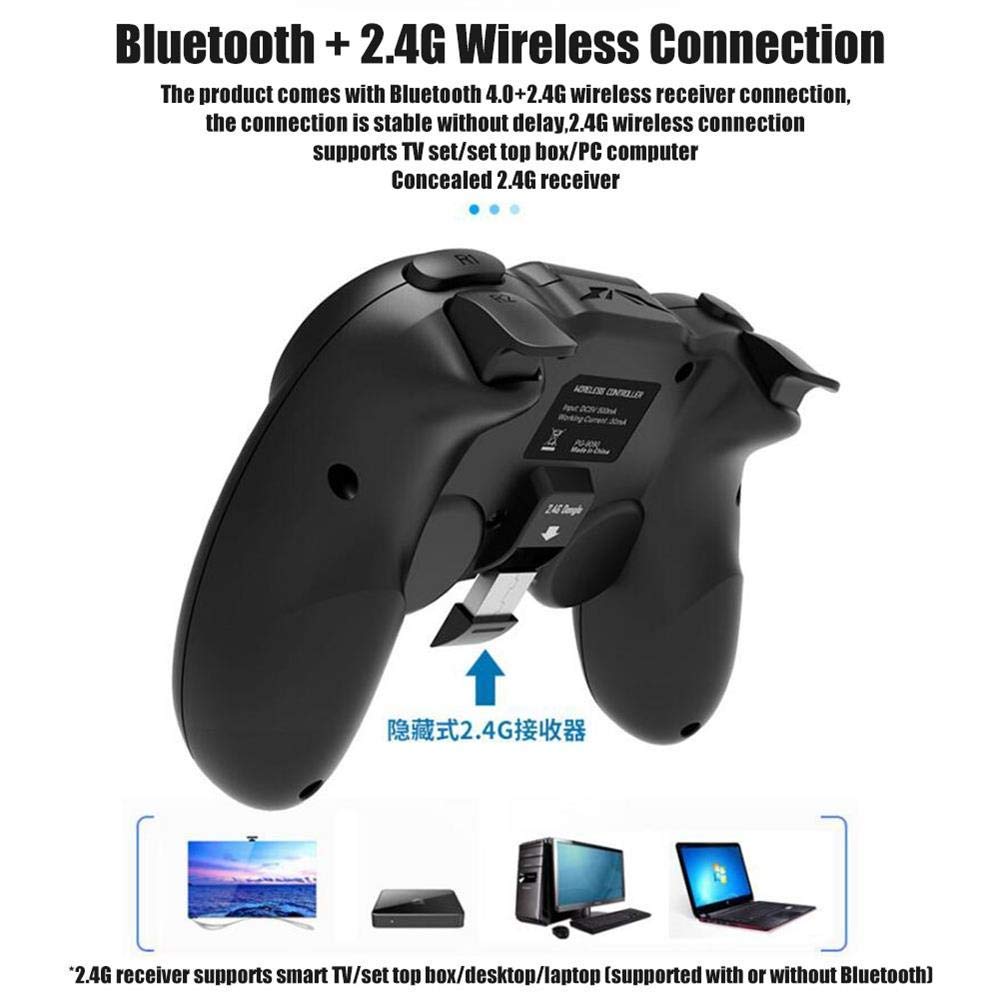
Figure 4: An illustration highlighting the Bluetooth 4.0 and 2.4G wireless connection capabilities of the Ipega PG-9090 controller, showing the concealed 2.4G receiver and compatibility with various devices like smart TVs, desktops, and laptops.
Removable Replacement Cross Key
Designed with fighting games in mind, the cross key (D-pad) on the PG-9090 is removable and replaceable. This feature ensures a simple and non-sticky operation, providing precise control for directional inputs.

Figure 5: Close-up view of the Ipega PG-9090 controller, showing the removable cross key (D-pad) and its design for easy replacement and smooth operation.
Self-Contained Telescopic Mobile Phone Bracket
The controller features an integrated, one-piece lever telescopic bracket that can securely hold smartphones. This bracket can stretch up to 75mm (approximately 3 inches), accommodating a wide range of phone sizes and allowing for comfortable mobile gaming.

Figure 6: A side view of the Ipega PG-9090 controller demonstrating its self-contained telescopic mobile phone bracket, designed to securely hold a smartphone during gameplay.
Built-in Polymer Lithium Battery
The PG-9090 is equipped with a built-in 380mAh high-performance polymer lithium battery. This battery provides over 15 hours of continuous gameplay on a single charge. The controller also supports playing games while charging, ensuring uninterrupted gaming sessions.

Figure 7: An illustration showing the Ipega PG-9090 controller being charged via a wall adapter while a smartphone is mounted and a game is being played, highlighting the "play while charging" feature.
Maintenance
- Cleaning: Use a soft, dry cloth to clean the surface of the controller. Avoid using harsh chemicals or abrasive materials.
- Storage: Store the controller in a cool, dry place away from direct sunlight and extreme temperatures.
- Battery Care: To prolong battery life, avoid fully discharging the battery frequently. Charge the controller regularly, even if not in use for extended periods.
- Handling: Handle the controller with care. Avoid dropping it or subjecting it to strong impacts.
Troubleshooting
Connection Issues
- Controller not connecting: Ensure you are using the correct startup mode (A+HOME for Android V3 Direct Play, X+HOME for Android Standard Game Mode). Make sure Bluetooth is enabled on your device and the controller is within range.
- Controller disconnects frequently: Ensure the controller is fully charged. Move closer to your device to reduce interference.
Button Mapping Problems
- Buttons not responding correctly in-game: Verify that you have correctly mapped the buttons using the ShootingPlus V3 app. Ensure that virtual buttons in the game are aligned with your custom mappings.
- TURBO function not working: Remember that the TURBO function is only supported on some Android devices. Ensure you are activating it correctly by holding the action button and pressing the TURBO button.
General Performance Issues
- Lag or input delay: Ensure there are no other strong wireless signals interfering with the connection. Try restarting both the controller and your device.
- Controller not charging: Check the charging cable and power source. Ensure the charging port on the controller is clean and free of debris.
If you encounter persistent issues, please refer to the official Ipega website or contact customer support for further assistance.
Specifications
| Feature | Detail |
|---|---|
| Model | PG-9090 |
| Connectivity | Wireless 4.0 + 2.4G |
| Compatibility | Android 6.0 and higher (Smartphones, Tablets, Smart TVs, PCs) |
| Battery Capacity | 380mAh Polymer Lithium Battery |
| Continuous Playtime | >15 hours |
| Telescopic Bracket Stretch | ≤75mm (approx. 3 inches) |
| Package Dimensions | 17.5 x 13.7 x 6.5 cm |
| Item Weight | 200 g |
| Manufacturer | IPEGA |
Warranty and Support
For warranty information and customer support, please refer to the documentation included with your product or visit the official Ipega website. If you have any questions or require assistance, please contact Ipega customer service directly.
Related documentsPG-9090


Ask a question about this manual
Ask about setup, troubleshooting, compatibility, parts, safety, or missing instructions. Manuals+ will review the question and use this page’s manual context to help answer it.