1. Introduction
Thank you for choosing the Dragonwar Dragon Shock 4 Wireless Controller. This manual provides detailed instructions to help you set up, operate, and maintain your controller for optimal performance across PlayStation 4, PC, and mobile devices. Please read this manual thoroughly before use.
2. Package Contents
Ensure all items are present in the package:
- Dragonwar Dragon Shock 4 Wireless Controller
- USB Charging Cable
- User Manual
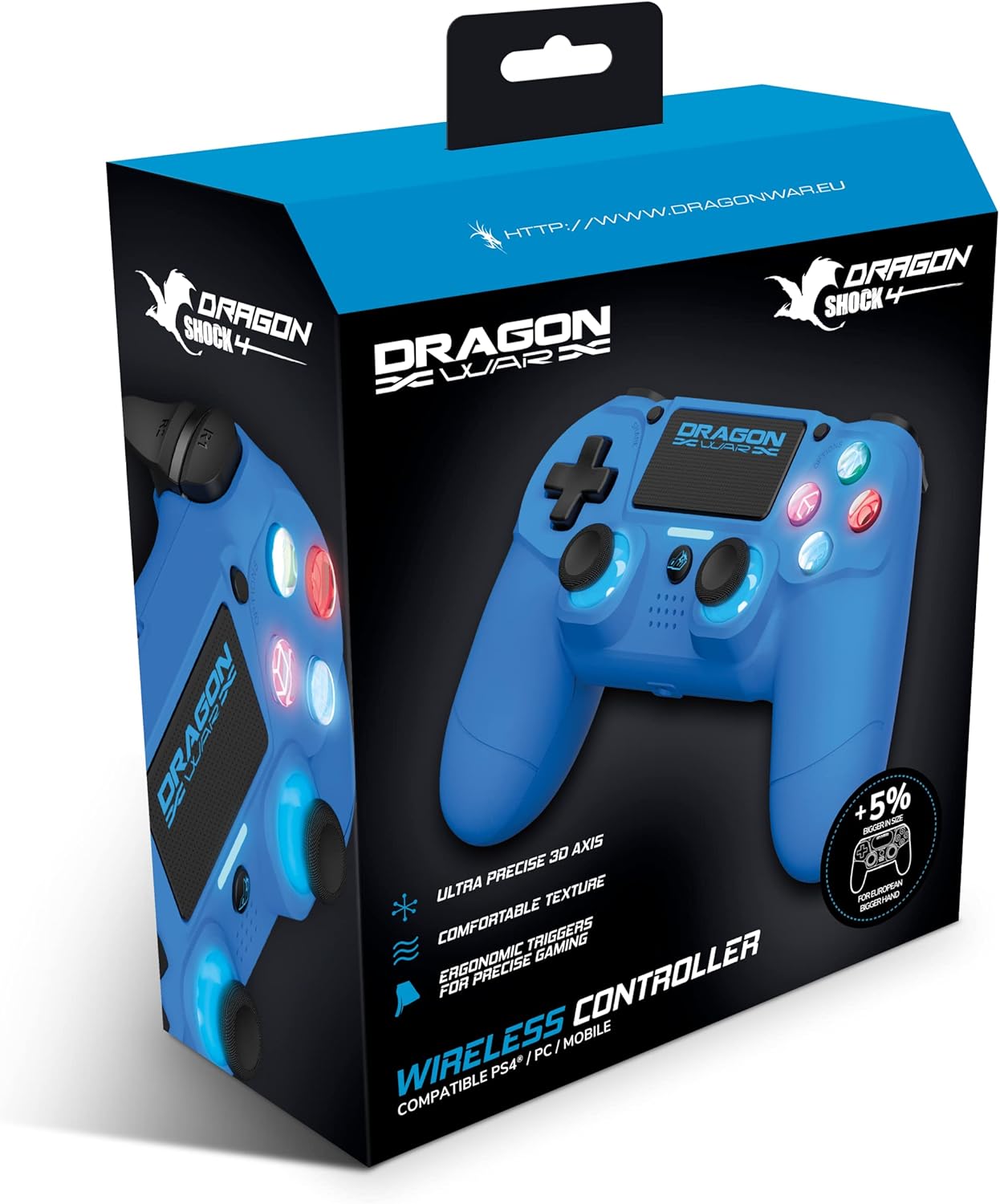
Image: The Dragonwar Dragon Shock 4 Wireless Controller packaging, showing the blue controller inside a blue and black box with product features listed.
3. Controller Overview
Familiarize yourself with the various buttons and features of your Dragon Shock 4 controller:

Image: A detailed diagram of the Dragonwar Dragon Shock 4 Wireless Controller, highlighting and numbering its various buttons and components for easy identification.
- Left Joystick / L3 Button: Used for movement and as a clickable button.
- Home Button: Powers on/off the controller and accesses system menus.
- 3.5mm Jack Play & Chat: For connecting a headset for audio and voice chat.
- Right Joystick / R3 Button: Used for camera control, aiming, and as a clickable button.
- Button (Cross): Action button.
- Button (Circle): Action button.
- Button (Triangle): Action button.
- Button (Square): Action button.
- Options Button: Accesses in-game or system options.
- Touch Pad: Multi-touch input surface.
- Share Button: For sharing gameplay content.
- Up Button (D-Pad): Directional input.
- Right Button (D-Pad): Directional input.
- Left Button (D-Pad): Directional input.
- Down Button (D-Pad): Directional input.
- R1 Button: Right shoulder button.
- R2 Button: Right trigger button.
- L1 Button: Left shoulder button.
- L2 Button: Left trigger button.
- Charging Port: USB port for charging the controller.
4. Setup
4.1 Initial Charging
Before first use, fully charge the controller. Connect the supplied USB charging cable to the controller's charging port (20) and the other end to a powered USB port (e.g., PS4 console, PC, or USB wall adapter). The light bar will indicate charging status and turn off when fully charged.
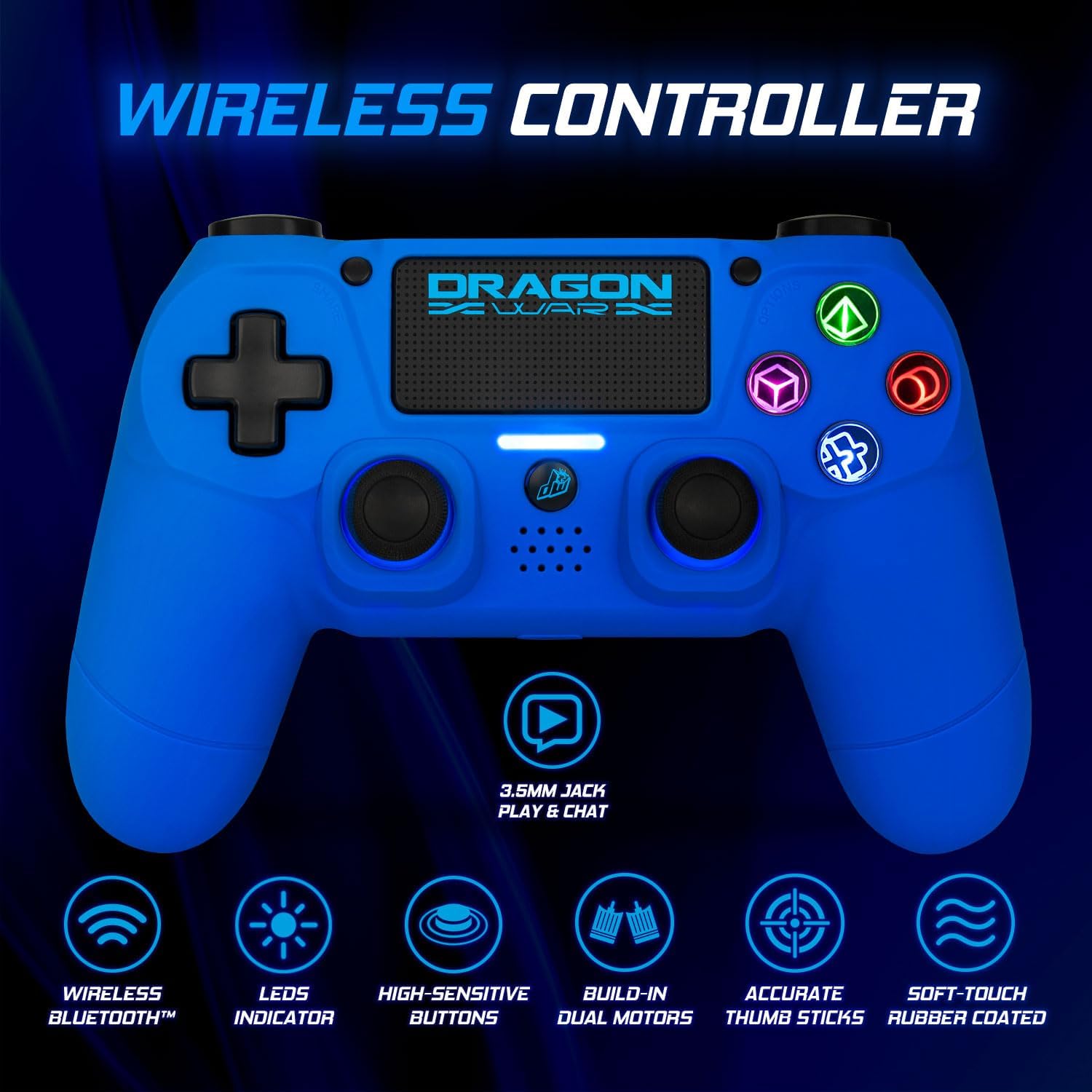
Image: The Dragonwar Dragon Shock 4 Wireless Controller displayed with text indicating "Long Battery Life" and a 500mAh battery, along with play time and charging time details.
4.2 Pairing with PlayStation 4
- Ensure your PS4 console is powered on.
- Connect the controller to the PS4 console using the USB charging cable.
- Press the Home Button (2) on the controller.
- The controller will pair with the PS4. Once paired, you can disconnect the USB cable for wireless play.
- To pair additional controllers, repeat the process.
4.3 Connecting to PC (Windows)
The controller can be connected to a PC via Bluetooth or USB cable.
4.3.1 Bluetooth Connection
- Ensure your PC has Bluetooth enabled.
- On your PC, go to Settings > Devices > Bluetooth & other devices.
- Hold down the Share Button (11) and the Home Button (2) on the controller simultaneously until the light bar starts flashing rapidly. This indicates pairing mode.
- On your PC, click "Add Bluetooth or other device" and select "Bluetooth".
- Select the controller from the list of available devices (it may appear as "Wireless Controller" or similar).
- Follow any on-screen prompts to complete the pairing.
4.3.2 Wired Connection
- Connect the controller to your PC using the USB charging cable.
- The PC should automatically detect and install the necessary drivers.
4.4 Connecting to Mobile Devices
- Ensure Bluetooth is enabled on your mobile device.
- Hold down the Share Button (11) and the Home Button (2) on the controller simultaneously until the light bar starts flashing rapidly.
- On your mobile device, go to Bluetooth settings and scan for new devices.
- Select the controller from the list of available devices.
- Follow any on-screen prompts to complete the pairing.
5. Operating Instructions
5.1 Power On/Off
- To Power On: Press the Home Button (2). The controller will attempt to connect to the last paired device.
- To Power Off: Hold the Home Button (2) for approximately 10 seconds until the light bar turns off. The controller will also power off automatically after a period of inactivity.
5.2 Using the Touch Pad
The touch pad (10) supports multi-touch input, allowing for various gestures depending on the game or application. Refer to specific game instructions for touch pad functionality.
5.3 Headset Connection
Connect a standard 3.5mm headset to the 3.5mm Jack Play & Chat (3) for in-game audio and voice communication.

Image: A close-up view of the 3.5mm stereo audio jack located on the Dragonwar Dragon Shock 4 Wireless Controller, indicating its function for play and chat.
5.4 Vibration Function
The controller features dual vibration motors for enhanced haptic feedback during gameplay. This function is automatically enabled when supported by the game.
5.5 Precision Analog Sticks
The controller is equipped with high-precision analog sticks (1, 4) designed for accurate movement and aiming.

Image: A close-up of the Dragonwar Dragon Shock 4 Wireless Controller's analog sticks, emphasizing their precision for improved gaming accuracy and speed.
6. Maintenance
6.1 Cleaning
To clean the controller, use a soft, dry cloth. For stubborn dirt, slightly dampen the cloth with water. Do not use harsh chemicals, solvents, or abrasive cleaners, as these can damage the controller's finish and internal components.
6.2 Storage
Store the controller in a cool, dry place away from direct sunlight and extreme temperatures. Avoid placing heavy objects on the controller to prevent damage to buttons or joysticks.
7. Troubleshooting
- Controller not turning on: Ensure the controller is fully charged. Connect it to a power source using the USB cable.
- Controller not connecting/pairing:
- For PS4: Try connecting with the USB cable first to re-establish the connection.
- For PC/Mobile: Ensure Bluetooth is enabled on your device and the controller is in pairing mode (flashing light bar). Remove previous pairings from your device's Bluetooth list and try again.
- Reset the controller: Locate the small reset button on the back of the controller (often a small hole near the L2 button). Use a thin object (like a paperclip) to press and hold the button for 3-5 seconds. Then, attempt to pair again.
- Buttons or joysticks not responding:
- Ensure the controller is properly connected.
- Restart the controller and the connected device (PS4, PC, mobile).
- Test the controller with another game or application to determine if the issue is specific to one program.
- Input lag or disconnection:
- Ensure there are no obstructions or strong interference sources (e.g., Wi-Fi routers, other Bluetooth devices) between the controller and the connected device.
- Move closer to the connected device.
- Ensure the controller is fully charged.
8. Specifications
| Brand | Dragonwar |
| Model Number | GSPS4-BU |
| Color | Blue |
| Connectivity Technology | Bluetooth |
| Compatible Devices | PlayStation 4, Windows, Mobile |
| Controller Type | Gamepad |
| Power Source | Battery Powered (500mAh) |
| Dimensions (L x W x H) | 17.5 x 20 x 8 cm |
| Special Features | Ergonomic Design, Wireless, Dual Vibration, 3.5mm Audio Jack, Touch Pad |
| Number of Buttons | 16 |
9. Warranty and Support
9.1 Warranty Information
This Dragonwar product comes with a 2-year manufacturer's warranty from the date of purchase. This warranty covers defects in materials and workmanship under normal use. It does not cover damage caused by misuse, accidents, unauthorized modifications, or normal wear and tear. Please retain your proof of purchase for warranty claims.
9.2 Customer Support
For technical assistance, troubleshooting, or warranty inquiries, please visit the official Dragonwar website or contact their customer support service. Contact details can typically be found on the product packaging or the official brand website.


