1. Introduction
Thank you for purchasing the TJPD Wireless Game Controller, Model T411. This controller is designed to enhance your gaming experience across multiple platforms, including PS4, PS3, Nintendo Switch, iOS (13.4+), PC, and Android devices. It features programmable back buttons, turbo functionality, 6-axis motion sensing, and HD dual vibration for immersive gameplay.
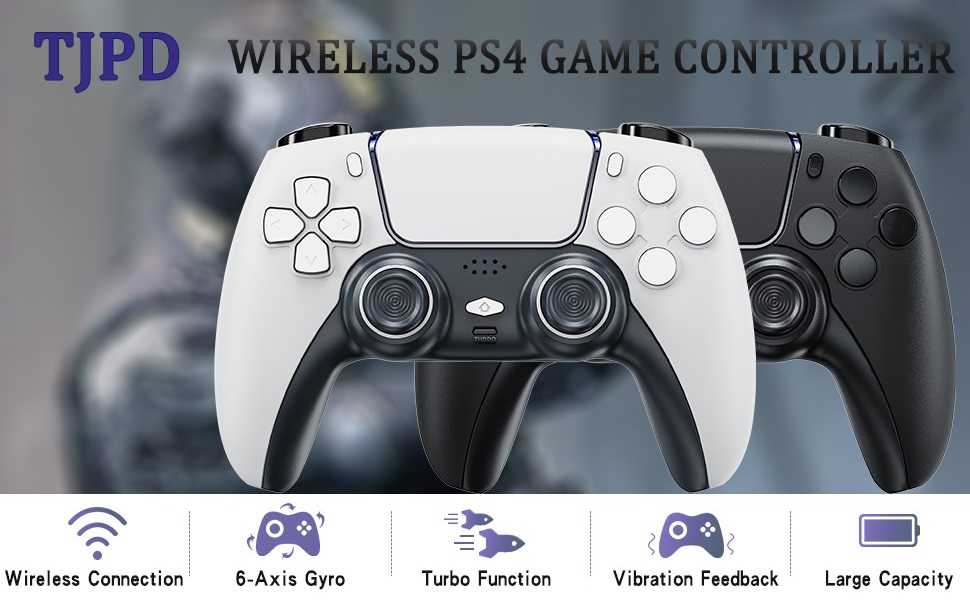
Image 1.1: TJPD Wireless Game Controller highlighting key features.
2. Package Contents
- TJPD Wireless Game Controller (T411)
- USB Charging Cable
- User Manual
3. Product Features
- Multi-Platform Compatibility: Supports PS4, PS3, Nintendo Switch, iOS (13.4+), PC, and Android.
- Programmable Back Buttons: Two customizable buttons for assigning complex macros or button combinations (up to 24 button functionalities or 120-second operations).
- Advanced Motion Sensing: Integrated 6-axis gyroscope for precise motion control in compatible games.
- HD Dual Vibration: Provides realistic haptic feedback for an immersive gaming experience.
- Turbo Function: Enables rapid-fire for assigned buttons.
- Ergonomic Design: Non-slip surface and comfortable grip for extended gaming sessions.
- Enhanced Controls: Improved joystick and trigger button sensitivity.
- LED Indicator: Provides status information for connection and battery.
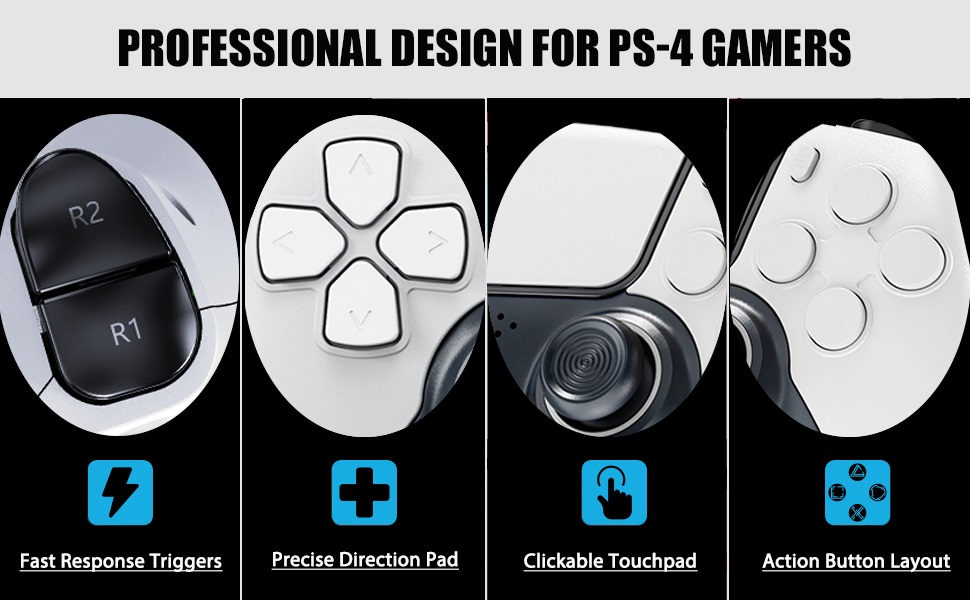
Image 3.1: Detailed view of controller buttons and features.
4. Setup and Connection
4.1 Charging the Controller
Before first use, fully charge the controller. Connect the supplied USB charging cable to the controller's charging port and the other end to a USB power source (e.g., console, PC, USB wall adapter). The LED indicator will show charging status and turn off or change color when fully charged.
4.2 Connecting to Devices
Follow the specific instructions below for your desired platform:
4.2.1 PS4/PS3 Connection
- Ensure the console is powered on.
- Connect the controller to the console using the USB cable.
- Press the PS button on the controller. The controller will pair and the LED indicator will show a solid light when connected.
- Once paired, you can disconnect the USB cable for wireless play.
4.2.2 Nintendo Switch Connection
- On the Switch HOME Menu, select "Controllers" > "Change Grip/Order".
- Press and hold the SYNC button (usually a small button on the top or back of the controller) for a few seconds until the LED indicators start flashing.
- The controller will appear on the Switch screen and connect automatically. The LED will become solid.
4.2.3 PC (Windows) Connection
- Wired: Connect the controller to your PC using the USB cable. The PC should automatically detect and install the necessary drivers.
- Wireless (Bluetooth):
- Ensure your PC has Bluetooth enabled.
- Go to "Settings" > "Devices" > "Bluetooth & other devices" and select "Add Bluetooth or other device".
- Select "Bluetooth".
- Press and hold the pairing button on the controller until its LED flashes.
- Select the controller from the list of available devices on your PC.
4.2.4 iOS (13.4+) / Android Connection
- Enable Bluetooth on your mobile device.
- Press and hold the pairing button on the controller until its LED flashes.
- On your device, search for Bluetooth devices and select the TJPD controller from the list.
- The LED will become solid once connected.
5. Operating Instructions
5.1 Button Layout and Basic Functions
The controller features a standard layout including directional pad, action buttons (X, O, Square, Triangle), L1/R1 bumpers, L2/R2 triggers, two analog sticks, a clickable touchpad, and a PS/Home button. Refer to the image below for a visual guide.

Image 5.1: TJPD Wireless Game Controller overview.
5.2 Programmable Back Buttons (M1, M2)
The two back buttons (M1, M2) can be programmed to execute single button presses or complex macros. These buttons are designed for macro sequences, not for holding down a single button continuously.
- Entering Programming Mode: Press and hold the "SET" button (location may vary, typically on the back or bottom) until the LED indicator starts flashing rapidly.
- Assigning a Macro:
- Press the back button (M1 or M2) you wish to program. The LED will flash slower.
- Perform the sequence of button presses you want to record (up to 24 button presses or 120 seconds of operation).
- Press the "SET" button again to save the macro. The LED will stop flashing and return to its normal state.
- Clearing a Macro:
- Enter Programming Mode by holding "SET".
- Press the back button (M1 or M2) whose macro you want to clear.
- Press the "SET" button again without inputting any new sequence. This will clear the assigned macro.
Note: The programmable back buttons are intended for macro sequences. They may not function as expected for continuous single-button holds (e.g., holding a jump button in some games).
5.3 Turbo Function
The Turbo function allows a button to be pressed repeatedly as long as it is held down.
- Activating Turbo: Press and hold the desired button (e.g., X) and then press the "Turbo" button simultaneously. The button will now have Turbo enabled.
- Deactivating Turbo: Repeat the process: press and hold the button with Turbo enabled, then press the "Turbo" button again.
5.4 Gyro and Vibration
The controller's 6-axis gyro provides motion control in games that support it. The HD dual vibration motors offer tactile feedback, enhancing immersion. These features are typically enabled by default and function automatically with compatible games and platforms.
6. Maintenance
- Cleaning: Use a soft, dry cloth to clean the controller. Avoid using harsh chemicals or abrasive materials.
- Storage: Store the controller in a cool, dry place away from direct sunlight and extreme temperatures.
- Battery Care: To prolong battery life, avoid fully discharging the controller frequently. Charge it regularly, even if not in use for extended periods.
- Avoid Drops: Protect the controller from drops and impacts, which can damage internal components.
7. Troubleshooting
7.1 Controller Not Connecting
- Ensure the controller is fully charged.
- Verify that the correct pairing procedure for your platform is followed (refer to Section 4.2).
- Try connecting via USB cable first to establish an initial connection.
- Restart your console/device and the controller.
- Clear existing Bluetooth pairings on your device and attempt to pair again.
7.2 Buttons Not Responding or Lagging
- Check battery level; low battery can affect performance.
- Ensure there are no physical obstructions preventing button presses.
- If using wirelessly, ensure you are within range of the console/device and there is no significant interference.
- Try resetting the controller (a small reset button may be located on the back, often requiring a pin to press).
7.3 Programmable Back Buttons Not Working as Expected
- Confirm that the macros are programmed correctly (refer to Section 5.2).
- Remember that these buttons are primarily for macro sequences, not for holding down a single button for continuous input. If you require continuous input, use the primary face buttons or triggers.
- Clear and reprogram the macro if issues persist.
8. Specifications
| Model Number | T411 |
| Brand | TJPD |
| Compatibility | PS4, PS3, Nintendo Switch, iOS (13.4+), PC, Android |
| Connectivity | Wireless (Bluetooth), Wired (USB) |
| Special Features | 2 Programmable Back Buttons, Turbo, 6-Axis Gyro, HD Dual Vibration |
| Item Weight | 14 ounces (approximately 397 grams) |
| Package Dimensions | 7.36 x 4.84 x 2.72 inches |
| Date First Available | January 2, 2022 |
9. Warranty and Support
For warranty information or technical support, please refer to the documentation included with your purchase or contact TJPD customer service through their official channels. Keep your proof of purchase for any warranty claims.


