
Upgrow PB22
Upgrow PB22 Dual Dash Camera User Manual
Model: PB22
1. Product Overview
The Upgrow PB22 is a high-performance dual dash camera system designed to capture clear video footage from both the front and rear of your vehicle. Featuring 4K Ultra HD recording for the front camera and 2K Ethernet for the rear, it provides comprehensive coverage and enhanced clarity. Key features include Dual WDR for optimal image quality in varying light conditions, G-Sensor for automatic incident detection, Loop-Recording to ensure continuous recording, and Parking Mode for surveillance when the vehicle is stationary. It supports up to 512GB TF cards for extensive storage.
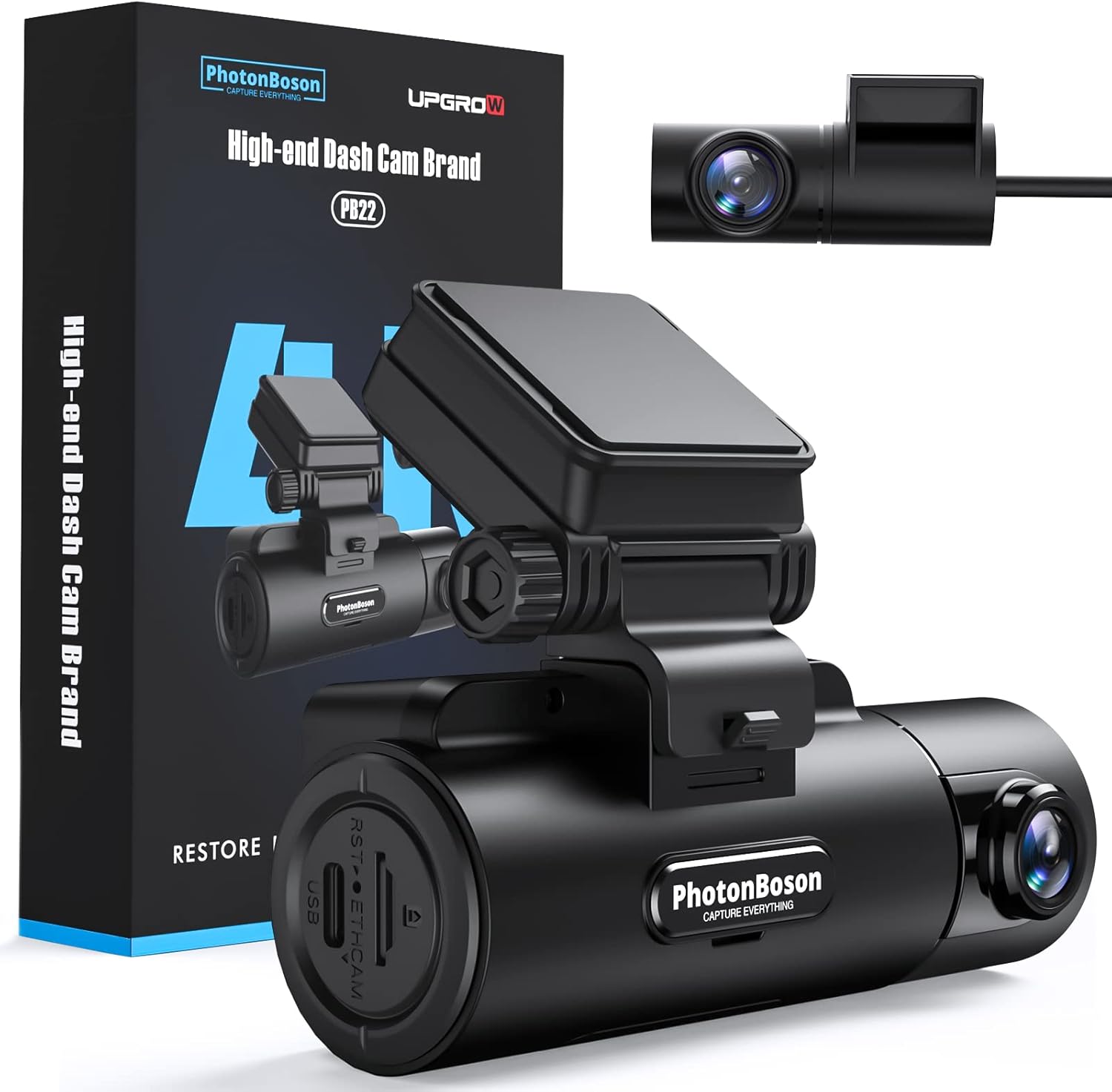
Figure 1.1: Upgrow PB22 Dual Dash Camera and packaging.
2. Package Contents
- PB22 Front Dash Camera
- Ethernet Rear Camera
- GPS Module
- Car Charger
- Mounting Adhesive/Bracket
- User Manual (this document)
3. Setup Guide
3.1 Inserting the TF Card
Before first use, insert a Class 10 or higher speed TF (microSD) card into the designated slot on the dash camera. A true Class 10 64GB or higher high-speed SD card is recommended to prevent data loss and ensure optimal recording performance. Low-speed or pirated SD cards can damage the machine and reduce its life cycle, potentially leading to unsaved video clips.

Figure 3.1: Proper insertion of the TF card.
3.2 Mounting the Dash Camera
The PB22 dash camera uses an adhesive mount for secure placement on your windshield. Position the front camera where it has a clear view of the road ahead, typically behind the rearview mirror to avoid obstructing your driving view. The front view lens bracket can be rotated nearly 90 degrees to suit various car models.

Figure 3.2: Front dash camera mounted on the windshield.
3.3 Installing the Rear Camera
The Ethernet rear camera provides a 2K resolution feed. Install it on the rear windshield, ensuring a clear view. The Ethernet connection offers faster and clearer response compared to AHD cameras, with minimal data signal loss and reduced delay, which is crucial for accurate judgment during reversing.

Figure 3.3: Connection diagram for front and rear cameras.
3.4 Power Connection
Connect the dash camera to your vehicle's power source using the provided car charger. Ensure the connection is secure to prevent power interruptions, which can lead to constant restarts or device malfunction. The compact C-type interface design helps reduce the probability of recording stops due to looseness.
Video 3.1: Demonstrates the installation process of the Upgrow PB22 Dual Dash Camera, including mounting and power connection.
4. Operating Instructions
4.1 Basic Recording
Once powered on, the PB22 dash camera will automatically begin recording. The front camera records in 4K (2160P/30Fps) HDR, and the rear camera records in 2K (1440P/30Fps) Ethernet. The system supports loop recording, which means older files are overwritten by new ones when the memory card is full, ensuring continuous operation.

Figure 4.1: Illustration of 4K+2K recording clarity.
4.2 G-Sensor and Emergency Recording
The built-in G-Sensor automatically detects sudden shakes or collisions. In such events, the current video footage is locked and saved to a protected folder, preventing it from being overwritten by loop recording. This ensures critical incident footage is preserved.

Figure 4.2: G-Sensor functionality for 24/7 monitoring.
4.3 Parking Mode
The PB22 features an advanced parking monitoring system with a built-in 3C high-temperature pure cobalt battery. In case of a collision while parked, the front and rear cameras will automatically activate to record details. Abnormal alerts will remind you when starting the car next time, providing nearly 360° protection when unattended.
4.4 Wide Dynamic Range (WDR) and Night Vision
Equipped with Dual WDR technology, the PB22 dash cam optimizes video quality in both bright and low-light conditions, ensuring clear recordings day and night. The F1.8 aperture and 4 infrared lights enhance night vision capabilities, providing clear footage even in dark and rainy scenes.

Figure 4.3: Comparison of WDR Night Vision performance.
4.5 Video Playback and Data Transfer
Recorded videos can be viewed directly on the dash camera's screen. For more detailed viewing or backup, remove the TF card and insert it into a computer using an SD card reader. The files can then be transferred to your computer or cloud storage. The Ethernet rear lens data transmission is a pure digital signal, ensuring good restoration effect without data signal loss.

Figure 4.4: Viewing recorded footage and GPS data on a computer.
5. Maintenance
5.1 TF Card Care
Regularly format your TF card (e.g., once a month) to maintain optimal performance and prevent data corruption. Always use a high-quality, genuine Class 10 or higher speed TF card. Avoid removing the card while the device is powered on or recording.
5.2 Cleaning the Device
Use a soft, dry cloth to clean the camera lenses and the device body. Avoid using abrasive cleaners or solvents that could damage the surfaces or coatings.
6. Troubleshooting
| Problem | Possible Cause | Solution |
|---|---|---|
| Device shuts down in hot weather. | Overheating due to direct sunlight or excessive heat. | Ensure proper ventilation. If possible, remove the device from direct sunlight when parked for extended periods in hot climates. |
| GPS won't lock on satellites or display speed/location. | Poor GPS signal reception; GPS module not properly connected or faulty. | Ensure the GPS module is securely connected and has a clear view of the sky. Test in an open area. |
| Window mount not secure; device falls off. | Improper installation; adhesive losing effectiveness. | Clean the windshield thoroughly before applying the mount. Ensure the adhesive is firmly pressed. Replace adhesive if necessary. |
| Power plug connection is loose or device restarts constantly. | Unstable power supply; loose cable connection. | Ensure all power cables are securely plugged in. Use the original car charger. Check the vehicle's power outlet. |
| Device drains car battery when hardwired. | Incorrect hardwire kit installation or parking mode settings. | Consult a professional for hardwire kit installation. Adjust parking mode sensitivity or duration settings. |
| Video files are too large or recording stops. | Low-speed or full TF card; high-temperature operation. | Use a Class 10 or higher TF card. Format the TF card regularly. Ensure the device is not exposed to extreme heat. |
7. Specifications
| Feature | Detail |
|---|---|
| Model Name | PB22 |
| Brand | Upgrow |
| Product Dimensions | 4.33 x 1.57 x 3.74 inches |
| Item Weight | 1.33 pounds |
| Video Capture Resolution | Front: 4K (2160p), Rear: 2K (1440p) |
| Connectivity Technology | Ethernet (for rear camera) |
| Special Features | Dual WDR, G-Sensor, Loop-Recording, Parking Mode, GPS |
| Supported TF Card Capacity | Up to 512GB (Class 10 or higher recommended) |
| Mounting Type | Adhesive Mount |
8. Warranty and Support
For warranty information and technical support, please refer to the product listing page on the retailer's website or contact the seller directly. As product support details may vary, it is recommended to retain your purchase receipt for any warranty claims or assistance.
For further assistance, you may also visit the Upgrow Store on Amazon.
Ask a question about this manual
Ask about setup, troubleshooting, compatibility, parts, safety, or missing instructions. Manuals+ will review the question and use this page’s manual context to help answer it.