
1. Introduction
Welcome to the user manual for your new HP 15.6 Inch FHD Laptop. This document provides essential information to help you set up, operate, maintain, and troubleshoot your device. Please read this manual carefully to ensure proper use and to maximize the performance and longevity of your laptop.
For your safety, always follow the instructions provided and refer to the official HP support website for additional assistance or warranty information.
2. Product Overview
The HP 15.6 Inch FHD Laptop is designed for everyday computing, featuring an Intel Core i3-1115G4 processor, 8GB DDR4 RAM, and a fast 512GB PCIe SSD. It comes with Windows 10 Home in S mode, offering enhanced security and performance.
Key Features:
- Processor: Intel Core i3-1115G4 (up to 4.1 GHz)
- Display: 15.6" diagonal, Full HD (1920 x 1080) IPS, micro-edge, anti-glare
- Memory: 8GB DDR4 SDRAM
- Storage: 512GB PCIe Solid State Drive
- Operating System: Windows 10 Home (S Mode), free upgrade to Windows 11 available
- Connectivity: Wi-Fi (802.11a/b/g/n/ac), Bluetooth 4.2, Ethernet (RJ-45)
- Ports: USB Type-C, USB 3.1, HDMI, Headphone/Mic Combo, Multi-Format SD Media Card Reader
- Security: Fingerprint Reader
- Webcam: HP True Vision 720p HD camera
Laptop Exterior and Ports:
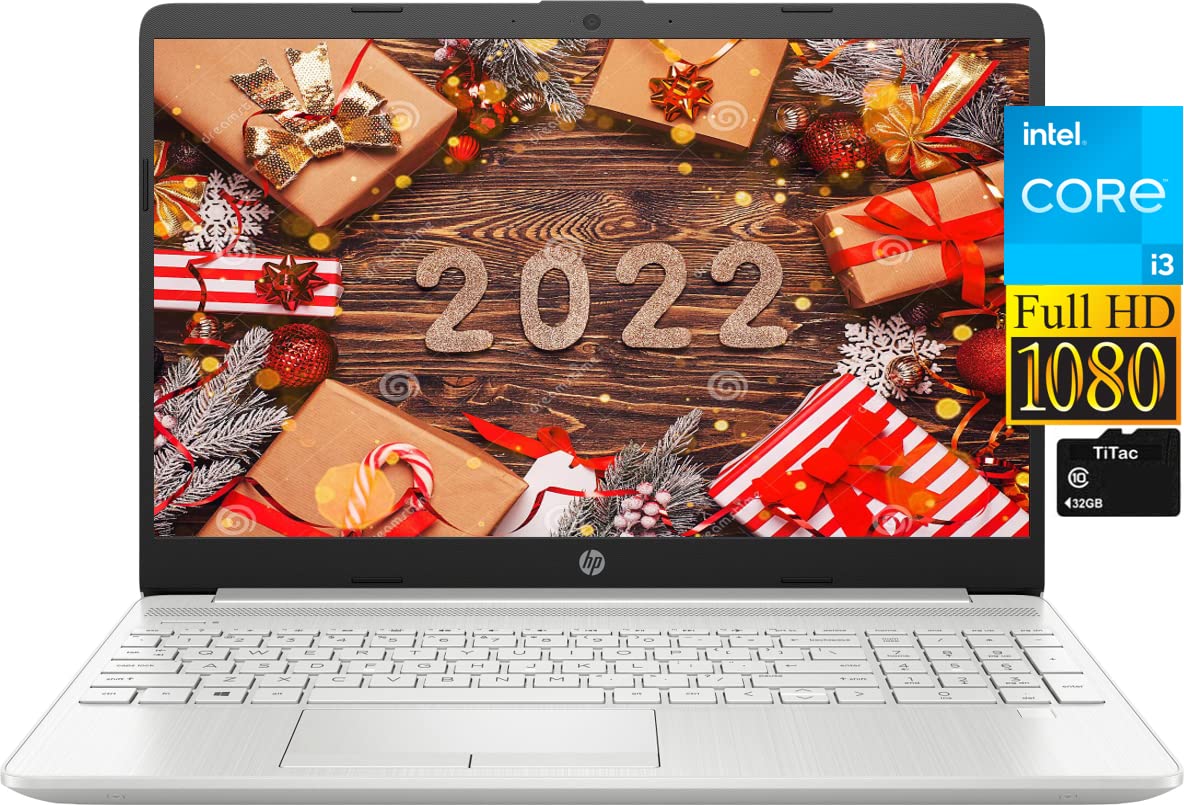
Image: Rear view of the HP 15.6 Inch Laptop, showcasing its sleek silver design and the HP logo on the lid.

Image: Left side view of the laptop, detailing the multi-format SD media card reader, two SuperSpeed USB Type-A ports, and the AC smart pin for power.

Image: Right side view of the laptop, displaying the RJ-45 Ethernet port, HDMI 1.4b port, SuperSpeed USB Type-C port, and the headphone/microphone combo jack.
3. Setup
3.1 Initial Power-On and Charging
- Unpack your laptop and all accessories.
- Connect the AC adapter to the laptop's power port and then to a power outlet. It is recommended to fully charge the battery before first use.
- Open the laptop lid and press the power button, usually located on the top right of the keyboard or side.
3.2 Operating System Setup (Windows 10 S Mode)
Upon first boot, you will be guided through the Windows 10 Home in S mode setup process. Follow the on-screen instructions to:
- Select your region and keyboard layout.
- Connect to a Wi-Fi network.
- Sign in with your Microsoft account or create a new one.
- Set up a PIN for quick login.

Image: The HP 15.6 Inch Laptop with its screen displaying the Windows 10 desktop, illustrating the user interface during initial setup or normal operation.
3.3 Switching Out of S Mode (Optional)
Windows 10 Home in S mode is designed for security and performance by exclusively using apps from the Microsoft Store. If you need to install apps from outside the Microsoft Store, you can switch out of S mode. This is a one-way switch.
- Click the "Start button" (Windows icon) at the bottom left of the screen.
- Select the "Settings" icon (gear icon) above the "power" icon.
- Go to "Update & Security", then select "Activation".
- Under the "Switch to Windows 10 Home" or "Switch to Windows 11 Home" section, select "Go to the Store".
- On the "Switch out of S mode" (or similar) page that appears in the Microsoft Store, click the "Get" button.
- Follow any additional on-screen prompts to complete the switch.
4. Operating Your Laptop
4.1 Keyboard and Touchpad
- Keyboard: The laptop features a full-size US English keyboard. Use it for typing and executing commands.
- Touchpad: The integrated touchpad supports multi-touch gestures for navigation. Tap to click, use two fingers to scroll, and pinch to zoom.
4.2 Fingerprint Reader
For enhanced security and quick login, set up the fingerprint reader:
- Go to Settings > Accounts > Sign-in options.
- Under "Windows Hello Fingerprint," click "Set up" and follow the on-screen instructions to register your fingerprint.
4.3 Connecting to Networks
- Wi-Fi: Click the network icon in the taskbar, select your desired Wi-Fi network, enter the password, and click "Connect."
- Ethernet: Connect an Ethernet cable from your router or modem to the RJ-45 port on the side of your laptop. The connection should be established automatically.
4.4 Using External Devices and Ports
- USB Ports (Type-C and Type-A): Connect external storage devices, mice, keyboards, or other USB peripherals.
- HDMI: Use an HDMI cable to connect your laptop to an external monitor or TV for extended display.
- Headphone/Mic Combo Jack: Connect headphones, earbuds, or a headset with a 3.5mm jack for audio input/output.
- SD Media Card Reader: Insert an SD card to transfer photos, videos, or other files.
5. Maintenance
5.1 Cleaning Your Laptop
- Screen: Use a soft, lint-free cloth lightly dampened with water or a screen cleaner. Do not spray liquid directly onto the screen.
- Keyboard and Chassis: Use a soft, dry cloth. For stubborn dirt, a slightly damp cloth can be used, ensuring no liquid enters openings. Compressed air can help remove dust from between keys.
- Always power off and unplug the laptop before cleaning.
5.2 Battery Care
- Avoid extreme temperatures.
- Do not fully discharge the battery frequently.
- If storing the laptop for an extended period, ensure the battery is charged to about 50%.
5.3 Software Updates
Regularly check for and install Windows updates and HP driver updates to ensure optimal performance and security. Go to Settings > Update & Security > Windows Update.
6. Troubleshooting
6.1 Common Issues and Solutions
- Laptop does not power on: Ensure the AC adapter is securely connected and the power outlet is working. Try a different outlet.
- No display on screen: Connect an external monitor to check if the laptop is functioning. If it works, the laptop screen may need service. Try adjusting display brightness (Fn + F2/F3 keys).
- Wi-Fi not connecting: Check if Wi-Fi is enabled (Fn + F12 key or in Windows settings). Restart your router and laptop.
- Slow performance: Close unnecessary applications. Check for malware. Ensure sufficient free space on the SSD.
6.2 Factory Reset
If you encounter persistent software issues, you can reset your PC. Go to Settings > Update & Security > Recovery and select "Get started" under "Reset this PC." You will have options to keep your files or remove everything.
7. Specifications
| Component | Detail |
|---|---|
| Processor | Intel Core i3-1115G4 (up to 4.1 GHz, 6 MB L3 cache, 2 cores) |
| Graphics | Intel UHD Graphics (Integrated) |
| Operating System | Windows 10 Home 64-bit (S Mode) |
| Memory (RAM) | 8GB DDR4 SDRAM |
| Storage | 512GB PCIe Solid State Drive (SSD) |
| Display | 15.6" diagonal, FHD (1920 x 1080), IPS, micro-edge, anti-glare, 250 nits, 45% NTSC |
| Wireless Connectivity | 802.11a/b/g/n/ac (1x1) Wi-Fi and Bluetooth 4.2 combo |
| Ports | 1x USB Type-C, 2x USB 3.1 Type-A, 1x HDMI 1.4b, 1x RJ-45 (Ethernet), 1x AC smart pin, 1x Headphone/Mic Combo Jack, 1x Multi-Format SD Media Card Reader |
| Audio | Dual speakers |
| Webcam | HP True Vision 720p HD camera with integrated dual array digital microphones |
| Keyboard | US English, Non-Backlit Full Size Keyboard |
| Battery | 3-cell, 41 Wh Li-ion |
| Dimensions (L x W x H) | 14.11 x 9.53 x 0.78 inches (35.84 x 24.21 x 1.98 cm) |
| Weight | 3.86 lb (1.75 kg) |
| Color | Silver |
8. Warranty and Support
Your HP laptop comes with a standard manufacturer's warranty. Please refer to the warranty card included with your product or visit the official HP support website for detailed terms and conditions, including warranty duration and service options.
For technical support, driver downloads, or further assistance, please visit the official HP Support website: support.hp.com


