
1. Introduction
Thank you for choosing the CUBOT TAB10 Tablet. This manual provides essential information for setting up, operating, maintaining, and troubleshooting your device. Please read it carefully before using the tablet to ensure optimal performance and safety.
2. Safety Information
To prevent damage to your device or injury to yourself or others, observe the following precautions:
- Do not expose the tablet to extreme temperatures, direct sunlight, or high humidity.
- Avoid dropping or subjecting the tablet to severe impact.
- Use only CUBOT-approved chargers and accessories.
- Do not attempt to disassemble, repair, or modify the tablet yourself.
- Keep the tablet away from water and other liquids.
- Dispose of the tablet and its battery responsibly according to local regulations.
3. Package Contents
Ensure all items are present in your package:
- CUBOT TAB10 Tablet
- USB Type-C Cable
- Power Adapter
- User Manual (this document)
- SIM Ejector Tool (if applicable for cellular models)
4. Device Layout
Familiarize yourself with the physical features of your CUBOT TAB10 tablet.

Figure 4.1: Front View of CUBOT TAB10 Tablet. This image displays the tablet's 10.1-inch FHD+ display, with the front-facing camera located at the top center when held in landscape orientation. The slim bezels around the screen are also visible.

Figure 4.2: Rear and Front View of CUBOT TAB10 Tablet. This image shows both the front and back of the tablet. The rear panel, in grey, features the 13MP main camera module in the upper left corner. The front display is active, showing a colorful wallpaper, and a stylus is depicted near the screen, indicating potential stylus support.
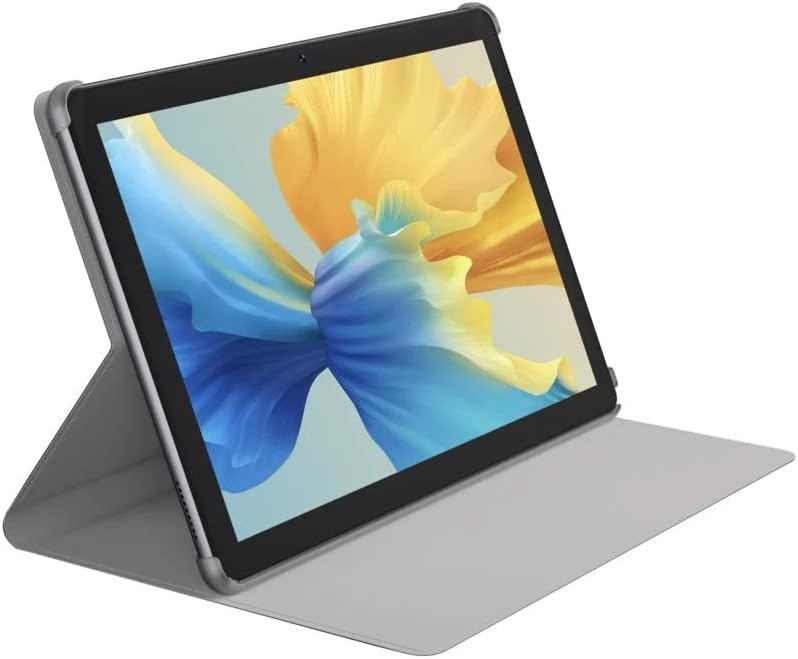
Figure 4.3: CUBOT TAB10 Tablet with Protective Cover. This image illustrates the tablet enclosed in a grey protective cover that also functions as a stand. The tablet is propped up, showcasing its display, which is ideal for media consumption or video calls.
4.1. Buttons and Ports
- Power Button: Located on the side, press and hold to power on/off or restart. Short press to turn the screen on/off.
- Volume Buttons: Adjust media volume and notification volume.
- USB Type-C Port: For charging and data transfer.
- 3.5mm Audio Jack: For connecting headphones or external speakers.
- SIM/SD Card Slot: Insert your Nano-SIM card(s) and/or microSD card here. Use the provided ejector tool.
5. Setup
5.1. Charging the Battery
Before first use, fully charge the tablet. Connect the USB Type-C cable to the tablet's charging port and the other end to the power adapter. Plug the adapter into a wall outlet. The battery indicator on the screen will show charging status.
5.2. Powering On/Off
- To Power On: Press and hold the Power button until the CUBOT logo appears.
- To Power Off: Press and hold the Power button until the power options menu appears. Tap "Power off" and confirm.
- To Restart: Press and hold the Power button until the power options menu appears. Tap "Restart" and confirm.
5.3. Initial Setup
The first time you power on the tablet, you will be guided through the initial setup process:
- Select your preferred language.
- Connect to a Wi-Fi network. This is crucial for downloading updates and setting up your Google account.
- Sign in with your Google account or create a new one. This is necessary to access the Google Play Store and other Google services.
- Review and accept the terms and conditions.
- Set up screen lock (PIN, pattern, password, or face unlock).
- Restore data from a previous device (optional).
- Complete the setup.
5.4. Inserting SIM/SD Card
If your model supports cellular connectivity or you wish to expand storage:
- Power off the tablet.
- Locate the SIM/SD card tray on the side of the tablet.
- Insert the SIM ejector tool into the small hole next to the tray and press gently until the tray pops out.
- Place your Nano-SIM card(s) and/or microSD card into the designated slots on the tray, ensuring correct orientation.
- Carefully push the tray back into the tablet until it clicks into place.
- Power on the tablet.
6. Operating the Tablet
6.1. Basic Navigation
- Tap: Select an item or open an app.
- Touch and Hold: Access contextual menus or move icons.
- Swipe: Scroll through screens, lists, or pages.
- Pinch-to-Zoom: Zoom in or out on images, maps, or web pages.
- Home Screen: The central hub for your apps and widgets.
- Notification Panel: Swipe down from the top of the screen to access notifications and quick settings.
6.2. Connecting to Networks
- Wi-Fi: Go to Settings > Network & internet > Wi-Fi. Turn Wi-Fi on, select your network, and enter the password if required.
- Bluetooth: Go to Settings > Connected devices > Bluetooth. Turn Bluetooth on, scan for devices, and pair with your desired accessory.
- Mobile Network (if applicable): Go to Settings > Network & internet > Mobile network. Ensure mobile data is enabled and configure APN settings if necessary.
6.3. Camera Usage
The CUBOT TAB10 features a 13MP rear camera and a front camera for photos and video calls.
- Open the "Camera" app.
- Tap the shutter button to take a photo.
- Switch between photo and video modes as needed.
- Tap the camera switch icon to toggle between front and rear cameras.
6.4. App Management
- Install Apps: Open the Google Play Store app, search for apps, and tap "Install".
- Uninstall Apps: Touch and hold an app icon on the home screen or app drawer, then drag it to "Uninstall" or select "App info" and tap "Uninstall".
- Close Apps: Swipe up from the bottom of the screen (or tap the recent apps button) to view recent apps, then swipe an app card up to close it.
6.5. System Settings
Access the "Settings" app to customize your tablet. Key settings include:
- Network & internet: Wi-Fi, Mobile network, Data usage.
- Connected devices: Bluetooth, USB connections.
- Display: Brightness, Dark theme, Screen timeout.
- Sound: Volume, Notification sounds.
- Storage: View storage usage and free up space.
- Battery: Battery usage, Battery saver.
- Security: Screen lock, Face unlock.
- System: Language, Date & time, Backup, Reset options, System update.
7. Maintenance
7.1. Cleaning the Device
Use a soft, lint-free cloth to clean the screen and body of the tablet. Do not use abrasive cleaners, alcohol, or chemical solvents, as they may damage the surface.
7.2. Battery Care
- Avoid fully discharging the battery frequently.
- Do not leave the tablet charging for extended periods after it's fully charged.
- Store the tablet in a cool, dry place if not used for a long time, with the battery charged to about 50%.
7.3. Software Updates
Regularly check for system updates to ensure your tablet has the latest features, security patches, and performance improvements. Go to Settings > System > System update.
7.4. Storage Management
To optimize performance, periodically manage your tablet's storage:
- Delete unnecessary apps and files.
- Clear app cache and data (Settings > Apps > [App Name] > Storage & cache).
- Move large files to a microSD card (if installed) or cloud storage.
8. Troubleshooting
If you encounter issues with your CUBOT TAB10, try the following solutions:
8.1. Common Issues
- Tablet won't turn on: Ensure the battery is charged. Connect to the charger and wait a few minutes before attempting to power on again.
- Tablet is unresponsive: Press and hold the Power button for about 10-15 seconds to force a restart.
- Wi-Fi connection issues:
- Restart your Wi-Fi router.
- Forget the network in tablet settings and reconnect.
- Ensure you are within range of the Wi-Fi signal.
- Apps crashing or freezing:
- Clear the app's cache and data (Settings > Apps > [App Name] > Storage & cache).
- Uninstall and reinstall the app.
- Ensure the app is updated to its latest version.
- Slow performance:
- Close unused background apps.
- Clear cache data.
- Free up storage space.
- Restart the tablet regularly.
8.2. Factory Reset
If problems persist, you may need to perform a factory reset. Warning: This will erase all data on your tablet. Back up important data before proceeding.
- Go to Settings > System > Reset options.
- Tap "Erase all data (factory reset)".
- Confirm your decision and enter your PIN/pattern/password if prompted.
- The tablet will restart and begin the reset process.
9. Specifications
| Feature | Specification |
|---|---|
| Model Name | TAB10 |
| Model Number | CUBTAB10 |
| Brand | CUBOT |
| Operating System | Android 11 |
| Processor | OctaCore (MediaTek SC9863A) |
| RAM | 4 GB |
| Internal Storage | 64 GB |
| Display Size | 10.1 Inches |
| Display Resolution | 1920 x 1200 Pixels (FHD+) |
| Rear Camera | 13 MP |
| Battery Capacity | 6000 mAh (Lithium-ion) |
| Connectivity | Wi-Fi (802.11b/g/n), Bluetooth 4.0 |
| Ports | USB 3.0 Type-C, 3.5mm Audio Jack |
| Dimensions (L x W x H) | 24.3 x 16.4 x 0.88 cm (9.57 x 6.46 x 0.35 inches) |
| Weight | 575 Grams (1.27 lbs) |
| Color | Grey |
10. Warranty and Support
CUBOT products come with a standard manufacturer's warranty. Please refer to the warranty card included in your package or visit the official CUBOT website for detailed warranty terms and conditions.
For technical support, product inquiries, or service requests, please contact CUBOT customer service through their official channels. You can usually find contact information on the CUBOT website or on the product packaging.
Official CUBOT Website: www.cubot.net (Please note: This link is provided as a general reference and may not be specific to your region's support page. Always check your product's packaging or official regional CUBOT website for the most accurate support information.)
