
Bestycar Ford Focus C2 MK2 Multimedia Player
Contents
Bestycar Android 10 Car Multimedia Player User Manual
Model: Ford Focus C2 MK2 (2004-2011)
For Manual Climate Control Vehicles
1. Introduction
This manual provides detailed instructions for the installation, operation, and maintenance of your Bestycar Android 10 Car Multimedia Player. This unit is specifically designed for Ford Focus C2 MK2 models manufactured between 2004 and 2011, equipped with manual climate control. It features a 9-inch QLED touchscreen, Android 10 operating system, GPS navigation, Bluetooth, CarPlay, Android Auto, and Wi-Fi connectivity.

Image 1.1: Front view of the Bestycar Android 10 Car Multimedia Player, showcasing the 9-inch display integrated into a Ford Focus C2 MK2 dashboard frame.
2. Package Contents
Please verify that all items listed below are included in your package. If any items are missing or damaged, please contact Bestycar customer support.
- Head Unit (Multimedia Player)
- Radio Fascia (Frame)
- Power Harness
- AHD Rear View Camera
- Panel Removal Tools (4 pieces)
- RCA Harness
- USB Cables (2 pieces)
- GPS Antenna
- 4G Antenna
- Microphone
- CAM In Cable

Image 2.1: Visual representation of all included accessories, including the head unit, GPS antenna, radio fascia, USB cables, CAM in cable, installation tools, AHD camera, 4G SIM RCA cable, 4G antenna, microphone, power harness, and an optional Canbus box.
3. Setup & Installation
Professional installation is recommended. Ensure the vehicle's ignition is off and the battery is disconnected before beginning installation.
3.1. Compatibility Check
This unit is compatible with Ford Focus C2 MK2 models from 2004 to 2011 that have manual climate control. Please verify your vehicle's specifications before proceeding.
3.2. Important Notice for Existing Systems
The basic version power harness is provided. If your car has a factory backup camera or an amplifier, a high-configuration harness and CANBUS decoder may be required. These components are sold separately and are necessary for proper integration with existing factory systems.
3.3. General Installation Steps
- Carefully remove the original factory radio using the provided panel removal tools.
- Connect the new power harness, RCA harness, GPS antenna, 4G antenna, microphone, and AHD camera cable to the corresponding ports on the new head unit.
- Route all cables neatly to avoid interference and ensure they are not pinched.
- Mount the new head unit into the dashboard opening, securing it with the provided radio fascia.
- Reconnect the vehicle's battery and test the unit's functionality.
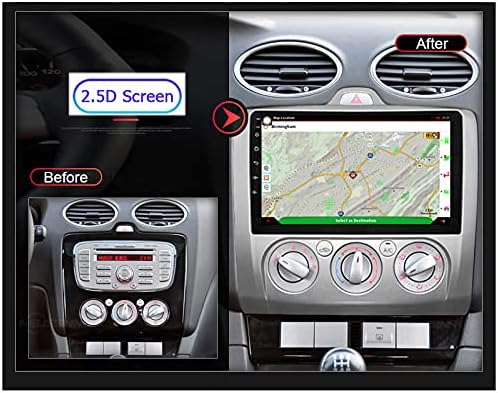
Image 3.1: A comparison showing the original factory radio in a Ford Focus dashboard (Before) and the Bestycar 9-inch multimedia player installed (After), highlighting the larger 2.5D screen.
4. Operating Instructions
4.1. System Overview
The unit runs on Android 10.0 with an Octa Core CPU, 2GB RAM, and 32GB ROM. The 9-inch 2.5D+IPS QLED screen offers a resolution of 1280*720 HD, supporting 1080P video playback.

Image 4.1: Various user interface displays including the main UI, menu UI, navigation, CarPlay, Bluetooth music, Bluetooth phone, music player, video player, radio, steering wheel control settings, 32-band EQ, and OBD2 interface.

Image 4.2: Comparison illustrating the color gamut coverage of a normal screen (approximately 75%) versus a QLED screen (approximately 130%), and a regular HD IPS screen (1024 resolution) versus a Super HD QLED screen (1280 resolution) for more delicate visuals.
4.2. GPS Navigation
The unit comes with pre-installed online and offline map data for North America. Access navigation through the dedicated app icon on the main screen.
4.3. Bluetooth Functionality
Pair your smartphone via Bluetooth for hands-free calling and A2DP music streaming. The system supports phonebook synchronization, name search, and caller ID display. An external microphone is included for clear call quality.

Image 4.3: Display showing the Bluetooth phone interface with a dial pad, call history, and contact options, indicating support for hands-free calling and music streaming.
4.4. CarPlay & Android Auto
The unit supports both wired and wireless CarPlay for iPhones and EasyConnect for Android phones. Connect your device to access navigation, music, messages, and other compatible apps directly on the head unit's screen.

Image 4.4: Demonstrates the iPhone CarPlay interface and Android Auto interface on the head unit, along with a comparison of phone navigation display versus car DVD screen display.
4.5. Steering Wheel Control (SWC)
The head unit supports digital steering wheel controls, allowing you to manage music playback and hands-free calls without taking your hands off the wheel. Refer to the system settings for SWC configuration.

Image 4.5: Illustrates the steering wheel control interface on the screen, showing how to map physical steering wheel buttons to various functions like volume, track skip, and mode selection.
4.6. Rear Camera (AHD Reversing Video)
The included AHD rear camera provides a clear reversing video feed on the head unit's screen, enhancing safety during parking maneuvers. The picture quality of AHD cameras is superior to ordinary cameras.

Image 4.6: Shows the AHD reversing video feed on the head unit's screen with parking guidelines, alongside an image of the included AHD backup camera.
4.7. Multimedia Playback
Enjoy various multimedia options including music, video, and radio. The unit supports lossless music playback and 3D games. Access online content via YouTube and other streaming services.
4.8. Audio Settings
Customize your audio experience with the built-in 32-band EQ. The unit also features a 4 x 60W amplifier output and supports subwoofer output for enhanced bass.
4.9. Connectivity
The unit supports Wi-Fi hotspot functionality and can connect to 3G/4G networks with an optional modem. This allows for online map updates, app downloads, and internet browsing.
4.10. Split Screen Function
Utilize the split-screen feature to run two applications simultaneously, such as navigation and music playback.
5. Maintenance
To ensure the longevity and optimal performance of your multimedia player, follow these maintenance guidelines:
- Cleaning the Screen: Use a soft, lint-free cloth to gently wipe the screen. For stubborn smudges, slightly dampen the cloth with water or a screen-cleaning solution. Avoid harsh chemicals or abrasive materials.
- General Cleaning: Keep the unit and surrounding dashboard area free from dust and debris. Use a soft brush or compressed air for hard-to-reach areas.
- Software Updates: Periodically check for system software updates to ensure you have the latest features and security enhancements. Follow the on-screen instructions for any available updates.
- Avoid Extreme Temperatures: Do not expose the unit to extreme heat or cold for extended periods, as this can affect its performance and lifespan.
6. Troubleshooting
If you encounter issues with your multimedia player, refer to the following common solutions:
- No Power: Check all power connections and ensure the vehicle's battery is properly connected. Verify the fuse for the head unit.
- No Sound: Check volume settings, ensure speakers are properly connected, and verify audio output settings.
- GPS Signal Loss: Ensure the GPS antenna is securely connected and has a clear view of the sky. Move the vehicle to an open area if necessary.
- Bluetooth Connection Issues: Ensure Bluetooth is enabled on both the head unit and your mobile device. Try unpairing and re-pairing the devices.
- Touchscreen Unresponsive: Perform a soft reset of the unit (refer to the system settings for the reset option). If the issue persists, contact support.
- Rear Camera Not Displaying: Verify the AHD camera connection and ensure the CAM In cable is correctly installed. Check the camera settings in the system menu.
For persistent issues or problems not listed here, please contact Bestycar customer support.
7. Specifications
| Feature | Specification |
|---|---|
| Operation System | Android 10.0 |
| CPU | UIS8581A Octa Core Processor |
| RAM | 2GB |
| ROM | 32GB |
| Display Size | 9 Inches |
| Screen Type | 2.5D+IPS QLED Touch Screen |
| Resolution | 1280*720 HD |
| Amplifier Output | 4 x 60W |
| Connectivity | Bluetooth, USB, Wi-Fi, 4G (optional modem) |
| Special Features | GPS Navigation, CarPlay, Android Auto, Steering Wheel Control, Split Screen, 32-Band EQ, Subwoofer Output, AHD Camera Support |
| Map Type | North America (pre-installed) |
| Product Dimensions | 10 x 8 x 4 inches |
| Item Weight | 4 pounds |
8. Warranty & Support
8.1. Warranty Information
This Bestycar multimedia player comes with a 1-year warranty from the date of purchase. This warranty covers manufacturing defects and malfunctions under normal use. It does not cover damage caused by improper installation, misuse, accidents, or unauthorized modifications.
8.2. Customer Support
For technical assistance, warranty claims, or inquiries regarding optional accessories (such as 3G/4G modems, DVR, TPMS, OBD, DAB, TV tuner, Carplay dongle), please contact Bestycar customer support through the retailer where the product was purchased or visit the official Bestycar website for contact information.
Documents and downloads
Ask a question about this manual
Ask about setup, troubleshooting, compatibility, parts, safety, or missing instructions. Manuals+ will review the question and use this page’s manual context to help answer it.