
Easyfone T100 4G
Easyfone T100 4G Big Button Easy-to-Use Cell Phone User Manual
Model: T100 4G | Brand: Easyfone
Introduction
Welcome to the Easyfone T100 4G Big Button Easy-to-Use Cell Phone. This manual provides comprehensive instructions for setting up, operating, and maintaining your device. Designed for simplicity and clarity, the Easyfone T100 features a 2.0-inch HD IPS display with enlarged fonts and icons, clear sound, and essential functions like an SOS button and photo speed dial, making it ideal for users seeking a straightforward mobile experience without internet access.

Figure 1: Easyfone T100 4G Big Button Cell Phone with Charging Dock.
What's in the Box
Please check the contents of your Easyfone T100 package. If any items are missing or damaged, please contact customer support.
- 1x Easyfone T100 Senior Phone
- 1x Charging Dock
- 1x Battery (1500mAh)
- 1x US Standard Charger
- 1x USB Cable
- 1x User Manual
- 1x SIM Card (SpeedTalk)
- 1x Lanyard
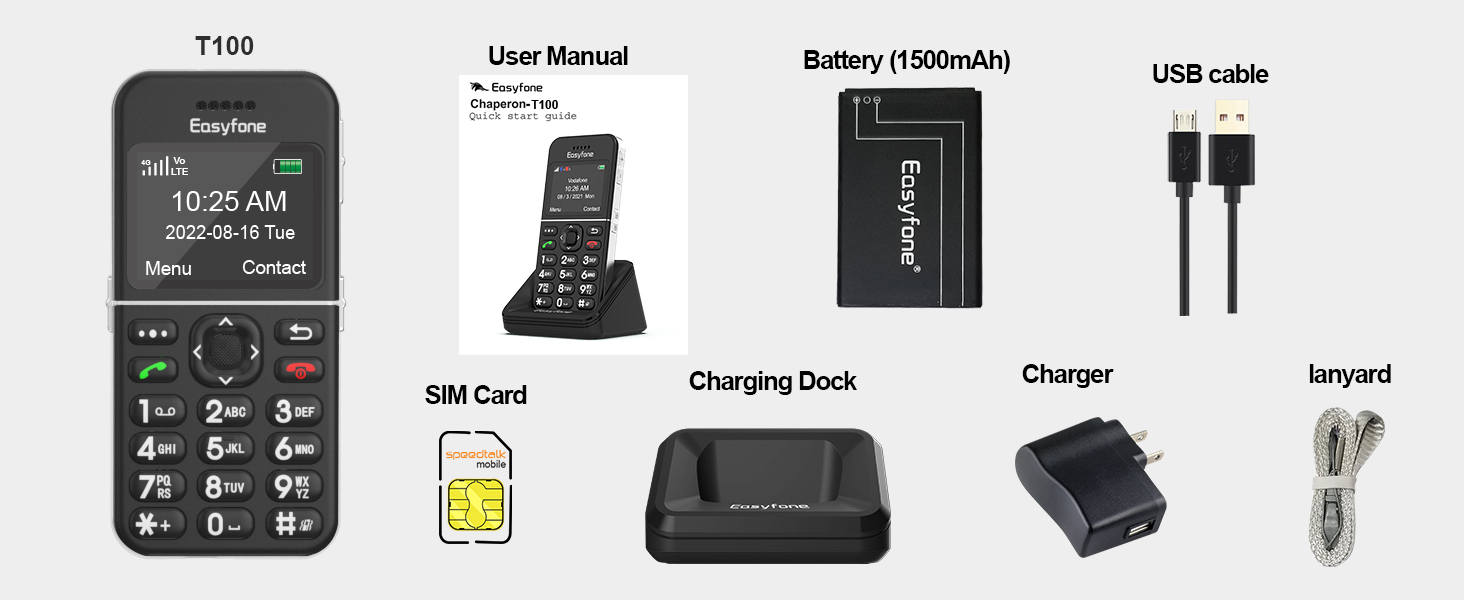
Figure 2: Package Contents of Easyfone T100.
Product Overview
The Easyfone T100 is designed for ease of use with large buttons and a clear display.
Key Features:
- 2.0-Inch HD IPS Display: Features big fonts and large icons for enhanced readability.
- Large Buttons: Physical buttons are generously sized for easy dialing and navigation.
- SOS Button: Dedicated button for emergency calls and location sharing.
- Charging Dock: Simplifies charging by allowing the phone to be placed in a convenient dock.
- Loud and Clear Sound: Optimized for users with hearing needs, HAC compatible.
- Easy-to-Use Unlock Switch: A physical slide switch on the side for quick and simple unlocking.

Figure 3: Close-up of the Easyfone T100 display showing enlarged fonts and icons.

Figure 4: Side view highlighting the Easy-to-Use Unlock Switch and large buttons.
Setup
1. Inserting SIM Card and Battery:
Before first use, ensure the SIM card (if not pre-installed) and battery are correctly inserted. Open the back cover of the phone, carefully insert the SIM card into the designated slot, and then place the 1500mAh Lithium Ion battery. Close the back cover securely.
2. Charging the Phone:
The Easyfone T100 comes with a convenient charging dock. To charge, simply place the phone into the charging dock. Ensure the phone is properly seated and the charging indicator appears on the screen. You can also charge directly using the USB cable and US standard charger.

Figure 5: Charging the Easyfone T100 using the included dock.
3. Initial Power On:
Press and hold the Power/End Call button (red button) until the Easyfone logo appears on the screen. The phone will boot up and display the current time and date.
4. Carrier Compatibility:
The Easyfone T100 is unlocked and compatible with T-Mobile, MetroPCS, SpeedTalk, and Tello Mobile. It is not compatible with AT&T, Cricket, or CDMA networks like Verizon, Sprint, and Boost Mobile. A SpeedTalk SIM card is included, which operates on the T-Mobile network.

Figure 6: Compatible Carriers and SIM Card Activation Process.
Operating Instructions
Making and Receiving Calls:
To make a call, dial the number using the large keypad buttons and press the Green Call button. To answer an incoming call, press the Green Call button. To end a call, press the Red End Call button.
Sending and Receiving Text Messages:
Navigate to the "Message" menu option to compose and send text messages. The large keypad makes typing easier. Received messages will appear in your inbox.
Photo Speed Dial:
The Easyfone T100 supports up to 8 photo speed dial contacts. This feature allows you to quickly call frequently contacted numbers by pressing the corresponding number key after setting up the contact with a photo.
- Go to "Contact" and select "Add contact".
- Choose "Add Photo" to select an image for the contact.
- Enter the contact's "Name" and "Mobile" number.
- Select "SAVE".
- From the "Contact" list, select the desired contact, then "Option" > "Add to Speed Dial".
- Choose an available number (1-8) for the speed dial.
- On the main screen, press the upward arrow button to access the speed dial page. Use the up and down arrows to switch between contacts.
- Press the Green Call button to dial the selected speed dial contact.
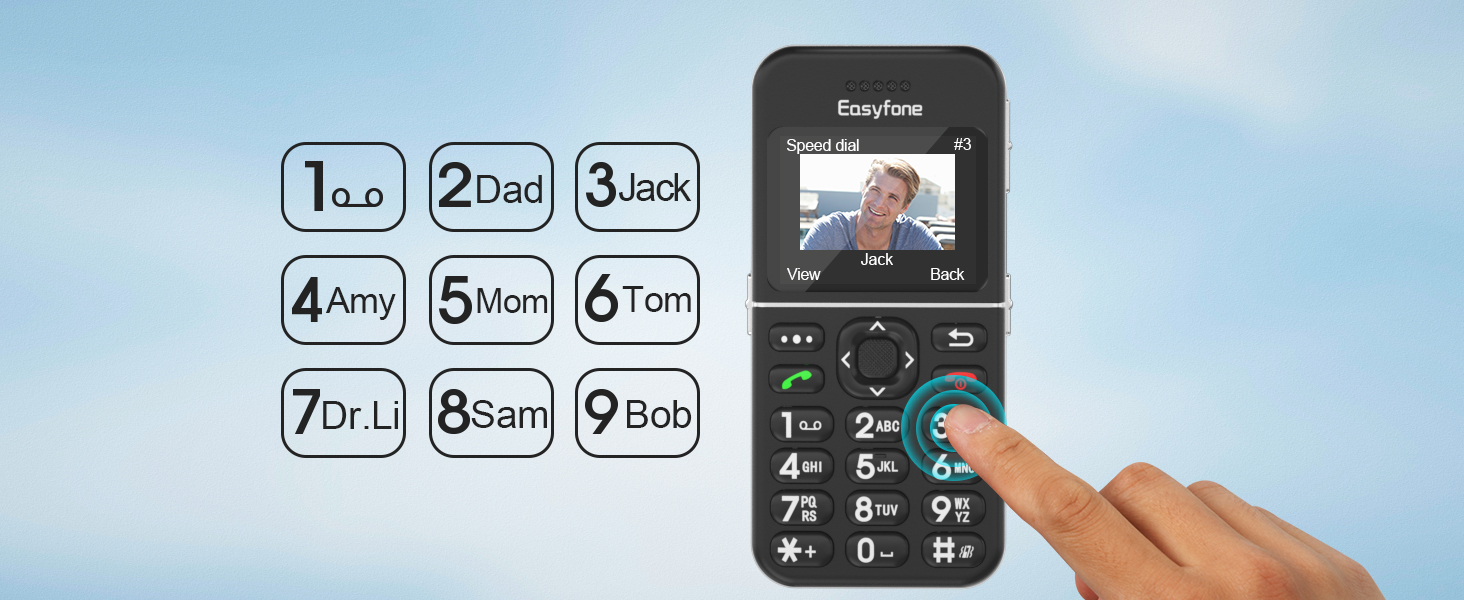
Figure 7: Photo Speed Dial setup and usage.
SOS Emergency Button:
The SOS button on the back of the phone is a critical safety feature. When activated, it will call up to 5 pre-set emergency contacts in a loop until one answers. Simultaneously, it sends an SOS message and a location message to these contacts.
- Go to "Menu" > "SOS settings".
- Select "SOS numbers" to add up to 5 emergency contacts. You can add them manually or from your existing contacts.
- Ensure "SOS active" is enabled.
- To activate, press and hold the SOS button on the back of the phone for 3 seconds.

Figure 8: SOS Emergency Button and its function.
GPS Positioning:
The Easyfone T100 supports GPS positioning. Family members can send a text message with "EGPS" to the T100. The phone will then reply with an SMS containing a Google Maps link to its current location. Note that GPS functionality may be limited or unsuccessful indoors or while moving.
To use this feature:
- From another phone, send a text message containing only "EGPS" (case-insensitive) to the Easyfone T100's phone number.
- The T100 will respond with a text message containing the GPS time and a Google Maps link.
- Click the link on the receiving phone to view the T100's location on Google Maps.
Other Functions:
The Easyfone T100 includes several other useful features:
- FM Radio: Enjoy local radio stations without needing headphones as an antenna.
- Camera: Basic camera functionality for simple photo capture.
- MP3 Player: Play audio files stored on the device (requires external storage, not included).
- Calendar: Keep track of dates and appointments.
- Flashlight: A convenient built-in flashlight.
- Calculator: Perform basic arithmetic operations.
- Bluetooth: Connect to compatible Bluetooth devices like headsets.
- Memo: Create and save short text notes.
- Alarm Clock: Set multiple alarms.
- Voice Recorder: Record voice memos.

Figure 9: FM Radio feature on Easyfone T100.
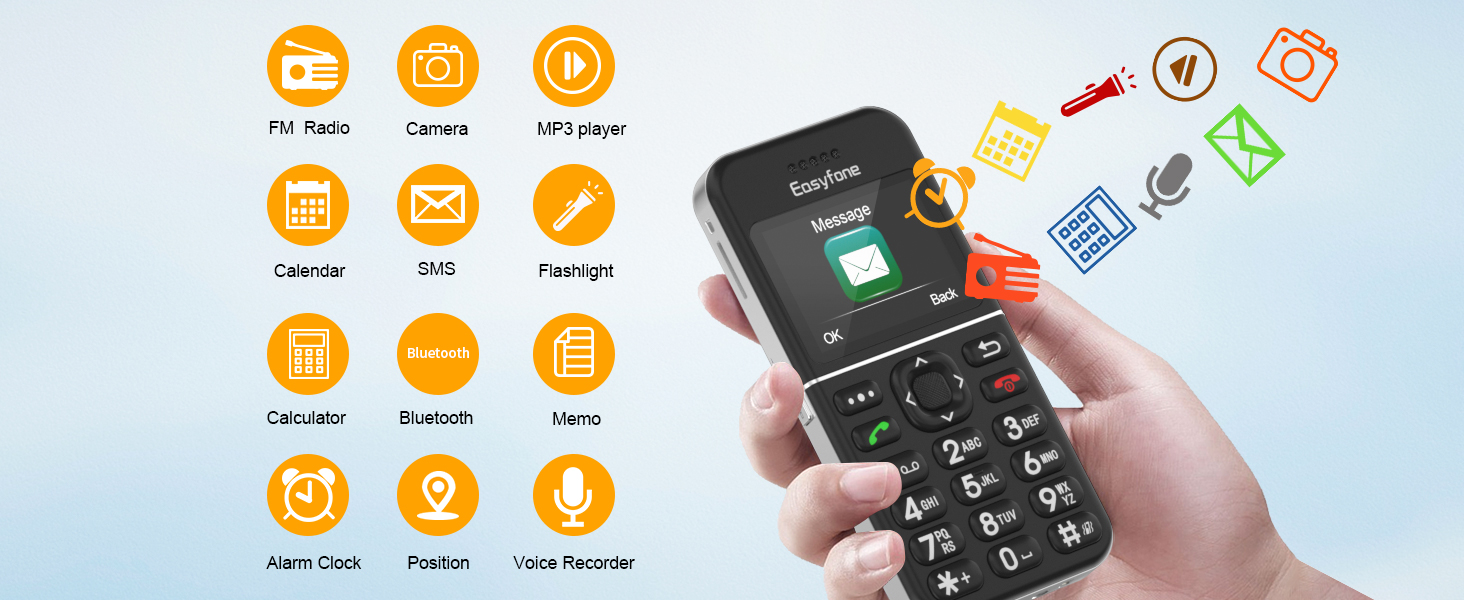
Figure 10: Overview of available functions on the Easyfone T100.
Official Product Video:
Watch this official video from the seller for a demonstration of the Photo Speed Dial, SOS Emergency, and GPS Positioning functions.
Video 1: Photo Speed Dial, SOS, and GPS Function Demo of Easyfone T100. This video demonstrates how to set up photo speed dial contacts, activate the SOS emergency feature, and use the GPS positioning function by sending an "EGPS" text message.
Maintenance
- Cleaning: Use a soft, dry cloth to clean the phone and charging dock. Avoid using liquid cleaners or aerosols.
- Battery Care: To prolong battery life, avoid extreme temperatures. Charge the phone regularly, but do not leave it on the charger for extended periods after it is fully charged. The 1500mAh battery offers long standby time (up to 96 hours).
- Storage: Store the phone in a cool, dry place when not in use.
- Avoid Drops: While durable, avoid dropping the phone to prevent damage to internal components or the screen.
Troubleshooting
| Problem | Possible Cause | Solution |
|---|---|---|
| Phone does not power on. | Battery is drained or not inserted correctly. | Charge the phone for at least 30 minutes. Ensure the battery is properly seated. |
| Cannot make or receive calls. | No SIM card, SIM card not activated, or out of network coverage. | Ensure SIM card is inserted and activated. Check network signal strength. Verify carrier compatibility. |
| Poor call quality/low volume. | Volume settings too low, or network issue. | Adjust call volume using the side buttons. Move to an area with better network coverage. |
| GPS location is inaccurate or not working. | GPS signal interference (indoors, moving), or server maintenance. | Move to an open outdoor area. Ensure the phone has a clear view of the sky. Note that GPS may not work well indoors or while in motion. |
| Phone not charging in dock. | Improper placement, or dirty contacts. | Ensure phone is correctly seated in the dock. Clean the charging contacts on both the phone and dock with a dry cloth. |
Specifications
| Feature | Detail |
|---|---|
| Product Dimensions | 4.57 x 2.23 x 0.55 inches |
| Item Weight | 3.2 ounces |
| Display Size | 2.0 Inches HD IPS |
| Battery Capacity | 1500 mAh Lithium Ion (included) |
| Phone Talk Time | 6 Hours |
| Phone Standby Time | 96 hours |
| Operating System | Easyfone OS |
| Wireless Communication | Bluetooth, Cellular (4G) |
| GPS | True |
| Special Features | Basic Phone, Photo speed dial, SOS Emergency Button, Charging Dock, Big Volume & Big Button & Big Font |
| Human Interface Input | Keyboard |
| Audio Jack | 3.5 mm |
| Color | Black+Silver |
| Manufacturer | Shen Zhen Yixun Electronic Technology Co., Ltd |
| First Available Date | November 14, 2022 |
| IMEI | 862677051345926 |
Warranty and Support
For warranty information and technical support, please refer to the documentation included with your product or contact Easyfone customer service. Keep your purchase receipt for warranty claims.
Manufacturer: Shen Zhen Yixun Electronic Technology Co., Ltd
For further assistance, please visit the Easyfone Store on Amazon.
Related documentsT100 4G


Ask a question about this manual
Ask about setup, troubleshooting, compatibility, parts, safety, or missing instructions. Manuals+ will review the question and use this page’s manual context to help answer it.