
Easyfone T100
Easyfone T100 4G Mobile Phone User Manual
Model: T100
1. Introduction
The Easyfone T100 4G is a minimalist mobile phone designed for ease of use, particularly suitable for seniors and children. It features essential functionalities, high-quality components, and a simple operating system. Key features include a 2.0-inch HD IPS display with large fonts, loud volume, large buttons with a talking number feature, and a dedicated SOS button for emergencies.
2. Package Contents
Please verify that all items listed below are included in your package:
- 1 x Easyfone T100 Mobile Phone
- 1 x 1500mAh Battery
- 1 x Charger (Power Adapter)
- 1 x USB Cable
- 1 x Charging Dock (Black)
- 1 x User Manual
3. Device Overview
Familiarize yourself with the physical components and interface of your Easyfone T100 mobile phone.
3.1 Front and Rear View

Image 3.1: Front view of the Easyfone T100 in its charging dock, showing the display and large keypad. The rear view shows the camera and SOS button.
3.2 Display and Keypad

Image 3.2: The 2.0-inch HD IPS display features enlarged fonts and icons for improved readability. The keypad includes large, easy-to-press buttons.
3.3 Enhanced Audio and Hearing Aid Compatibility

Image 3.3: The phone is designed with enhanced loud and clear volume, making conversations easier to hear. It is also compatible with M4/T4 hearing aids.
3.4 Side Keys and Unlock Switch

Image 3.4: The side of the phone features dedicated volume buttons and an easy-to-use slide switch for locking and unlocking the keypad. The large keypad buttons are designed to prevent accidental presses.
3.5 SOS Button
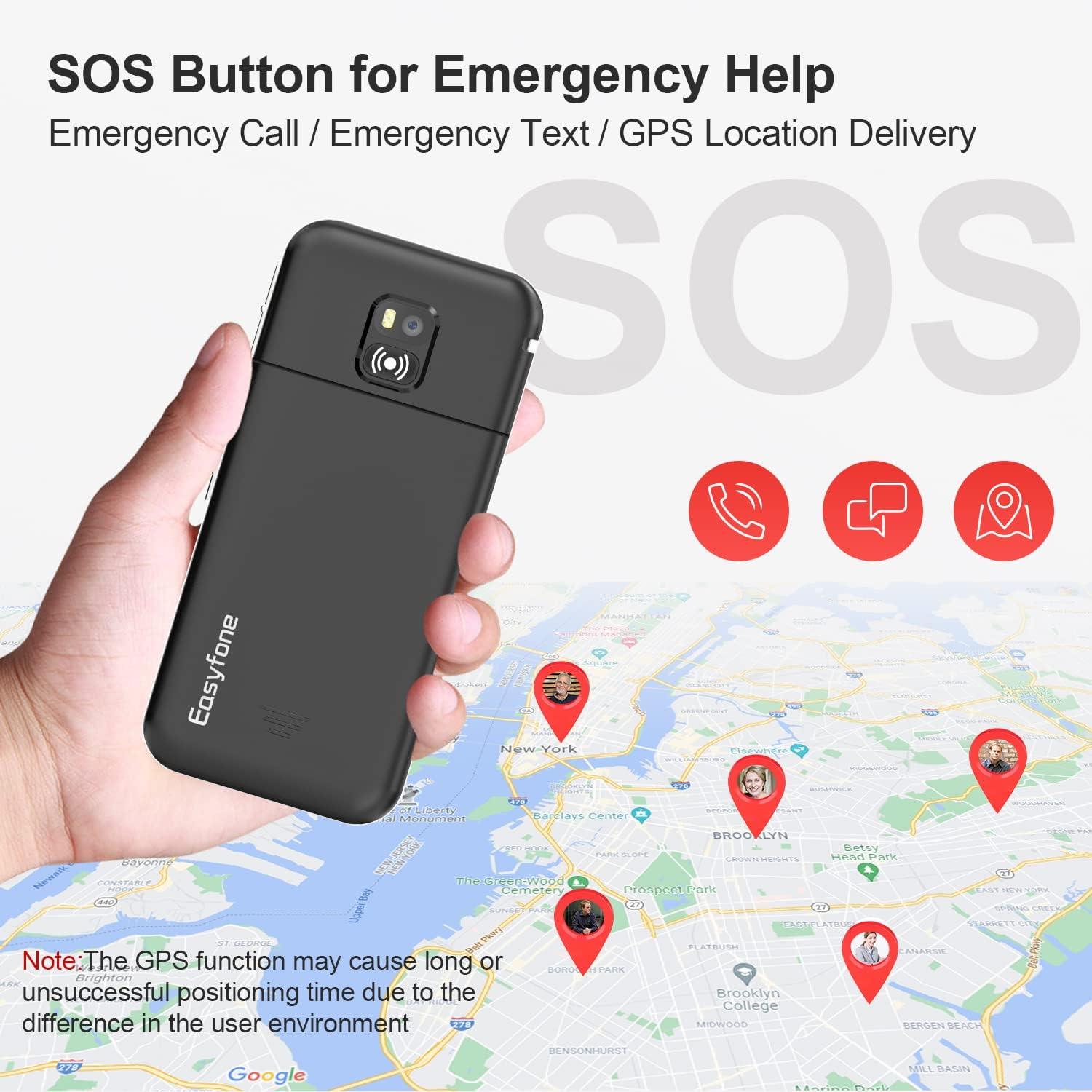
Image 3.5: The rear of the phone features a prominent SOS button. When activated, it can initiate emergency calls, send emergency texts, and deliver GPS location information to pre-set contacts.
4. Setup
4.1 Installing the SIM Card and Battery
- Carefully remove the back cover of the phone.
- Insert your 4G/3G/2G SIM card into the designated SIM slot. Ensure the gold contacts face downwards and the card is correctly oriented.
- Insert the 1500mAh battery into the battery compartment, aligning the contacts.
- Replace the back cover, ensuring it clicks securely into place.
4.2 Initial Charging

Image 4.1: The Easyfone T100 can be charged using the convenient charging dock or directly via a USB cable. The 1500mAh battery provides a standby time of over 96 hours.
- Connect the charger to a power outlet.
- Connect the USB cable to the charger and then to the charging dock.
- Place the Easyfone T100 into the charging dock. Ensure it is seated correctly and the charging indicator appears on the screen.
- Alternatively, you can connect the USB cable directly to the phone's charging port.
- Allow the phone to charge fully before first use.
5. Operating Instructions
5.1 Power On/Off
- To power on: Press and hold the red 'End Call' button until the screen lights up.
- To power off: Press and hold the red 'End Call' button, then confirm 'Power Off' on the screen.
5.2 Making and Receiving Calls
- Making a Call: Dial the number using the large keypad buttons. The phone features a talking number function that announces each digit as you press it. Press the green 'Call' button to initiate the call.
- Receiving a Call: When the phone rings, press the green 'Call' button to answer.
- Ending a Call: Press the red 'End Call' button.
5.3 Photo Speed Dial
The Easyfone T100 supports 8 photo speed dial buttons. You can assign contacts with photos for quick dialing.
- Navigate to the 'Contacts' or 'Speed Dial' menu.
- Select an empty speed dial slot (e.g., 2-9).
- Assign a contact and, if desired, a photo to that slot.
- To use: Press and hold the assigned number button to dial the contact.
5.4 SOS Emergency Function
The SOS button is located on the back of the phone. It is designed for emergency situations.
- Setting up SOS Contacts: Access the 'SOS Settings' menu to add up to 5 emergency contacts. These contacts will receive calls and SMS messages when the SOS button is activated.
- Activating SOS: In an emergency, press and hold the SOS button for a few seconds. The phone will automatically call the primary SOS contact. If unanswered, it will cycle through the other SOS contacts. It will also send an emergency SMS with your GPS location to all pre-set contacts.
5.5 Keypad Lock/Unlock
Use the slide switch on the side of the phone to lock or unlock the keypad, preventing accidental presses.
- Slide the switch downwards to lock the keypad.
- Slide the switch upwards to unlock the keypad.
5.6 Volume Adjustment
Use the dedicated volume buttons on the side of the phone to adjust call volume, ringtone volume, and media volume.
- Press the '+' button to increase volume.
- Press the '-' button to decrease volume.
5.7 Flashlight
The phone includes a built-in flashlight for convenience.
- Slide the dedicated flashlight switch on the side of the phone to turn the flashlight on or off.
5.8 Other Functions
The Easyfone T100 includes useful tools such as an alarm clock, notes with reminders, calculator, calendar, Bluetooth connectivity, and wireless FM radio.
6. Maintenance and Care
- Cleaning: Use a soft, dry cloth to clean the phone's surface. Avoid using liquid cleaners or abrasive materials.
- Battery Care: To prolong battery life, avoid exposing the phone to extreme temperatures. Charge the battery regularly, but avoid overcharging for extended periods.
- Storage: If storing the phone for a long time, charge the battery to about 50% and store it in a cool, dry place.
- Water Resistance: This phone is not water-resistant. Avoid exposure to water or high humidity.
7. Troubleshooting
If you encounter issues with your Easyfone T100, refer to the following common problems and solutions:
| Problem | Possible Solution |
|---|---|
| Phone does not power on | Ensure the battery is correctly installed and fully charged. Connect the phone to the charger and try again. |
| Cannot make or receive calls | Check if the SIM card is properly inserted and activated. Verify that you have network signal. Contact your network provider if necessary. |
| No sound or low volume during calls | Adjust the call volume using the side volume buttons. Ensure the speaker is not blocked. Check if 'Silent' mode is active. |
| Ringtone stopped working | Check the sound settings to ensure a ringtone is selected and the volume is not set to zero or silent. Restart the phone. |
| Phone not charging | Ensure the charger and USB cable are securely connected. Try charging via the dock and directly via USB to identify if the issue is with the dock or cable. Check if the charging port is clean. |
| SOS function not working | Verify that emergency contacts are correctly set up in the 'SOS Settings'. Ensure the phone has network signal and GPS is active for location sharing. |
8. Specifications
| Feature | Detail |
|---|---|
| Brand | Easyfone |
| Model Name | T100 |
| Color | Black |
| Product Type | Bar Phone (Slider type mentioned in original, but product image is bar phone) |
| Screen Size | 2.0 Inches HD IPS |
| Resolution | 1280 x 720 (Note: This resolution seems high for a 2-inch feature phone, likely a typo in source data, but stated as is) |
| SIM Type | Single SIM |
| Cellular Technology | 4G (LTE), 3G, 2G |
| Wireless Carrier | Unlocked (Works with all GSM network providers) |
| Connectivity Technology | Bluetooth |
| Memory Storage Capacity | 64 MB (Flash: 128+64MB) |
| Battery Capacity | 1500mAh Lithium-ion (Included) |
| Camera | 0.3MP |
| Special Features | SOS Button with GPS, Photo Speed Dial, Large Buttons, Loud Volume (HAC), Flashlight, Wireless FM, MP3/MP4 Support, Charging Dock |
| Languages Supported | English, French, German, Italian, Spanish, etc. |
9. Warranty and Support
For warranty information, technical support, or service inquiries, please refer to the warranty card included in your package or contact Easyfone customer service directly. Contact details can typically be found on the manufacturer's official website or on the product packaging.
Related documentsT100


Ask a question about this manual
Ask about setup, troubleshooting, compatibility, parts, safety, or missing instructions. Manuals+ will review the question and use this page’s manual context to help answer it.