Introduction
Thank you for choosing the Maxuni USB Bluetooth 5.1 Dongle Adapter. This device is designed to provide your computer with Bluetooth connectivity, enabling seamless communication with various Bluetooth-enabled peripherals such as keyboards, mice, headphones, and smartphones. Utilizing the latest Bluetooth 5.1 + EDR technology, it offers enhanced data transfer rates, improved stability, and a wider transmission range. This manual provides essential information for setup, operation, and troubleshooting to ensure optimal performance of your adapter.

Image: The Maxuni USB Bluetooth 5.1 Dongle Adapter, a compact black and gold device with 'Bluetooth 5.1 Plug & Play' and 'MAXUNI' branding.
Setup
The Maxuni USB Bluetooth 5.1 Dongle Adapter is designed for plug-and-play functionality on compatible operating systems, requiring no manual driver installation.
System Requirements
- Operating System: Windows 10 (32/64-bit), Windows 11 (32/64-bit)
- Available USB Port
Note: This adapter is not compatible with Mac OS, Linux, TV, car radio systems, or Microsoft Surface devices.
Installation Steps
- Locate an available USB port on your PC, laptop, or desktop computer.
- Insert the Maxuni USB Bluetooth 5.1 Dongle Adapter firmly into the USB port.
- The operating system (Windows 10/11) will automatically detect and install the necessary drivers. This process typically takes a few moments.
- Once installed, a Bluetooth icon will appear in your system tray, indicating that the adapter is ready for use.

Image: The Maxuni Bluetooth dongle plugged into a laptop, with icons for Windows 11 and Windows 10, illustrating its driver-free plug & play compatibility.
Operating
After successful installation, you can begin pairing your Bluetooth devices with your computer.
Pairing Bluetooth Devices
- Ensure your Bluetooth device (e.g., headset, mouse, keyboard) is in pairing mode. Refer to your device's manual for specific instructions on how to activate pairing mode.
- On your Windows computer, navigate to Settings > Devices > Bluetooth & other devices.
- Ensure Bluetooth is toggled On.
- Click on Add Bluetooth or other device.
- Select Bluetooth from the options.
- Your computer will begin searching for nearby Bluetooth devices. Select your device from the list when it appears.
- Follow any on-screen prompts to complete the pairing process, which may include entering a PIN or confirming a code.
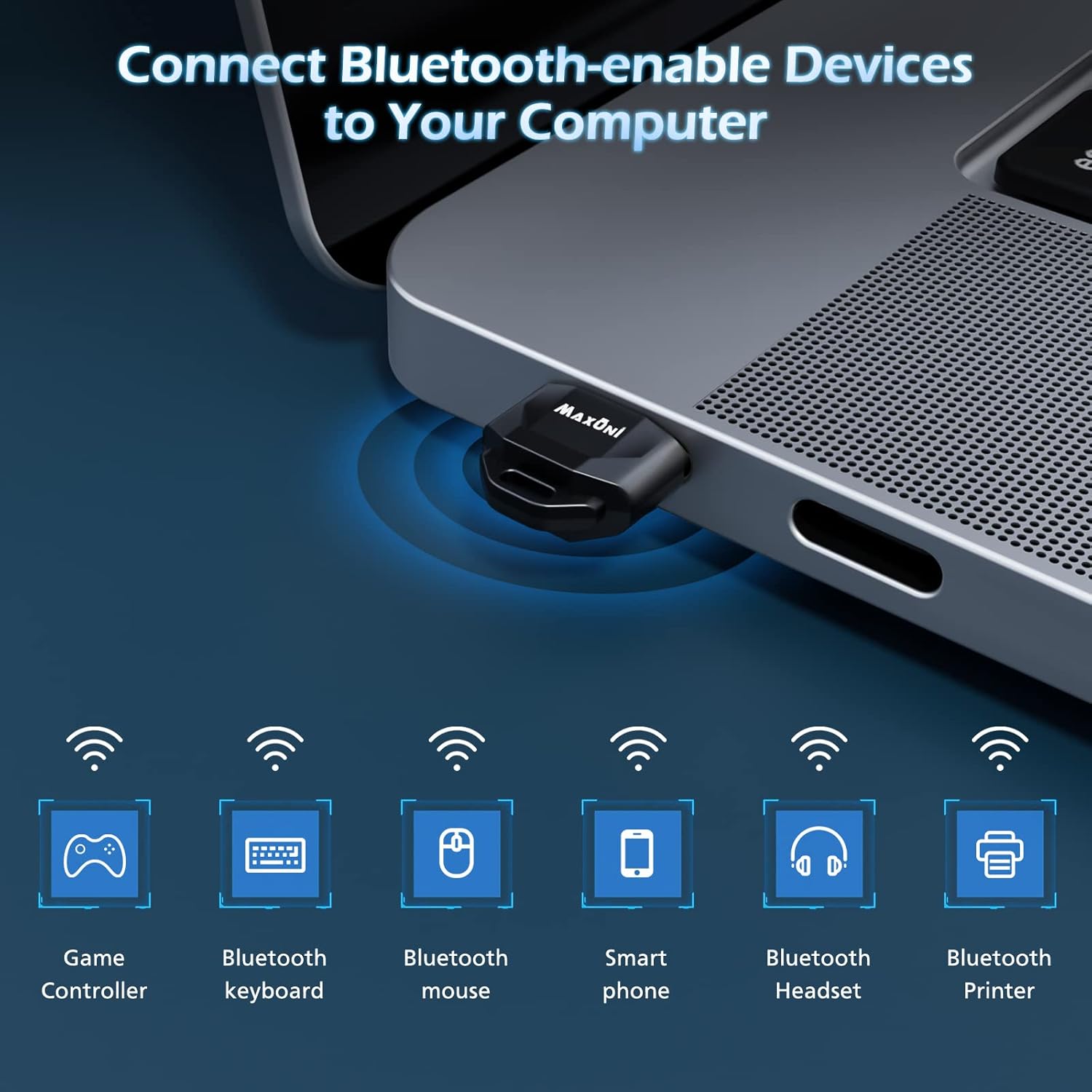
Image: A laptop with the Maxuni Bluetooth dongle connected, showing icons for various Bluetooth-enabled devices like game controllers, keyboards, mice, smartphones, headsets, and printers, indicating broad compatibility.
Simultaneous Connections
The Maxuni Bluetooth 5.1 Dongle Adapter supports simultaneous connection of up to 7 Bluetooth devices. This allows you to use multiple peripherals, such as a Bluetooth keyboard, mouse, and headset, at the same time without interference.

Image: A laptop with the Maxuni Bluetooth dongle, surrounded by a smartphone, keyboard, and headset, illustrating the capability to connect up to 7 devices simultaneously.
Performance Characteristics
- Data Transfer Rate: Up to 3 Mbps (with EDR support).
- Transmission Distance: 10 to 20 meters (in an open environment).
- Anti-interference: Enhanced technology to reduce transmission efficiency loss and improve stability.
Maintenance
To ensure the longevity and optimal performance of your Maxuni USB Bluetooth 5.1 Dongle Adapter, follow these simple maintenance guidelines:
- Keep Clean: Periodically wipe the exterior of the adapter with a soft, dry cloth to remove dust and debris. Avoid using liquid cleaners.
- Protect the USB Interface: The adapter features a 24-carat gold-plated USB interface to prevent oxidation. Avoid touching the gold contacts directly and ensure the adapter is inserted and removed carefully to prevent bending or damage to the USB connector.
- Avoid Physical Damage: Do not drop, bend, or expose the adapter to excessive force. While compact, it is an electronic device and can be damaged by impact.
- Storage: When not in use for extended periods, store the adapter in a cool, dry place away from direct sunlight and extreme temperatures.
- Leave Connected: Due to its mini size, the adapter can be left in your laptop or PC's USB port without obstructing surrounding ports, reducing the need for frequent removal and re-insertion.
Troubleshooting
If you encounter issues with your Maxuni USB Bluetooth 5.1 Dongle Adapter, refer to the following common problems and solutions:
- Device Not Detected / Bluetooth Icon Missing:
- Ensure the adapter is fully inserted into a working USB port.
- Try inserting the adapter into a different USB port.
- Restart your computer.
- Verify that your operating system is Windows 10 or 11.
- Unstable Device Connection / Frequent Disconnection:
- Ensure your Bluetooth device is within the effective transmission range (10-20 meters) of the adapter.
- Reduce physical obstructions between the adapter and the Bluetooth device.
- Check for potential sources of interference (e.g., Wi-Fi routers, microwave ovens, other 2.4GHz devices).
- Re-pair the Bluetooth device with the adapter.
- Cannot Pair with a Device:
- Ensure the Bluetooth device is in pairing mode.
- Make sure the device is not already connected to another Bluetooth host.
- Remove the device from your computer's Bluetooth settings and attempt to pair again.
- Verify that the device is compatible with standard Bluetooth profiles.
- Audio Stuttering / Low Quality (for audio devices):
- Move closer to the adapter.
- Disconnect other Bluetooth devices if you are using multiple simultaneously, to see if it improves performance.
- Ensure there are no strong interference sources nearby.
Specifications
| Brand | Maxuni |
| Model | BT-502 |
| Bluetooth Version | Bluetooth 5.1 + EDR (Enhanced Data Rate) |
| Data Transfer Rate | Up to 3 Mbps |
| Transmission Distance | 10-20 meters (Class 2 wireless technology, open space) |
| Interface | USB (24-carat gold-plated) |
| Compatibility | Windows 10 (32/64-bit), Windows 11 (32/64-bit) |
| Simultaneous Devices | Up to 7 devices |
| Dimensions (LxWxH) | 24 x 15 x 8 Millimeters (approx. 2.41 x 1.52 x 0.76 cm) |
| Weight | 20 g (0.02 Kilograms) |
| Color | Black, Gold |
| UPC | 860010452615 |

Image: The Maxuni Bluetooth dongle next to a laptop, illustrating its compact dimensions (15mm width, 30mm length) and mini design for a perfect fit.
Warranty and Support
Maxuni is committed to providing high-quality products and excellent customer service.
Warranty Information
This Maxuni USB Bluetooth 5.1 Dongle Adapter comes with a 12-month worry-free service from the date of purchase. This warranty covers manufacturing defects and issues arising from normal use. It does not cover damage caused by misuse, accidents, unauthorized modifications, or improper installation.
Customer Support
If you encounter any problems with your Bluetooth adapter or have questions not addressed in this manual, please do not hesitate to contact our customer support team. We aim to respond to all inquiries within 24 hours.
For support, please refer to the contact information provided on your product packaging or the retailer's website where you purchased the product.


