
Introduction
Thank you for choosing the IMICE T98 Wired Gaming Mouse. This manual provides detailed instructions on how to set up, operate, and maintain your new gaming mouse. Please read this manual carefully before use to ensure optimal performance and a satisfying gaming experience.
Product Features
- High-Precision Sensor: Up to 7200 DPI for accurate tracking.
- Adjustable DPI: Six adjustable DPI levels (1200, 1600, 2400, 3200, 4800, 7200) to suit various tasks and games.
- 6 Programmable Buttons: Includes Left, Right, DPI, Scroll Wheel, Forward, and Backward buttons for enhanced control.
- Dynamic RGB LED Lighting: Features 6 colorful LED lights for an immersive gaming atmosphere.
- Ergonomic Design: Comfortable grip for extended use, designed for both left and right-handed users.
- Lightweight Honeycomb Shell: Reduces weight and enhances airflow to prevent hand sweat.
- Onboard Memory: Stores up to four custom configurations without requiring driver software after initial setup.
- Durable USB Cable: High-quality 1.5-meter wired USB connection.
Setup Guide
- Unpack the Mouse: Carefully remove the IMICE T98 Gaming Mouse from its packaging.
- Connect to Computer: Plug the USB connector of the mouse into an available USB port on your computer or laptop.
- Driver Installation: The mouse is plug-and-play and typically does not require additional drivers for basic functionality. Your operating system (Windows, Mac, Vista) will automatically detect and install the necessary drivers.
- Verify Functionality: Once connected, the mouse's LED lights should illuminate, and the cursor should respond to movement.
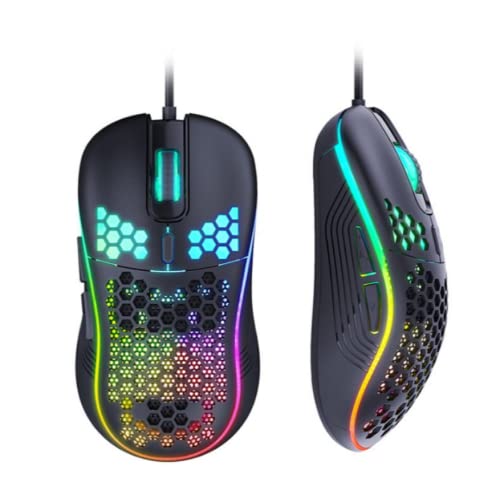
Image: The IMICE T98 Gaming Mouse with its USB cable, ready for connection.
Operating Instructions
Basic Functions
- Left Click: Primary action button.
- Right Click: Secondary action button, typically for context menus.
- Scroll Wheel: Scroll up or down in documents and web pages. Can also be pressed for a middle-click function.
- Forward/Backward Buttons: Located on the side, these buttons typically navigate forward or backward in web browsers or file explorers.
DPI Adjustment
The IMICE T98 mouse features a dedicated DPI button to cycle through six sensitivity levels. Press the DPI button (usually located behind the scroll wheel) to change the cursor speed. Each press will switch to the next DPI setting:
- 1200 DPI (Default for browsing)
- 1600 DPI (Daily office/design)
- 2400 DPI (MOBA games)
- 3200 DPI
- 4800 DPI (FPS games)
- 7200 DPI

Image: The DPI button and visual representation of the six adjustable DPI speeds.
LED Lighting
The mouse features dynamic RGB LED lighting. The lighting patterns are pre-programmed and enhance the aesthetic appeal of the mouse. Some lighting modes might be adjustable via the customization software.

Image: Two IMICE T98 mice displaying their vibrant RGB LED lighting.
Customization and Software
The IMICE T98 mouse supports customization through dedicated macro definition software. This software allows you to:
- Button Remapping: Reset mouse buttons as multimedia buttons or assign custom macro functions.
- Macro Management: Record and manage macros according to your personal preferences for complex operations.
- Advanced Settings: Adjust mouse pointer speed, fire speed, return rate, and DPI values.
- LED Settings: Customize backlight modes and colors.
The mouse also features onboard memory, allowing it to store up to four configurations. Once configured using the software, these settings can be used on other computers without needing the driver software installed.

Image: Screenshot of the IMICE macro definition software, showing options for button settings, macros, advanced settings, and LED control.
Maintenance
To ensure the longevity and optimal performance of your IMICE T98 Gaming Mouse, follow these maintenance guidelines:
- Cleaning: Use a soft, dry cloth to wipe the surface of the mouse. For stubborn dirt, slightly dampen the cloth with water or a mild cleaning solution. Avoid using harsh chemicals or abrasive materials.
- Sensor Care: Keep the optical sensor on the underside of the mouse clean from dust and debris. Use a cotton swab or compressed air if necessary.
- Cable Management: Avoid sharp bends or excessive pulling on the USB cable to prevent damage.
- Storage: When not in use, store the mouse in a clean, dry environment away from extreme temperatures.
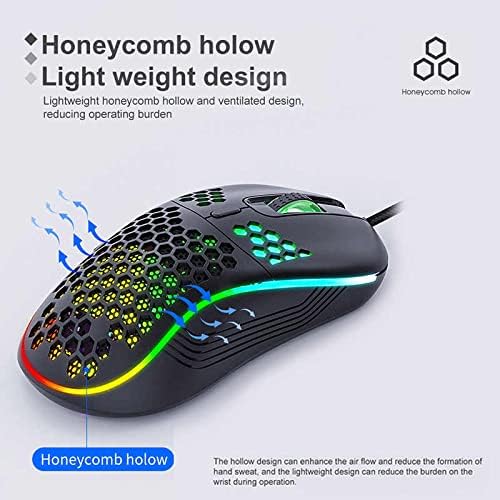
Image: The honeycomb hollow design of the IMICE T98 mouse, which aids in ventilation and reduces hand sweat.
Troubleshooting
| Problem | Possible Solution |
|---|---|
| Mouse not responding |
|
| Cursor movement is erratic or slow |
|
| LED lights are not working |
|
| Buttons are not working or performing incorrectly |
|
Specifications
| Feature | Detail |
|---|---|
| Brand | IMICE |
| Model | T98 |
| Connectivity Technology | USB (Wired) |
| Special Features | LED Lighting, Adjustable DPI, Programmable Buttons, Onboard Memory |
| Button Quantity | 6 |
| Hand Orientation | Ambidextrous |
| Recommended Use | Gaming |
| Compatible Devices | Personal Computer, Laptop |
| Operating System Compatibility | Windows, Vista, Mac (implied) |
| Style | Modern |
| Finish Type | Matte |
| Cable Length | 1.5 meters |
| Batteries Included | No |
Warranty and Support
For warranty information and technical support, please refer to the documentation provided with your purchase or contact the seller/manufacturer directly. Keep your proof of purchase for warranty claims.


