
1. Introduction
This manual provides detailed instructions for the BENFEI DisplayPort to DVI (Male to Female) adapter, model 000115black. This adapter is designed to connect devices with a DisplayPort output to displays with a DVI input, enabling high-definition video transmission.
2. Product Overview
The BENFEI DisplayPort to DVI adapter is a compact and portable solution for connecting modern DisplayPort-equipped devices to older DVI monitors, projectors, or HDTVs. It features a male DisplayPort connector and a female DVI connector. The adapter is designed for unidirectional signal conversion, transmitting video from DisplayPort to DVI only.

Figure 1: BENFEI DisplayPort to DVI Adapter

Figure 2: Connection Diagram - DisplayPort to DVI-D (Unidirectional)
3. Features
- Compact Design: Portable and lightweight, ideal for business presentations or extending desktop screens.
- Unidirectional Conversion: Built-in advanced IC chip converts DisplayPort signal to DVI signal. Note: This is NOT a bi-directional converter and cannot transmit signals from DVI to DisplayPort.
- High Performance: Supports resolutions up to 1920x1080@60Hz (1080p Full HD), including 720p, 1600x1200, and 1280x1024.
- Durable Construction: Gold-plated DisplayPort connector resists corrosion and abrasion, improving signal transmission. Molded strain relief increases cable durability.
- Secure Connection: DisplayPort connector features latches for a secure connection. Press the release button to unplug.
4. Setup
Follow these steps to connect your DisplayPort source device to a DVI display:
- Identify the DisplayPort output on your computer, desktop, laptop, or graphics card.
- Identify the DVI input on your monitor, projector, or HDTV. Ensure you have a DVI cable available.
- Connect the male DisplayPort end of the BENFEI adapter to the DisplayPort output on your source device. Ensure the latches engage for a secure fit.
- Connect your DVI cable (not included) to the female DVI port on the BENFEI adapter. Secure the DVI cable by tightening its screws, if applicable.
- Connect the other end of your DVI cable to the DVI input on your display device.
- Power on both your source device and your display. The display should automatically detect the signal.

Figure 3: Adapter connected to a laptop and a monitor

Figure 4: Visual guide for connecting DisplayPort to DVI
5. Operating Instructions
Once connected, your display should automatically mirror or extend your computer's screen. You can configure display settings through your operating system.
Display Modes:
- Mirror Mode: Duplicates your computer's screen onto the connected DVI display.
- Extended Mode: Extends your desktop across both your computer's screen and the connected DVI display, providing more workspace.

Figure 5: Mirror Mode and Extended Mode setup
Resolution:
The adapter supports resolutions up to 1920x1080 at 60Hz, providing a clear and stable high-definition picture.

Figure 6: High-definition 1080p@60Hz display
Multiple Monitor Setup:
This adapter can be used to add an additional DVI monitor to your system, expanding your workstation for increased efficiency.

Figure 7: Example of a multi-monitor workstation setup
Product Video:
Video 1: Overview of the BENFEI DisplayPort to DVI Adapter, highlighting its features and use for high-resolution video output.
6. Maintenance
To ensure the longevity and optimal performance of your BENFEI DisplayPort to DVI adapter, please follow these maintenance guidelines:
- Keep the adapter clean and free from dust. Use a soft, dry cloth for cleaning.
- Avoid exposing the adapter to extreme temperatures or humidity.
- Do not bend or twist the cable excessively, as this can damage internal wiring.
- Store the adapter in a safe place when not in use to prevent physical damage.
7. Troubleshooting
If you encounter issues with your adapter, refer to the following common troubleshooting steps:
- No Display/Signal:
- Ensure all connections (DisplayPort, DVI cable, DVI display) are secure and fully inserted.
- Verify that the adapter is connected in the correct direction: DisplayPort output from source device to DVI input on display. The adapter is not bi-directional.
- Try restarting your computer and display.
- Test the adapter with a different DisplayPort source or DVI display, if available, to isolate the issue.
- Incorrect Resolution or Display Issues:
- Check your computer's display settings to ensure the correct resolution (up to 1920x1080@60Hz) is selected for the connected DVI display.
- Update your graphics card drivers to the latest version.
- Ensure your DVI cable is capable of supporting the desired resolution.
- Loose Connection:
- The DisplayPort connector has latches for a secure connection. Ensure it is fully inserted and the latches are engaged. To remove, press the release button on the DisplayPort connector.
- For the DVI connection, ensure any screws on your DVI cable are tightened to secure the connection to the adapter.
8. Specifications
| Attribute | Value |
|---|---|
| Brand | BENFEI |
| Model Number | 000115black |
| Compatible Devices | Personal Computer, Monitor, Projector |
| Connector Type | DVI, DisplayPort |
| Color | Black |
| Item Dimensions (L x W x H) | 0.39 x 0.39 x 0.39 inches |
| Item Weight | 0.09 Pounds |
| Max Resolution Supported | 1920x1080@60Hz (1080p Full HD) |
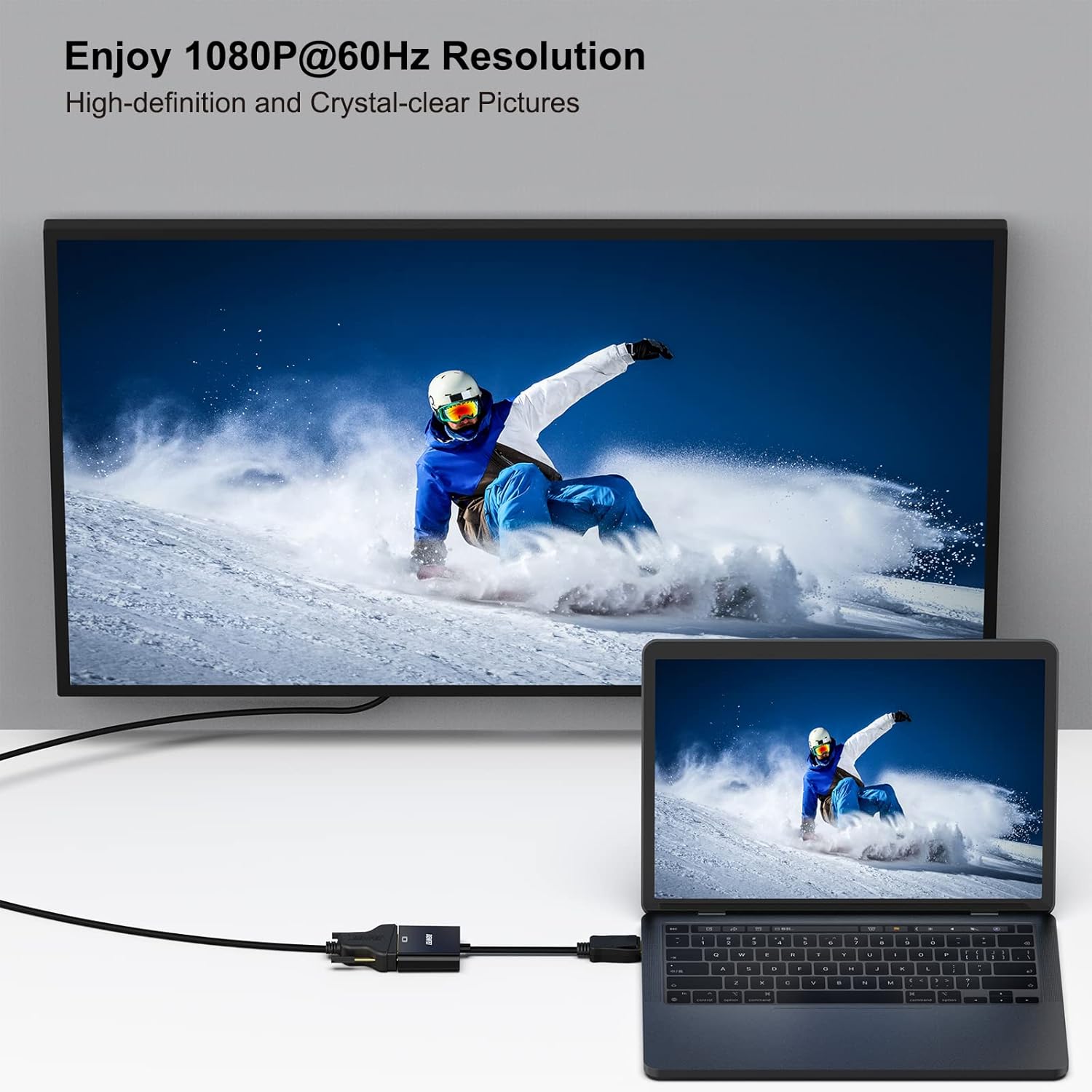
Figure 8: Adapter dimensions and internal chip illustration
9. Warranty and Support
The BENFEI DisplayPort to DVI adapter comes with an Exclusive Benfei Unconditional 18-month Warranty. This warranty ensures long-time protection for your purchase.
For any questions, technical assistance, or warranty claims, please contact BENFEI customer service. You can typically find support contact information on the official BENFEI website or through your purchase platform.
We are committed to providing friendly and easy-to-reach customer service to solve your problems timely.