1. Introduction
This manual provides instructions for the XTRIKE ME GW-600 2.4G Wireless Gaming Mouse. Please read this manual carefully before using the product to ensure proper operation and to prevent damage.
The GW-600 mouse is designed for gaming, featuring a comfortable ergonomic design, 7 programmable buttons, adjustable DPI settings, and a 7-color breathing backlight.
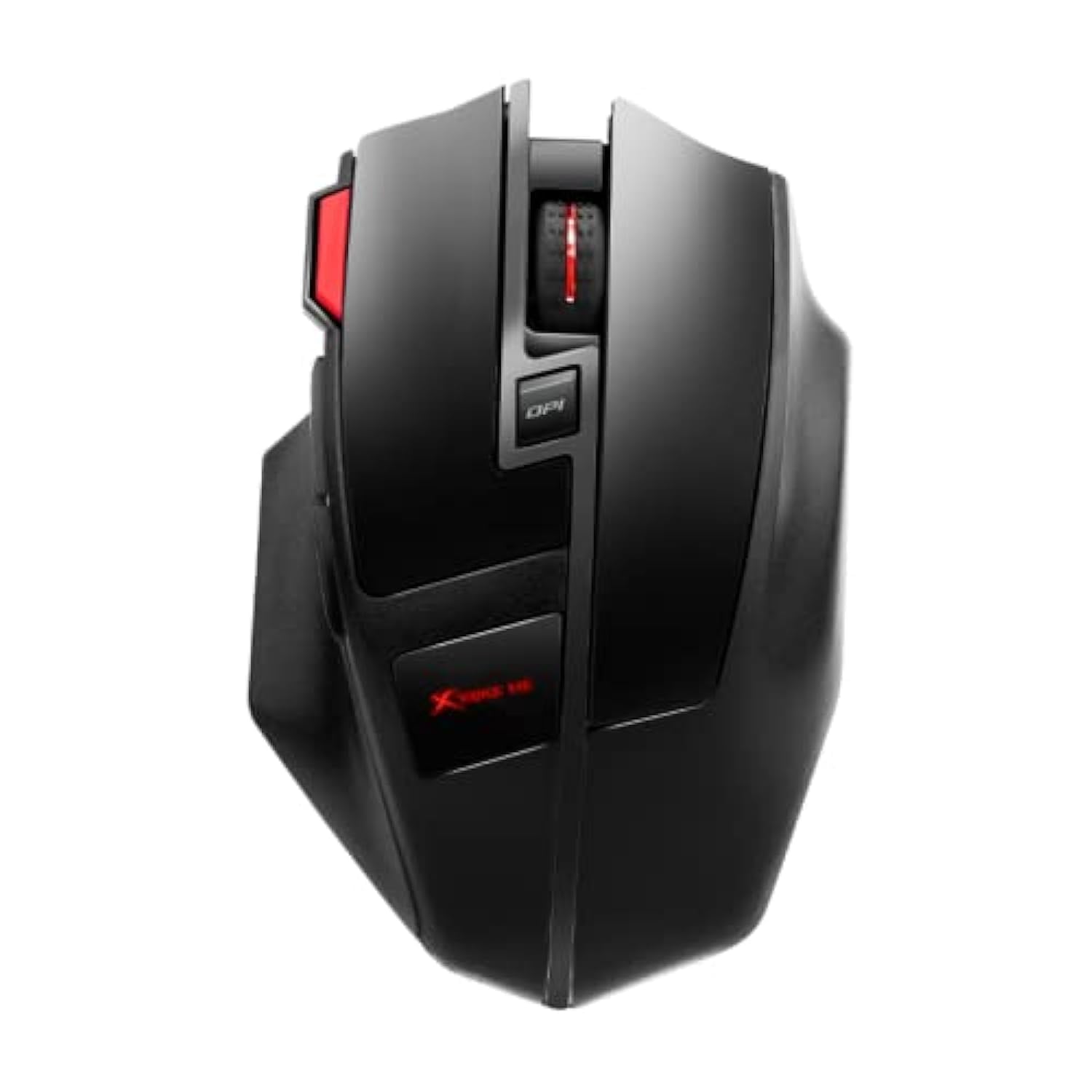
Figure 1: Top view of the XTRIKE ME GW-600 Wireless Gaming Mouse.
2. Package Contents
- XTRIKE ME GW-600 Wireless Gaming Mouse
- USB Receiver (typically stored in the mouse battery compartment)
- User Manual
Mouse Layout

Figure 2: Side view of the XTRIKE ME GW-600 Wireless Gaming Mouse, highlighting button placement.
- Left Click Button
- Right Click Button
- Scroll Wheel
- DPI Adjustment Button
- Forward Button
- Backward Button
- Firepower Button (Double Click)
- USB Receiver Storage (underside)
- On/Off Switch (underside)
3. Setup Instructions
3.1 Battery Installation
The XTRIKE ME GW-600 mouse requires one Lithium-Ion battery (not included). To install the battery:
- Locate the battery compartment on the underside of the mouse.
- Open the battery compartment cover.
- Insert one Lithium-Ion battery, ensuring correct polarity (+/-).
- Close the battery compartment cover securely.
3.2 Connecting the Mouse
The mouse connects wirelessly via a 2.4G USB receiver.
- Remove the USB receiver from its storage slot on the underside of the mouse.
- Plug the USB receiver into an available USB port on your computer.
- Turn on the mouse using the On/Off switch located on the underside.
- Your computer should automatically detect and install the necessary drivers. This may take a few moments.
- Once installed, the mouse is ready for use.
4. Operating the Mouse
4.1 Basic Functions
- Left Click: Primary action, selection.
- Right Click: Context menu, secondary action.
- Scroll Wheel: Scroll up/down pages. Can also be pressed for middle-click functionality.
- Forward/Backward Buttons: Navigate web pages or folders (e.g., go back/forward in browser).
4.2 DPI Adjustment
The mouse features a 3-step DPI (Dots Per Inch) selection. Press the DPI Adjustment Button (Button 4 in Figure 2) to cycle through the available DPI settings. Each press will change the mouse sensitivity, allowing you to adapt to different tasks or game requirements.
4.3 Firepower Button
The Firepower Button (Button 7 in Figure 2) provides a quick double-click function. Pressing this button will register two clicks, which can be useful in certain gaming scenarios.
4.4 LED Backlight
The mouse features a 7-color backlight with a breathing effect. This lighting automatically cycles through colors, enhancing the aesthetic appeal during use.
5. Maintenance
5.1 Cleaning
- Ensure the mouse is turned off before cleaning.
- Use a soft, dry cloth to wipe the surface of the mouse.
- For stubborn dirt, slightly dampen the cloth with water or a mild cleaning solution. Avoid harsh chemicals.
- Do not allow liquids to enter the mouse's internal components.
- Clean the optical sensor on the underside periodically with a cotton swab to ensure accurate tracking.
5.2 Battery Care
- If the mouse is not in use for an extended period, turn it off to conserve battery life.
- Replace the Lithium-Ion battery when performance degrades.
- Dispose of used batteries according to local regulations.
6. Troubleshooting
| Problem | Possible Cause | Solution |
|---|---|---|
| Mouse not responding | 1. Mouse is off. 2. Low battery. 3. USB receiver not connected or faulty. 4. Driver issue. | 1. Turn on the mouse. 2. Replace the battery. 3. Ensure receiver is firmly plugged in. Try a different USB port. Test receiver on another computer. 4. Reinstall mouse drivers (usually automatic upon reconnection). |
| Lag or intermittent connection | 1. Interference from other wireless devices. 2. Distance from receiver. 3. Low battery. | 1. Move mouse closer to receiver. Remove other wireless devices. 2. Ensure mouse is within operating range. 3. Replace the battery. |
| Inaccurate tracking | 1. Dirty optical sensor. 2. Unsuitable mouse pad/surface. | 1. Clean the optical sensor. 2. Use a clean, non-reflective mouse pad or surface. |
| LED backlight not working | 1. Mouse is off. 2. Battery is too low. | 1. Turn on the mouse. 2. Replace the battery. |
7. Specifications
| Brand | XTRIKE ME |
| Model Name | GW-600 Wireless Gaming Mouse |
| Connectivity Technology | 2.4G Wireless (USB) |
| Movement Detection Technology | Optical |
| Number of Buttons | 7 |
| Key Rating | 3 million clicks lifespan |
| DPI Steps | 3-step selection |
| Special Feature | Wireless, 7-color breathing backlight, Firepower button |
| Color | Black |
| Hand Orientation | Right |
| Power Source | Battery Powered (1 Lithium Ion battery required) |
| Lithium Battery Energy Content | 500 mAh |
| Compatible Devices | Personal Computer |
| Operating System | Windows XP or later versions |
| Item Weight | 300 grams |
| Product Dimensions | 4 x 7 x 0.1 cm |
8. Safety Information
- Keep the device away from water and other liquids.
- Do not expose the device to extreme temperatures or direct sunlight.
- Do not attempt to disassemble or repair the device yourself. Refer to qualified service personnel.
- Keep out of reach of children.
- Dispose of electronic waste and batteries responsibly according to local regulations.
9. Warranty and Support
For warranty information or technical support, please refer to the documentation provided with your purchase or contact your retailer. Keep your proof of purchase for warranty claims.


