
1. Introduction
This manual provides comprehensive instructions for the installation, operation, and maintenance of your NETUM NT-LP110A Direct USB Thermal Shipping Label Printer. Designed for efficiency, this printer offers high-speed label printing without the need for ink or toner, making it a low-maintenance solution for various shipping needs.
Key Features:
- High-Speed Printing: Up to 150 mm/s for rapid label generation.
- Direct Thermal Technology: No ink or toner required, reducing operational costs.
- Wide Compatibility: Works with Windows and Mac OS, and supports popular platforms like Amazon, eBay, Shopify, Etsy, FedEx, and UPS.
- Automatic Label Identification: Automatically detects and feeds labels from 1.57" to 4.1" wide.
- Clear 4x6 Label Output: Produces clear, scannable 4x6 inch shipping labels.
2. Package Contents
Please verify that all items are present in the package:
- NETUM NT-LP110A Shipping Label Printer
- Power Adapter (24V/2.0A)
- USB Cable
- USB Disk (containing driver software, setting guide, and user manual)
- Sample 4x6'' Fanfold Labels
3. Setup Guide
3.1 Connecting the Printer
- Connect the power adapter to the printer's power port and then plug it into an electrical outlet.
- Connect the USB cable to the printer's USB port and the other end to your computer.
- Turn on the printer using the power switch, usually located at the rear or side of the device.
3.2 Loading Labels
The NETUM NT-LP110A printer supports both fanfold and roll labels. For optimal performance, use thermal direct labels.
- Open the top cover of the printer.
- If using roll labels, place the label roll into the label compartment, ensuring the labels feed from the bottom. If using fanfold labels, position them behind the printer and feed the first label into the rear slot.
- Adjust the label guides to fit the width of your labels snugly, without being too tight.
- Close the top cover. The printer will automatically detect and calibrate the label size.
3.3 Driver Installation
The printer requires a driver to communicate with your computer. The necessary drivers are provided on the included USB disk.
- Insert the provided USB disk into your computer.
- Locate and run the installer file for your operating system (Windows or Mac OS).
- Follow the on-screen instructions to complete the driver installation.
- After installation, it is recommended to restart your computer.
3.4 Printer Calibration
For accurate label printing, perform a calibration after loading new labels or if print quality issues arise.
- Ensure labels are properly loaded and the printer is powered on.
- Press and hold the feed button (usually marked with an arrow) until the printer emits a beep or the status light changes.
- Release the button. The printer will feed a few blank labels to detect the label gap and size.
- Once calibration is complete, the printer is ready for use.
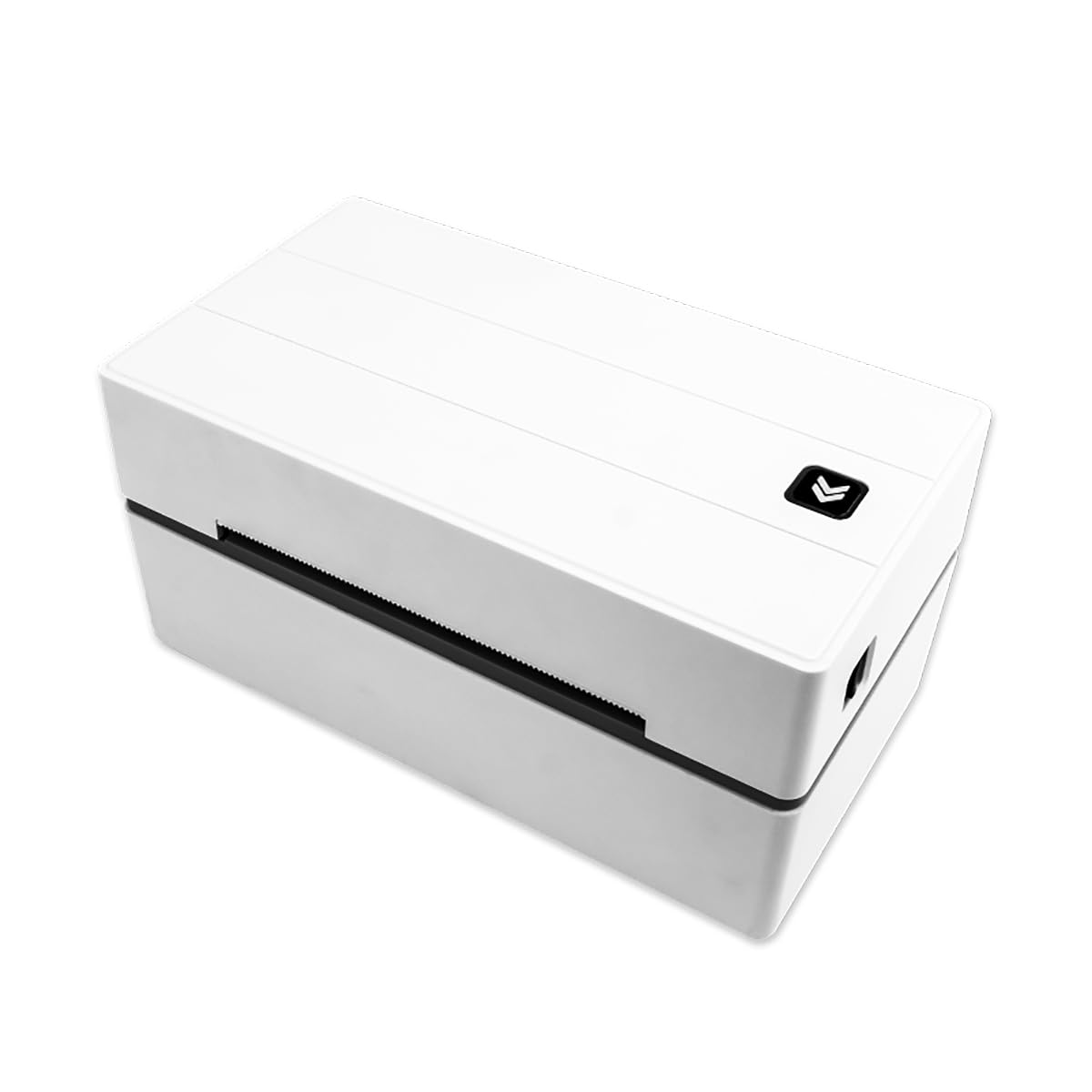
Image: NETUM NT-LP110A Shipping Label Printer. This image shows the compact design of the printer, highlighting its top and side views, and the power and USB ports.
4. Operating Instructions
4.1 Printing Labels
- Ensure the printer is connected to your computer and powered on.
- Open the document or application from which you wish to print your label (e.g., shipping software, PDF viewer).
- Go to the 'Print' option (usually File > Print).
- Select the NETUM NT-LP110A printer from the list of available printers.
- In the printer settings or preferences, ensure the paper size is set to 4x6 inches (or the appropriate size for your labels).
- Adjust any other necessary settings, such as print density or speed, if available.
- Click 'Print'.
4.2 Platform Compatibility
The NETUM NT-LP110A printer is compatible with various e-commerce and shipping platforms, including:
- Amazon
- eBay
- Shopify
- Etsy
- FedEx
- UPS
- ShipStation
- ShippingEasy
- Shippo
- Ordoro
For specific platform settings, refer to the platform's documentation or the printer's driver settings guide on the USB disk.
5. Maintenance
5.1 Cleaning the Print Head
Regular cleaning of the print head ensures optimal print quality and extends the printer's lifespan.
- Turn off the printer and unplug the power cord.
- Open the top cover of the printer.
- Wait a few minutes for the print head to cool down if the printer has been recently used.
- Gently wipe the print head surface with an alcohol swab or a soft, lint-free cloth dampened with isopropyl alcohol.
- Allow the print head to dry completely before closing the cover and powering on the printer.
5.2 General Care
- Keep the printer in a clean, dust-free environment.
- Avoid exposing the printer to direct sunlight, extreme temperatures, or high humidity.
- Use only high-quality thermal labels to prevent damage to the print head.
- Do not attempt to disassemble the printer yourself. Contact customer support for repairs.
6. Troubleshooting
6.1 Common Issues and Solutions
- No Power:
Solution: Ensure the power adapter is securely connected to both the printer and a working electrical outlet. Check the power switch is in the 'On' position. - Printer Not Recognized by Computer:
Solution: Verify the USB cable is properly connected. Reinstall the printer driver from the provided USB disk. Try connecting to a different USB port on your computer. - Labels Not Printing Clearly or Faded:
Solution: Clean the print head as described in Section 5.1. Ensure you are using thermal direct labels. Adjust print density settings in your printer preferences. - Labels Jamming:
Solution: Ensure labels are loaded correctly and the label guides are adjusted to the label width. Remove any torn or damaged labels. - Printer Feeds Blank Labels:
Solution: Perform a printer calibration as described in Section 3.4. Ensure the labels are loaded with the printable side facing up.
7. Specifications
| Method | Thermo sensitive |
| Resolution | 203 dpi |
| Max Printing Speed | 150 mm/s |
| Paper Width | 48-108 mm |
| Paper Thickness | 0.08-0.2 mm |
| Paper Roll Diameter | 100 mm |
| Supported Paper | Thermal paper, black label paper, thermal label paper |
| Power Adapter | 24V/2.0A |
| Printing Life (TPH) | 100 Km |
| Operating Environment Temperature | -10 to 50°C |
| Operating Environment Humidity | 10-90% (non-condensing) |
| Storage Environment Temperature | -40 to 80°C |
| Storage Environment Humidity | 5-95% (non-condensing) |
| Connection | USB |
| Color | Combined Ash |
| Item Weight | 1.58 Kilograms (2.20 lbs/1 kg as per description) |
| Dimensions | W82mm*D 200mm*H 92mm |
| Model Number | NT-LP110A |
8. Warranty and Support
For warranty information, please refer to the documentation included with your product or visit the official NETUM website. For technical support or further assistance, please contact NETUM customer service through their official channels.


