
REXING M3
Contents
REXING M3 3-Channel Mirrored Dash Cam User Manual
Model: M3
Introduction
The REXING M3 is an advanced 3-channel mirrored dash camera system designed to provide comprehensive video surveillance for your vehicle. With its 12-inch IPS touch screen, built-in GPS, and multiple recording modes, the M3 ensures you capture critical moments on the road and while parked. This manual provides detailed instructions for setup, operation, and maintenance of your device.

Figure 1: Overview of the REXING M3 Dash Cam system components.
Setup
Follow these steps to properly install and set up your REXING M3 Dash Cam.
1. Package Contents
Ensure all components are present:
- REXING M3 Mirrored Dash Cam Unit
- Interior Camera
- Rear Camera
- GPS Module
- Power Cable (Car Charger)
- Rear Camera Cable
- Mounting Straps/Bands
- User Manual
2. Micro SD Card Installation
A Micro SD card (not included) is required for recording. Insert a high-speed (Class 10 or higher) Micro SD card into the designated slot on the dash cam unit. Ensure it is inserted correctly until it clicks into place.
3. Mounting the Dash Cam
The REXING M3 is designed to mount over your existing rearview mirror.
- Secure the dash cam unit to your vehicle's rearview mirror using the provided rubber straps/bands. Ensure it is firmly attached and does not obstruct your view.
- Adjust the angle of the front camera lens to ensure it captures the road ahead clearly.
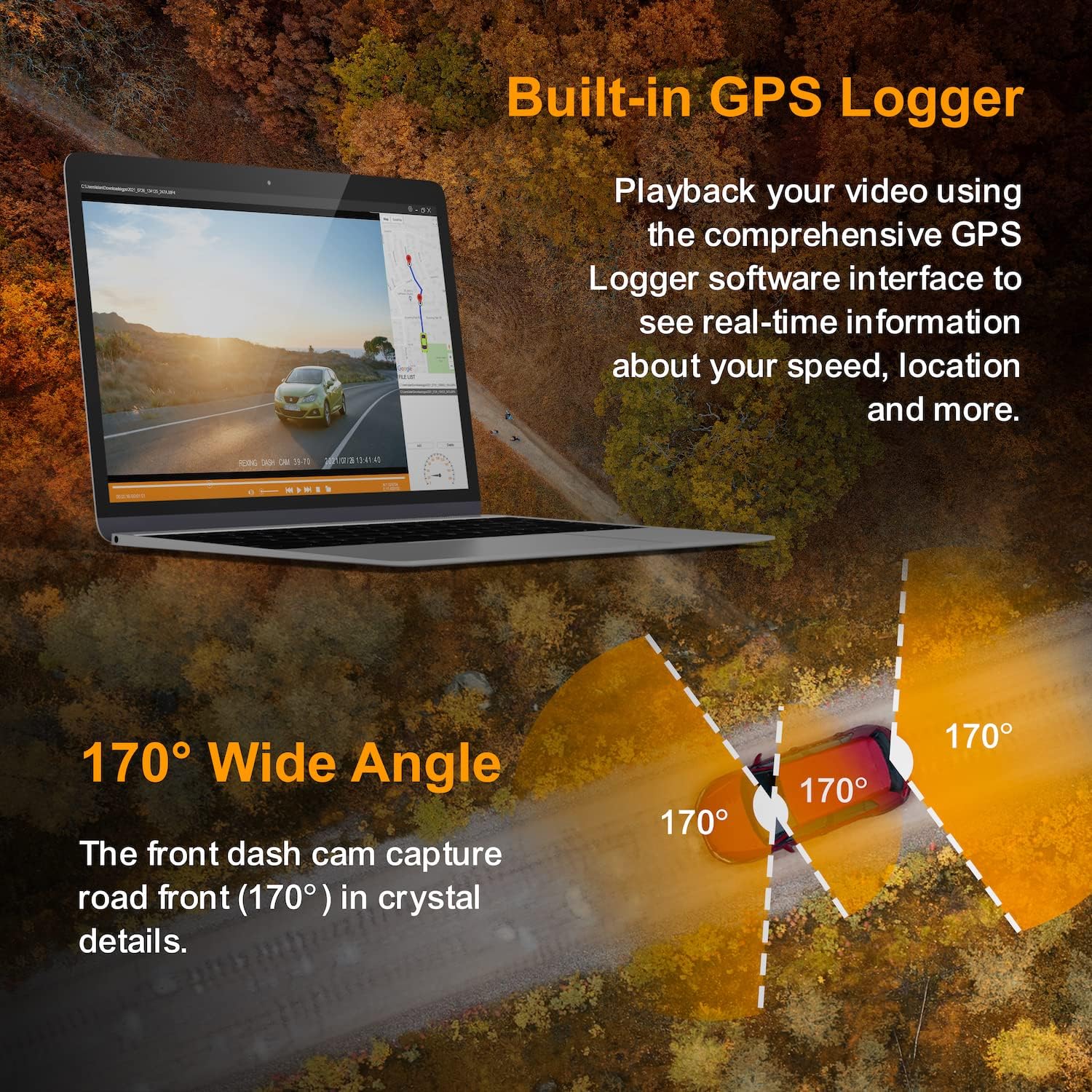
Figure 2: The REXING M3 Dash Cam mounted over the vehicle's rearview mirror.
4. Connecting Cameras and GPS
- Connect the interior camera to the main dash cam unit. Position it to capture the cabin view.
- Route the rear camera cable from the main unit to the rear of your vehicle. Mount the rear camera on the rear windshield or near the license plate (depending on your preference and cable length) to capture the rear view.
- Plug the GPS module into the designated port on the dash cam unit. Position the GPS module where it has a clear view of the sky for optimal signal reception.
5. Power Connection
- Plug the car charger into your vehicle's 12V power outlet (cigarette lighter socket).
- Connect the other end of the power cable to the dash cam unit.
- Once the vehicle ignition is turned on, the dash cam should power on automatically and begin recording.
Operating Instructions
Learn how to use the various features of your REXING M3 Dash Cam.
1. 12" IPS Touch Screen
The large 12-inch IPS touch screen allows for intuitive control and real-time viewing. Swipe gestures and taps are used to navigate menus, switch camera views, and adjust settings.
2. 3-Channel Recording
The M3 simultaneously records from three cameras: front, cabin, and rear, all in 1080p Full HD. This provides comprehensive coverage of your surroundings.

Figure 3: The M3's display showing simultaneous 3-channel recording.
3. Stream Media & Auto-Backup Camera
The dash cam can stream live video from the rear camera to the 12-inch display, effectively acting as a digital rearview mirror. When reversing, the display automatically switches to the rear camera view with parking guidelines for safe maneuvering.

Figure 4: Stream Media and Auto-Backup Camera functionality.
4. Built-in GPS
The integrated GPS module records your driving location, speed, and time data. This information can be reviewed using the Rexing GPS Player App on your desktop, providing valuable context for recorded footage.
5. G-Sensor (Gravity Sensor)
The G-Sensor detects sudden impacts or collisions. When an event is detected, the current video segment is automatically locked and saved to prevent it from being overwritten by loop recording, ensuring critical evidence is preserved.
6. Loop Recording
The dash cam records video in continuous loops (e.g., 1, 2, or 3-minute segments). When the Micro SD card reaches its storage limit, the oldest unlocked recordings are automatically overwritten by new ones. This ensures continuous recording without manual intervention.
7. Parking Monitor
With the Parking Monitor feature enabled, the dash cam will automatically turn on and begin recording if it detects vibration or impact while your vehicle is parked and the ignition is off. This provides surveillance against potential damage or theft.

Figure 5: Visual representation of G-Sensor, Loop Recording, and Parking Monitor features.
Maintenance
Proper maintenance ensures the longevity and optimal performance of your REXING M3 Dash Cam.
1. Cleaning the Device
- Use a soft, lint-free cloth to gently wipe the screen and camera lenses.
- Do not use abrasive cleaners or solvents, as they may damage the surfaces.
- Ensure the device is powered off before cleaning.
2. Micro SD Card Management
- Periodically format the Micro SD card within the dash cam's settings (e.g., once a month) to prevent data corruption and ensure smooth recording.
- Always power off the dash cam before inserting or removing the Micro SD card to avoid damaging the card or the device.
3. Firmware Updates
Check the official REXING website periodically for available firmware updates. Keeping your dash cam's firmware up-to-date can improve performance, add new features, and resolve potential issues. Follow the instructions provided with the firmware update carefully.
Troubleshooting
If you encounter issues with your REXING M3 Dash Cam, refer to the following common problems and solutions.
| Problem | Possible Cause | Solution |
|---|---|---|
| Dash cam does not power on. | No power, loose connection, faulty power cable. | Check power cable connection to the dash cam and 12V outlet. Ensure vehicle ignition is on. Try a different 12V outlet or power cable if available. |
| Camera views (cabin/rear) are black. | Loose camera cable, faulty camera. | Ensure all camera cables are securely connected to the main unit. Inspect cables for damage. If problem persists, contact customer support. |
| Video quality is poor or blurry. | Dirty lens, protective film, incorrect settings. | Clean camera lenses. Remove any protective film. Check video resolution settings. |
| GPS signal not acquired. | GPS module obstructed, poor satellite reception. | Ensure GPS module has a clear view of the sky (e.g., on the dashboard). Move away from tall buildings or tunnels. |
| Micro SD card error. | Card full, corrupted, or incompatible. | Format the Micro SD card via the dash cam settings. Try a different, high-quality Micro SD card (Class 10 or higher). |
If the issue persists after trying these solutions, please contact REXING customer support for further assistance.
Specifications
| Feature | Detail |
|---|---|
| Model | M3 |
| Display | 12" IPS Touch Screen |
| Recording Channels | 3 (Front, Cabin, Rear) |
| Video Resolution | 1080p FHD (all channels) |
| Front Camera Angle | 170° Wide Angle |
| GPS | Built-in GPS Logger |
| Sensor | G-Sensor (Gravity Sensor) |
| Recording Modes | Loop Recording, Parking Monitor |
| Storage | Micro SD Card (Class 10+ recommended, not included) |
| Power Source | 12V Car Charger |
| Package Dimensions | 12.8 x 4.7 x 2.8 inches |
| Weight | 2.05 Pounds |
| Manufacturer | Rexing |
| First Available | November 23, 2021 |
Warranty and Support
REXING stands behind its products with a comprehensive warranty and dedicated customer support.
1. Warranty Information
The REXING M3 Dash Cam comes with an 18-Month Warranty from the date of purchase. This warranty covers manufacturing defects and ensures your device functions as intended. Please retain your proof of purchase for warranty claims.
2. Customer Support
For any questions, technical assistance, or warranty claims, please contact REXING's customer support team:
- Email: Refer to your product packaging or the official REXING website for the most current email address.
- Phone: Refer to your product packaging or the official REXING website for the most current phone number.
Our LIVE CUSTOMER SUPPORT team is available to assist you with any issues you may encounter.
Documents and downloads
Ask a question about this manual
Ask about setup, troubleshooting, compatibility, parts, safety, or missing instructions. Manuals+ will review the question and use this page’s manual context to help answer it.