
Introduction
This manual provides detailed instructions for the operation and maintenance of your JRHC S-6606L 1D Wireless Barcode Scanner. The S-6606L is a versatile device designed for efficient barcode data collection, combining the functionalities of a wireless barcode scanner, a data collector, and an inventory counter. Please read this manual thoroughly before using the device to ensure proper functionality and to maximize its performance.
Product Overview
The JRHC S-6606L is a handheld portable inventory scanner equipped with a 2.8-inch TFT color LCD screen and 23 operational buttons. It is designed for ease of use and portability, suitable for various environments such as retail, supermarkets, warehouses, libraries, and medical facilities.

Image: Front and side view of the JRHC S-6606L 1D Wireless Barcode Scanner, showcasing its ergonomic design and display screen.
This scanner supports all standard 1D barcodes, offering fast scanning speed and high accuracy. It can decode various 1D barcode types including Codabar, Code 11, Code93, MSI, Code 128, EAN-128, Code 39, EAN-8, EAN-13, UPC-A, ISBN, Industrial 25, Interleaved 25, Standard 25, and Matrix.

Image: The JRHC S-6606L scanner in use, demonstrating its ability to quickly and accurately decode various 1D barcodes. The image also highlights its inability to scan 2D barcodes like QR codes.
Package Contents
Upon unpacking, please verify that all the following items are included in your package:
- JRHC S-6606L Barcode Scanner (Counting Device)
- USB Data Cable
- 2.4G Wireless USB Receiver
- Instruction Manual (this document)

Image: The JRHC S-6606L barcode scanner, USB data cable, 2.4G wireless receiver, and product packaging box.
Setup
The JRHC S-6606L offers both wireless and wired connectivity options for flexible integration with your computer system.
Connectivity Options:
- 2.4G Wireless Connection:
Insert the 2.4G wireless USB receiver into an available USB port on your computer. The scanner will automatically connect. This method provides a cordless operation, enhancing mobility.
- USB Wired Connection:
Connect the scanner to your computer using the provided USB data cable. This connection method also charges the device and allows for direct data transmission.
The scanner is plug-and-play, compatible with Windows XP/7/8/10 operating systems and office software such as WORD, EXCEL, and Text editors.

Image: Illustration of the two connection methods: 2.4GHz wireless via USB receiver and direct USB cable connection to a laptop. The scanner's interface is visible on its screen.
Operating Modes
The JRHC S-6606L offers three distinct operating modes to suit various data collection needs:
- Scan Gun Mode:
In this mode, the scanner functions as a traditional barcode reader. When operating offline or wirelessly, scanned data is temporarily stored and automatically transmitted to the connected device once a signal is established.
- Collection Mode:
This mode is designed for direct data collection. It operates in a plug-and-play manner, allowing for immediate data transfer. Users can configure settings to prevent or allow scanning of repeat codes.
- Inventory Mode:
Ideal for inventory management, this mode automatically accumulates barcode data as items are scanned. It also provides functionality to browse and modify incorrect data entries directly on the device's screen.

Image: Visual representation of the three scanning modes (Scan Gun, Collection, Inventory) and how data is processed or stored in each mode, often involving a connection to a computer.
Data Upload Modes
The scanner supports two methods for uploading collected barcode data to a computer:
- Instant Mode:
In Instant Mode, the scanner transmits data directly to the connected computer as soon as a barcode is scanned. This is suitable for real-time data entry.
- Offline Storage Mode:
For situations where a connection to a computer is not immediately available, the scanner can store up to 100,000 barcodes internally. Data can then be uploaded in bulk when the scanner is reconnected via 2.4G wireless or USB wired connection.

Image: Illustration of the two data upload modes: Instant Mode, where data is immediately sent to the computer, and Offline Storage Mode, where data is saved internally (up to 100,000 barcodes) for later upload.
Connectivity and Transmission Range
The JRHC S-6606L utilizes a 2.4G wireless USB receiver for robust and long-range data transmission.
- Barrier-Free Environment: The maximum wireless transmission distance can reach up to 150 meters (492 feet) in open, unobstructed areas.
- Obstacle Environment: In environments with interference or physical obstacles (e.g., indoors with walls), the transmission distance is approximately 50 meters (164 feet).

Image: Visual representation of the scanner's wireless transmission range, showing a maximum of 150 meters in a barrier-free environment and 50 meters in an environment with obstacles.
Battery Information
The JRHC S-6606L is equipped with a built-in 1000mAh Lithium Polymer battery, providing extended operational times.
- Charging Time: Approximately 3-4 hours for a full charge using the provided USB data cable.
- Continuous Scanning Time: Up to 72 hours on a full charge.
- General Use Time: 20-40 hours of continuous use, depending on scanning frequency and settings.
- Standby Time: Up to 30 days on a full charge.
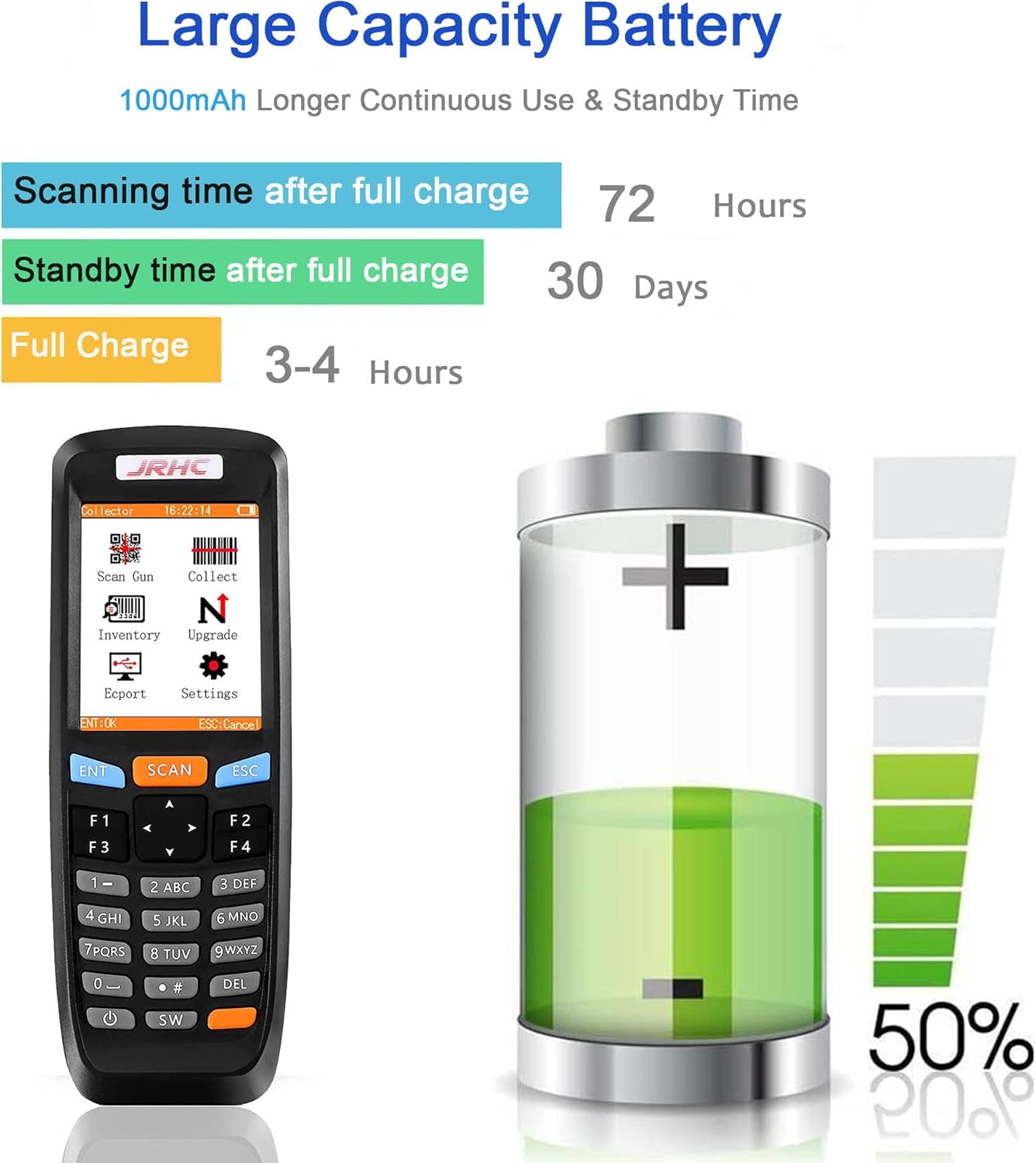
Image: Graphic illustrating the 1000mAh battery capacity, showing charging time (3-4 hours), scanning time (72 hours), and standby time (30 days) after a full charge.
Specifications
| Feature | Detail |
|---|---|
| Model Number | S-6606L |
| Scanning Type | 1D Laser Barcode |
| Supported 1D Barcodes | Codabar, Code 11, Code93, MSI, Code 128, EAN-128, Code 39, EAN-8, EAN-13, UPC-A, ISBN, Industrial 25, Interleaved 25, Standard 25, Matrix |
| Display | 2.8-inch TFT Color LCD |
| Connectivity | 2.4G Wireless (via USB receiver), USB Wired |
| Wireless Transmission Range | Up to 150m (barrier-free), 50m (with obstacles) |
| Offline Storage Capacity | Up to 100,000 barcodes |
| Battery Type | 1000mAh Lithium Polymer |
| Charging Time | 3-4 hours |
| Continuous Scanning Time | Up to 72 hours |
| Standby Time | Up to 30 days |
| Compatible Operating Systems | Windows XP/7/8/10 |
| Supported Languages | Japanese, English, Chinese |
| Product Dimensions | 16.5 x 6.5 x 3.8 cm |
| Product Weight | 160 g |
Maintenance
To ensure the longevity and optimal performance of your JRHC S-6606L barcode scanner, follow these maintenance guidelines:
- Cleaning: Use a soft, dry cloth to clean the scanner's exterior. For the scanning window, use a lint-free cloth and a mild cleaning solution if necessary, ensuring no liquid enters the device.
- Storage: Store the scanner in a cool, dry place away from direct sunlight, extreme temperatures, and high humidity.
- Battery Care: Avoid fully discharging the battery frequently. Charge the device regularly, even if not in constant use, to maintain battery health.
- Handling: Handle the device with care to prevent drops or impacts, which can damage internal components or the screen.
Troubleshooting
If you encounter issues with your JRHC S-6606L scanner, please refer to the following common troubleshooting steps:
- Scanner Not Responding:
Ensure the battery is charged. Connect the scanner to a power source using the USB cable. Check if the device is powered on.
- No Data Transmission:
Verify that the 2.4G USB receiver is properly inserted into the computer's USB port. Ensure the scanner is within the effective transmission range. If using wired connection, check the USB cable connection. Confirm the scanner is in the correct operating mode (e.g., Instant Mode for real-time transmission).
- Unable to Scan Barcodes:
Ensure the barcode is a supported 1D type. Check if the barcode is damaged or poorly printed. Adjust the scanning distance and angle. Clean the scanning window if it is dirty.
- Incorrect Data Displayed:
In Inventory Mode, use the device's screen to browse and modify incorrect entries. Ensure the scanner's language settings match your requirements.
If the problem persists after attempting these steps, please contact customer support for further assistance.
Warranty and Support
JRHC products are manufactured to high-quality standards. For warranty information and customer support, please refer to the contact details provided on the product packaging or the official JRHC website. When contacting support, please have your product model number (S-6606L) and a detailed description of the issue ready.
For technical assistance, if the instructions in this manual do not resolve your issue, please contact our customer service email address as indicated in the original product documentation. We aim to respond within 12 hours to assist you.
