
1. Introduction
This manual provides essential information for the proper setup, operation, and maintenance of your GAOMON PD1561 15.6 Inch Drawing Display and GAOMON PD1320 13.3 Inch Pen Display Tablet. Please read this manual thoroughly before using the device to ensure optimal performance and to prevent damage.
2. Product Overview
GAOMON PD1561 (15.6 Inch)
- Display: 15.6-inch IPS Full HD screen with 1920 x 1080 resolution (16:9 aspect ratio), 178° viewing angle, and 233PPS report rate.
- Pen: 8192 levels of pen pressure sensitivity.
- Keys: 10 customizable express keys.
- Features: Pre-applied screen film for surface protection and a paper-like drawing experience. Includes a pen holder with 8 replacement nibs.
- Stand: Adjustable stand for comfortable positioning.
- Connectivity: Utilizes a 3-in-1 cable to minimize clutter. An additional HDMI adapter may be required if your computer lacks an HDMI port. USB to HDMI adapters are not recommended.
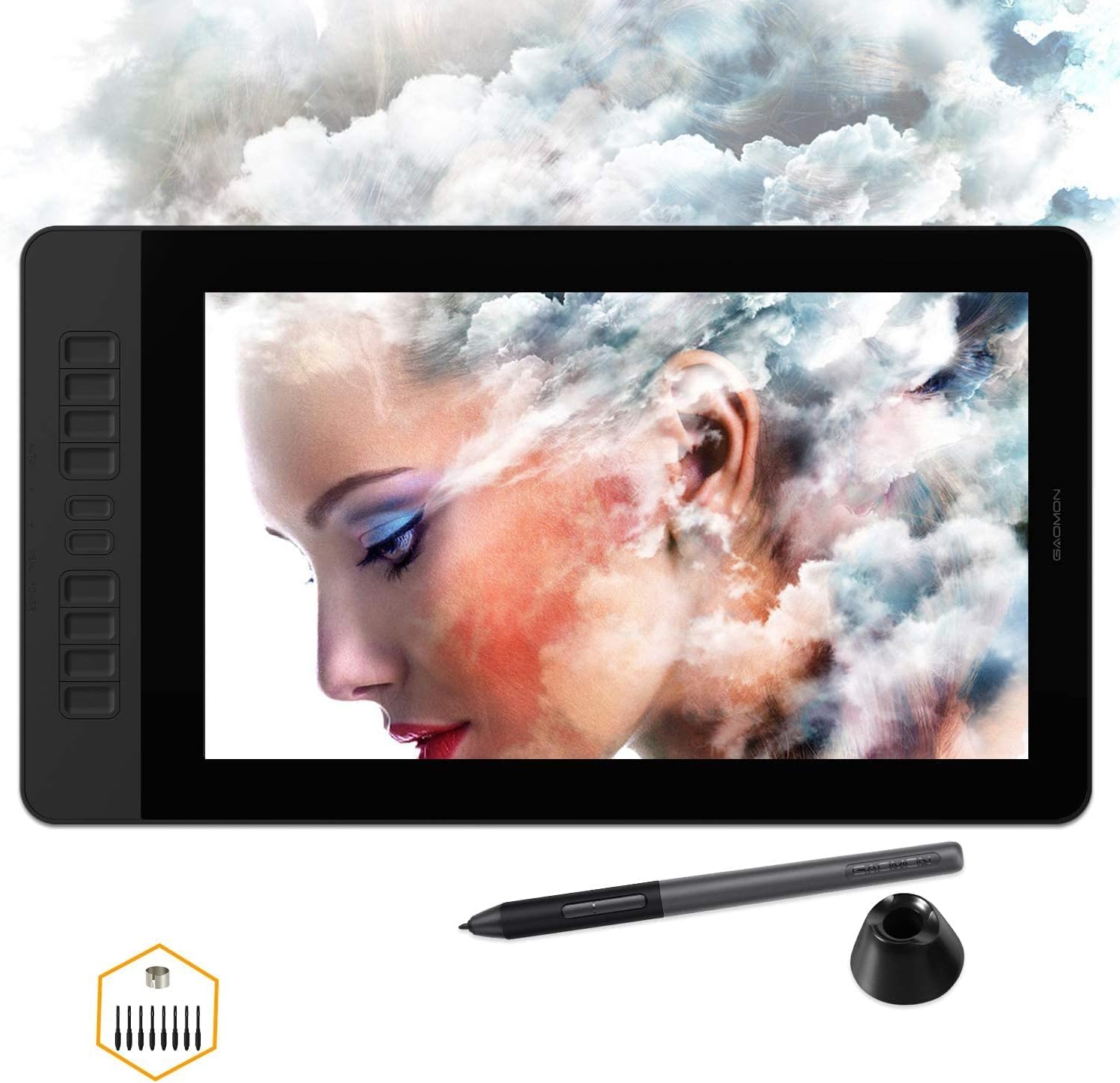
Image: GAOMON PD1561 drawing display, showing the screen, pen, and a hexagonal container with replacement nibs.

Image: Close-up of the GAOMON PD1561 showing the 10 customizable shortcut keys on the left side of the display.
GAOMON PD1320 (13.3 Inch)
- Display: 13.3-inch full laminated screen with 120% sRGB color gamut for vivid colors, 178° viewing angle.
- Pen: Battery-free pen with 8192 levels of pen pressure sensitivity and 60-degree tilt support.
- Portability: Lightweight (880g / 1.94 lbs) and ultra-thin (minimum 4.5mm, maximum 13.4mm). Can be powered directly by a computer without an AC power plug for convenience.
- Stand: Includes a foldable leather stand for comfortable positioning and screen protection.
- Android Support: Compatible with Android phones that support Dex Mode, Desktop Mode, or TNT Mode. Requires a full-featured Type-C cable (not included) and AC power for the display when connecting to an Android phone.
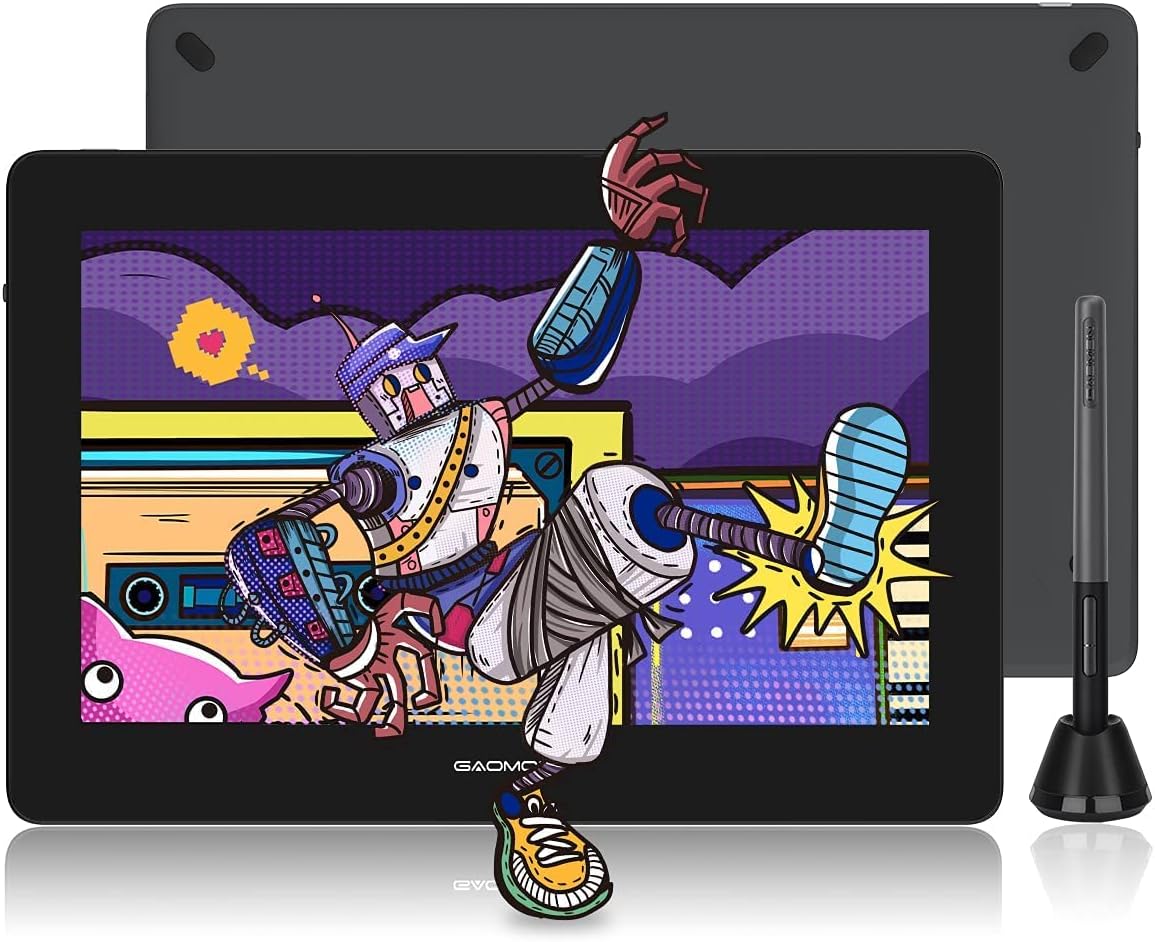
Image: GAOMON PD1320 drawing display, showing the tablet, pen, and the included foldable leather stand.

Image: Diagram illustrating the dimensions (343mm x 233mm) and thickness of the GAOMON PD1320, highlighting the Mini HDMI and Type-C ports.

Image: Detailed view of the Artpaint AP50 pen, showcasing its features including 8192 levels of pressure, battery-free design, tilt support, two express keys, and the pen holder with replacement nibs.
3. Setup Instructions
3.1 Connecting to a Computer (Windows/macOS/Linux)
- Power Connection: Connect the display to a power source using the provided power adapter.
- Video Connection: Connect the display to your computer's HDMI port using the provided 3-in-1 cable (for PD1561) or Mini HDMI cable (for PD1320). If your computer does not have an HDMI port, you may need an appropriate adapter (e.g., USB-C to HDMI, DisplayPort to HDMI).
- USB Connection: Connect the USB end of the cable to an available USB port on your computer. This enables pen input and power (for PD1320).
- Driver Installation: Download and install the latest driver from the official GAOMON website. Ensure any existing tablet drivers are uninstalled before installing the GAOMON driver. Restart your computer after installation.
- Display Settings: Configure your computer's display settings to extend or duplicate your desktop onto the pen display. Adjust resolution to 1920x1080 for optimal clarity.

Image: Illustration demonstrating compatibility with Windows and macOS operating systems, along with various creative software applications.
3.2 Connecting to an Android Phone (PD1320 Only)
The GAOMON PD1320 supports connection to Android phones with Dex Mode, Desktop Mode, or TNT Mode. A full-featured Type-C cable (not included) is required for this connection, and the display must also be connected to AC power.
- Verify Phone Compatibility: Ensure your Android phone supports Dex Mode, Desktop Mode, or TNT Mode. Not all Android devices support these features.
- Cable Connection: Connect the PD1320 to your phone using a full-featured Type-C cable.
- Power Connection: Plug the AC power adapter into the PD1320 to provide sufficient power.
3.3 Adjusting the Stand
Both models come with an adjustable stand (integrated for PD1561, leather stand for PD1320) to help you find a comfortable working angle. Adjust the stand to your preferred position to reduce strain during use.

Image: A GAOMON drawing display positioned on its adjustable stand, demonstrating ergonomic use.
4. Operating Instructions
4.1 Using the Pen
The pen is your primary input device. It features 8192 levels of pressure sensitivity, allowing for precise control over line thickness and opacity in drawing software. The PD1320 pen also supports 60-degree tilt recognition for natural brush strokes.

Image: Close-up of the GAOMON passive pen, highlighting its 8192 pressure levels.

Image: A GAOMON battery-free stylus, emphasizing its design.

Image: A GAOMON pen demonstrating its tilt support functionality for varied brush effects.
4.2 Customizing Express Keys (PD1561)
The PD1561 features 10 express keys on the side. These keys can be customized through the GAOMON driver software to perform various functions, such as undo, zoom in/out, brush size adjustment, or switching tools. Refer to the driver software interface for detailed customization options.
4.3 Software Compatibility
Your GAOMON pen display is compatible with most major creative software, including but not limited to Adobe Photoshop, Illustrator, Corel Painter, SAI2, Clip Studio Paint, Krita, and Sketchbook.


Images: Examples of the GAOMON pen display being used for digital drawing, photo editing, graphic design, and digital writing.
5. Maintenance
5.1 Cleaning the Screen
To clean the screen, use a soft, lint-free cloth slightly dampened with water or a screen-cleaning solution. Avoid harsh chemicals or abrasive materials that could damage the screen or its pre-applied film.

Image: A GAOMON display with its anti-glare film visible, designed to protect the screen surface.
5.2 Replacing Pen Nibs
When the pen nib wears down, replace it with a new one from the included pen holder. Use the nib removal tool (often integrated into the pen holder) to gently pull out the old nib and insert a new one until it is secure.
5.3 Storage
Store the pen display in a dry, cool place away from direct sunlight and extreme temperatures. When not in use, consider using a protective sleeve or case to prevent scratches and dust accumulation.
6. Troubleshooting
- No Display/Signal:
- Ensure all cables (HDMI/Type-C, USB, Power) are securely connected.
- Check your computer's display settings to ensure the display is detected and configured correctly (extended or duplicate mode).
- Try connecting the display to another HDMI/USB port or another computer to rule out port issues.
- Pen Not Working/No Pressure Sensitivity:
- Verify that the GAOMON driver is correctly installed and updated.
- Ensure no other tablet drivers are installed on your system, as they can conflict.
- Restart your computer after driver installation or updates.
- Check the pen nib for wear; replace if necessary.
- Inaccurate Pen Cursor:
- Perform screen calibration through the GAOMON driver software.
- Ensure your display resolution is set to 1920x1080.
- PD1320 Not Powering On with Android Phone:
- Confirm your Android phone supports Dex Mode, Desktop Mode, or TNT Mode.
- Ensure you are using a full-featured Type-C cable.
- Verify the PD1320 is connected to its AC power adapter.
7. Specifications
| Feature | Specification |
|---|---|
| Brand | GAOMON |
| Model Names | PD1561, PD1320 |
| Screen Size (PD1561) | 15.6 Inches |
| Screen Size (PD1320) | 13.3 Inches |
| Native Resolution | 1920 x 1080 |
| Pressure Sensitivity | 8192 Levels |
| Tilt Support | 60 Degrees (PD1320) |
| Report Rate (PD1561) | 233 PPS |
| Viewing Angle | 178° |
| Color Gamut (PD1320) | 120% sRGB |
| Connectivity Technology | HDMI, USB, Type-C (PD1320) |
| Operating System Compatibility | Windows, macOS, Linux, Android (PD1320) |
| Item Weight (PD1320) | 1.94 Pounds (880g) |
| Special Features | Battery-Free Pen, Customizable Express Keys (PD1561), Pre-applied Screen Film (PD1561), Full Laminated Screen (PD1320) |
8. Support
For any questions or assistance regarding your GAOMON pen display, please contact GAOMON customer support. You can typically reach support by sending a message via the Amazon Message system where you purchased the product.


