1. Product Overview
The Bluehive Wireless Charge Pad with LED Lamp is a versatile device designed to provide both illumination and convenient wireless charging for compatible devices. It features 10W fast-charging capabilities, an LED charging indicator, foreign object detection for safety, and an anti-slip design on both the top and bottom surfaces. This device is compatible with all Qi-enabled smartphones and other devices.
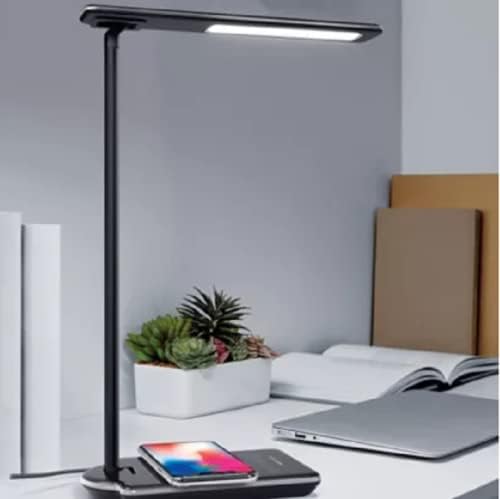
Image 1.1: The Bluehive Wireless Charge Pad with LED Lamp in a typical desk setup, showing a smartphone wirelessly charging on the base.
2. Package Contents
- Bluehive Wireless Charge Pad with LED Lamp
- Power Adapter (Note: A suitable power adapter is required for optimal performance.)
- User Manual (This document)
3. Setup Instructions
- Unpack the Device: Carefully remove the wireless charge pad and LED lamp from its packaging.
- Positioning: Place the device on a stable, flat surface, such as a desk or nightstand. Ensure there is adequate space around the device for proper ventilation and to avoid obstruction of the lamp's light.
- Connect Power: Connect the provided power adapter to the power input port on the back of the charging pad. Plug the other end of the adapter into a standard wall outlet.
Important: For optimal performance and to ensure the lamp and charging functions operate correctly, use a power supply that meets the device's power requirements. An insufficient power supply may lead to reduced charging speed or lamp flickering.
- Initial Power On: Once connected, the device is ready for use. The LED indicator may briefly illuminate to confirm power connection.
4. Operating Instructions
4.1. Wireless Charging
The Bluehive Wireless Charge Pad supports 10W fast-charging for compatible Qi-enabled devices. It also features foreign object detection to prevent damage from metal objects placed on the charging surface.
- Placement: Place your Qi-enabled smartphone or other device directly onto the charging pad surface. Ensure the device is centered on the pad for efficient charging. The anti-slip top surface helps keep your device securely in place.
- Charging Indicator: An LED indicator light will illuminate to confirm that your device is charging. If the indicator flashes or does not light up, reposition your device or check for foreign objects.
- Charging Modes: The device supports various charging modes, including 10W Fast Charge for Samsung devices, 7.5W Charge Mode for iPhones, and 5W Standard Charge Mode for other compatible devices. Ensure your device supports these modes for optimal charging speed.

Image 4.1: A smartphone placed on the wireless charging pad, illustrating proper device placement for charging.

Image 4.2: Visual representation of the different wireless charging modes (10W, 7.5W, 5W) and compatible devices, including a note about adapter requirements for certain modes.
4.2. LED Lamp Operation
The integrated LED lamp provides adjustable illumination. The control panel on the charging base allows for easy adjustment of light settings.
- Power Button: Press the power button (⏻) to turn the lamp on or off.
- Brightness Adjustment: Use the brightness control buttons (+ / -) to increase or decrease the lamp's brightness.
- Color Temperature Adjustment: The lamp may offer different color temperature settings (e.g., warm, cool light). Use the dedicated button (often depicted as a sun or color spectrum icon) to cycle through available color temperatures.
- Timer Function: If available, a timer button (often depicted as a clock icon) can be used to set the lamp to turn off automatically after a set period.

Image 4.3: Detailed view of the touch-sensitive control panel on the charging base, showing icons for power, brightness, color temperature, and timer functions.
4.3. Wired Charging (USB Port)
In addition to wireless charging, the device includes a 1A USB port for wired charging of other devices.
- Connect USB Cable: Plug a standard USB charging cable into the 1A USB port located on the side or back of the charging base.
- Connect Device: Connect the other end of the USB cable to your device that requires wired charging.

Image 4.4: An illustration of the product highlighting its key features, including the 10W fast charging capability and the additional 1A USB port for wired charging.
5. Maintenance and Care
- Cleaning: Disconnect the device from power before cleaning. Use a soft, dry cloth to wipe the surfaces. Do not use abrasive cleaners, solvents, or harsh chemicals, as these may damage the finish.
- Avoid Liquids: Keep the device away from water and other liquids. If liquid spills on the device, immediately disconnect power and allow it to dry completely before re-use.
- Storage: When not in use for extended periods, store the device in a cool, dry place, away from direct sunlight and extreme temperatures.
- Handling: Handle the device with care. Avoid dropping it or subjecting it to strong impacts.
6. Troubleshooting
| Problem | Possible Cause | Solution |
|---|---|---|
| Device not charging wirelessly. |
|
|
| LED lamp not turning on or flickering. |
|
|
| Wired USB charging not working. |
|
|
7. Specifications
| Feature | Detail |
|---|---|
| Brand | Bluehive |
| Model | Wireless Charge Pad with LED Lamp |
| Wireless Charging Output | 10W (Fast Charging) |
| Wired USB Output | 1A |
| Compatible Devices | All Qi-enabled devices (Cellular Phones, etc.) |
| Lamp Type | LED (Light Emitting Diode) |
| Control Method | Touch |
| Features | Wireless Charging, LED Charging Indicator, Foreign Object Detection, Anti-slip Top and Bottom, Portable, 1A USB Port |
| Maximum Operating Temperature | 45.00 °C (113.00 °F) |
| Minimum Operating Temperature | 0.00 °C (32.00 °F) |
| Assembled Height | 90.00 mm (3.54 in) |
| Assembled Length | 90.00 mm (3.54 in) |
| Assembled Weight | 0.05 kg (0.11 lb) |
| Colour | Black |
| Certifications | CE Certified, QI Certified |
8. Warranty and Support
Specific warranty information for the Bluehive Wireless Charge Pad with LED Lamp is not provided in this manual. For details regarding warranty coverage, returns, or technical support, please refer to the product packaging or contact Bluehive customer service directly.
You may also visit the official Bluehive website for further assistance and product information.