
Introduction
This manual provides detailed instructions for the installation, operation, and maintenance of your Jansite 12-inch 2.5K Mirror Dash Cam. Please read this manual thoroughly before using the product to ensure proper function and safety. This device features a 12-inch IPS full touch screen, dual lenses for front 2.5K and rear 1080P recording, enhanced night vision with a Sony sensor, and includes a hardwire kit for 24-hour monitoring.
Package Contents
Verify that all items listed below are present in your package:
- 1 x Jansite 12-inch Mirror Dash Cam (Mirror DVR)
- 1 x 1080P Rear Camera (Sony IMX415)
- 1 x 32.8ft (10m) Rear Camera Cable
- 1 x Power Cable
- 1 x Car Charger
- 1 x Hardwire Kit (for 24-hour monitoring)
- 1 x User Manual
- 1 x Mirror Cleaning Cloth
- Mounting Straps/Bands
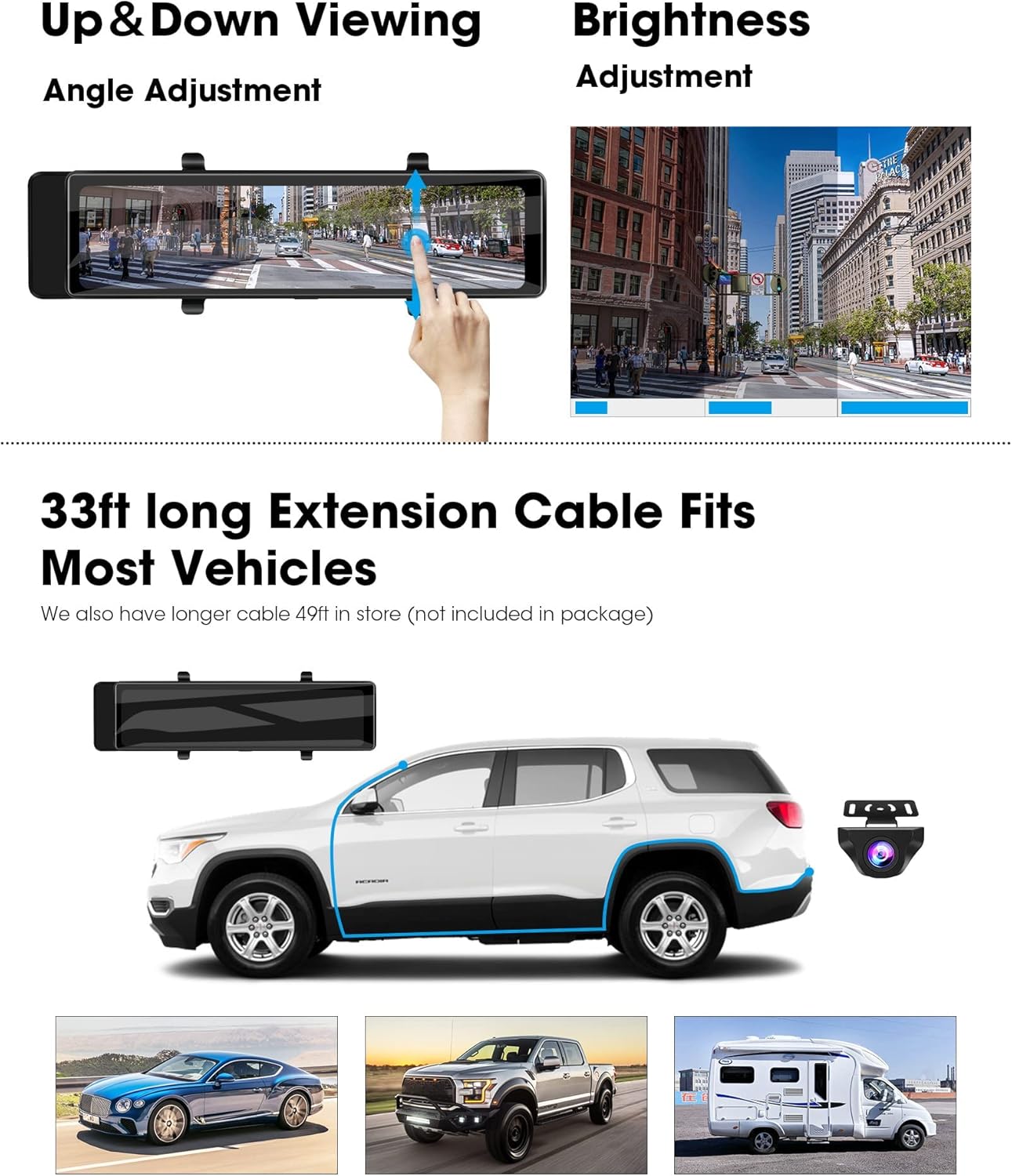
Image: Contents of the Jansite Mirror Dash Cam package, showing the main mirror unit, rear camera, various cables, and accessories.
Setup
1. Inserting the Memory Card
Locate the MicroSD card slot on the side of the mirror dash cam. Insert a MicroSD card (Class 10 or higher, up to 128GB, not included) with the contacts facing the screen until it clicks into place. Ensure the card is formatted before first use (refer to 'Operating Instructions - Formatting the Memory Card').
2. Installing the Mirror Dash Cam
- Secure the mirror dash cam over your vehicle's existing rearview mirror using the provided rubber straps. Ensure it is firmly attached and does not obstruct your view.
- Connect the car charger to the dash cam's power input port and plug the other end into your vehicle's cigarette lighter socket.
- Route the power cable neatly along the windshield trim and dashboard to avoid interference with driving.
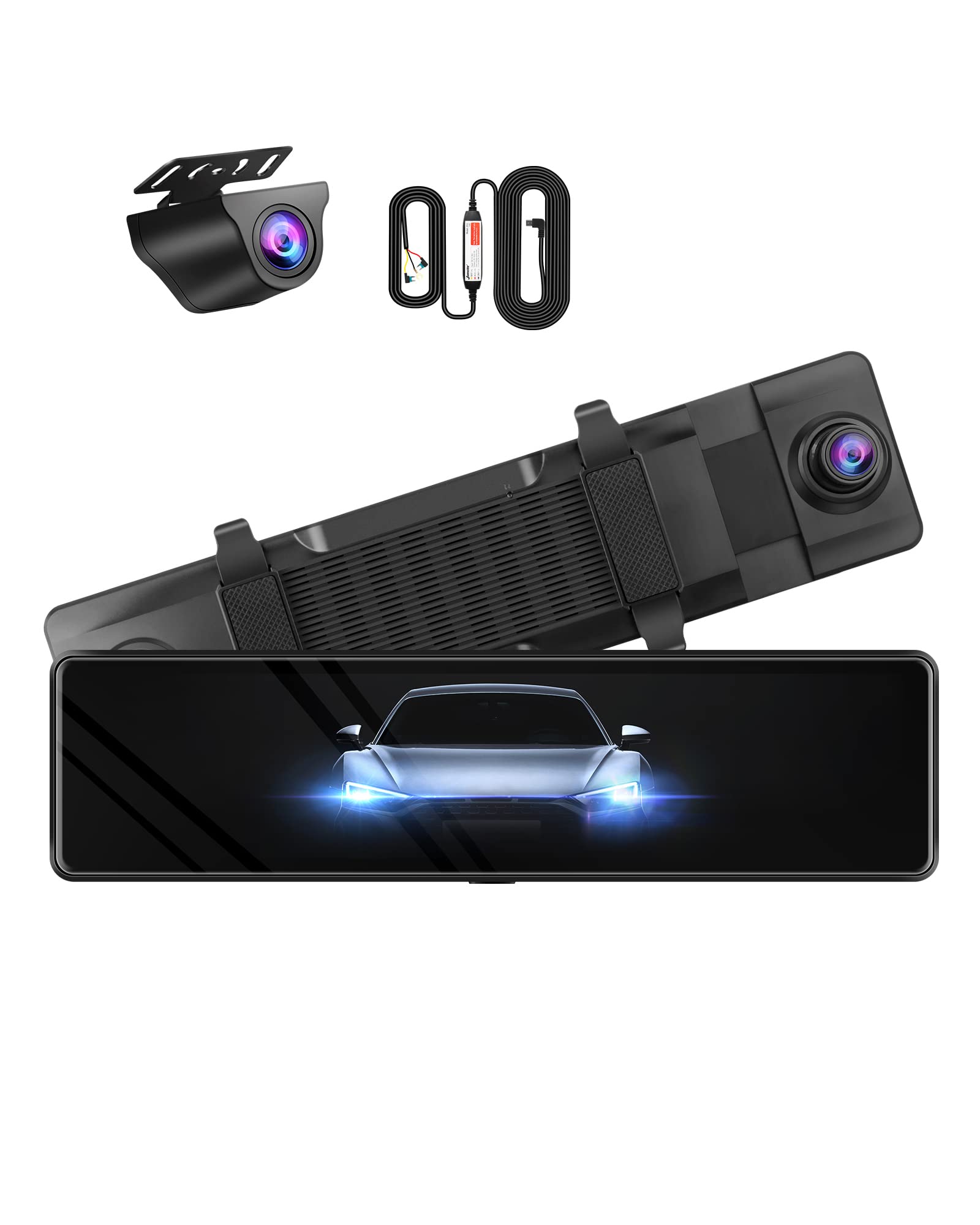
Image: The Jansite Mirror Dash Cam mounted over a vehicle's existing rearview mirror, displaying the front camera view.
3. Installing the Rear Camera
- Choose a suitable location for the rear camera, typically above the license plate or on the rear window. Clean the surface thoroughly before mounting.
- Secure the rear camera using the provided adhesive or screws.
- Connect the rear camera cable to the rear camera.
- Route the 32.8ft (10m) rear camera cable from the rear of the vehicle to the front dash cam. Ensure the cable is tucked away safely, avoiding sharp edges or moving parts.
- Connect the rear camera cable to the designated port on the mirror dash cam.
- For backup assist functionality, connect the red wire from the rear camera cable to your vehicle's reverse light positive wire. This enables the parking guidelines to appear when reversing.
Image: Illustration demonstrating the routing of the 33ft extension cable for the rear camera, suitable for various vehicle types including SUVs and RVs.
4. Hardwire Kit Installation (for 24-Hour Monitoring)
The included hardwire kit allows for continuous power supply to the dash cam, enabling parking monitoring features even when the vehicle is off. Professional installation is recommended for the hardwire kit.
- Connect the ACC wire to a fuse that is only powered when the ignition is on.
- Connect the B+ wire to a constant power fuse (always on).
- Connect the GND wire to a metal part of the vehicle chassis for grounding.
The hardwire kit includes voltage protection to prevent draining your car battery. It will automatically cut off power if the voltage drops below 11.6V (for 12V systems) or 23.5V (for 24V systems).

Image: An illustration detailing the hardwire kit and its function for enabling 24-hour parking monitoring.
Operating Instructions
1. Power On/Off
- Automatic: The dash cam will automatically power on and begin recording when your vehicle's ignition is turned on (when connected to the car charger).
- Manual: Press and hold the power button on the side of the mirror dash cam to manually turn it on or off.
2. Touch Screen Controls
The 12-inch IPS full touch screen allows for intuitive control of all functions.
- Swipe Left/Right: Switch between front view, rear view, and split-screen display modes.
- Swipe Up/Down (on left side of screen): Adjust the vertical viewing angle of the camera.
- Swipe Up/Down (on right side of screen): Adjust screen brightness.
- Tap Icons: Access menu settings, playback, and other functions.
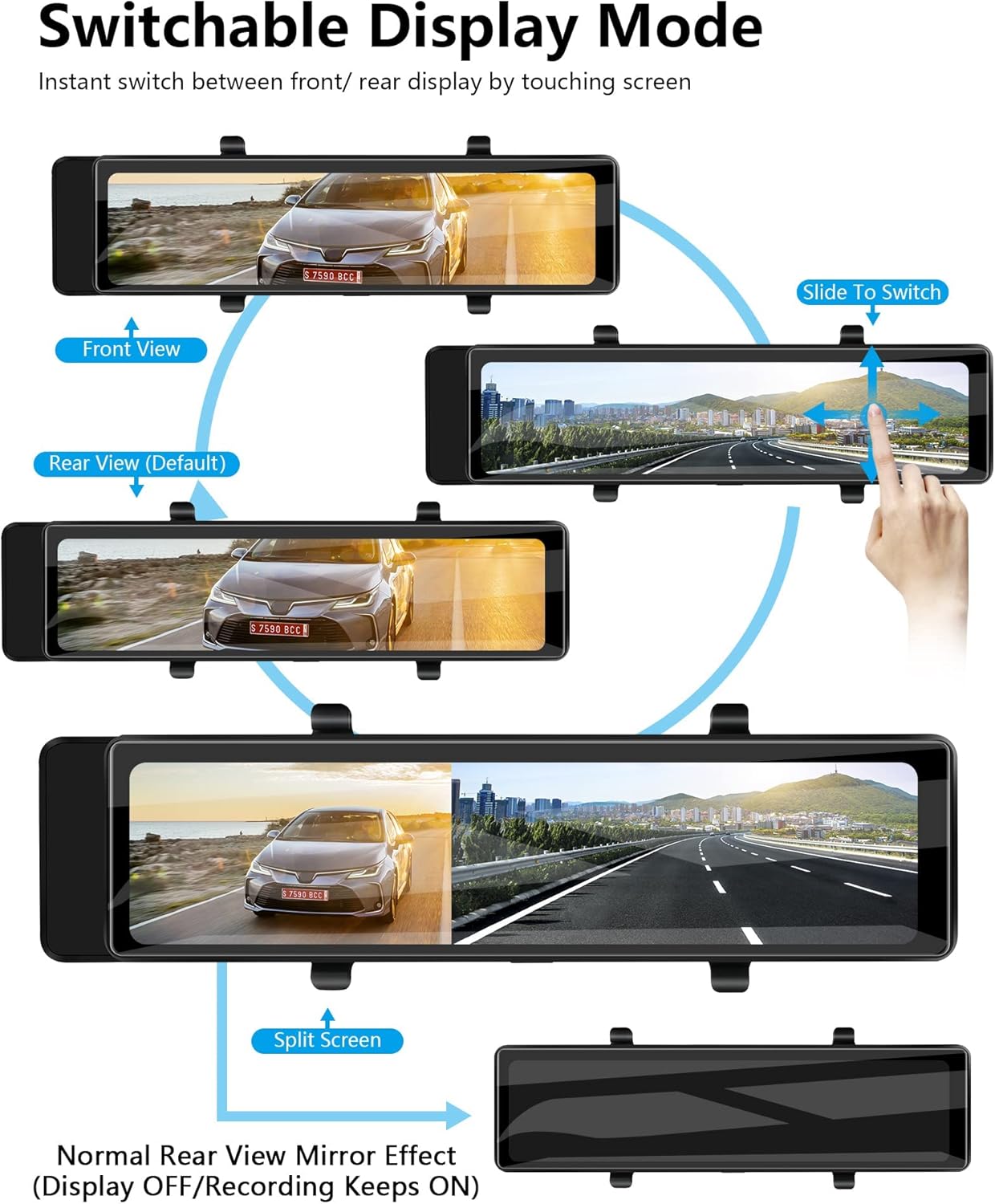
Image: Visual guide on how to use touch gestures to switch display modes (front, rear, split screen) and adjust camera angle and screen brightness.
3. Recording Modes
- Loop Recording: The dash cam records continuously in segments (e.g., 1, 3, or 5 minutes). When the memory card is full, the oldest unlocked files are overwritten.
- G-Sensor (Emergency Lock): In the event of a sudden impact or collision, the built-in G-sensor will automatically detect the event and lock the current video segment, preventing it from being overwritten.
- Parking Monitor: When the hardwire kit is installed and enabled, the dash cam can detect impacts or motion while the vehicle is parked and automatically record a short video.
4. Reversing Guide Lines Adjustment
When the rear camera is connected to the reverse light, parking guidelines will appear on the screen when you shift into reverse. These guidelines can be adjusted to match your vehicle's dimensions for accurate parking assistance.
- Shift your vehicle into reverse.
- On the screen, tap the settings icon for parking lines.
- Drag the lines on the screen to adjust their width and position.
- Save the settings once adjusted.

Image: The dash cam display showing adjustable reversing guide lines, which can be customized for various vehicle types.
5. Image Flip and Mirroring Functions
The rear camera image can be flipped or mirrored to ensure correct orientation, especially if the camera is mounted in a non-standard position or if you prefer a specific view.
- Access the system settings menu.
- Locate the 'Rear Camera Flip' or 'Mirroring' option.
- Toggle the setting to achieve the desired image orientation.

Image: Examples of the upgraded flip and mirroring functions for the rear camera, showing how the image can be adjusted for correct display.
6. Night Vision
The dash cam utilizes a Sony sensor for enhanced night vision capabilities, providing clearer recordings in low-light conditions.

Image: A visual representation of the dash cam's incredible night vision, powered by a Sony sensor for high sensitivity and low noise technology.
7. Formatting the Memory Card
Regularly formatting the memory card is recommended to maintain optimal performance and prevent data corruption. This will erase all data on the card, so back up any important files first.
- Access the system settings menu on the dash cam.
- Navigate to the 'Format' or 'SD Card Management' option.
- Confirm the formatting process.
Maintenance
- Cleaning the Lens: Use a soft, lint-free cloth to gently wipe the front and rear camera lenses. Avoid abrasive materials or harsh chemicals.
- Cleaning the Screen: Use the provided mirror cleaning cloth or a soft, dry cloth to clean the touch screen. Do not spray cleaning solutions directly onto the screen.
- Memory Card: Format the MicroSD card regularly (e.g., once a month) to ensure stable recording performance. Replace the memory card if it shows signs of degradation or errors.
- Cable Management: Periodically check all cables to ensure they are securely connected and not damaged or interfering with vehicle operation.
Troubleshooting
If you encounter issues with your Jansite Mirror Dash Cam, refer to the following common problems and solutions:
| Problem | Possible Cause | Solution |
|---|---|---|
| Dash cam does not power on. | No power supply; faulty cable; loose connection. | Check car charger connection. Ensure vehicle's cigarette lighter socket is functional. Verify hardwire kit connections if used. Try a different power source if available. |
| Recording stops or files are corrupted. | Memory card full; slow memory card; memory card error. | Format the MicroSD card. Use a high-speed (Class 10 or U3) MicroSD card. Replace the memory card if issues persist. |
| Rear camera image is not displayed or is distorted. | Loose cable connection; faulty camera; incorrect settings. | Check the rear camera cable connection to both the camera and the main unit. Ensure the cable is not damaged. Verify rear camera display settings in the menu. |
| Screen freezes or is unresponsive. | Software glitch; memory card issue. | Press and hold the power button to force a restart. If the issue persists, try formatting the memory card or using a different one. |
| Time/Date settings reset. | Internal battery low or depleted. | Ensure the dash cam is consistently powered when the vehicle is running to allow the internal battery to charge. |
Specifications
| Feature | Specification |
|---|---|
| Screen Size | 12 Inches |
| Front Video Capture Resolution | 2.5K |
| Rear Video Capture Resolution | 1080p |
| Control Method | Touch Screen |
| Connectivity Technology | USB, Wireless |
| Flash Memory Type | MicroSD (up to 128GB) |
| Included Components | Mirror DVR, Rear Camera, Cables, Memory Card (optional), Hardwire Kit |
| Vehicle Service Type | Car |
| Item Weight | 2.51 pounds |
| Package Dimensions | 13.7 x 4.57 x 3.23 inches |
Warranty and Support
For warranty information or technical support, please refer to the contact details provided with your purchase documentation or visit the official Jansite website. Keep your purchase receipt as proof of purchase.


