1. Introduction
Welcome to the realme C3 user manual. This guide provides detailed instructions to help you get started with your new smartphone and utilize all its features effectively. The realme C3 is designed for a seamless user experience, featuring a powerful Helio G70 processor, a versatile 12MP AI Triple Camera, and a long-lasting 5000mAh battery.
2. What's in the Box
Please check the contents of your product package. If any items are missing or damaged, contact your retailer.
- realme C3 Smartphone
- Adapter
- USB Cable (not explicitly listed but implied for charging)
- SIM Ejector Tool (not explicitly listed but implied for SIM tray)
- Quick Start Guide (not explicitly listed but implied)
3. Setup
3.1. SIM Card and SD Card Installation
The realme C3 supports Dual SIM (2 SIMs) and a dedicated Micro SD slot for expandable storage.
- Locate the SIM tray on the side of the device.
- Insert the SIM ejector tool into the small hole next to the tray and push gently until the tray pops out.
- Place your Nano-SIM cards into the designated slots with the gold contacts facing down.
- If desired, insert a Micro SD card into its dedicated slot.
- Carefully push the tray back into the phone until it is flush with the device body.
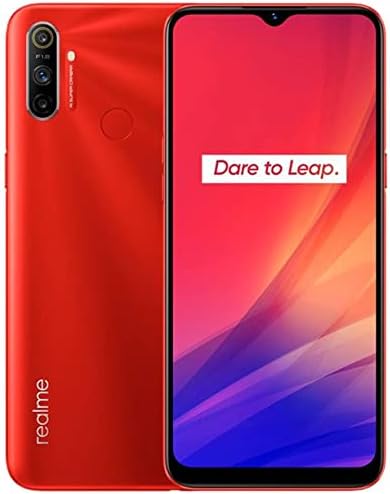
Figure 1: Front and back view of the realme C3, illustrating its sleek design and camera module.
3.2. Initial Power On and Setup
- Press and hold the Power button (located on the right side) until the realme logo appears.
- Follow the on-screen prompts to select your language, region, and connect to a Wi-Fi network.
- Sign in with your Google account or create a new one to access Google services and the Play Store.
4. Operating Instructions
4.1. Basic Navigation
- Touchscreen Gestures: Tap to select, swipe to scroll, pinch to zoom.
- Power Button: Press to turn the screen on/off, press and hold to power off or restart.
- Volume Buttons: Adjust media volume, call volume, or ringtone volume.
4.2. Making Calls and Sending Messages
- Open the Phone app to dial numbers or select contacts.
- Open the Messages app to compose and send SMS/MMS messages.
4.3. App Management
- Install Apps: Download applications from the Google Play Store.
- Uninstall Apps: Press and hold an app icon on the home screen or app drawer, then select 'Uninstall'.
- Force Stop/Clear Cache: Go to Settings > Apps > [App Name] to manage app data and performance.
5. Camera Features
The realme C3 is equipped with a versatile camera system to capture your moments.
- 12MP AI Triple Camera: The rear camera system includes a 12MP primary sensor, complemented by additional lenses for depth and macro photography.
- 5MP Front Camera: For clear selfies and video calls.
- Bokeh Mode: Achieve professional-looking portraits with blurred backgrounds.
- 4cm Super Close Macro Lens: Explore intricate details with extreme close-up shots.
- New Portrait Lens Algorithm: Enhances portrait photography for improved subject separation and natural-looking effects.

Figure 2: Rear view of the realme C3, showcasing the triple camera module and fingerprint sensor.
6. Battery Management
The realme C3 features a large 5000mAh lithium-ion battery for extended usage.
- Charging: Use the provided adapter and USB cable to charge your device. Connect the USB cable to the phone's charging port and the adapter to a power outlet.
- Reverse Charging: The 5000mAh battery supports reverse charging, allowing you to use your realme C3 as a power bank to charge other compatible devices (requires an OTG cable, sold separately).
- Battery Saving Tips:
- Reduce screen brightness.
- Turn off Wi-Fi, Bluetooth, and GPS when not in use.
- Close background apps.
- Enable Battery Saver mode in Settings.
7. Connectivity
Your realme C3 offers various connectivity options:
- Wi-Fi: Supports 802.11 b/g/n for wireless internet access. Go to Settings > Wi-Fi to connect to available networks.
- Bluetooth 5.0: For connecting to wireless headphones, speakers, and other Bluetooth devices. Go to Settings > Bluetooth to pair devices.
- Mobile Data (4G LTE): Supports 4G LTE FDD and TDD bands. Ensure your SIM card is active and mobile data is enabled in Settings > Mobile network.
- GPS/Beidou/Glonass/A-GPS: For location services and navigation.
8. Maintenance
- Cleaning: Use a soft, lint-free cloth to clean the screen and body. Avoid harsh chemicals.
- Software Updates: Regularly check for system updates in Settings > Software Update to ensure optimal performance and security.
- Storage Management: Periodically clear unnecessary files and app caches to free up storage space.
9. Troubleshooting
9.1. Phone Not Turning On
- Ensure the battery is charged. Connect the charger and wait a few minutes before attempting to power on.
- Press and hold the Power button for at least 10-15 seconds to force a restart.
9.2. Network Issues
- Check if your SIM card is properly inserted.
- Toggle Airplane Mode on and off.
- Reset network settings: Settings > System > Reset options > Reset Wi-Fi, mobile & Bluetooth.
9.3. Apps Crashing or Freezing
- Force stop the app: Settings > Apps > [App Name] > Force Stop.
- Clear the app's cache: Settings > Apps > [App Name] > Storage > Clear cache.
- Update the app from the Google Play Store.
10. Specifications
| Feature | Specification |
|---|---|
| Model Number | RMX2027 |
| Display | 6.5-inch HD+ (1600x720 pixels) Full Screen Display |
| Processor | MediaTek Helio G70 Octa-core CPU (up to 2.0GHz) |
| RAM | 2 GB |
| Internal Storage | 32 GB |
| Rear Camera | 12MP AI Triple Camera |
| Front Camera | 5MP |
| Battery | 5000mAh Lithium-ion (Supports Reverse Charging) |
| Operating System | Android |
| Connectivity | 4G LTE (Dual SIM), Wi-Fi 802.11 b/g/n, Bluetooth 5.0, GPS/Beidou/Glonass/A-GPS |
| Dimensions | 6.47 x 2.95 x 0.35 inches |
| Weight | 14.9 ounces |
11. Warranty and Support
For warranty information and customer support, please refer to the warranty card included with your product or visit the official realme website. You can also visit the realme Store on Amazon for additional resources.


