
1. Overview
The NETUM F18W 2D Wireless Barcode Scanner is a versatile and high-performance device designed for efficient data capture. It supports both 1D and 2D barcodes, including QR codes, Data Matrix, and MicroPDF417. With its dual connection modes (2.4GHz wireless and USB wired), large battery capacity, and robust design, it is suitable for various applications from retail to logistics.
Key Features:
- 2-in-1 Connection: Offers flexible connectivity via 2.4GHz wireless mini USB receiver or direct USB cable connection. Plug and Play functionality ensures easy setup.
- Two Working Modes: Supports real-time upload mode and an offline inventory mode with a built-in 256 KB memory, capable of storing over 2600 codes when out of range.
- Large Capacity Battery: Equipped with an 1800mAh Li-Ion battery, providing extended operation for up to 100,000 scans on a full charge, thanks to advanced low-energy consuming CPU technology.
- Excellent Performance: Designed for stability and ergonomic comfort, delivering superior scanning capabilities for various barcode types.
2. Package Contents
Please verify that all items listed below are present in your package:
- NETUM F18W 2D Barcode Scanner
- USB Charging/Data Cable
- 2.4GHz Wireless USB Receiver
- User Guide
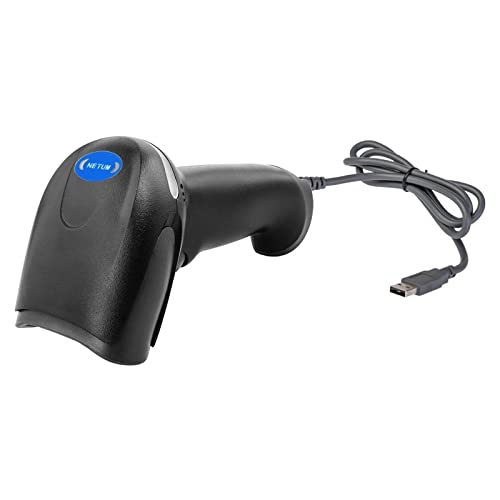
Image: Contents of the NETUM F18W Barcode Scanner package, showing the scanner unit, a USB cable for charging and wired connection, a compact 2.4GHz wireless USB receiver, and the user guide.
3. Product Components
Familiarize yourself with the main components of the NETUM F18W scanner:

Image: The NETUM F18W 2D Wireless Barcode Scanner, showcasing its ergonomic design, scan window, trigger button, and the included USB cable and 2.4GHz wireless receiver.
- Scan Window: Area where barcodes are read.
- Trigger Button: Activates the scanning beam.
- Indicator Lights: Provide status feedback (e.g., power, connection, scan success).
- USB Port: For charging and wired connection.
- 2.4GHz Wireless Receiver: Plugs into a USB port on your host device for wireless communication.
4. Setup
4.1 Charging the Scanner
Before first use, fully charge the scanner. Connect the USB cable to the scanner's USB port and the other end to a USB power adapter (not included) or a computer's USB port. The indicator light will show charging status.
4.2 Connection Methods
The NETUM F18W offers two primary connection options:
- 2.4GHz Wireless Connection:
- Plug the 2.4GHz wireless USB receiver into an available USB port on your computer or host device.
- The system will automatically install the necessary drivers (Plug and Play).
- The scanner should automatically pair with the receiver. If not, refer to the pairing instructions in the included user guide.
- USB Wired Connection:
- Connect the USB cable directly from the scanner's USB port to a USB port on your computer or host device.
- The scanner will function as a wired scanner and also charge simultaneously.
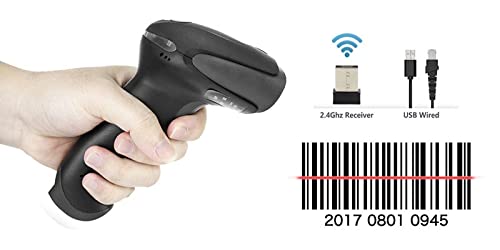
Image: A hand holding the NETUM F18W barcode scanner, illustrating its two connection options: the 2.4GHz wireless receiver and the USB wired connection, along with a barcode being scanned.
5. Operating Instructions
5.1 Scanning Barcodes
To scan a barcode:
- Ensure the scanner is powered on and connected to your host device.
- Point the scan window at the barcode you wish to scan.
- Press and hold the trigger button. A red scanning line will appear.
- Align the red line across the entire barcode.
- Upon successful scan, the scanner will emit a beep and the indicator light will flash, and the data will be transmitted to your host device.
5.2 Supported Barcode Types
The NETUM F18W scanner supports a wide range of 1D and 2D barcode symbologies, including but not limited to:
- 1D Barcodes: Codabar, Code 93, MSI, Code 128, UCC/EAN-128, Code 39, EAN-8, EAN-13, UPC-A, UPC-E, ISBN, Industrial 25, Interleaved 25, Standard 25, 2/5 Matrix.
- 2D Barcodes: QR Code, Data Matrix, MicroPDF417.

Image: The NETUM F18W Wireless 2D Scanner, highlighting its capability to read various 2D barcode types such as QR codes, Data Matrix, and MicroPDF417, alongside its physical appearance and connectivity options.
5.3 Working Modes
The scanner can operate in two distinct modes:
- Real-time Upload Mode: Scanned data is immediately transmitted to the connected host device. This is the default mode.
- Inventory Mode (Offline Storage): When out of range or not connected, scanned data is stored in the scanner's internal memory (256 KB, up to 2600 codes). Data can be uploaded later by scanning a specific command barcode (refer to the full user guide for command barcodes).
6. Maintenance
Proper maintenance ensures the longevity and optimal performance of your scanner.
- Cleaning: Use a soft, dry, lint-free cloth to clean the scanner's exterior. For the scan window, use a lens cleaning cloth and a mild, non-abrasive cleaner if necessary. Avoid harsh chemicals or abrasive materials.
- Battery Care: To prolong battery life, avoid fully discharging the battery frequently. Charge the scanner regularly, especially if it will be stored for an extended period. Store in a cool, dry place.
- Storage: When not in use, store the scanner in a safe place away from extreme temperatures, direct sunlight, and excessive moisture.
7. Troubleshooting
If you encounter issues with your NETUM F18W scanner, refer to the common problems and solutions below:
| Problem | Possible Cause | Solution |
|---|---|---|
| Scanner does not power on. | Low battery or no charge. | Connect the scanner to a power source using the USB cable and charge it fully. |
| Scanner does not scan barcodes. | Barcode damaged, incorrect symbology, or scanner not paired/connected. | Ensure the barcode is clear. Verify the scanner is properly connected (wired or wireless). Check if the barcode type is supported. |
| No data transmitted to computer. | Wireless receiver not plugged in, out of range, or scanner in inventory mode. | Ensure the USB receiver is securely plugged in. Move closer to the host device. If in inventory mode, scan the "Upload Data" command barcode (refer to user guide). |
| Scanner beeps continuously. | Error condition or low battery warning. | Refer to the specific beep codes in the detailed user guide. Try recharging the battery. |
For more detailed troubleshooting steps and advanced configurations, please refer to the complete user guide provided with your scanner or visit the official NETUM support website.
8. Specifications
Below are the technical specifications for the NETUM F18W 2D Barcode Scanner:
| Feature | Detail |
|---|---|
| Model | F18W 2D Barcode Scanner |
| Connectivity | 2.4GHz Wireless, USB Wired |
| Scan Rate | 100 fps (frames per second) |
| Battery Capacity | 1800mAh Li-Ion |
| Internal Memory | 256 KB (stores over 2600 codes) |
| Product Dimensions | 20 x 10 x 5 cm |
| Item Weight | 300 g |
| Compatible Devices | Laptop, Desktop, Tablet, Smartphone |
9. Compatibility
The NETUM F18W 2D Barcode Scanner is designed for wide compatibility across various operating systems and environments, making it suitable for diverse applications.
Compatible Environments:
- Supermarkets and Retail Stores
- Libraries
- Express and Logistics Industry
- Warehouses
- Hospitals and Healthcare Facilities
- Office Environments

Image: Visual representation of the NETUM F18W barcode scanner's wide compatibility, depicting its use in diverse settings such as supermarkets, retail stores, libraries, logistics operations, warehouses, and hospitals.
10. Warranty and Support
Your NETUM F18W 2D Barcode Scanner comes with a limited warranty to ensure your peace of mind.
Warranty Information:
This product is covered by a 3 MONTHS WARRANTY from the date of purchase. This warranty covers manufacturing defects and malfunctions under normal use. Please retain your proof of purchase for warranty claims.
Customer Support:
For technical assistance, troubleshooting, or warranty inquiries, please contact NETUM customer support. Refer to the contact information provided in your product packaging or visit the official NETUM website for the most up-to-date support resources.
Email for support: support@megaaelectronics.com