
NETUM NT-L8BL 2D Barcode Scanner
NETUM NT-L8BL 2D Barcode Scanner User Manual
Model: NT-L8BL 2D Barcode Scanner
Introduction
The NETUM NT-L8BL 2D Barcode Scanner is a versatile device designed for efficient barcode scanning. It supports both 1D and 2D barcodes, including QR, PDF417, and Data Matrix codes, from various sources like screens and paper. This scanner offers multiple connectivity options, including 2.4G Wireless, Bluetooth, and USB Wired, making it compatible with a wide range of devices such as laptops, tablets, smartphones, and POS systems.

Image: Front view of the NETUM NT-L8BL 2D Barcode Scanner, showing its ergonomic design and scanning window. USB cables and a wireless dongle are visible at the bottom, indicating connectivity options.
Setup
The NT-L8BL scanner offers flexible setup options to suit your needs. It supports three primary connection methods: Bluetooth, 2.4G Wireless, and USB Wired.
Connectivity Options

Image: Illustration showing the three available connection methods for the scanner: Bluetooth, 2.4GHz Wireless (with dongle), and USB 2.0 Wired.
- Bluetooth Connection: Ideal for connecting to smartphones, tablets, and laptops wirelessly. Easy pairing process.
- 2.4G Wireless Connection: Uses a dedicated USB dongle for wireless connectivity to computers.
- USB Wired Connection: Plug-and-play functionality when connected directly via USB cable. No driver installation required.
Device Compatibility
The scanner is designed for broad compatibility across various operating systems and device types.

Image: Diagram illustrating the scanner's compatibility with multiple operating systems including Windows (7/8/10/XP), Android, iOS/macOS, and Linux. It also shows compatibility with PCs, POS systems, laptops, tablets, iPads, and smartphones.
- Operating Systems: Compatible with Windows XP/7/8/10, Android, iOS/macOS, and Linux.
- Devices: Connects seamlessly with laptops, desktop computers, tablets, smartphones, and POS systems.
For USB wired connection, simply plug the scanner into an available USB port on your device. It is plug-and-play, requiring no software installation.

Image: Visual representation of the scanner connected via USB to a laptop and desktop monitor, emphasizing its plug-and-play functionality without software installation.
Operating Instructions
The NT-L8BL scanner is designed for intuitive operation, allowing for efficient barcode data capture and management.
Scanning Barcodes
The scanner can read both 1D and 2D barcodes from various surfaces.

Image: Depiction of the scanner reading 2D barcodes from both a physical paper label on a box and a digital display on a smartphone.
- Point the scanner's beam at the barcode you wish to scan.
- Ensure the barcode is within the scanner's field of view for optimal reading.
- Supports scanning of 1D and 2D barcodes from both printed materials and digital screens.
Data Upload Modes
The scanner offers two primary modes for uploading scanned data to your connected device:

Image: Comparison of Instant Upload mode, where data syncs immediately, and Offline Storage mode, where barcodes are stored internally before manual upload.
- Instant Upload: Data is immediately transmitted to your computer or connected device as soon as a barcode is scanned. This mode is suitable for real-time data entry.
- Offline Storage: The scanner's flash memory can store approximately 2000 Code128 barcodes. This allows you to scan barcodes when not connected to a host device and upload them later.
Data Editing Features
The scanner supports adding prefixes or suffixes to scanned barcode data, which can be useful for specific applications or data formatting requirements.
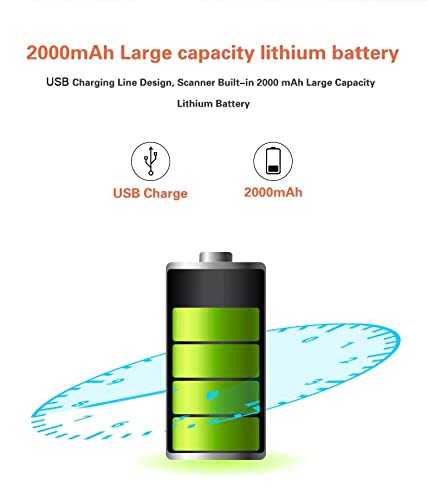
Image: Examples of how text can be added to barcode data: as a prefix, in the middle, or as a suffix.
- Add Prefix: Insert characters before the scanned barcode data.
- Add Suffix: Append characters after the scanned barcode data.
- Consult the full programming manual (if provided separately) for detailed instructions on configuring these features.
Maintenance
Proper care and maintenance will ensure the longevity and optimal performance of your NETUM NT-L8BL barcode scanner.
Battery Charging
The scanner is equipped with a built-in 2000mAh large capacity lithium battery, providing extended operational time.

Image: Diagram showing a battery icon and a USB charging icon, indicating the scanner's 2000mAh battery and USB charging capability.
- Charge the scanner using the provided USB charging cable.
- Ensure the scanner is fully charged before initial use for best battery life.
- Avoid completely draining the battery frequently to prolong its lifespan.
General Care
- Keep the scanning window clean and free from dust or smudges. Use a soft, lint-free cloth for cleaning.
- Avoid dropping the scanner or subjecting it to strong impacts.
- Store the scanner in a cool, dry place away from direct sunlight and extreme temperatures.
- Do not attempt to disassemble the scanner, as this will void the warranty.
Troubleshooting
If you encounter issues with your NETUM NT-L8BL scanner, refer to the following common problems and solutions:
| Problem | Possible Cause / Solution |
|---|---|
| Scanner not connecting via Bluetooth. |
|
| Scanner not reading barcodes. |
|
| No data transmitted to PC via USB. |
|
| Scanner suddenly stopped working. |
|
Specifications
| Feature | Detail |
|---|---|
| Brand | NETUM |
| Model | NT-L8BL 2D Barcode Scanner |
| Connectivity | 2.4G Wireless, Bluetooth, USB Wired |
| Barcode Types Supported | 1D and 2D (QR, PDF417, Data Matrix) |
| Compatible Operating Systems | Windows XP/7/8/10, Android, iOS/macOS, Linux |
| Compatible Devices | Laptop, Desktop, Tablet, Smartphone, POS systems |
| Battery | 2000mAh Lithium Battery |
| Offline Storage | Approx. 2000 Code128 barcodes |
| Dimensions (LxWxH) | 20 x 10 x 5 cm (approximate) |
| Item Weight | 300 g (approximate) |

Image: Diagram showing the approximate dimensions of the scanner: 170mm height, 100mm depth, and 65mm width.
Warranty
The NETUM NT-L8BL 2D Barcode Scanner comes with a 3-month warranty from the date of purchase. This warranty covers manufacturing defects and malfunctions under normal use. Please retain your proof of purchase for warranty claims.
The warranty does not cover damage caused by misuse, accidents, unauthorized modifications, or improper maintenance.
Support
For technical assistance, troubleshooting beyond this manual, or warranty inquiries, please contact our customer support team:
Email: support@megaaelectronics.com
When contacting support, please provide your product model (NT-L8BL) and a detailed description of the issue you are experiencing.
Ask a question about this manual
Ask about setup, troubleshooting, compatibility, parts, safety, or missing instructions. Manuals+ will review the question and use this page’s manual context to help answer it.