
Dreo DR-HTF004S
Contents
Dreo Pilot Max S Tower Fan User Manual
Model: DR-HTF004S
Introduction
Thank you for choosing the Dreo Pilot Max S Tower Fan. This advanced oscillating fan is designed to provide powerful, quiet, and customizable cooling for your home or office. Featuring a DC motor, multiple speed settings, various modes, and smart control capabilities, it offers an unparalleled air circulation experience. Please read this manual thoroughly before use to ensure proper operation and maintenance.
Important Safety Instructions
- Always place the fan on a stable, flat surface to prevent tipping.
- Do not insert fingers or foreign objects into the fan grille.
- Keep the fan away from water or damp environments.
- Unplug the fan from the power outlet before cleaning or performing any maintenance.
- Ensure the power cord is not damaged or pinched.
- This appliance is not intended for use by persons (including children) with reduced physical, sensory or mental capabilities, or lack of experience and knowledge, unless they have been given supervision or instruction concerning use of the appliance by a person responsible for their safety.
- Children should be supervised to ensure that they do not play with the appliance.
Package Contents
- Pilot Max Tower Fan Body x 1
- Front Fan Base x 1
- Rear Fan Base x 1
- Remote Controller x 1 (Includes 1 × CR2025 Lithium Battery)
- Power Adapter x 1
- User Manual x 1
- Quick Start Guide x 1
Setup
The Dreo Pilot Max S Tower Fan features tool-free assembly for quick and easy setup.
- Align the front and rear fan base pieces and snap them together.
- Place the assembled base onto the bottom of the tower fan body.
- Twist the base clockwise until it locks securely into place. No thumbscrews are needed for this model.
- Connect the power adapter to the fan and then plug it into a suitable power outlet.
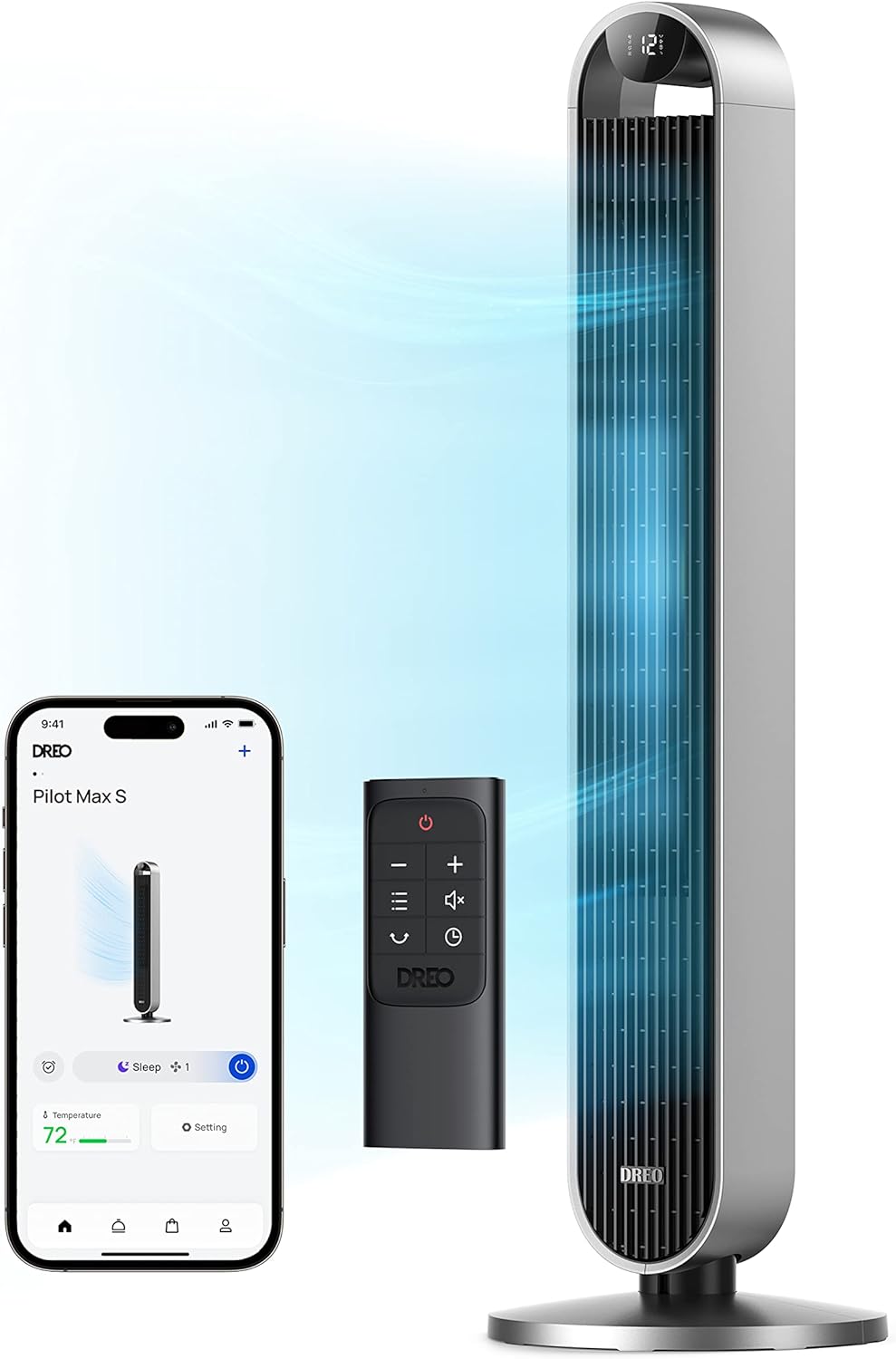
Image: The Dreo Pilot Max S Tower Fan, showcasing its sleek design, remote control, and smartphone app integration.
Operating Instructions
The Dreo Pilot Max S Tower Fan offers versatile control options via its touch panel, remote control, or the Dreo app.
Control Panel & Remote
The fan features an intuitive top-mounted control panel and comes with a remote for convenient operation from a distance.

Image: Close-up of the Dreo Pilot Max S Tower Fan's control panel and included remote control.
Modes and Speeds
The fan offers 4 distinct modes and 12 speed settings to tailor airflow to your preference.
- Normal Mode: Provides constant airflow at your selected speed (1-12).
- Natural Mode: Simulates a natural breeze by cycling through various speeds.
- Sleep Mode: Operates at a lower, quieter speed, gradually decreasing over time for undisturbed rest. Noise level is as low as 25dB.
- Auto Mode: Automatically adjusts fan speed based on the ambient room temperature for optimal comfort.

Image: Visual representation of the Dreo Pilot Max S Tower Fan's four wind modes (Sleep, Auto, Normal, Natural) and twelve speed settings.

Image: The Dreo Pilot Max S Tower Fan in a bedroom setting, highlighting its ultra-quiet 25dB operation for peaceful sleep.
Oscillation
The fan offers customizable oscillation angles to distribute air effectively across your space.
- Choose from 30°, 60°, 90°, or 120° oscillation angles.
- Press the oscillation button on the control panel or remote to cycle through the available angles.

Image: The Dreo Pilot Max S Tower Fan demonstrating its ultra-wide customizable oscillation, with options for 30°, 60°, and 90° horizontal movement.
Timer Function
Set the fan to automatically turn off after a specified period, up to 12 hours.
- Press the timer button to set the desired duration.
- The display will show the remaining time.
Smart Control (Dreo App, Alexa, Google Assistant)
Control your Dreo Pilot Max S Tower Fan from anywhere using the Dreo app or integrate it with your smart home system.
- Download the Dreo app from your smartphone's app store.
- Follow the in-app instructions to connect your fan to your Wi-Fi network.
- Once connected, you can adjust settings, set schedules, and monitor the fan remotely.
- For voice control, enable the Dreo skill in your Amazon Alexa or Google Assistant app and link your Dreo account.

Image: A user interacting with the Dreo app to control the fan, highlighting compatibility with Alexa and Google Assistant.
Video: Official demonstration of the Dreo 42 Inch Tower Fan Pilot Max S, showcasing its features and operation.
Maintenance
Regular cleaning ensures optimal performance and extends the lifespan of your fan.
- Cleaning the Exterior: Wipe the exterior surfaces with a soft, damp cloth. Do not use abrasive cleaners or solvents.
- Cleaning the Rear Grille: The rear grille is removable for easy cleaning. Gently detach it and clean any accumulated dust with a soft brush or vacuum cleaner.
- Internal Cleaning: For deeper cleaning, the fan's internal components can be accessed by removing the rear grille. Use a soft brush or compressed air to remove dust from the fan blades and motor housing.
- Ensure all parts are completely dry before reassembling and plugging in the fan.

Image: A user demonstrating the easy removal of the rear grille for thorough cleaning of the Dreo Pilot Max S Tower Fan.
Troubleshooting
| Problem | Possible Cause | Solution |
|---|---|---|
| Fan does not turn on. | Not plugged in; power outlet issue; power button not pressed. | Ensure the fan is securely plugged into a working outlet. Press the power button. |
| Weak airflow. | Low speed setting; blocked air intake/outlet; dirty filter. | Increase speed setting. Check for obstructions. Clean the rear grille and internal components. |
| Fan is noisy. | Fan not on a flat surface; internal obstruction; loose parts. | Place the fan on a stable, flat surface. Check for foreign objects inside. Contact support if noise persists. |
| Remote control not working. | Dead battery; remote out of range; obstruction between remote and fan. | Replace the CR2025 battery. Ensure remote is within range and pointed at the fan. Remove any obstructions. |
| App control not working. | Wi-Fi disconnected; incorrect app settings; fan not paired. | Check Wi-Fi connection. Re-pair the fan with the app if necessary. Ensure app is updated. |
Specifications
| Feature | Detail |
|---|---|
| Model Name | DR-HTF004S |
| Dimensions (D x W x H) | 12.76"D x 12.76"W x 42.52"H |
| Item Weight | 10.1 Pounds |
| Power Source | DC |
| Wattage | 36 watts |
| Noise Level | 25 dB |
| Air Flow Capacity | 1475 Cubic Feet Per Minute |
| Number of Power Levels | 12 |
| Oscillation Angles | 30°/60°/90°/120° |
| Special Features | Works with Alexa/Google/App/Remote, Removable Grill |
| Certifications | UL, FCC, ETL |

Image: Rear view of the Dreo Pilot Max S Tower Fan, showing its sleek profile.

Image: The Dreo Pilot Max S Tower Fan generating a powerful airflow of 28ft/s.
Image: Detailed dimensions of the Dreo Pilot Max S Tower Fan, showing its height, width, and depth.
Warranty & Support
The Dreo Pilot Max S Tower Fan comes with a 12-month default warranty. This warranty can be extended up to 30 months by registering your product on the official Dreo website. For warranty claims, technical support, or any product-related inquiries, please contact Dreo customer service through their official channels or visit their website for more information.
You can find additional support and resources on the official Dreo website: www.dreo.com
Ask a question about this manual
Ask about setup, troubleshooting, compatibility, parts, safety, or missing instructions. Manuals+ will review the question and use this page’s manual context to help answer it.