1. Introduction
The Eyoyo Mini 1D Bluetooth Barcode Scanner is a versatile and portable device designed for efficient barcode scanning. It offers three connection modes: Bluetooth, 2.4G Wireless, and USB Wired, providing flexibility for various applications. Its compact size and durable design make it ideal for use in diverse environments such as bookstores, warehouses, retail shops, and more.

Figure 1: Eyoyo Mini 1D Bluetooth Barcode Scanner with its silicone case.
2. Package Contents
Please verify that all items are present in your package:
- 1x Eyoyo 1D Barcode Scanner
- 1x Silicone Case
- 1x Hand Strap
- 1x USB Charging Cable
- 1x 2.4G USB Dongle
- 1x User Manual

Figure 2: All components included in the Eyoyo Mini 1D Barcode Scanner package.
3. Product Overview
The scanner features a compact and lightweight design, weighing approximately 35g (1.23oz) and measuring 3.07 x 1.50 x 0.47 inches. It comes with a protective silicone case for enhanced durability and a hand strap for secure handling.

Figure 3: The scanner's ultra-mini pocket design, demonstrating its small size and light weight.
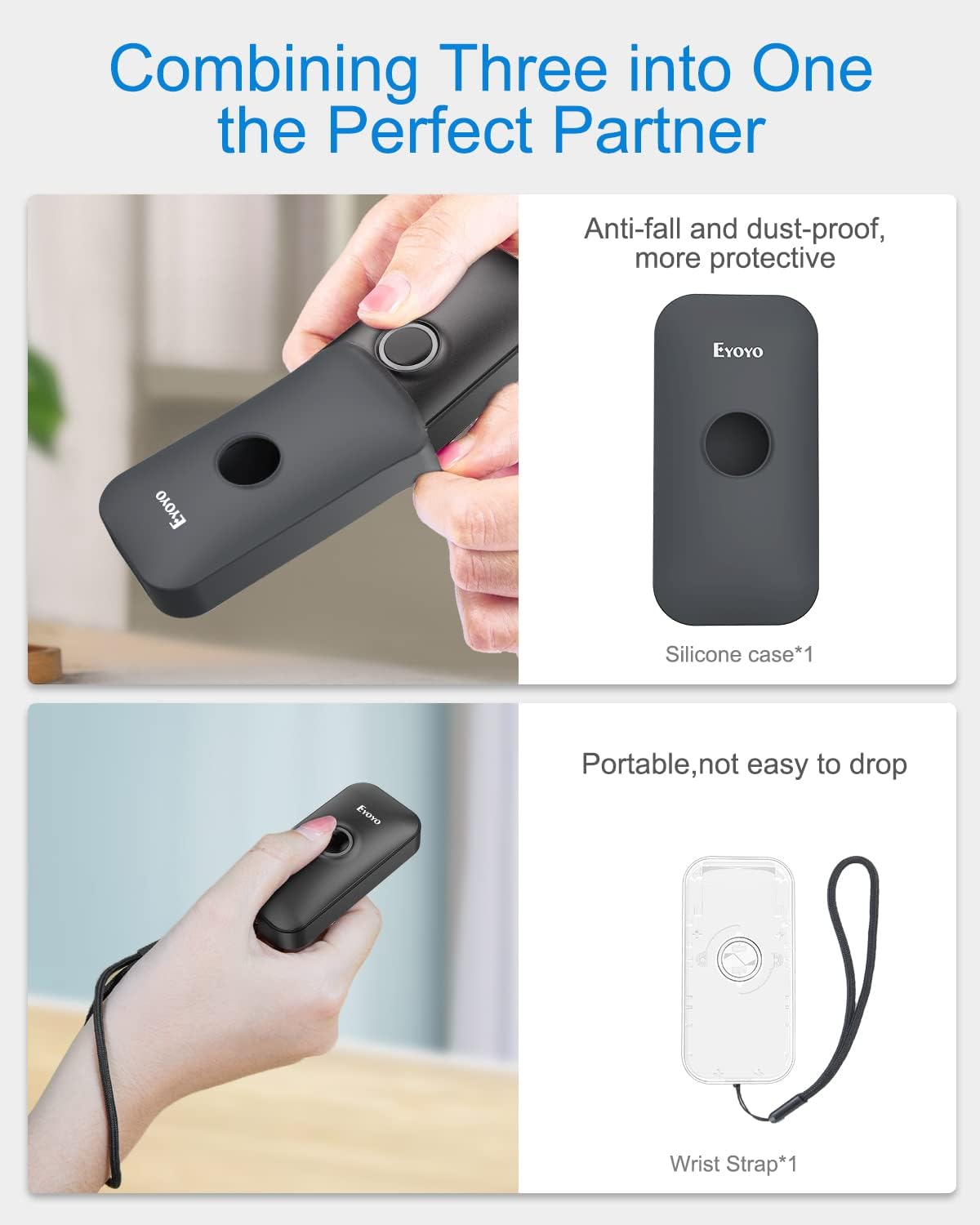
Figure 4: The scanner with its protective silicone case and included hand strap, enhancing portability and durability.
4. Setup and Connection
The Eyoyo Mini 1D Barcode Scanner supports three primary connection methods: Bluetooth, 2.4G Wireless, and USB Wired. Choose the method that best suits your device and environment.
4.1. Bluetooth Wireless Connection
This mode allows the scanner to connect wirelessly to Bluetooth-enabled devices such as smartphones, tablets, and laptops. The transmission distance can reach up to 50m (164ft) in a barrier-free environment.
Video 1: Demonstrates the three connection ways, including Bluetooth setup.
Video 2: Shows the Bluetooth wireless connection process.
Video 3: Illustrates an alternative Bluetooth wireless connection method.
Method 1: Direct Pairing
- Long press the scan button for 8-10 seconds to turn on the scanner's Bluetooth. The indicator light will show pairing status.
- On your phone or tablet, navigate to the Bluetooth settings.
- Enable Bluetooth and search for available devices.
- Select the device named "EY-009LHID" from the list to connect.
- Confirm the pairing request if prompted. The scanner will beep once connected.

Figure 5: Steps for connecting the scanner via Bluetooth to a mobile device.
Method 2: Pairing via Setup Barcode
- Start the scanner and scan the "Bluetooth HID Pairing Mode" setup barcode found in the user manual (physical copy). This will put the scanner into Bluetooth search mode.
- On your phone or tablet, navigate to the Bluetooth settings.
- Enable Bluetooth and search for available devices.
- Select the device named "EY-009LHID" from the list to connect.
- Confirm the pairing request if prompted. The scanner will beep once connected.
4.2. 2.4G Wireless Connection
This mode uses the included 2.4G USB dongle for wireless connection to devices without Bluetooth, such as desktop computers. The transmission distance can reach up to 30m (98ft) in a barrier-free environment.
Video 4: Demonstrates the 2.4G wireless connection process.
- Scan the "2.4G Wireless Mode" setup barcode from the user manual (physical copy) to switch the scanner to 2.4G mode.
- Plug the 2.4G USB dongle into an available USB port on your computer.
- The scanner will automatically pair with the dongle. You will hear a beep, and the blue light on the dongle will become solid when successfully paired.

Figure 6: Steps for connecting the scanner via 2.4G wireless mode using the USB dongle.
4.3. USB Wired Connection
For direct and stable connection, use the provided USB cable to connect the scanner to your computer or POS system. This mode also charges the scanner's battery.
- Connect one end of the USB charging cable to the scanner's charging port.
- Connect the other end of the USB cable to an available USB port on your computer or POS system.
- The scanner will automatically switch to USB wired mode and be ready for use.

Figure 7: Connecting the scanner directly to a laptop via USB cable for wired operation and charging.
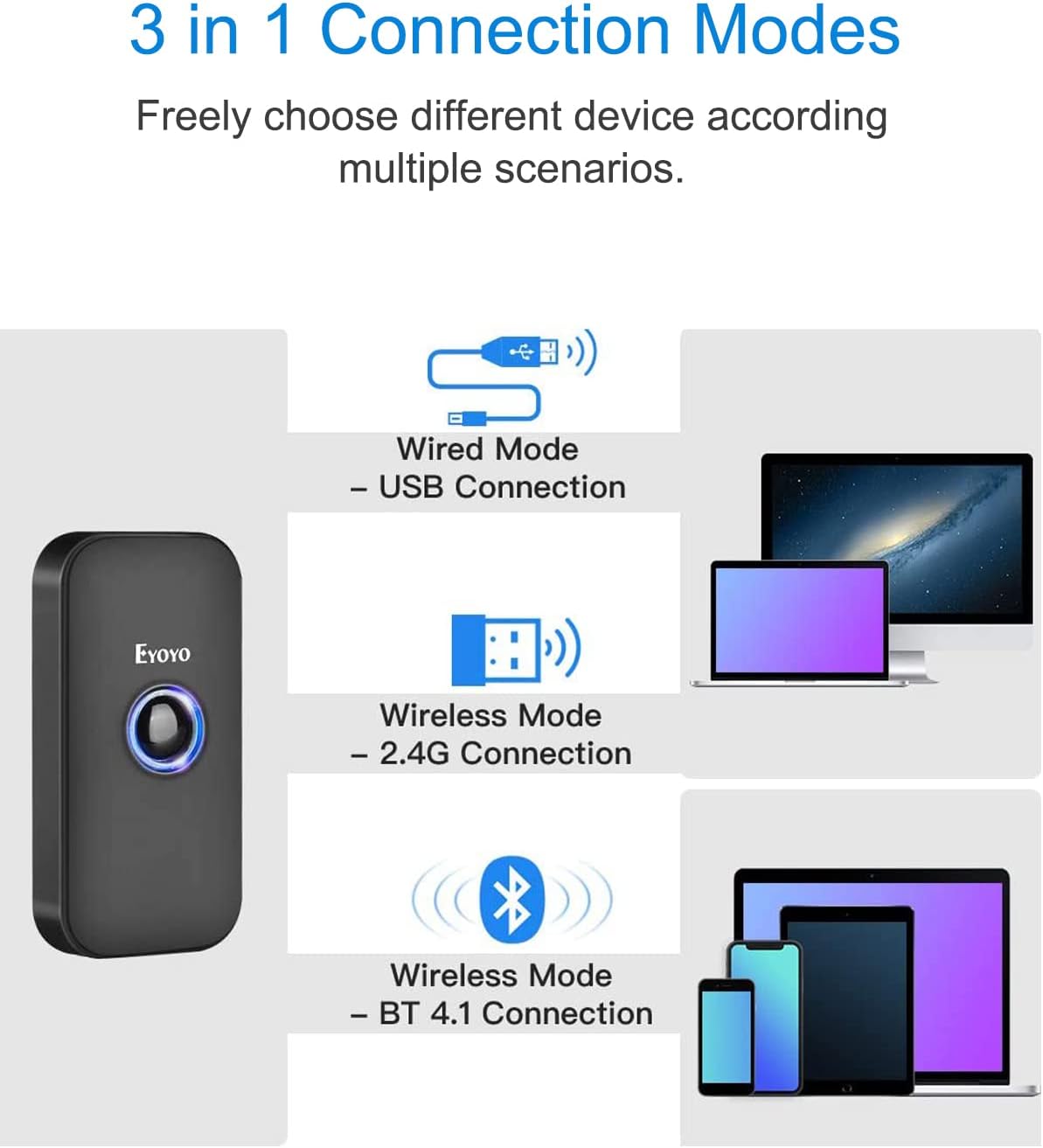
Figure 8: Overview of the three available connection modes for the Eyoyo barcode scanner.

Figure 9: Comparison of transmission distances for 2.4G wireless and Bluetooth modes in different environments.
5. Operation
5.1. Scanning Barcodes
The Eyoyo Mini 1D Barcode Scanner is designed to efficiently capture various 1D barcode types, including UPC/EAN, Code39, Interleaved 2 of 5, Code93, Code 128, Codabar, Industry25, and Matrix25. It can also scan damaged, distorted, colorful, and reflective barcodes.
Important Note: This scanner only supports 1D barcodes and cannot scan 2D codes or 1D codes displayed on screens.

Figure 10: The scanner is compatible with various 1D barcode types but not 2D codes.
5.2. Upload Modes
The scanner offers two data upload modes:
- Instant Upload Mode: Scanned data is immediately transmitted to the connected device.
- Storage Mode: Scanned data is stored in the scanner's internal memory (up to 16MB) and can be uploaded later. This is useful when out of range or not connected to a device.

Figure 11: The two data upload modes: Instant Upload and Storage Mode.
5.3. Compatibility
The Eyoyo scanner is highly compatible with a wide range of operating systems and devices:
- Operating Systems: Windows XP/7/8/10, Mac OS, Linux, Windows Mobile.
- Devices: Laptops, PCs, POS systems, smartphones, tablets (iPhone, iPad, Android devices).

Figure 12: The scanner's broad compatibility with various operating systems and devices.

Figure 13: The scanner demonstrates strong compatibility with mobile phones and tablets.
5.4. Battery Information
The scanner is equipped with a 650mAh high-capacity rechargeable battery. A full charge takes approximately 2 hours and provides up to 5 hours of continuous scanning time or 720 hours of standby time.

Figure 14: Battery specifications including capacity, scanning time, standby time, and charging time.
5.5. Configuration Options
The scanner offers various configurable options to customize its behavior:
- Turn on/off sound and vibration feedback.
- Hide or add custom prefix/suffix digits to scanned data.
- Delete characters from scanned data.
- Add keyboard keys (e.g., TAB, CR&LF) to the scanning operation for automated data entry.
Video 5: Demonstrates how to adjust the beep and vibration settings of the scanner.
6. Maintenance
To ensure the longevity and optimal performance of your Eyoyo Mini 1D Barcode Scanner, follow these maintenance guidelines:
- Cleaning: Use a soft, dry cloth to clean the scanner's exterior. For the scanning window, use a lens cleaning cloth to avoid scratches. Do not use abrasive cleaners or solvents.
- Storage: Store the scanner in a cool, dry place away from direct sunlight and extreme temperatures.
- Battery Care: For long-term storage, ensure the battery is charged to about 50% to prevent deep discharge. Recharge the battery periodically if not in use for extended periods.
- Protection: Always use the provided silicone case to protect the scanner from drops and abrasions.
7. Troubleshooting
If you encounter issues with your scanner, refer to the following common problems and solutions:
| Problem | Possible Cause | Solution |
|---|---|---|
| Scanner does not turn on. | Low battery. | Charge the scanner using the provided USB cable. |
| Cannot connect via Bluetooth. | Scanner not in pairing mode; Bluetooth disabled on host device; interference. | Ensure scanner is in Bluetooth pairing mode (long press button or scan setup code). Enable Bluetooth on your device. Move closer to the device or away from interference sources. |
| 2.4G wireless connection fails. | Dongle not plugged in; scanner not in 2.4G mode; dongle not paired. | Ensure dongle is securely plugged into a USB port. Scan the 2.4G setup barcode. Re-pair the scanner with the dongle if necessary. |
| Scanner does not read barcodes. | Incorrect barcode type (e.g., 2D code); barcode damaged or poorly printed; scanning distance incorrect. | Verify it's a 1D barcode. Ensure barcode is clear and flat. Adjust scanning distance (typically 5-15 cm). |
| Scanned data appears incorrectly. | Keyboard language mismatch; incorrect configuration settings. | Ensure your device's keyboard language matches the scanner's default. Review configuration options for prefixes, suffixes, or special characters. |
8. Specifications
| Feature | Detail |
|---|---|
| Model Number | EY-009L |
| Product Dimensions | 0.48 x 1.56 x 3 inches (approx. 1.22 x 3.96 x 7.62 cm) |
| Item Weight | 5 ounces (approx. 141.75 grams) |
| Battery Type | 1 Lithium Ion battery (included) |
| Battery Capacity | 650mAh |
| Scanning Time (Continuous) | Up to 5 hours |
| Standby Time | Up to 720 hours |
| Charging Time | Approx. 2 hours |
| Connectivity Technology | Bluetooth, 2.4G Wireless, USB Wired |
| Compatible Devices | Smartphones, Tablets, Laptops, PCs, POS systems |
| Supported OS | Windows XP/7/8/10, Mac OS, Linux, Windows Mobile |
| Supported Barcode Types | 1D codes (UPC/EAN, Code39, Interleaved 2 of 5, Code93, Code 128, Codabar, Industry25, Matrix25, etc.) |
9. Warranty and Support
Eyoyo products are designed for reliability and performance. For warranty information and technical support, please refer to the contact details provided in your product packaging or visit the official Eyoyo website. Please retain your purchase receipt for warranty claims.
For common inquiries, you may also find answers in the Eyoyo Brand Store.


