

1. Introduction
Thank you for choosing the ETA Nutri Vital Smart Digital Kitchen Scale. This manual provides essential information for the safe and efficient use of your new kitchen scale. Please read it thoroughly before first use and keep it for future reference. This scale is designed to assist you in monitoring the nutritional value of your food in conjunction with the dedicated smart application.
2. Important Safety Information
- Do not immerse the scale in water or other liquids.
- Clean the scale with a damp cloth only. Do not use abrasive cleaners.
- Place the scale on a firm, flat, and stable surface to ensure accurate measurements.
- Do not overload the scale beyond its maximum capacity of 5 kg. Overloading can damage the sensor.
- Keep the scale away from extreme temperatures, direct sunlight, and high humidity.
- This appliance is not intended for use by persons (including children) with reduced physical, sensory or mental capabilities, or lack of experience and knowledge, unless they have been given supervision or instruction concerning use of the appliance by a person responsible for their safety.
- Dispose of batteries according to local regulations. Do not mix old and new batteries.
3. Package Contents
Please check the package for the following items:
- ETA Nutri Vital Smart Digital Kitchen Scale
- CR2032 Battery (pre-installed or separate)
- Instruction Manual (this document)
4. Product Overview
Familiarize yourself with the components of your ETA Nutri Vital kitchen scale.

Image 4.1: Top view of the ETA Nutri Vital Smart Digital Kitchen Scale. This image shows the sleek, flat design of the scale with its weighing platform and integrated display and control buttons.
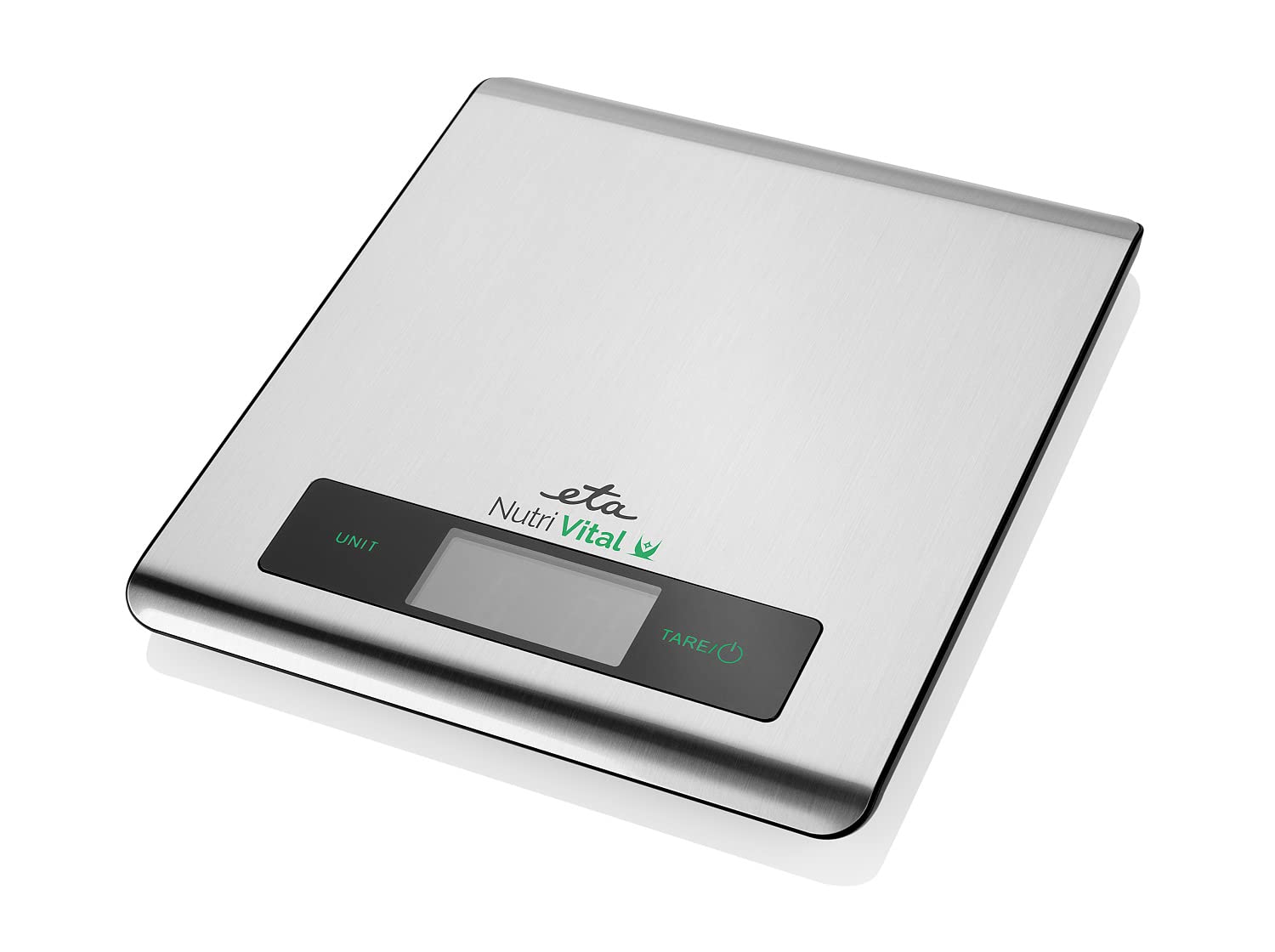
Image 4.2: Close-up of the scale's LCD display. The display clearly shows '119 g', indicating a measurement in grams, along with the 'UNIT' and 'TARE/⑂' touch controls.

Image 4.3: Side view of the ETA Nutri Vital Smart Digital Kitchen Scale, highlighting its slim profile and anti-slip feet.
Key Components:
- Weighing Platform: The surface where items are placed for measurement.
- LCD Display: Shows weight, unit, and other indicators.
- UNIT Button: Used to change the unit of measurement.
- TARE/⑂ Button: Used to power on/off the scale and activate the tare function.
- Anti-slip Feet: Located on the bottom to ensure stability.
5. Setup
5.1. Battery Installation
- Locate the battery compartment on the underside of the scale.
- Open the battery compartment cover.
- Insert the CR2032 battery, ensuring the correct polarity (+/-).
- Close the battery compartment cover securely.
5.2. Initial Placement
Place the scale on a hard, flat, and stable surface. Uneven surfaces can affect accuracy. Avoid placing it near heat sources or in areas with strong vibrations.
6. Operating Instructions
6.1. Powering On/Off
- To Power On: Press the TARE/⑂ button. The display will show '0' or '0.0'.
- To Power Off: Press and hold the TARE/⑂ button for a few seconds until the display turns off. The scale will also automatically power off after a period of inactivity to save battery.
6.2. Unit Conversion
With the scale powered on, press the UNIT button to cycle through available units: grams (g), kilograms (kg), pounds (lb), and ounces (oz).
6.3. Tare Function (Zeroing)
The tare function allows you to weigh items in a container without including the container's weight.
- Place an empty container on the weighing platform. The display will show its weight.
- Press the TARE/⑂ button. The display will reset to '0' or '0.0'.
- Add the items you wish to weigh into the container. The display will show only the net weight of the items.
6.4. Weighing Procedure
- Ensure the scale is on a flat, stable surface and powered on.
- If using a container, perform the tare function as described above.
- Gently place the item(s) to be weighed on the center of the weighing platform.
- Read the weight displayed on the LCD screen.
6.5. Smart App Connection and Nutritional Tracking
The ETA Nutri Vital scale connects to a smart application to help you monitor the nutritional value of your diet.
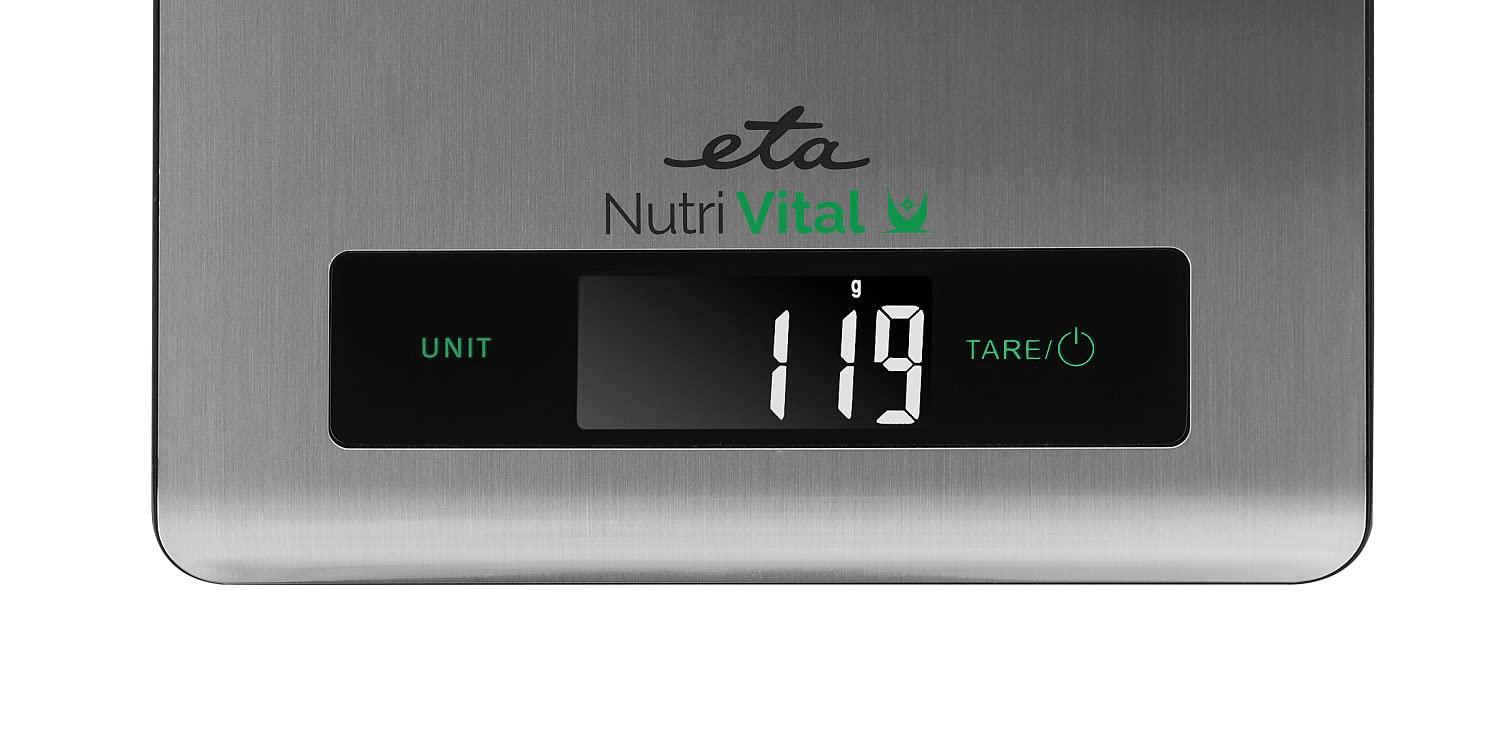
Image 6.1: The ETA Nutri Vital scale displaying a weight, with a smartphone nearby showing the connected smart application interface, indicating nutritional data.
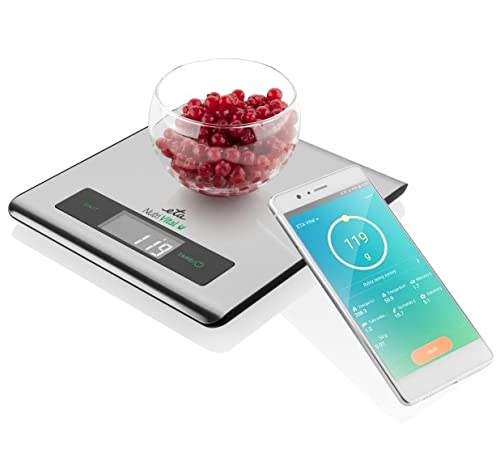
Image 6.2: The ETA Nutri Vital scale weighing a bowl of red berries, with a smartphone displaying the smart app's nutritional analysis for the weighed food item.
- Download the App: Search for the 'ETA Nutri Vital' app in your smartphone's app store (iOS or Android).
- Enable Bluetooth: Ensure Bluetooth is enabled on your smartphone.
- Pairing: Open the ETA Nutri Vital app and follow the on-screen instructions to pair your scale. The app will guide you through the connection process.
- Track Nutrition: Once connected, weigh your food items on the scale. The app will receive the weight data and, based on your selection of food type, provide nutritional information such as calories, protein, carbohydrates, and fats.
7. Maintenance and Care
7.1. Cleaning
Wipe the scale surface with a slightly damp cloth. For stubborn stains, use a mild detergent. Do not use abrasive cleaners, organic solvents, or immerse the scale in water.
7.2. Storage
Store the scale in a cool, dry place. Avoid placing heavy objects on the scale when not in use.
7.3. Battery Replacement
When the display shows a 'Lo' indicator, it's time to replace the battery. Follow the battery installation steps in Section 5.1.
8. Troubleshooting
| Problem | Possible Cause | Solution |
|---|---|---|
| Scale does not turn on | Low or dead battery; incorrect battery installation. | Replace battery (CR2032); ensure correct polarity. |
| Inaccurate readings | Scale on uneven surface; overloaded; strong air currents; internal error. | Place on a flat, stable surface; do not exceed 5 kg; avoid drafts; try recalibrating (if applicable, refer to app for advanced settings) or reset by removing battery. |
| Display shows 'Lo' | Low battery. | Replace the CR2032 battery. |
| Display shows 'Err' or 'O-Ld' | Overload. | Remove item immediately. Do not exceed 5 kg capacity. |
| Cannot connect to app | Bluetooth off; app not installed; scale not in pairing mode; interference. | Ensure Bluetooth is on; download/reinstall app; restart scale and phone; try pairing again. |
9. Specifications
- Model: ETA079090000
- Capacity: 5 kg
- Units: g, kg, lb, oz
- Display Type: LCD
- Power Source: 1 x CR2032 battery
- Product Dimensions (L x W x H): 20.5 x 18.5 x 1.5 cm
- Product Weight: 3.5 kg
- Material: Glass, Plastic
- Special Features: Smart app connectivity, Nutritional tracking, Touch control, Overload and low battery indicator, Anti-slip feet
10. Warranty Information
ETA products are manufactured to high-quality standards and are warranted against defects in materials and workmanship for a period specified by your retailer from the date of purchase. This warranty does not cover damage caused by misuse, neglect, accident, alteration, or unauthorized repair. Please retain your proof of purchase for warranty claims.
11. Customer Support
If you have any questions, require assistance, or encounter issues not covered in this manual, please contact your retailer or visit the official ETA website for support. Please have your model number (ETA079090000) and proof of purchase ready when contacting customer service.


