
thinkcar ThinkScan S99
THINCAR S99 OBD2 Scanner Diagnostic Tool User Manual
Model: ThinkScan S99
1. Introduction
The THINCAR S99 OBD2 Scanner is a comprehensive diagnostic tool designed for automotive enthusiasts and professionals. It provides full system diagnostics, code reading, and various reset functions to help identify and resolve vehicle issues efficiently. This manual provides detailed instructions for setting up, operating, maintaining, and troubleshooting your S99 diagnostic tool.

Image: Front view of the THINCAR S99 OBD2 Scanner, showcasing its display and button layout.
2. Setup and Initial Use
Before using your THINCAR S99, please follow these steps for proper setup.
2.1. Package Contents
- 1 x S99 OBD2 Scanner
- User Manual (this document)
2.2. Initial Activation and Vehicle Brand Selection
The ThinkScan S99 diagnostic scanner requires activation for one specific vehicle brand. Once a brand is selected and software downloaded, it cannot be modified. Ensure you choose the correct brand for your primary diagnostic needs.

Image: Screen displaying various car brand logos, indicating the selection process for the S99 scanner's software activation.
To select your vehicle brand software:
- Visit the official THINKCAR website.
- Navigate to the download section for THINKSCAN products.
- Download the software for your chosen vehicle brand to the memory card.
- Insert the memory card into your S99 scanner.
Important Note: Out of 37 available vehicle brands, you can only select one brand to activate. Not all brands are activated simultaneously. If you are unsure about compatibility, contact customer service.
3. Operating Instructions
The THINCAR S99 is designed for ease of use, offering comprehensive diagnostic capabilities.
3.1. Full System & Subsystem Diagnostics
The S99 can scan your vehicle's entire systems and subsystems, including but not limited to Body, Chassis, Powertrain, Fuel system, and Light system. It identifies module information, reads fault codes, and generates diagnostic reports quickly.

Image: Visual representation of the THINCAR S99's ability to diagnose various vehicle systems such as Engine, Transmission, ABS, Airbag, TPMS, SAS, Suspension, and Battery System.
After a scan, you can access the report menu to clear fault codes and view live data graphs, aiding in quick fault location and resolution.
3.2. OBDII Functions
The S99 provides full OBDII functions for comprehensive engine diagnostics:
- Read Codes: Retrieve Diagnostic Trouble Codes (DTCs).
- Clear Codes: Erase DTCs and turn off the Check Engine Light.
- Live Data: View real-time data streams from the vehicle's sensors.
- Freeze Frame: View a snapshot of the vehicle's operating conditions at the time of an emission-related fault.
- I/M Readiness: Check the readiness of the emission monitoring systems.
- O2 Sensor Test: Retrieve O2 sensor monitor test results.
- On-Board Monitor Test: Retrieve results for emission-related powertrain components and systems.
- EVAP Test: Perform the Evaporative Emission Control System Leak Test.
- Vehicle Information: Retrieve vehicle identification number (VIN), calibration ID (CALID), and calibration verification number (CVN).
- DTC Lookup: Built-in DTC library for quick code definitions.

Image: Diagram illustrating the 10 full OBDII functions available on the THINCAR S99, including Read Codes, Clear Codes, Live Data, and more.
3.3. Live Data Stream and Playback
The S99 supports 4-in-1 live data stream display and playback. Diagnostic data is automatically recorded and can be reviewed in text or graphic format.
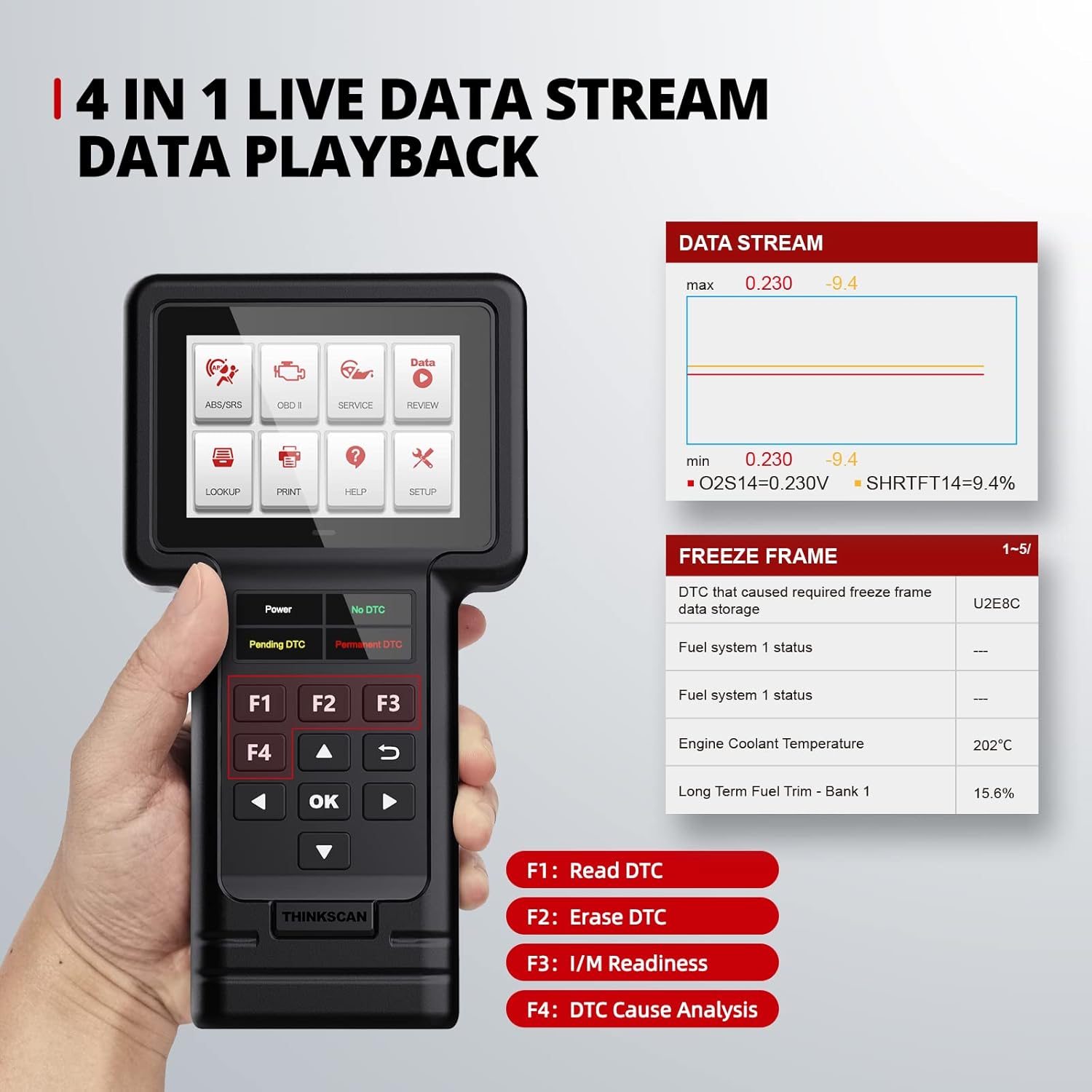
Image: The THINCAR S99 displaying live data streams and freeze frame information, showing parameters like fuel system status and engine coolant temperature.
4. Maintenance Functions
The THINCAR S99 offers several special reset services to assist with vehicle maintenance.
4.1. Special Reset Services
The S99 includes the following free special services:
- Throttle Adaptation: Optimizes engine performance.
- Electronic Parking Brake (EPB) Reset: Resets the electronic parking brake system after brake pad replacement.
- Diesel Particulate Filter (DPF) Service: Manages DPF regeneration and reset.
- Oil Lamp Reset: Resets the oil life system after an oil change.
- Steering Angle Sensor (SAS) Reset: Calibrates the steering angle sensor.

Image: Icons representing the five special service functions: Brake Reset, DPF Reset, ETS Reset, Oil Reset, and SAS Reset.
Note: Availability of these service functions may vary by vehicle model and year. Always check compatibility before performing a service.
4.2. Software Updates
The S99 offers lifetime free software updates, ensuring access to the latest diagnostic capabilities and vehicle model support. Updates are performed via a computer.

Image: A laptop and printer next to the S99 scanner, illustrating the lifetime update via memory card and the data print function.
To update your S99 scanner:
- Remove the TF card from your scanner.
- Insert the TF card into a card reader and connect it to your computer.
- Open the "product update tool" software on your computer and click "TF".
- Select the updates you wish to perform or click "Select All", then click "Download" to start downloading.
- Once the download is complete, finish the update and insert the TF card back into your scanner.
Video: A step-by-step guide on how to update the ThinkScan S99 diagnostic tool's software using a computer and TF card.
5. Troubleshooting
This section addresses common issues and their solutions.
5.1. "Link Error" Encountered
If you encounter a "link error" message, consider the following:
- Ensure your car is compatible with the OBDII protocol.
- Verify that the diagnostic cable is working properly.
- Check if your vehicle's OBD2 port is correct and free from obstructions.
5.2. General Usage Questions
For new users, the S99 code reader is designed to be user-friendly. It supports one-key engine diagnosis, one-key code light clearing and reset, and one-key I/M diagnosis. A DTC search function is also available. If you have further questions, please contact customer service.
6. Specifications
| Feature | Detail |
|---|---|
| Brand | thinkcar |
| Model | ThinkScan S99 |
| Item Weight | 13 ounces |
| Product Dimensions | 8 x 4 x 1 inches |
| Operating System | ARM (Full car systems diagnose) (5 reset functions-DPF-ETS-Oil-Brake-SAS) |
| Display Resolution | 320*480 |
| Special Features | Memory |
| Lift Type | manual |
| UPC | 768297576997 |
| Car Coverage | OBD2/EOBD standard cars from 38 automakers (after 1996 for American, 2000 for European, 2008 for Asian) |
| Supported Languages | English, French, Spanish, German, Russian, Italian, Portuguese, Polish |
7. Warranty and Support
The THINCAR S99 comes with a one-year warranty.
7.1. Customer Support
For any questions or assistance, please contact THINCAR customer service. You can also refer to the Quick Start Guide available on the product page.
Official User Guide (PDF): Download User Guide
Official User Manual (PDF): Download User Manual
Related documentsThinkScan S99


Ask a question about this manual
Ask about setup, troubleshooting, compatibility, parts, safety, or missing instructions. Manuals+ will review the question and use this page’s manual context to help answer it.