
Introduction
Thank you for choosing the SOMIC GS510 Cat Ear Wireless Gaming Headset. This manual provides detailed instructions on how to set up, operate, and maintain your new headset. Please read this manual thoroughly before use to ensure optimal performance and longevity of your device.
What's in the Box
Carefully unpack your SOMIC GS510 headset and ensure all items are present:
- Wireless Headset x 1
- Speaker Tags x 4 (2 pre-installed, 2 extra)
- USB Transmitter x 1
- 3.5MM Audio Cable x 1
- Type-C Charging Cable x 1

Image: The SOMIC GS510 headset in black with its detachable cat ears and the included USB wireless transmitter.
Product Overview
Familiarize yourself with the key components and controls of your SOMIC GS510 headset:
- Adjustable Headband: For a comfortable fit on various head sizes.
- Soft PU Earpads: Designed for extended wear comfort.
- Flexible Earcaps: Allow for slight rotation to conform to your ears.
- Retractable Microphone: An omnidirectional microphone that can be extended or retracted as needed.
- On-Ear Controls: Located on the earcups for easy access to power, volume, mode switching, and microphone mute.
- Magnetic Speaker Tags: Customizable outer earcup covers that can be easily swapped.

Image: Detailed view of the headset's comfort features, including the adjustable headband, soft PU earpads, flexible earcaps, and the retractable microphone.
Setup
1. Charging the Headset
Before first use, fully charge the headset. A full charge takes approximately 2 hours.
- Connect the supplied Type-C charging cable to the charging port on the headset.
- Connect the other end of the cable to a USB power source (e.g., computer USB port, USB wall adapter).
- The LED indicator on the headset will show charging status and turn off or change color when fully charged.
2. Wireless Connection (2.4GHz USB Transmitter)
For wireless use with PS4, PS5, PC, or Laptop:
- Insert the USB transmitter into an available USB port on your console or computer.
- Power on the SOMIC GS510 headset by pressing and holding the power button.
- The headset will automatically pair with the USB transmitter. A stable indicator light on both devices confirms a successful connection.
- Ensure the headset is selected as the audio output and input device in your system's sound settings.

Image: The SOMIC GS510 headset demonstrating its 2.4GHz wireless connection to a laptop using the USB transmitter, indicating up to 8 hours working time and 33 feet transmission distance.
3. Wired Connection (3.5mm Audio Cable)
For wired use with PS5 Controller, PS4 Controller, Xbox Series X/One Controller, and other mobile devices:
- Connect one end of the 3.5mm audio cable to the headset's 3.5mm jack.
- Connect the other end to the 3.5mm audio port on your device.
- For older Xbox One controllers, a Microsoft adapter (not included) may be required.
Operating Instructions
Power On/Off
- To power on, press and hold the power button until the indicator light illuminates.
- To power off, press and hold the power button until the indicator light turns off.
Audio Modes
The headset features three professional sound modes for different scenarios:
- Gaming Mode: Optimized for immersive gaming audio, enhancing footsteps, gunfire, and explosions.
- Audio Mode: Balanced sound profile for music and general listening.
- Live Mode: Clearer voice reproduction, ideal for live streaming or voice chat.
Press the 'Mode Switch' button on the earcup to cycle through these modes.

Image: The headset's earcup controls with labels for ON/OFF, Mode Switch, Mic Mute Button, and Volume Wheel, illustrating the three distinct audio modes: Gaming, Audio, and Live.
Virtual 7.1 Surround Sound
Experience enhanced spatial awareness with virtual 7.1 surround sound, allowing you to pinpoint audio cues like footsteps and gunfire in games.

Image: The headset positioned above a graphic representing virtual 7.1 surround sound, highlighting its ability to render distinct audio details such as footsteps, gunfire, explosions, and general surround sound.
Microphone Usage
- Extend the retractable microphone for use.
- Press the 'Mic Mute Button' on the earcup to toggle microphone mute on or off. The microphone may have an indicator light to show its status.
- The omnidirectional microphone is designed to capture clear voice communication while reducing background noise.
RGB Lighting Effects
The headset features 8 RGB lighting effects and a multi-color cycling mode.
- Press the light touch key on the earcup to switch between different RGB colors and modes.
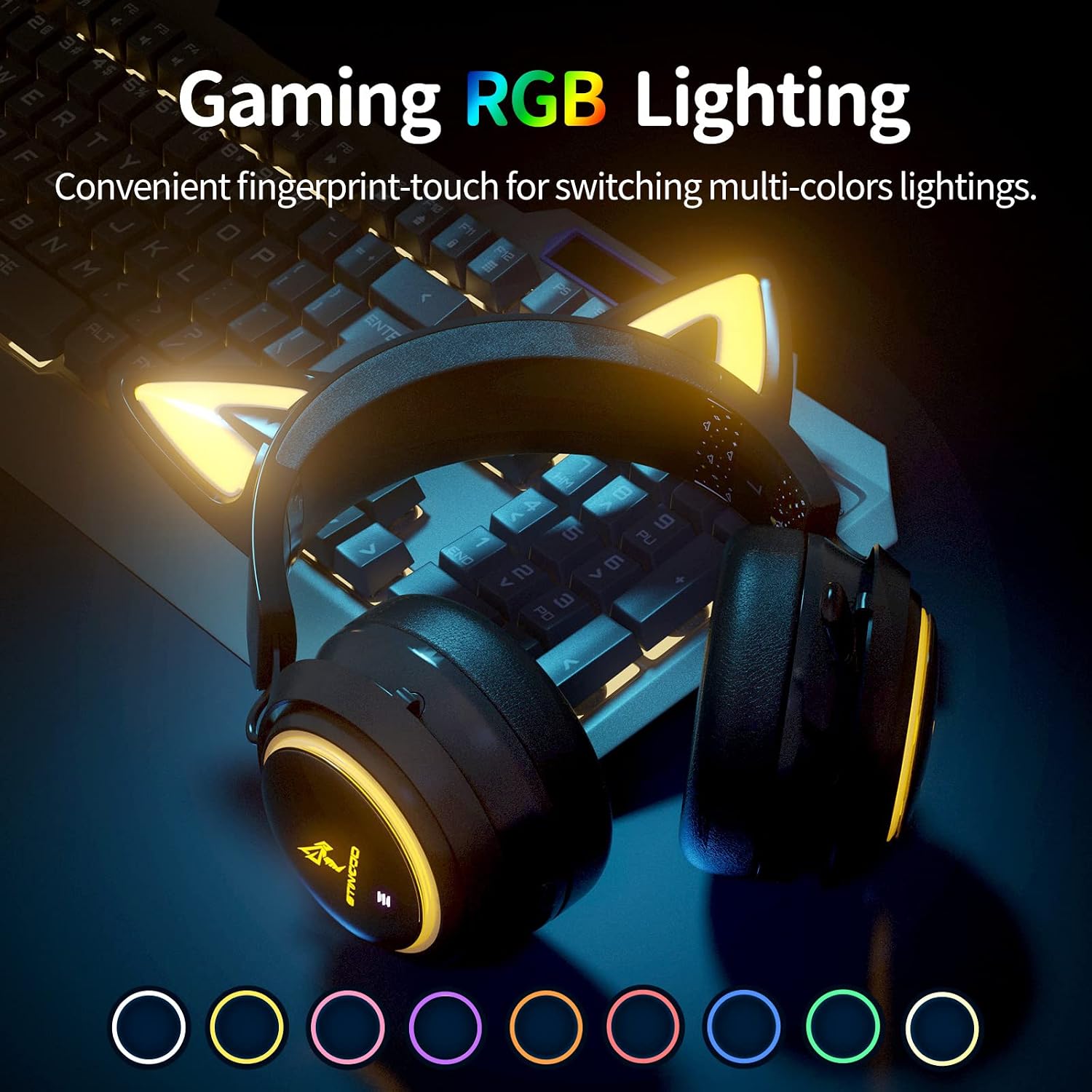
Image: The SOMIC GS510 headset showcasing its vibrant RGB lighting on the earcups and cat ears, with a row of colored circles indicating the available lighting options.
Volume Control
- Adjust the volume using the 'Volume Wheel' located on the earcup.
Compatibility
The SOMIC GS510 headset offers wide compatibility:
- Wireless (2.4GHz USB Transmitter): PC, Laptop, PS4, PS5.
- Wired (3.5mm Audio Cable): PS5 Controller, PS4 Controller, Xbox Series X Controller, Xbox One Controller, Nintendo Switch, MAC, and other mobile devices with a 3.5mm jack.
Note: This headset does not have Bluetooth functionality. Xbox consoles only support wired mode.

Image: The SOMIC GS510 headset displayed alongside icons representing its wide compatibility with devices such as Nintendo Switch, PS4/PS5, Laptops, PCs, Mobile devices, and Xbox One/S/X.
Maintenance
To ensure the longevity and optimal performance of your headset, follow these maintenance guidelines:
- Cleaning: Use a soft, dry cloth to wipe down the headset. For earpads, a slightly damp cloth can be used, but avoid excessive moisture. Do not use harsh chemicals or abrasive cleaners.
- Storage: Store the headset in a cool, dry place away from direct sunlight and extreme temperatures.
- Cable Care: Avoid sharp bends or kinks in the charging and audio cables. Disconnect cables by pulling the plug, not the cord.
- Avoid Drops: While durable, repeated drops can damage internal components.
Troubleshooting
If you encounter issues with your SOMIC GS510 headset, refer to the following common problems and solutions:
| Problem | Possible Cause | Solution |
|---|---|---|
| No sound or low volume | Headset not powered on; Volume too low; Incorrect audio output selected; Loose connection. | Ensure headset is powered on and charged. Increase volume on headset and device. Check system audio settings to ensure SOMIC GS510 is selected. Reconnect USB transmitter or 3.5mm cable. |
| Microphone not working | Microphone muted; Incorrect audio input selected; Microphone not fully extended. | Press the mic mute button to unmute. Check system audio settings to ensure SOMIC GS510 is selected as input. Ensure microphone is fully extended. |
| Wireless connection unstable or disconnected | Out of range; Interference; Low battery. | Move closer to the USB transmitter. Avoid strong electromagnetic interference. Recharge the headset. Re-pair the headset with the USB transmitter if necessary. |
| RGB lighting not working or stuck | Software glitch; Low battery; Wired mode (RGB may not work in wired mode). | Ensure headset is sufficiently charged. Try cycling through lighting modes. If in wired mode, RGB functionality may be limited or unavailable. |
| Short battery life | RGB lighting enabled; High volume usage; Battery degradation over time. | Disable or reduce RGB lighting effects. Lower volume if possible. Ensure full charge before use. |
Specifications
Key technical specifications for the SOMIC GS510 Cat Ear Wireless Gaming Headset:
| Feature | Detail |
|---|---|
| Model Name | GS510-2.4G-BlACK |
| Connectivity Technology | Wireless (2.4GHz USB Transmitter), Wired (3.5mm Jack) |
| Audio Driver Size | 50 Millimeters |
| Frequency Response | 20 Hz - 20,000 Hz |
| Microphone Sensitivity | 36 dB |
| Battery Life | Up to 10 Hours (Wireless) |
| Charging Time | 2 Hours |
| Material | Leather, Plastic |
| Item Weight | 630 Grams (1.39 pounds) |
| Product Dimensions | 8.66 x 4.33 x 10.24 inches |
| Control Type | On-ear audio controls (Touch) |
| Ear Placement | Over Ear |
Warranty and Support
SOMIC provides a warranty for its products. For specific warranty terms, duration, and to register your product, please refer to the warranty card included in your product packaging or visit the official SOMIC website. If you require technical support or have questions not covered in this manual, please contact SOMIC customer service through their official channels.
For additional resources, you may visit the SOMIC Store on Amazon.


