
1. Initial Charging
Before first use, fully charge your tablet using the provided USB charger and USB-C cable. Connect the USB-C end to the tablet's charging port and the USB charger to a power outlet. The charging indicator light will illuminate.
This user manual provides comprehensive instructions for setting up, operating, maintaining, and troubleshooting your MEIZE 10.1-inch Android Tablet. Please read this manual carefully before using your device to ensure optimal performance and longevity.
Upon opening the package, verify that all items listed below are present:

Figure 1: MEIZE Tablet and included accessories.
Before first use, fully charge your tablet using the provided USB charger and USB-C cable. Connect the USB-C end to the tablet's charging port and the USB charger to a power outlet. The charging indicator light will illuminate.
The included keyboard connects via Bluetooth. Ensure the keyboard is charged. Turn on the keyboard using its power switch. On your tablet, navigate to Settings > Connected devices > Pair new device. Select the keyboard (e.g., "Bluetooth 3.0 Keyboard") from the list of available devices and follow the on-screen prompts to complete pairing.

Figure 2: Bluetooth Keyboard Connection.
The included mouse connects via a USB dongle. Insert the USB dongle into the provided OTG cable, then connect the OTG cable's USB-C end to your tablet's USB-C port. The tablet will automatically recognize the mouse. Ensure the mouse has batteries installed (not included).
Your tablet supports dual SIM cards for 4G network connectivity and a MicroSD card for expandable storage up to 1TB. Locate the card slot on the side of the tablet. Gently open the shell around the Type-C port. Insert the MicroSD card and/or SIM cards into their respective slots as indicated by the diagram, ensuring correct orientation. Close the shell securely. Restart your tablet after installation for changes to take effect.

Figure 3: SIM and MicroSD Card Installation.
The MEIZE tablet features a responsive 10.1-inch IPS HD touchscreen (1280x800 resolution). Navigate by tapping, swiping, pinching, and spreading fingers on the screen. The Android 10 operating system provides an intuitive user interface.

Figure 4: Android System Interface.
To connect to a Wi-Fi network, go to Settings > Network & internet > Wi-Fi. Turn on Wi-Fi, then select your desired network from the list and enter the password if prompted.
The tablet is equipped with a 13MP rear camera and a 5MP front camera. Open the Camera app to capture photos and videos. Tap the screen to focus and press the shutter button to take a picture.

Figure 5: Tablet Camera Functionality.
The tablet comes with 64GB of internal storage (ROM) and supports expansion up to 1TB via a MicroSD card. To manage your storage, go to Settings > Storage. You can view used space and free up storage.
As a GMS certified device, you can download and install applications from the Google Play Store. Tap the Play Store icon on your home screen or app drawer, search for your desired app, and tap Install.
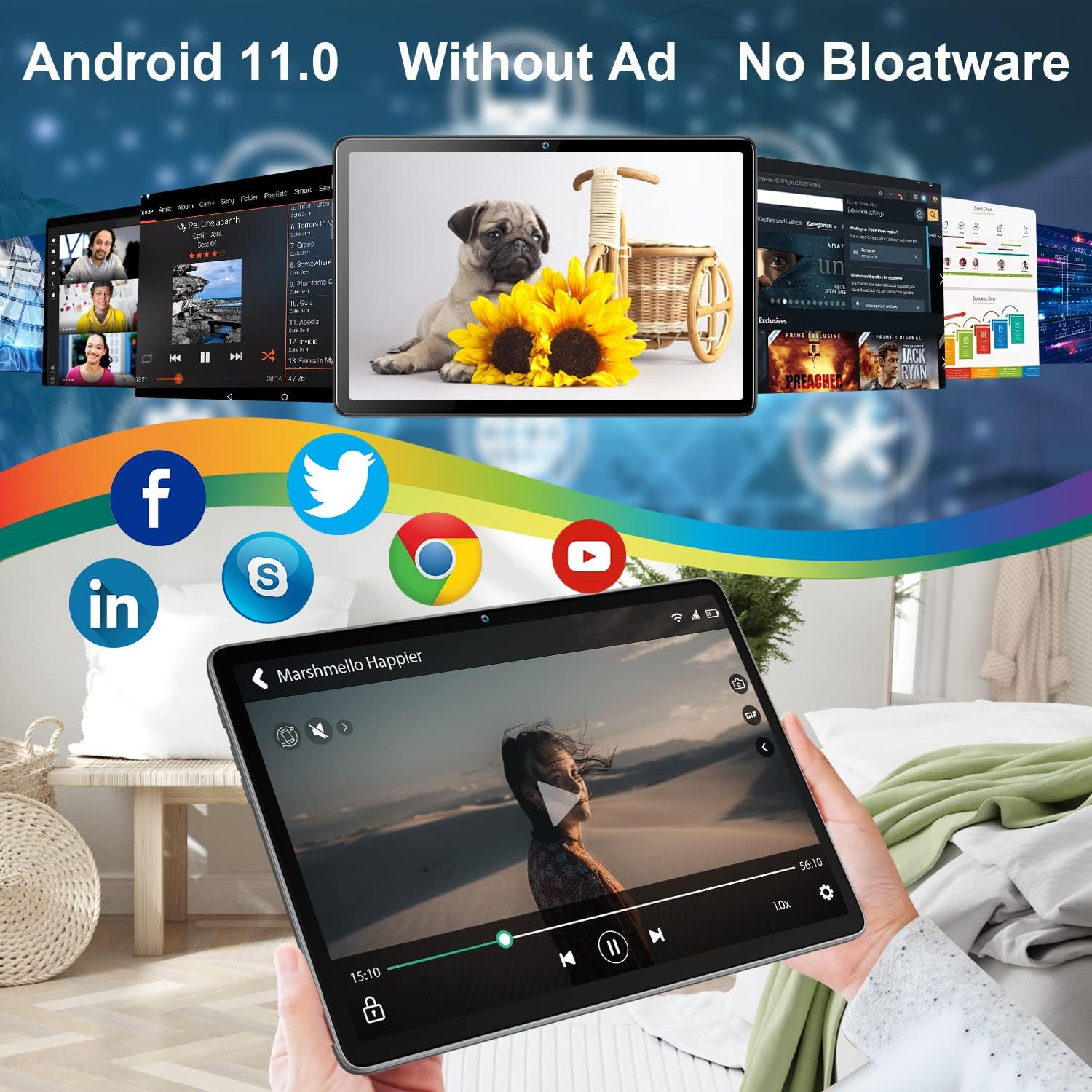
Figure 6: App Ecosystem.
The tablet supports GPS, allowing for navigation and location-based services. Ensure location services are enabled in your tablet's settings to utilize GPS-enabled applications.

Figure 7: GPS Navigation.
Use a soft, lint-free cloth to clean the screen and body of your tablet. For stubborn smudges, slightly dampen the cloth with water or a screen-safe cleaner. Avoid using harsh chemicals or abrasive materials.
The tablet is equipped with a 6000mAh battery. To prolong battery life, avoid extreme temperatures, do not let the battery fully drain frequently, and use the provided charger. Unplug the charger once the battery is full.
Periodically check for system updates to ensure your tablet has the latest features and security patches. Go to Settings > System > System update.
| Problem | Possible Cause / Solution |
|---|---|
| Tablet does not power on. | Battery may be depleted. Connect to charger and allow it to charge for at least 30 minutes before attempting to power on again. |
| Mouse is not working. |
|
| Keyboard is not connecting via Bluetooth. |
|
| Wi-Fi connection issues. |
|
| Tablet is slow or unresponsive. |
|
| Feature | Detail |
|---|---|
| Brand | MEIZE |
| Model Name | K110B (Series k118) |
| Operating System | Android 10 (Some images suggest Android 11.0) |
| Screen Size | 10.1 Inches |
| Screen Resolution | 1280x800 IPS HD |
| Processor | Octa-Core (2.4 GHz) |
| RAM | 4 GB |
| Internal Storage (ROM) | 64 GB |
| Expandable Storage | Up to 1 TB (via MicroSD card) |
| Rear Camera | 13 MP |
| Front Camera | 5 MP |
| Wireless Type | 802.11a/b/g/n/ac (2.4GHz Wi-Fi) |
| Bluetooth | BT5.0 |
| Battery Capacity | 6000mAh |
| Average Battery Life | 13 Hours (usage dependent) |
| Charging Port | USB-C |
| Dimensions (LxWxH) | 9.76 x 6.57 x 0.2 inches |
| Weight | 0.106 ounces |
| Color | Black |
| GMS Certified | Yes |

Figure 8: Key Features and Specifications.
MEIZE has over 10 years of experience in manufacturing and selling tablet PCs and maintains a professional after-sales service team. If you encounter any problems during use, please contact MEIZE customer support immediately for assistance. They are committed to resolving your issues as quickly as possible.
For support, please refer to the contact information provided on the MEIZE official website or your purchase documentation.
Ask about setup, troubleshooting, compatibility, parts, safety, or missing instructions. Manuals+ will review the question and use this page’s manual context to help answer it.