
Adesso P20
Adesso iMouse P20 Wireless Presenter Mouse User Manual
1. Product Overview
The Adesso iMouse P20 is a versatile 2-in-1 wireless device functioning as both a desktop mouse and an air mouse presenter. It utilizes 2.4 GHz wireless technology, offering a reliable connection up to 100 feet. Its dual-mode capability allows seamless transition between traditional desktop navigation and motion-controlled presentation. The device is designed for broad compatibility across various operating systems and presentation software.

The Adesso iMouse P20 Wireless Presenter Mouse on its charging stand.
Key Features:
- 2.4 GHz Wireless Technology: Provides a stable connection with a range of up to 100 feet, minimizing interference.
- Air Mouse Functionality: Built-in motion sensor allows for intuitive control of the mouse pointer by waving the device in the air.
- Dual Mode Operation: Easily switches between a standard wireless desktop mouse and a wireless air mouse presenter.
- Universal Compatibility: Supports Windows, Mac OS, and Android operating systems.
- Software Compatibility: Works with popular presentation software including Windows Office (PowerPoint, Word, Excel, OneNote), iWork (Pages, Numbers, Keynote), Prezi, and Google Slides.
- Compact & Portable: Lightweight design for ease of transport and use in various environments.
2. Package Contents
Verify that all items listed below are included in your product package:
- iMouse P20 Mouse/Presentation Pointer
- Desktop Charging Cradle and USB Charging Cable
- 2.4 GHz USB Receiver
- Quick Start Guide
- Downloadable MotionTools Software for Windows (available online)
3. Getting Started
3.1. Charging the Device
Before initial use, ensure the iMouse P20 is fully charged. Connect the USB charging cable to the desktop charging cradle and then to a powered USB port (e.g., computer, USB wall adapter). Place the iMouse P20 onto the charging cradle. The battery indication LEDs on the mouse will illuminate to show charging status.

The Adesso iMouse P20 Wireless Presenter Mouse placed on its charging cradle.

The charging cradle for the Adesso iMouse P20 Wireless Presenter Mouse.
3.2. Connecting the USB Receiver
- Locate the 2.4 GHz USB receiver. It is typically stored within the mouse itself or in the packaging.
- Plug the USB receiver into an available USB port on your computer or device.
- The operating system should automatically detect and install the necessary drivers.
- Turn on the iMouse P20. The mouse should connect automatically. If not, press the 'Mouse Connect Button' on the underside of the mouse.
3.3. Installing Software (Optional)
For advanced customization of buttons and settings, download and install the MotionTools software for Windows from the Adesso website. This software allows you to configure the mouse to your specific preferences.
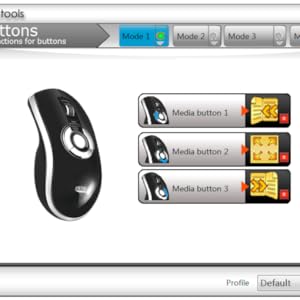
Screenshot of the Adesso MotionTools software interface for customizing mouse buttons.
4. Operation Guide
4.1. Mouse Modes
The iMouse P20 offers two primary modes of operation:
- Desktop Mouse Mode: Use the iMouse P20 as a traditional optical mouse on a flat surface.
- Air Mouse Mode: Lift the mouse from the surface and wave it in the air to control the cursor. This mode is ideal for presentations or when a flat surface is unavailable.

A hand demonstrating the air mouse functionality of the Adesso iMouse P20.

Adesso iMouse P20 Wireless Presenter Mouse positioned on a desk for desktop use.
4.2. Button Functions
Familiarize yourself with the various buttons and their default functions:

Diagram illustrating the button layout and functions of the Adesso iMouse P20.
- Left Mouse Button: Standard click function.
- Right Mouse Button: Standard right-click function.
- Scroll Wheel: Scrolls content vertically. Can also function as a middle click.
- DPI Button: Adjusts the sensitivity (DPI) of the mouse pointer. Press to cycle through available DPI settings.
- Forward Button: Navigates forward in web browsers or file explorers.
- Backward Button: Navigates backward in web browsers or file explorers.
- Battery Indication LEDs: Displays battery status.
- Trigger (Underside): Activates specific functions, often related to air mouse mode or presentation controls.
4.3. Compatibility
The iMouse P20 is compatible with a wide range of systems and applications:
- Operating Systems: Windows 10, Windows 7, Windows 8, Windows Vista, Windows XP, Mac OS, Android.
- Presentation Software: Microsoft PowerPoint, Word, Excel, OneNote, Apple Pages, Numbers, Keynote, Prezi, Google Slides.

A person using a wireless presenter mouse during a presentation.

Using the Adesso iMouse P20 as an air mouse to interact with content on a large screen or whiteboard.
5. Care and Maintenance
- Cleaning: Use a soft, dry cloth to clean the surface of the mouse and charging cradle. Avoid using harsh chemicals or abrasive materials.
- Battery Care: To prolong the life of the internal lithium-ion battery, avoid fully discharging it frequently. Charge the device when the battery indicator shows low power.
- Storage: When not in use for extended periods, store the mouse and receiver in a cool, dry place.
- Handling: Avoid dropping the device or exposing it to extreme temperatures or moisture.
6. Troubleshooting Common Issues
- Issue: Mouse pointer is erratic or unresponsive.
- Solution: Ensure the USB receiver is securely plugged into a working USB port. Check the battery level of the mouse and recharge if necessary. If using in Air Mouse mode, ensure there are no obstructions between the mouse and the receiver. Try re-pairing the mouse by pressing the 'Mouse Connect Button' on the underside.
- Issue: Mouse is not charging.
- Solution: Verify that the USB charging cable is properly connected to both the charging cradle and a powered USB source. Ensure the mouse is correctly seated in the charging cradle, making proper contact with the charging pins. Try a different USB port or charging adapter.
- Issue: Wireless connection is unstable or frequently disconnects.
- Solution: Move the mouse closer to the USB receiver. Avoid using the mouse near other wireless devices that might cause interference (e.g., Wi-Fi routers, cordless phones). Ensure the USB receiver is not plugged into a USB hub that might be underpowered.
- Issue: Buttons are not functioning as expected.
- Solution: If you have installed the MotionTools software, check your custom button assignments. Reset the mouse to factory defaults if necessary. Ensure the mouse is not in a specific mode that alters button behavior.
7. Product Specifications
| Feature | Detail |
|---|---|
| Brand | Adesso |
| Model Number | P20 |
| Connectivity Technology | 2.4 GHz Wireless (Radio Frequency), USB |
| Movement Detection Technology | Optical |
| Operating Systems Supported | Windows 10, 7, 8, Vista, XP, Mac OS, Android |
| Item Weight | 3 ounces (approx. 85 grams) |
| Product Dimensions (LxWxH) | 1.6 x 2.3 x 0.1 inches (approx. 4.06 x 5.84 x 0.25 cm) |
| Color | Black |
| Power Source | Battery Powered (1 Nonstandard Lithium-ion Battery) |
8. Warranty and Customer Support
Adesso products are typically covered by a limited warranty against defects in materials and workmanship. For specific warranty terms and conditions, please refer to the warranty card included with your product or visit the official Adesso website.
For technical assistance, troubleshooting, or to inquire about replacement parts, please contact Adesso customer support. You can find contact information and additional resources on the official Adesso website:
You may also visit the Adesso brand store on Amazon for product information and updates: Adesso Amazon Store
Related documentsP20


Ask a question about this manual
Ask about setup, troubleshooting, compatibility, parts, safety, or missing instructions. Manuals+ will review the question and use this page’s manual context to help answer it.