
IPRO EPro A25
IPRO EPro A25 Mobile Phone User Manual
Model: EPro A25 | Brand: IPRO
1. Introduction
Welcome to the user manual for your new IPRO EPro A25 mobile phone. This guide provides detailed instructions on how to set up, operate, and maintain your device. The IPRO EPro A25 is a reliable feature phone designed for essential communication, featuring dual SIM support, a camera, multimedia capabilities, and a wireless FM radio.
2. Product Overview
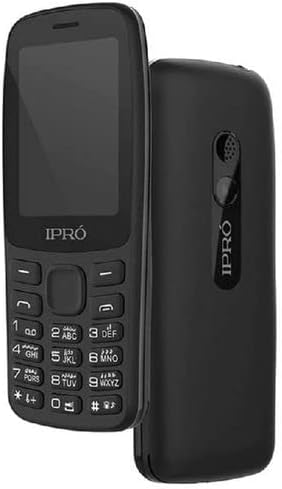
Image: Front and back view of the IPRO EPro A25 mobile phone. The front shows the screen and keypad, while the back highlights the speaker and camera area.
The IPRO EPro A25 is a compact and user-friendly mobile phone. Key features include a 2.4-inch screen, dual SIM card slots for managing two numbers simultaneously, a 3.5mm audio jack, MP3/MP4 playback, wireless FM radio, and an HD camera. It also supports a Micro SD card for expandable storage.
3. Getting Started: Initial Setup
3.1 Inserting SIM Cards and Battery
- Carefully remove the back cover of the phone by gently prying it from the notch usually located at the bottom or side.
- Insert your SIM card(s) into the designated SIM card slots. Ensure the gold contacts face downwards and the cut corner aligns with the slot. This phone supports dual SIMs.
- Align the battery contacts with the terminals inside the phone and gently press the battery into place.
- Replace the back cover, ensuring it clicks securely into position.
3.2 Inserting a Memory Card (Micro SD)
- Locate the Micro SD card slot, typically near the SIM card slots.
- Insert the Micro SD card with the gold contacts facing downwards until it clicks into place.
- To remove, gently push the card inwards until it springs out.
3.3 Charging the Device
Before first use, fully charge the phone's battery. Connect the charger to the phone's charging port and plug it into a power outlet. The battery indicator on the screen will show the charging status. Disconnect the charger once the battery is full.
4. Basic Operations
4.1 Power On/Off
To power on, press and hold the Power/End Call key until the screen lights up. To power off, press and hold the Power/End Call key until the power-off options appear, then select 'Power off'.
4.2 Making Calls
From the home screen, enter the phone number using the keypad. Press the Call key (usually green) to initiate the call. To end a call, press the End Call key (usually red).
4.3 Sending Messages
Navigate to 'Messages' from the main menu. Select 'Write message' or 'New message'. Enter the recipient's number or select from contacts, then type your message. Press 'Send'.
4.4 Camera Function
Access the 'Camera' application from the main menu. Frame your shot using the screen. Press the center navigation key or a dedicated camera button to capture a photo. Photos are saved to the phone's memory or inserted Micro SD card.
4.5 Multimedia Playback (MP3/MP4)
To play music (MP3) or videos (MP4), transfer your media files to the phone's memory or a Micro SD card. Access the 'Music Player' or 'Video Player' from the main menu, then browse and select your files for playback.
4.6 Wireless FM Radio
Access the 'FM Radio' application from the main menu. This phone supports wireless FM, meaning headphones are not required as an antenna. Scan for available stations and select your preferred one.
5. Maintenance and Care
- Cleaning: Use a soft, dry cloth to clean the phone's screen and body. Avoid liquid cleaners or abrasive materials.
- Battery Care: Do not expose the battery to extreme temperatures. Avoid overcharging or completely draining the battery frequently to prolong its lifespan.
- Storage: Store the phone in a cool, dry place away from direct sunlight and moisture.
- Water Resistance: This phone is not water-resistant. Avoid exposure to water or high humidity.
6. Troubleshooting Common Issues
| Problem | Possible Solution |
|---|---|
| Phone does not power on | Ensure the battery is correctly inserted and fully charged. Try charging for at least 30 minutes. |
| Cannot make/receive calls | Check if SIM card is properly inserted. Ensure you have network signal. Contact your service provider if issues persist. |
| Poor sound quality | Check volume settings. Ensure speaker/earpiece is not blocked. |
| Memory card not detected | Reinsert the memory card. Ensure it is properly formatted and not damaged. |
7. Technical Specifications
| Feature | Specification |
|---|---|
| Brand Name | Generic (Manufacturer: iPro) |
| Screen Size | 2.4 Inches (Visible screen diagonal: 3" / 7 cm) |
| Cellular Technology | 2G (GSM) |
| Connectivity Technology | Bluetooth, Wi-Fi |
| Color | multicolor (Product image shows black) |
| SIM Card Slot Count | Dual SIM |
| Form Factor | Slate |
| Display Type | LCD |
| Camera Description | Rear, Front (HD Camera mentioned in description) |
| Audio Jack | 3.5mm |
| Media Support | MP3/MP4 |
| Expandable Storage | Micro SD card support |
8. Warranty and Support
This product comes with a standard manufacturer's warranty. Please refer to the warranty card included in your product packaging for specific terms and conditions. For technical support, service, or warranty claims, please contact your retailer or the manufacturer's authorized service center. Keep your purchase receipt as proof of purchase.
For further assistance, you may visit the official IPRO website or contact their customer service line, if available in your region.
Related documentsEPro A25


Ask a question about this manual
Ask about setup, troubleshooting, compatibility, parts, safety, or missing instructions. Manuals+ will review the question and use this page’s manual context to help answer it.