
NETUM C750
NETUM C750 2D Barcode Scanner User Manual
Model: C750
1. Introduction
The NETUM C750 is a versatile and portable 2D barcode scanner designed for efficient data capture across various platforms. Equipped with an advanced CMOS sensor, it can reliably read 1D, 2D, QR, and PDF417 barcodes from both printed materials and digital screens, including computer monitors, smartphones, and tablets. Its compact design and multiple connectivity options make it an ideal solution for mobile point-of-sale, inventory management, and other data collection applications.
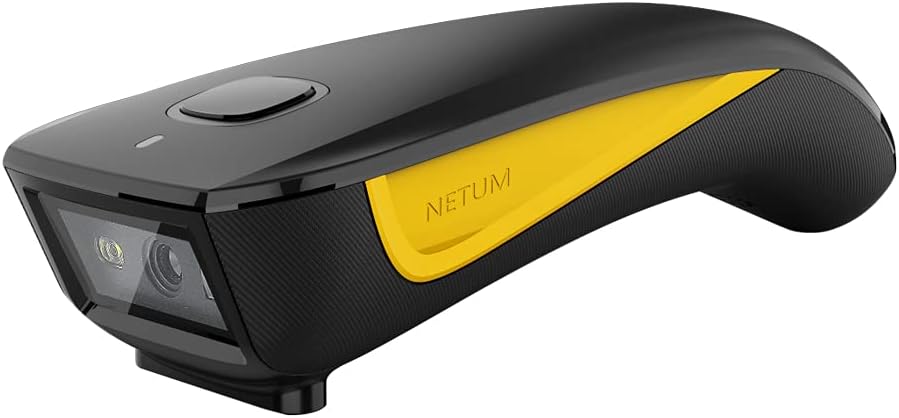
Image: The NETUM C750 2D Barcode Scanner, a compact black device with a yellow accent, designed for efficient barcode reading.
2. Key Features
- Advanced CMOS Sensor: Capable of reading 1D/2D (QR/PDF417/Data Matrix, etc.) barcodes from both paper and digital screens.
- 3-in-1 Connection Design: Supports Bluetooth, 2.4G Wireless (via receiver), and Wired (USB) connections for broad compatibility.
- Wide Compatibility: Works with Windows XP/7/8/10, Mac OS, Windows Mobile, Android OS, and iOS devices.
- Multiple Scanning Modes: Offers Manual Scan, Auto-sensing Scan, and Continuous Scan for various operational needs.
- Long Battery Life: 1200mAh battery provides up to 20 hours of continuous scanning.
- Two Upload Modes: Instant upload mode for real-time data transfer and Storage mode for offline data collection (up to 100,000 barcodes).
- Physical Power Switch: Helps conserve battery and prevents accidental operation.
- Multi-language Support: Supports English, German, Japanese, French, Italian, and Spanish.

Image: Visual representation of the NETUM C750's key features, highlighting its wireless capability, 3-in-1 connection, multi-language support, and high compatibility.

Image: The NETUM C750 scanner shown with flags representing supported languages: English, German, Japanese, French, Italian, and Spanish.
3. Package Contents
Please check the package carefully to ensure all items are present:
- NETUM C750 2D Barcode Scanner
- USB Charging/Data Cable (Type-C)
- 2.4G Wireless Receiver (USB Dongle)
- User Manual (this document)
4. Setup Guide
4.1 Charging the Scanner
Before first use, fully charge the scanner. Connect the provided USB Type-C cable to the scanner's charging port and the other end to a USB power adapter (not included) or a computer's USB port.
- Charging time: Approximately 3-4 hours for a full charge.
- Battery life: Up to 20 hours of continuous scanning on a full charge.

Image: The NETUM C750 scanner being charged via USB-C cable, illustrating its compact size and battery specifications.
4.2 Connection Modes
The NETUM C750 offers three versatile connection options:

Image: Diagram showing the three connection modes for the NETUM C750: USB Wired, 2.4G Wireless, and Bluetooth, with examples of compatible devices.
4.2.1 USB Wired Connection
- Connect the USB Type-C end of the cable to the scanner.
- Connect the USB-A end of the cable to your computer's USB port.
- The scanner will be recognized as a keyboard device, and you can start scanning immediately.
4.2.2 2.4G Wireless Connection
- Plug the 2.4G wireless receiver into a USB port on your computer or POS system.
- Turn on the scanner using the physical power switch.
- The scanner should automatically pair with the receiver. A successful connection is usually indicated by a specific LED light pattern or sound from the scanner.
- Test by scanning a barcode into a text editor.
4.2.3 Bluetooth Connection
- Turn on the scanner using the physical power switch.
- Scan the "Bluetooth Pairing" barcode (usually found in the full manual or a quick start guide provided with the scanner). This puts the scanner into pairing mode.
- On your device (smartphone, tablet, PC), go to Bluetooth settings and search for new devices.
- Select "NETUM C750" or a similar name from the list of available devices.
- Once paired, the scanner's LED indicator will change, and you can begin scanning.
5. Operating the Scanner
5.1 Scanning Barcodes
To scan a barcode, point the scanner's window at the barcode and press the trigger button. Ensure the barcode is within the scanner's field of view and properly illuminated.
- The scanner can read 1D barcodes (e.g., UPC, EAN) and 2D barcodes (e.g., QR Code, Data Matrix, PDF417).
- It can scan barcodes from both printed labels and digital screens.
5.2 Scanning Modes
The C750 supports different scanning modes to suit various applications:
- Manual Scan: Press the trigger button for each scan. (Default mode)
- Auto-sensing Scan: The scanner automatically detects a barcode in its field of view and scans it without needing to press the trigger.
- Continuous Scan: The scanner continuously scans barcodes as they pass through its field of view.
Refer to the full user manual or quick start guide for specific configuration barcodes to switch between these modes.
5.3 Data Upload Modes
The scanner offers two ways to handle scanned data:
- Instant Upload Mode: Barcodes are transmitted to the connected device immediately after scanning. This is the default mode.
- Storage Mode (Offline Mode): Scanned barcodes are stored in the scanner's internal memory. This is useful when out of range of the connected device. The scanner can store up to 100,000 barcodes. To upload stored data, scan the "Upload Data" barcode (refer to the full manual).
5.4 Transmission Range
The effective transmission range varies depending on the connection mode and environment:
- Bluetooth Mode: Approximately 10m (32 ft) with obstacles, 20m (65 ft) in barrier-free environments.
- 2.4G Wireless Mode: Approximately 15m (49 ft) with obstacles, 50m (164 ft) in barrier-free environments.

Image: Diagram illustrating the transmission ranges for Bluetooth and 2.4G wireless modes, showing distances with and without obstacles.
6. Maintenance
6.1 Cleaning the Scanner
To ensure optimal performance, keep the scanner's window clean:
- Use a soft, lint-free cloth slightly dampened with water or a mild glass cleaner.
- Do not use abrasive cleaners or solvents, as they may damage the plastic.
- Avoid spraying liquids directly onto the scanner.
6.2 Battery Care
- Charge the battery regularly, even if the scanner is not in frequent use, to maintain battery health.
- Avoid fully discharging the battery frequently.
- Store the scanner in a cool, dry place when not in use for extended periods.
7. Troubleshooting
| Problem | Possible Cause | Solution |
|---|---|---|
| Scanner not turning on. | Low battery. | Charge the scanner for 3-4 hours. |
| Scanner not connecting to device. | Incorrect connection mode; Bluetooth not paired; 2.4G receiver not plugged in; out of range. | Ensure correct mode is selected (scan configuration barcode if needed). Re-pair Bluetooth. Check 2.4G receiver connection. Move closer to the device. |
| Scanner not reading barcodes. | Barcode damaged/unreadable; scanner window dirty; incorrect barcode type enabled; insufficient lighting. | Try scanning a different, known-good barcode. Clean the scanner window. Ensure the barcode type is supported and enabled. Provide adequate lighting. |
| Scanned data appears incorrectly. | Keyboard language mismatch; data format settings. | Ensure your computer's keyboard language matches the scanner's output. Refer to the full manual for data formatting options. |
If the problem persists, please contact NETUM customer support.
8. Specifications
| Feature | Detail |
|---|---|
| Model | C750 |
| Sensor Type | CMOS |
| Supported Barcodes | 1D (UPC/EAN, Code 128, Code 39, etc.), 2D (QR Code, Data Matrix, PDF417, etc.) |
| Connectivity | Bluetooth, 2.4G Wireless (USB Dongle), USB Wired (Type-C) |
| Compatible Devices | Desktop, Laptop, Smartphone, Tablet (Windows, Mac OS, Android, iOS) |
| Battery Capacity | 1200mAh |
| Battery Life | Approx. 20 hours continuous scanning |
| Charging Time | Approx. 3-4 hours |
| Storage Capacity | Up to 100,000 barcodes (offline mode) |
| Bluetooth Range | 10m (32 ft) with obstacles, 20m (65 ft) barrier-free |
| 2.4G Wireless Range | 15m (49 ft) with obstacles, 50m (164 ft) barrier-free |
| Dimensions (L x W x H) | 124mm x 41mm x 25mm (approx. 4.88 x 1.61 x 0.98 inches) |
| Power Source | Battery Powered, Corded Electric |

Image: Detailed view of the NETUM C750 scanner showing its dimensions (124mm length, 41mm width, 25mm height), USB Type-C port, hooking ring, and physical power switch.
9. Warranty and Support
NETUM products are designed for reliability and performance. For warranty information, technical support, or service inquiries, please refer to the warranty card included with your product or visit the official NETUM website.
When contacting support, please have your product model (C750) and purchase information ready.
Related documentsC750


Ask a question about this manual
Ask about setup, troubleshooting, compatibility, parts, safety, or missing instructions. Manuals+ will review the question and use this page’s manual context to help answer it.