
2BOOM HPBT290R
2Boom Prime Wireless Bluetooth Headphones
Model: HPBT290R
Brand: 2BOOM
Introduction
Thank you for choosing the 2Boom Prime Wireless Bluetooth Headphones. These headphones are designed to provide a high-quality audio experience with the convenience of wireless connectivity and a built-in microphone for communication. Please read this manual carefully before using the product to ensure proper operation and to maximize its lifespan.
Important Safety Information
- Do not expose the headphones to extreme temperatures, humidity, or corrosive substances.
- Avoid dropping or subjecting the headphones to strong impacts.
- Do not disassemble or attempt to repair the headphones yourself. This will void the warranty.
- Clean the headphones with a soft, dry cloth. Do not use liquid cleaners.
- Prolonged listening at high volume levels may cause hearing damage. Adjust volume to a safe level.
Package Contents
Please check the package for the following items:
- 2Boom Prime Wireless Bluetooth Headphones (Red)
- USB Charging Cable
- User Manual
Product Overview

Figure 1: Front view of the 2Boom Prime Wireless Bluetooth Headphones. These over-ear headphones feature a sleek red design with the 2Boom logo and Bluetooth branding visible on the earcups.
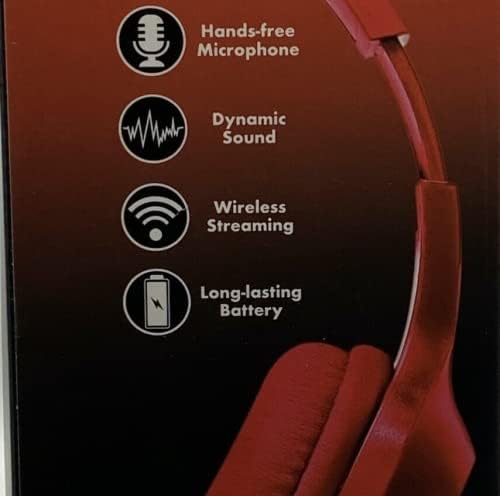
Figure 2: Key features highlighted: Hands-free Microphone, Dynamic Sound, Wireless Streaming, and Long-lasting Battery. These icons represent the core functionalities of the headphones.
Headphone Components:
- Power Button: Used to turn the headphones on/off and for pairing.
- Volume Up/Next Track Button: Increases volume or skips to the next song.
- Volume Down/Previous Track Button: Decreases volume or goes to the previous song.
- Multi-function Button (MFB): For play/pause, answer/end calls.
- Microphone: Built-in for hands-free calls.
- LED Indicator: Shows power, charging, and Bluetooth status.
- Charging Port: For connecting the USB charging cable.
Setup Guide
1. Charging the Headphones
Before first use, fully charge your headphones. The battery life is approximately 40 hours on a full charge.
- Connect the small end of the USB charging cable to the charging port on the headphones.
- Connect the larger end of the USB charging cable to a USB power adapter (not included) or a computer's USB port.
- The LED indicator will illuminate during charging and turn off or change color when fully charged.
2. Bluetooth Pairing
Pair your headphones with your Bluetooth-enabled device (e.g., smartphone, tablet, computer).
- Ensure the headphones are turned off.
- Press and hold the Power Button for approximately 5-7 seconds until the LED indicator flashes rapidly (usually blue and red alternately), indicating pairing mode.
- On your device, go to Bluetooth settings and ensure Bluetooth is enabled.
- Search for available devices. You should see "2Boom Prime" or "HPBT290R" in the list.
- Select the headphones from the list to connect. Once successfully paired, the LED indicator will typically flash slowly or turn solid blue.
- If prompted for a password, enter "0000".
Note: The headphones will automatically attempt to reconnect to the last paired device when powered on.
Operating Instructions
Power On/Off
- Power On: Press and hold the Power Button for about 3 seconds until the LED indicator lights up.
- Power Off: Press and hold the Power Button for about 3 seconds until the LED indicator turns off.
Music Playback
- Play/Pause: Press the Multi-function Button (MFB) once.
- Volume Up: Press the Volume Up button.
- Volume Down: Press the Volume Down button.
- Next Track: Press and hold the Volume Up button.
- Previous Track: Press and hold the Volume Down button.
Call Management
- Answer/End Call: Press the Multi-function Button (MFB) once.
- Reject Call: Press and hold the Multi-function Button (MFB) for 2 seconds.
- Redial Last Number: Double-press the Multi-function Button (MFB).
Voice Assistant (Siri/Google Assistant)
- Activate Voice Assistant: Triple-press the Multi-function Button (MFB).
Maintenance and Care
- Cleaning: Use a soft, dry, lint-free cloth to clean the headphones. Do not use abrasive cleaners, alcohol, or chemical solvents.
- Storage: When not in use, store the headphones in a cool, dry place, away from direct sunlight and extreme temperatures. The carrying case (if included) is recommended for protection.
- Battery Care: To preserve battery life, charge the headphones at least once every three months if not used regularly. Avoid fully discharging the battery for extended periods.
Troubleshooting
| Problem | Possible Cause | Solution |
|---|---|---|
| Headphones won't turn on. | Low battery. | Charge the headphones fully. |
| Cannot pair with device. | Headphones not in pairing mode; Device Bluetooth off; Too far from device. | Ensure headphones are in pairing mode (flashing LED). Turn device Bluetooth off and on. Move headphones closer to device (within 10 meters). |
| No sound or low volume. | Volume too low on headphones or device; Not connected properly. | Increase volume on both headphones and device. Re-pair the headphones. |
| Sound cutting in and out. | Interference; Too far from device; Low battery. | Move closer to the device. Avoid obstacles. Charge the headphones. |
Specifications
| Model Name | HPBT290R |
| Connectivity Technology | Bluetooth |
| Wireless Communication Technology | Bluetooth |
| Bluetooth Version | 5.0 |
| Bluetooth Range | 10 Meters |
| Frequency Range | 20 Hz - 20,000 Hz |
| Battery Life | 40 Hours |
| Control Method | Touch |
| Earpiece Shape | On-ear |
| Color | Red |
| Item Weight | 8.7 ounces |
| Manufacturer | MiGear international Group LLC |
Warranty and Support
For warranty information and customer support, please refer to the warranty card included in your product packaging or visit the official 2BOOM website. You may also contact MiGear international Group LLC for assistance.
For further assistance, please visit the 2BOOM Store on Amazon.
Ask a question about this manual
Ask about setup, troubleshooting, compatibility, parts, safety, or missing instructions. Manuals+ will review the question and use this page’s manual context to help answer it.