
1. Introduction
Thank you for choosing the YESKAMO DX-Z6 1080P HD Wireless Outdoor WiFi Surveillance Camera. This manual provides essential information for the proper installation, operation, and maintenance of your device. Please read these instructions carefully before use and retain them for future reference.
2. Product Overview
2.1 Key Features
- 10400mAh Rechargeable Battery: Integrated high-capacity battery for extended standby time, offering up to 180 days of use.
- 100% Wireless Operation: Flexible installation without the need for complex wiring.
- Human Detection: Advanced humanoid algorithm reduces false alarms by accurately identifying people and moving objects.
- Two-Way Audio: Built-in microphone and anti-noise speaker for real-time communication.
- 1080P HD Video: High-quality 1080P resolution with a SONY 1/3 CMOS color sensor for clear images and videos.
- Night Vision: Automatic transition to night mode in low light conditions, providing clear surveillance in the dark.
- Wide Viewing Angle: 130-degree angle with a detection distance of up to 20 meters.
- Dual 4DBi WiFi Antennas: Enhanced signal stability and longer transmission distance.
- IP66 Weatherproof: Designed to withstand various weather conditions, including rain, snow, and dust, with an operating temperature range of -20°C to 50°C.
- Remote Control: Access and control the camera remotely via the 'CloudEdge' application on Android/iOS devices.
- Storage Options: Supports secure cloud storage (7-day trial included) and local storage via Micro SD card (up to 128GB, sold separately).
2.2 Package Contents
Please check the package contents upon receipt. If any items are missing or damaged, contact customer support.
- YESKAMO DX-Z6 Wireless Camera
- Mounting Bracket and Screws
- USB Charging Cable
- User Manual
2.3 Camera Components
Familiarize yourself with the camera's physical components.

Image: YESKAMO DX-Z6 camera with an optional solar panel and internal battery illustration. This image shows the camera's main body, dual antennas, and the solar panel accessory, highlighting its power supply capabilities.
- Camera Lens: Captures video footage.
- PIR Sensor: Detects motion.
- Infrared LEDs: For night vision.
- Microphone: For audio input.
- Speaker: For two-way audio output.
- Dual Antennas: For WiFi connectivity.
- USB Charging Port: For battery recharging.
- SD Card Slot: For local video storage.
- Reset Button: To restore factory settings.
3. Setup
3.1 Initial Charging
Before first use, fully charge the camera battery using the provided USB cable. A full charge ensures optimal performance and battery life.
3.2 App Download and Account Registration
- Download the 'CloudEdge' app from the App Store (iOS) or Google Play Store (Android).
- Open the app and follow the on-screen instructions to register a new account or log in if you already have one.

Image: This image illustrates the three steps for camera setup: 1) Downloading the CloudEdge app from App Store or Google Store, 2) Scanning a QR code on the camera for pairing, and 3) Completing the installation to view live feed on a mobile device. It also shows the 10400mAh batteries and solar panel options.
3.3 Camera Pairing
- Ensure your mobile device is connected to a 2.4GHz WiFi network. The camera does not support 5GHz WiFi.
- In the 'CloudEdge' app, tap 'Add Device' or the '+' icon.
- Select your camera model from the list.
- Power on the camera. The camera will emit a prompt sound or indicator light will flash, indicating it's ready for pairing.
- The app will display a QR code. Position your phone in front of the camera lens (approximately 15-20 cm away) until you hear a confirmation sound from the camera.
- Once connected, follow the app's instructions to name your camera and complete the setup.
3.4 Installation
The 100% wireless design allows for flexible installation. Choose a location with good WiFi signal and an unobstructed view of the area you wish to monitor.
- Mount the camera using the provided bracket and screws. Ensure it is securely fastened to a stable surface.
- Adjust the camera angle to cover the desired surveillance area.
- If using the optional solar panel, connect it to the camera's charging port and position it to receive maximum sunlight.

Image: The YESKAMO camera is shown mounted outdoors, highlighting its dual 4dBi WiFi antennas for a stable connection to a home router. This illustrates the camera's wireless capability and improved signal strength.
4. Operating the Camera
4.1 Live View and Two-Way Audio
Access the live feed and communicate through the camera using the 'CloudEdge' app.
- Open the 'CloudEdge' app and select your camera from the device list.
- The live video stream will appear.
- To use two-way audio, tap the microphone icon in the app, hold to speak, and release to listen.
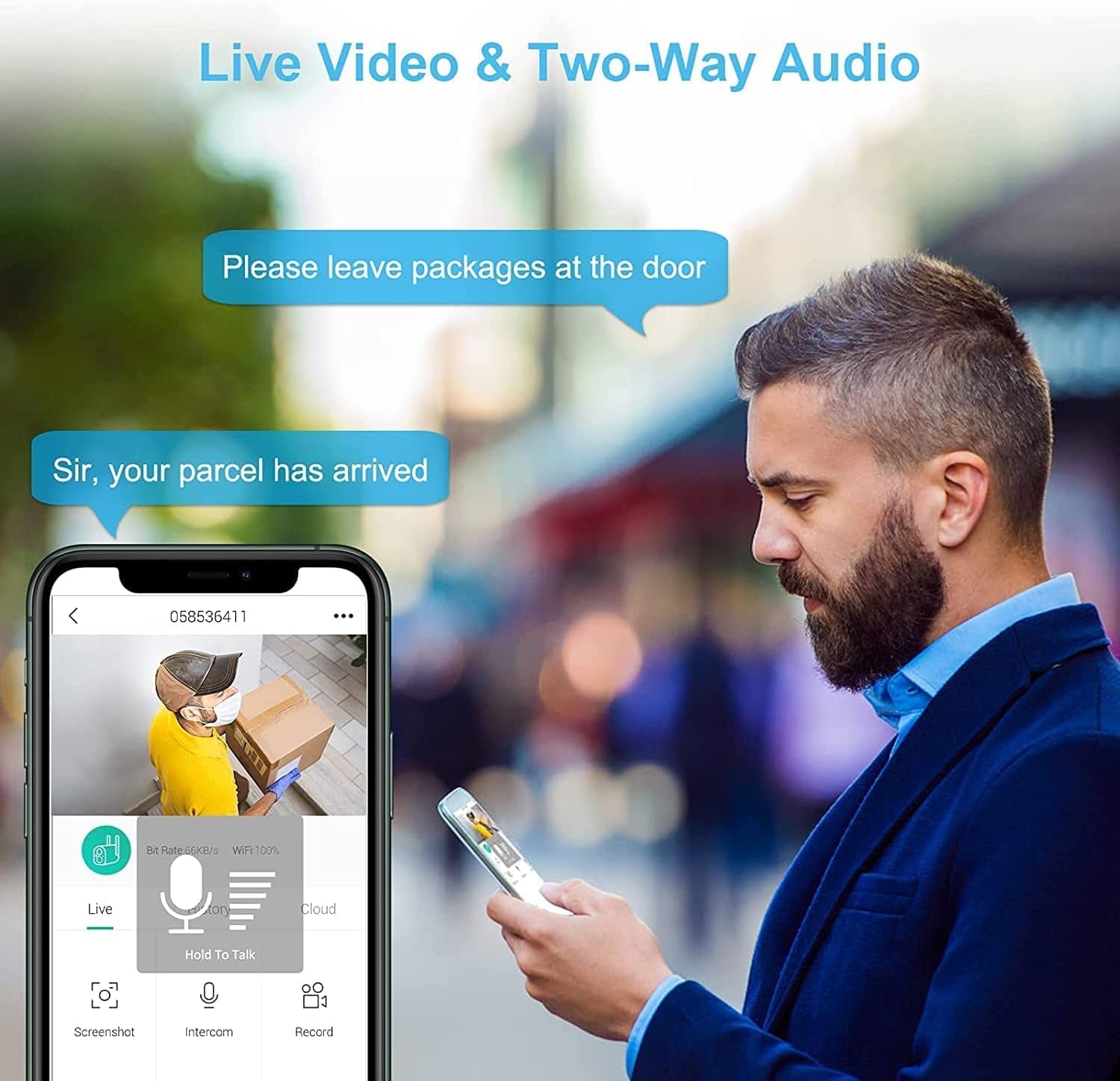
Image: A person is shown interacting with a delivery driver via the camera's two-way audio feature, viewing the live feed on a smartphone. Speech bubbles indicate a conversation, demonstrating the real-time communication capability.
4.2 Motion Detection and Alerts
The camera uses a PIR sensor and intelligent humanoid algorithm to detect motion and send alerts.
- Enable motion detection in the app settings.
- Adjust sensitivity levels as needed to minimize false alarms.
- When motion is detected, the camera will record a short video clip and send a push notification to your phone.

Image: This image demonstrates the camera's accurate PIR motion detection, specifically highlighting its ability to detect human figures. A person attempting to break in is shown with a red detection box, and a smartphone displays a timeline of 'Body Detection' events.

Image: This comparison shows the difference between general motion detection and human detection. On the left, a soccer ball triggers an alert (marked with 'X'), while on the right, only the child playing is detected (marked with checkmarks), illustrating the camera's intelligent filtering.
4.3 Night Vision
The camera automatically switches to night vision mode when ambient light is low, providing clear black and white footage.
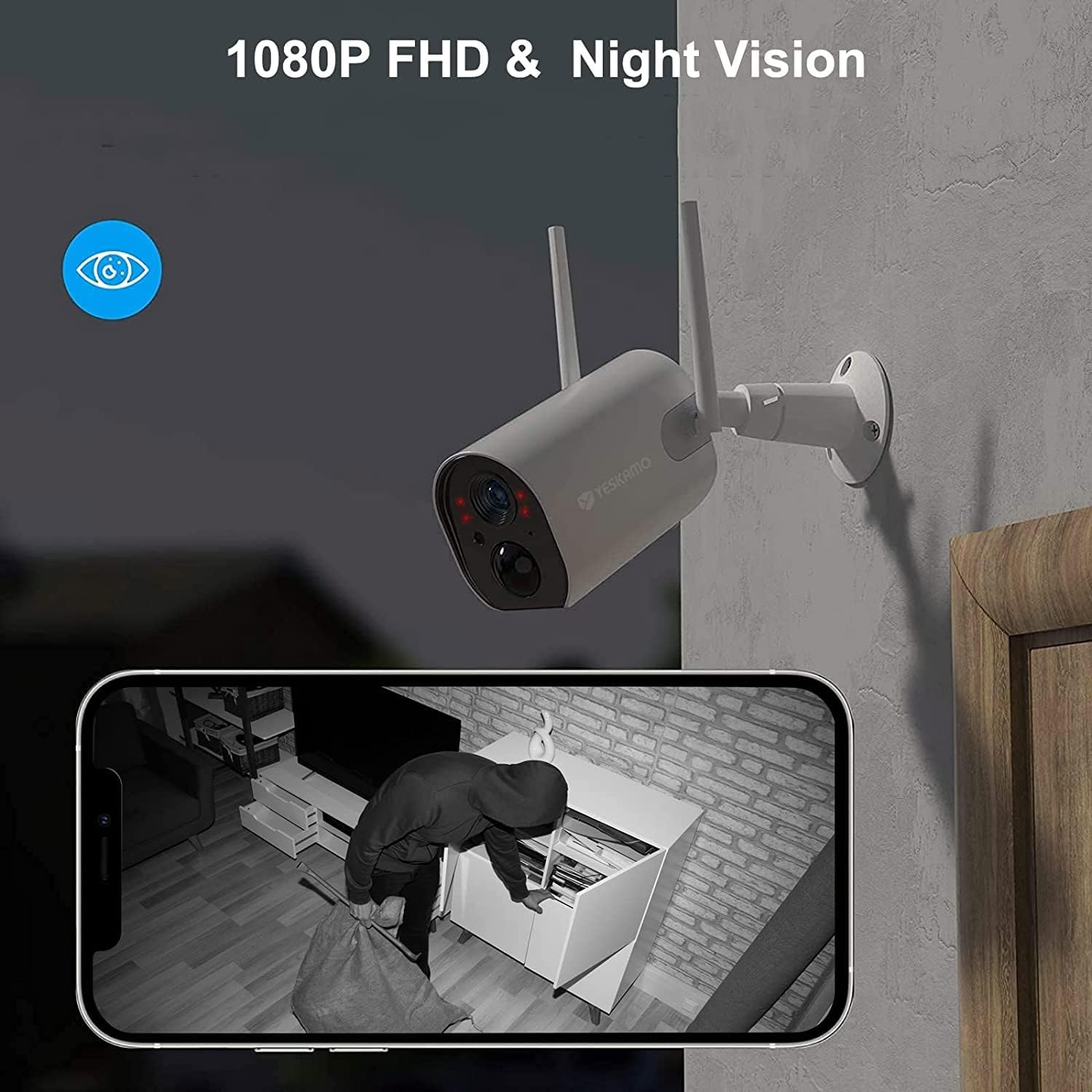
Image: The camera is shown mounted on a wall at night, with an illustration of its infrared night vision capability. A smartphone displays a clear black-and-white night vision feed of a person in a room, demonstrating the 1080P HD and night vision features.
4.4 Video Recording and Storage
The camera supports continuous loop recording and event-triggered recording.
- Micro SD Card: Insert a Micro SD card (up to 128GB, not included) into the designated slot for local storage. The camera will automatically overwrite the oldest footage when the card is full.
- Cloud Storage: Subscribe to the cloud storage service via the 'CloudEdge' app for secure, off-site storage of your recordings. A 7-day trial is typically included.

Image: This image illustrates the looping record function of the YESKAMO camera, showing icons for SD Card and Cloud storage. Various scenes (children playing, home exterior, interior) are depicted in a circular flow, indicating continuous recording and storage options.
5. Maintenance
5.1 Battery Management
The camera's 10400mAh battery provides long-lasting power. The 'CloudEdge' app will send notifications when the battery level is low, reminding you to recharge.
- Recharge the camera using the provided USB cable and a standard 5V/2A power adapter (not included).
- If using a solar panel, ensure it is clean and positioned to receive direct sunlight for efficient charging.
5.2 Weatherproofing
The camera has an IP66 rating, making it resistant to dust and water jets. However, proper installation and occasional cleaning are recommended.
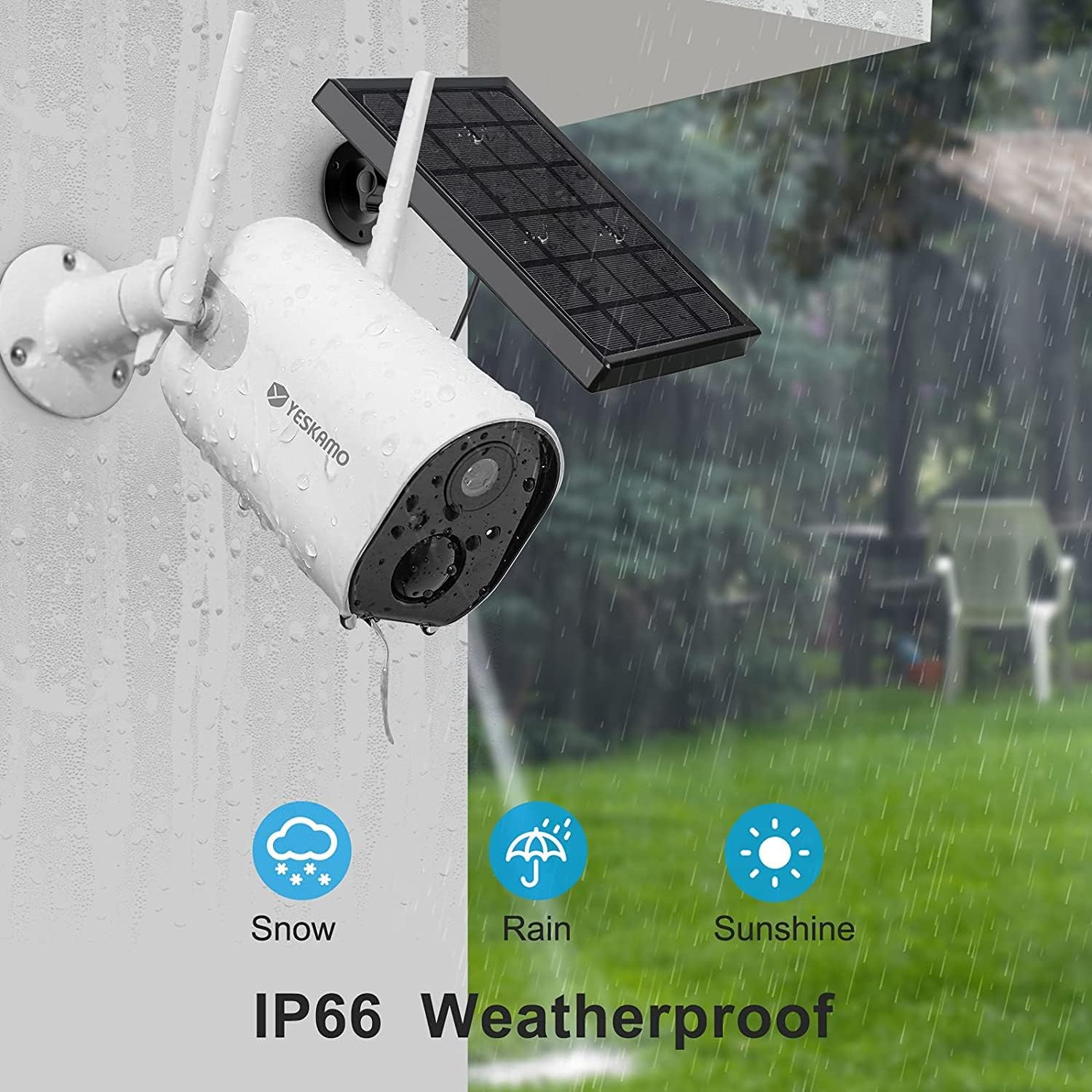
Image: The YESKAMO camera is depicted outdoors in various weather conditions, including snow, rain, and sunshine, with an 'IP66 Weatherproof' label. This visually confirms its durability against environmental elements.
- Periodically wipe the camera lens and body with a soft, damp cloth to remove dirt and debris.
- Do not use harsh chemicals or abrasive cleaners.
6. Troubleshooting
| Problem | Possible Cause | Solution |
|---|---|---|
| Camera fails to connect to WiFi. | Incorrect WiFi password; Camera too far from router; 5GHz WiFi network used. | Verify WiFi password; Move camera closer to router or use a WiFi extender; Ensure you are connecting to a 2.4GHz network. |
| Frequent false alarms. | High motion detection sensitivity; Environmental factors (e.g., moving branches, insects). | Adjust motion detection sensitivity in the app; Reposition the camera to avoid areas with frequent non-human motion. |
| Battery drains quickly. | Frequent motion detection events; Live view accessed often; Cold weather. | Reduce motion detection sensitivity; Limit live view access; Ensure solar panel is clean and optimally positioned if used. |
| Night vision is unclear. | Protective film on lens; Obstruction in front of camera; Dirty lens. | Remove any protective film; Clear obstructions; Clean the camera lens. |
| Two-way audio not working. | Microphone/speaker muted in app; App permissions not granted. | Check app settings to ensure audio is enabled; Grant microphone permissions to the 'CloudEdge' app in your phone's settings. |
7. Specifications
| Feature | Detail |
|---|---|
| Model | DX-Z6 |
| Video Resolution | 1080P HD |
| Viewing Angle | 130 Degrees |
| Wireless Connectivity | Wi-Fi (2.4GHz only) |
| Battery Capacity | 10400mAh Lithium-ion |
| Weather Resistance | IP66 |
| Operating Temperature | -20°C to 50°C |
| Storage Options | Micro SD Card (up to 128GB), Cloud Storage |
| Dimensions (L x W x H) | 16.6 x 14 x 8 cm |
| Weight | 470 grams |
| App Compatibility | Android, iOS (CloudEdge app) |
8. Warranty and Support
Specific warranty details are not provided in the product information. For warranty claims, technical support, or further assistance, please refer to the contact information provided with your purchase or visit the official YESKAMO website.
Always ensure you are using official YESKAMO accessories and following recommended guidelines to maintain product validity and safety.


