
1. Introduction
Thank you for choosing the ACT AC5105 Wireless Optical Mouse. This device is designed for comfortable and efficient use at home, in the office, or while traveling. It features a compact Nano USB receiver and an intelligent power-saving mode to extend battery life. This manual provides detailed instructions for setup, operation, and maintenance of your new wireless mouse.
2. Package Contents
- ACT AC5105 Wireless Optical Mouse
- Nano USB Receiver
- 1x AA Battery (included)
3. Setup Guide
- Insert the Battery:
Open the battery compartment cover located on the underside of the mouse. Insert the included AA battery, ensuring correct polarity (+/-). Close the battery compartment cover securely.

Figure 3.1: Battery and Nano Receiver Storage
This image illustrates the underside of the mouse with the battery compartment open, showing where to insert the AA battery and store the Nano USB receiver. The on/off switch is also visible.
- Connect the Nano USB Receiver:
Remove the Nano USB receiver from its storage slot inside the battery compartment. Plug the receiver into an available USB-A port on your computer. Your operating system will automatically detect and install the necessary drivers.
- Power On the Mouse:
Locate the On/Off switch on the underside of the mouse and slide it to the "ON" position. The mouse is now ready for use.
4. Operating Instructions
4.1 Basic Functions
- Left Click: Primary function, typically for selecting items or opening links.
- Right Click: Secondary function, typically for opening context menus.
- Scroll Wheel: Scroll up or down through documents and web pages. The scroll wheel can also be pressed for a middle-click function.

Figure 4.1: Mouse Features Overview
This diagram highlights key features such as silent click buttons, the scroll wheel, the USB-A wireless receiver, the 1600 DPI optical sensor, and the use of recycled materials in its construction.
4.2 DPI Adjustment
The ACT AC5105 mouse features an adjustable DPI (Dots Per Inch) setting, allowing you to change the cursor speed and sensitivity. You can cycle through 800, 1200, and 1600 DPI settings by pressing the DPI switch button located behind the scroll wheel.
- 800 DPI: Slower cursor movement, suitable for precise tasks.
- 1200 DPI: Standard cursor movement, suitable for general use.
- 1600 DPI: Faster cursor movement, suitable for quick navigation across large screens.
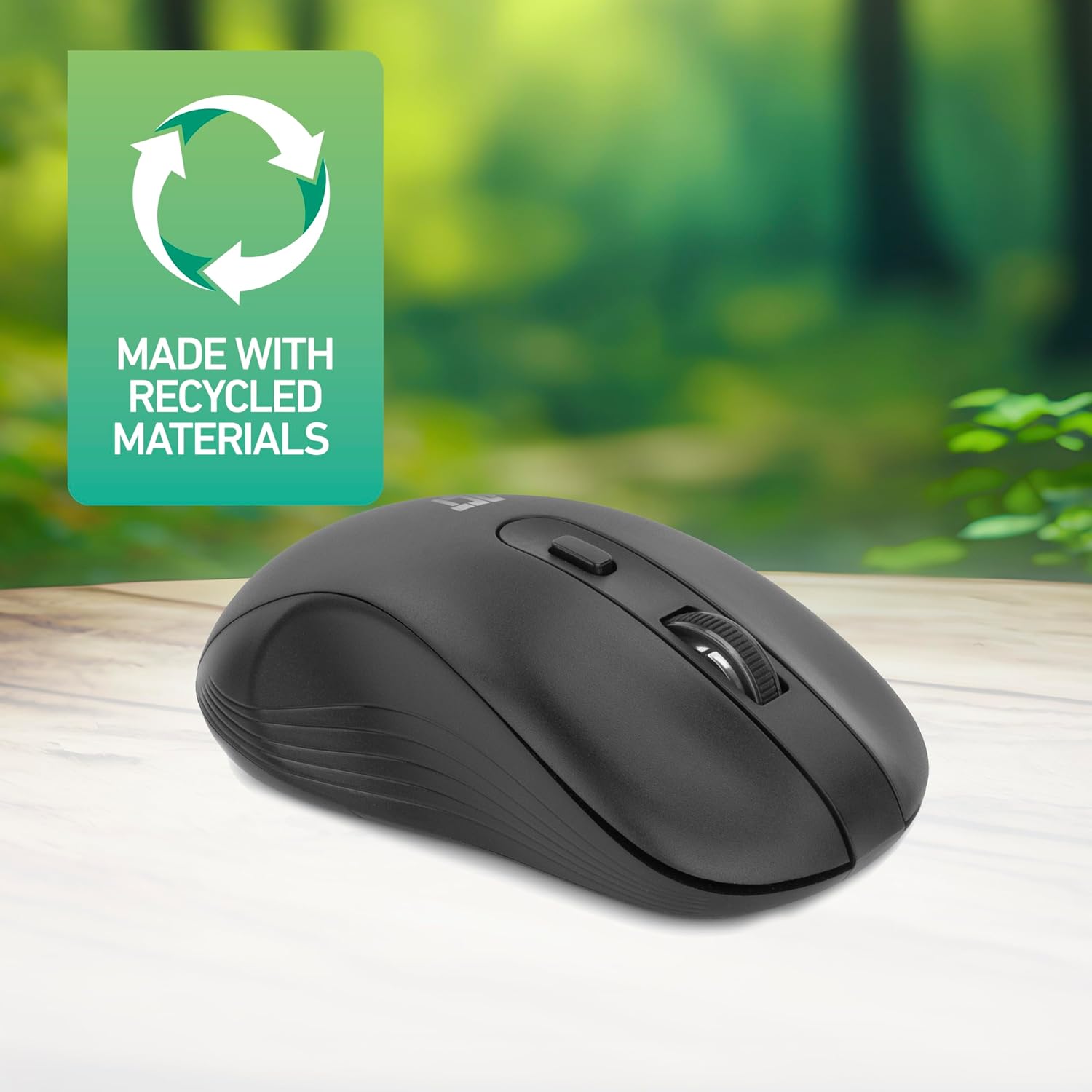
Figure 4.2: DPI Switch Location
This image shows the mouse in use on a desk, highlighting the DPI switch button for adjusting sensitivity between 800, 1200, and 1600 DPI.
4.3 Power Saving Mode
The mouse is equipped with an intelligent power-saving feature. If the mouse is inactive for a period, it will automatically enter standby mode to conserve battery power. To wake the mouse, simply move it or click any button.
For extended periods of non-use, it is recommended to switch the mouse off using the On/Off switch on the underside of the device.
5. Maintenance
- Cleaning: Use a soft, dry cloth to clean the mouse. Avoid using harsh chemicals or abrasive materials.
- Battery Replacement: When the mouse performance degrades or it stops responding, replace the AA battery with a new one. Follow the steps in Section 3.1.
- Storage: When not in use, especially during travel, you can store the Nano USB receiver inside the mouse's battery compartment to prevent loss.
6. Troubleshooting
| Problem | Solution |
|---|---|
| Mouse not responding |
|
| Cursor movement is erratic or slow |
|
| Wireless connection issues |
|
7. Specifications
| Feature | Detail |
|---|---|
| Model Number | AC5105 |
| Connectivity Technology | 2.4GHz Radio Frequency Wireless |
| Wireless Range | Up to 10 meters |
| Movement Detection Technology | Optical |
| DPI Settings | 800 / 1200 / 1600 DPI (Adjustable) |
| Number of Buttons | 4 (Left, Right, Scroll Wheel Click, DPI Switch) |
| Hand Orientation | Ambidextrous (Suitable for both left and right-handed users) |
| Power Source | 1x AA Battery |
| Product Dimensions (L x W x H) | 10.5 x 6.5 x 3.5 cm |
| Weight | 60 g |
| Compatible Devices | PC |
| Operating System | ChromeOS, Linux Mint 22 (minimum required version) |
| Special Features | Wireless, Intelligent Power Saving, Silent Click |

Figure 7.1: Mouse Dimensions
This image provides a top-down and side view of the mouse, clearly indicating its physical dimensions: 105mm in length, 65mm in width, and 35mm in height.
8. Warranty and Support
ACT products are manufactured to high quality standards. This product comes with a 2-year warranty from the date of purchase against defects in materials and workmanship.
For technical support, warranty claims, or further assistance, please refer to the official ACT website or contact your local retailer.
Please retain your proof of purchase for warranty purposes.


