
1. Introduction
The MARKLIFE P11 Label Maker is a mini thermal wireless inkless sticker printer designed for efficient organization in various environments. It connects via Bluetooth to your smartphone, allowing for easy label creation and printing without the need for ink or toner. Its compact and portable design makes it suitable for home, kitchen, office, and classroom use.
Key Features:
- Fashion & Portable Design: Print labels directly from your smartphone via Bluetooth, eliminating the need for a traditional keyboard and screen. Smaller, lighter, and more convenient.
- Multipurpose Usage: Ideal for organizing home, office, and classroom. Print labels for kitchen jars, cables, storage rooms, and even commodity prices.
- Design Your Own Labels: Customize labels using the mobile app with options for text, small pictures, dates, borders, stickers, lines, icons, QR codes, barcodes, graffiti, and serial numbers. Supports 9 languages and 15 font options.
- Multiple Styles of Label Tapes: Compatible with various tape styles including white, color, fruit, cherry blossoms, cable labels, and transparent labels. Tapes are long-lasting, waterproof, wipeable, tear-resistant, and self-adhesive.
- Save Time and Money: Thermal printing requires no ink or toner. Features 1-second instant printing, 3 times faster than traditional label printers. Rechargeable with automatic off for power saving.

The MARKLIFE P11 Label Maker Machine, showcasing its compact design and various label tape options.
2. What's in the Box
Upon unboxing your MARKLIFE P11 Label Maker, you should find the following components:
- MARKLIFE P11 Label Maker Machine
- Labels (pre-installed or included as separate rolls)
- USB-C Charging Cable
- User Manual

The compact MARKLIFE P11 compared to a traditional label maker, highlighting its modern design.
3. Setup Guide
3.1 Powering On
To power on the device, long press the power button located on the front of the label maker until the indicator light turns green.
3.2 Loading Label Paper
- Open the label compartment by gently pushing the top cover.
- Insert the label roll with the printing side facing up, ensuring it feeds smoothly into the printer mechanism.
- Close the top cover until it clicks securely into place.
- Quickly press the power button twice to automatically adjust the paper to the correct printing position.

The thermal printing technology of the P11, which requires no ink.
3.3 App Download and Bluetooth Connection
The MARKLIFE P11 operates via a dedicated mobile application. Follow these steps to connect:
- Download the "Marklife" app from your smartphone's app store (available on App Store and Google Play).
- Ensure your phone's Bluetooth is turned on.
- Open the Marklife app. Click on the "Unlink" or "Connect" option within the app to search for nearby devices.
- Select your P11 device (e.g., "P11_XXXX_BLE") from the list to establish a Bluetooth connection. The app will indicate when the connection is successful.
Video: Step-by-step guide on how to use the P11 label machine, including app connection and basic operation.
4. Operating Instructions
4.1 Creating and Printing Labels
- Once connected, select "Create Label" in the app.
- Choose a template or start with a blank label.
- Double-click the text area to input your desired text. You can adjust font, size, alignment, and add various elements like pictures, borders, stickers, dates, QR codes, and barcodes.
- Review your label design in the preview mode.
- Select the number of copies you wish to print.
- Tap the "Print" button. The label maker will quickly print your labels.
- Tear off the printed label from the dispenser.
Video: Demonstration of the Marklife P11 label maker in use, showing the app interface and printing process.
Video: A quick overview of the P11 label maker's printing capabilities and speed.
4.2 Label Properties and Applications
The MARKLIFE P11 uses durable labels with excellent properties:
- Waterproof: Labels resist water damage, making them suitable for kitchen or bathroom items.
- Oil-proof: Labels maintain integrity even when exposed to oils.
- Scratch Resistant: Designed to withstand minor abrasions.
- No Residue: Labels can be removed without leaving sticky residue.

Demonstration of label durability: waterproof, oil-proof, scratch-resistant, and residue-free removal.
Application Scenarios:
- Kitchen: Label spice jars, food containers, and pantry items.
- Office: Organize files, documents, cables, and stationery.
- Home: Label storage bins, personal items, and children's belongings.
- Gifts: Create personalized tags for presents.
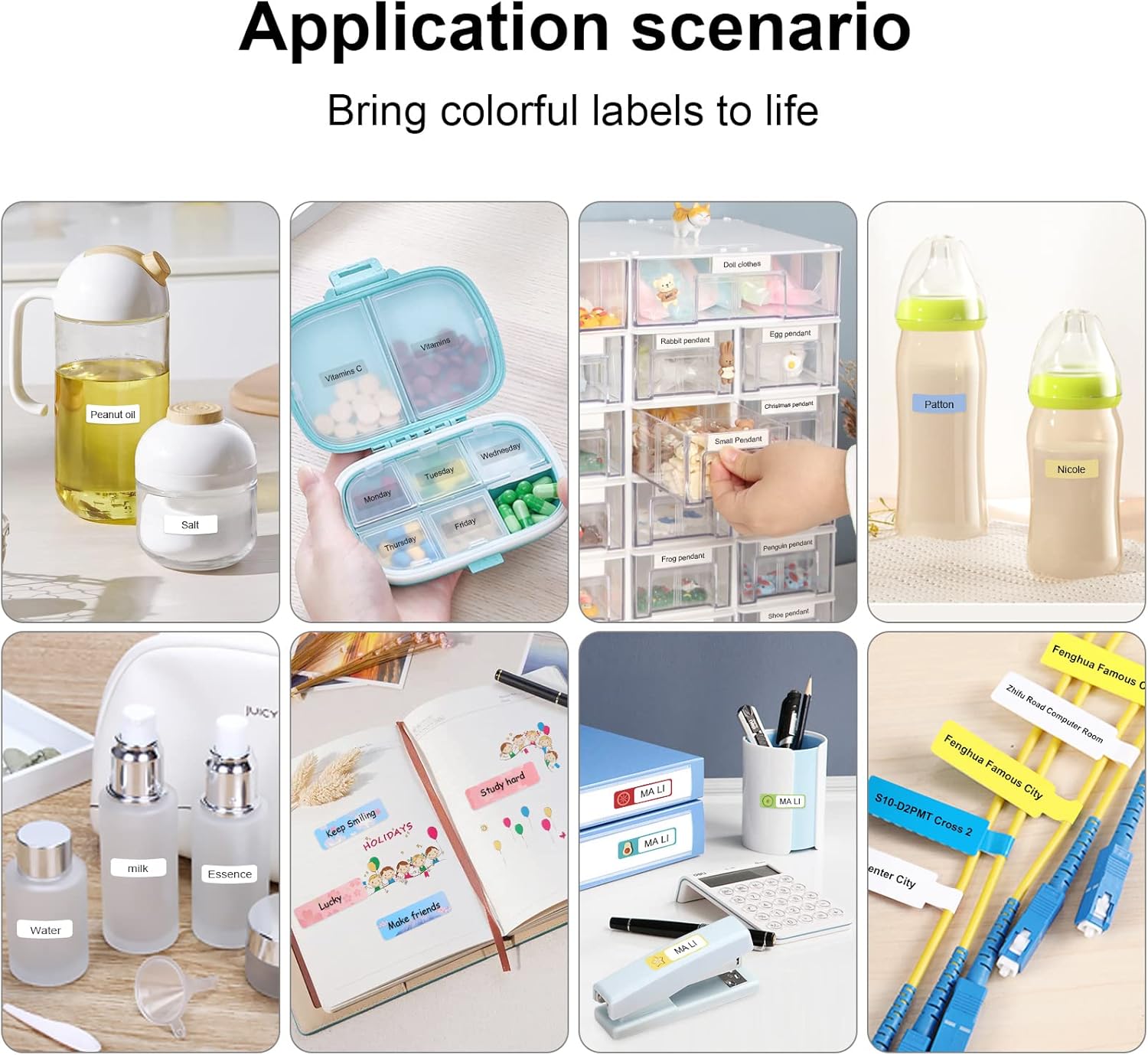
Examples of label maker use in different settings, from kitchen organization to baby item labeling.

Office organization made easy with the P11 label maker. Example of a label with a barcode: 6953124066961

Personalized gift labeling for various occasions.

Home organization with labels for pantry items and personal storage.
5. Maintenance
To ensure the longevity and optimal performance of your MARKLIFE P11 Label Maker, follow these maintenance tips:
- Cleaning the Print Head: Regularly clean the thermal print head with a cotton swab lightly dampened with isopropyl alcohol. Ensure the device is off and cool before cleaning.
- Storing Labels: Store label rolls in a cool, dry place away from direct sunlight and extreme temperatures to prevent degradation.
- Battery Care: Charge the device regularly, even if not in frequent use, to maintain battery health. Avoid fully discharging the battery for extended periods.
- General Cleaning: Wipe the exterior of the label maker with a soft, dry cloth. Avoid using harsh chemicals or abrasive materials.
6. Troubleshooting
If you encounter issues with your MARKLIFE P11 Label Maker, try the following solutions:
- Device Not Connecting via Bluetooth:
- Ensure the label maker is powered on and fully charged.
- Turn your phone's Bluetooth off and on again.
- Restart the Marklife app.
- If previously paired with another device, ensure it's disconnected.
- Poor Print Quality (Faint or Incomplete Prints):
- Check if the label roll is inserted correctly and is not jammed.
- Clean the thermal print head as described in the Maintenance section.
- Ensure the label tape is suitable for thermal printing and is not expired or damaged.
- Adjust the print density setting in the Marklife app.
- Paper Jam:
- Power off the device.
- Open the label compartment and carefully remove any jammed paper or debris.
- Reinsert the label roll and close the cover. Power on and press the feed button twice to re-position.
- App Crashing or Freezing:
- Close and reopen the app.
- Ensure your app is updated to the latest version.
- Clear the app's cache or reinstall the app if issues persist.
7. Specifications
| Feature | Detail |
|---|---|
| Brand | MARKLIFE |
| Model Name | P11 |
| Connectivity Technology | Bluetooth |
| Printing Technology | Thermal |
| Special Feature | Portable |
| Color | Pink |
| Printer Output | Monochrome |
| Max Printspeed Monochrome | 30 ppm |
| Item Weight | 270 Grams (9.5 ounces) |
| Product Dimensions | 2"D x 2"W x 2"H |
| Compatible Devices | Smartphones |
| Control Method | App, Touch |
| Resolution | 600 x 600 |
| Max Media Size | 12x40cm |
8. Warranty and Support
8.1 Warranty Information
The MARKLIFE P11 Label Maker Machine comes with a Limited Warranty. Please refer to the warranty card included in your product packaging for specific terms and conditions, including coverage duration and claim procedures.
8.2 Customer Support
For any technical assistance, troubleshooting not covered in this manual, or warranty inquiries, please contact MARKLIFE customer support. Contact details can typically be found on the official MARKLIFE website or on the product packaging.


